LayerGrab

How to Extract Each Illustration from an Image as a Separate PNG for Stickers

To make stickers from an illustration that has several drawings in one picture (a cat, a plant, a lamp, a stack of books) you need each drawing as its own transparent PNG. Cutting them out by hand means tracing every outline and cleaning every edge. An image layer splitter does it in one pass: upload the illustration, and every element comes back as a separate, named PNG with a transparent background, ready for a sticker sheet, a print-on-demand upload or a print-then-cut machine. The limit to plan around is size: each PNG is only as many pixels as the drawing took up in the original.

Last updated 2026-11-13

From one illustration to a sticker sheet

  1. 1

    Upload the largest version of the illustration

    PNG, JPG or WebP up to 20 MB. Bigger drawings make bigger stickers, so start from the original export, not a screenshot.

  2. 2

    Split it, or list the drawings you want

    Choose All layers and leave the box empty to get every element, or list them: “cat, monstera plant, desk lamp, stack of books”. Listing keeps small props from being grouped with a neighbour.

  3. 3

    Download the ZIP of PNG files

    One transparent PNG per drawing, named after what it shows, cropped to its own outline. Parts hidden behind other drawings are usually painted in, so a cat half behind a tray comes back as a whole cat.

  4. 4

    Check the size of each PNG

    At 300 pixels per inch, a 600-pixel-wide drawing prints 2 inches wide. If a sticker needs to be bigger than its pixels allow, upscale that PNG first or split a crop of the original so the drawing fills more of the frame.

  5. 5

    Add a white border and lay out the sheet

    Give each PNG a white outline (a stroke in Photoshop, Affinity or Procreate, or the offset option in your cutting software), arrange them on a sheet, and export for your printer or print-on-demand store.

A real illustration, split into sticker files

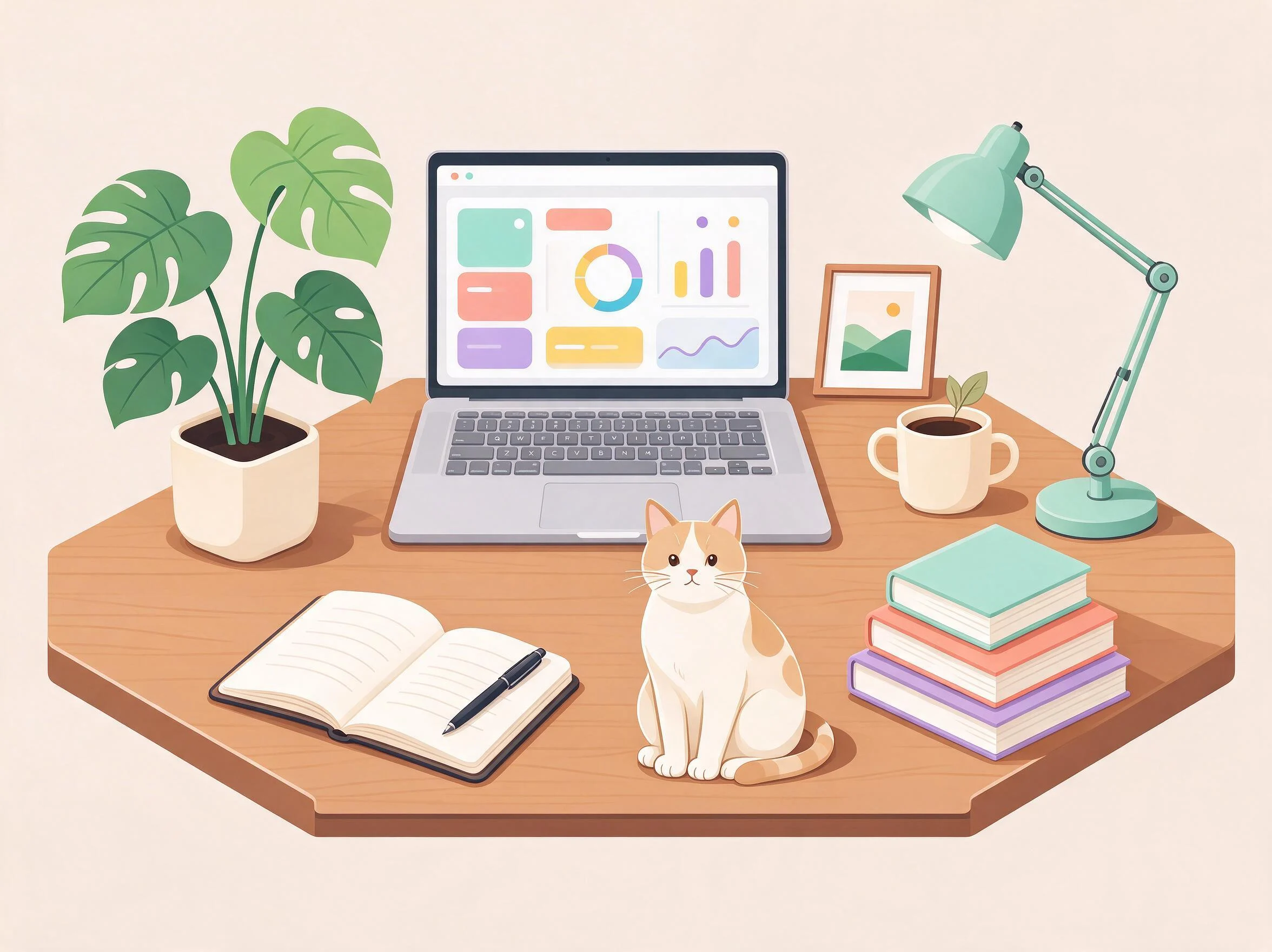
This desk scene was generated as one flat picture. Split, it came back as nine elements: the desk, the laptop, the lamp, the monstera, the books, the notebook, the cat, a small framed photo and a plant in a mug. Each one is a transparent PNG with its own name, so the ZIP is already a sticker set.

AI-generated desk illustration — the flat original
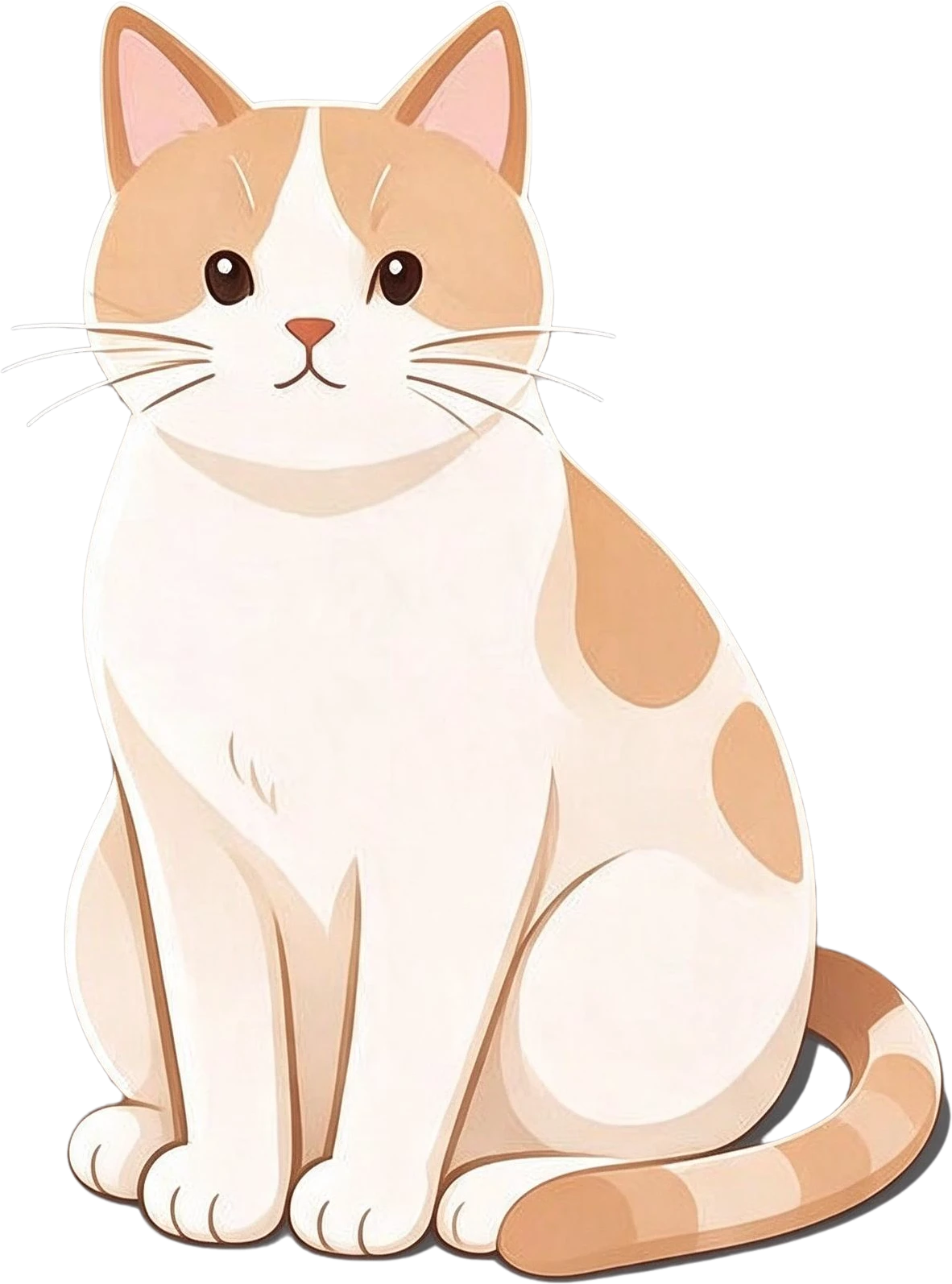
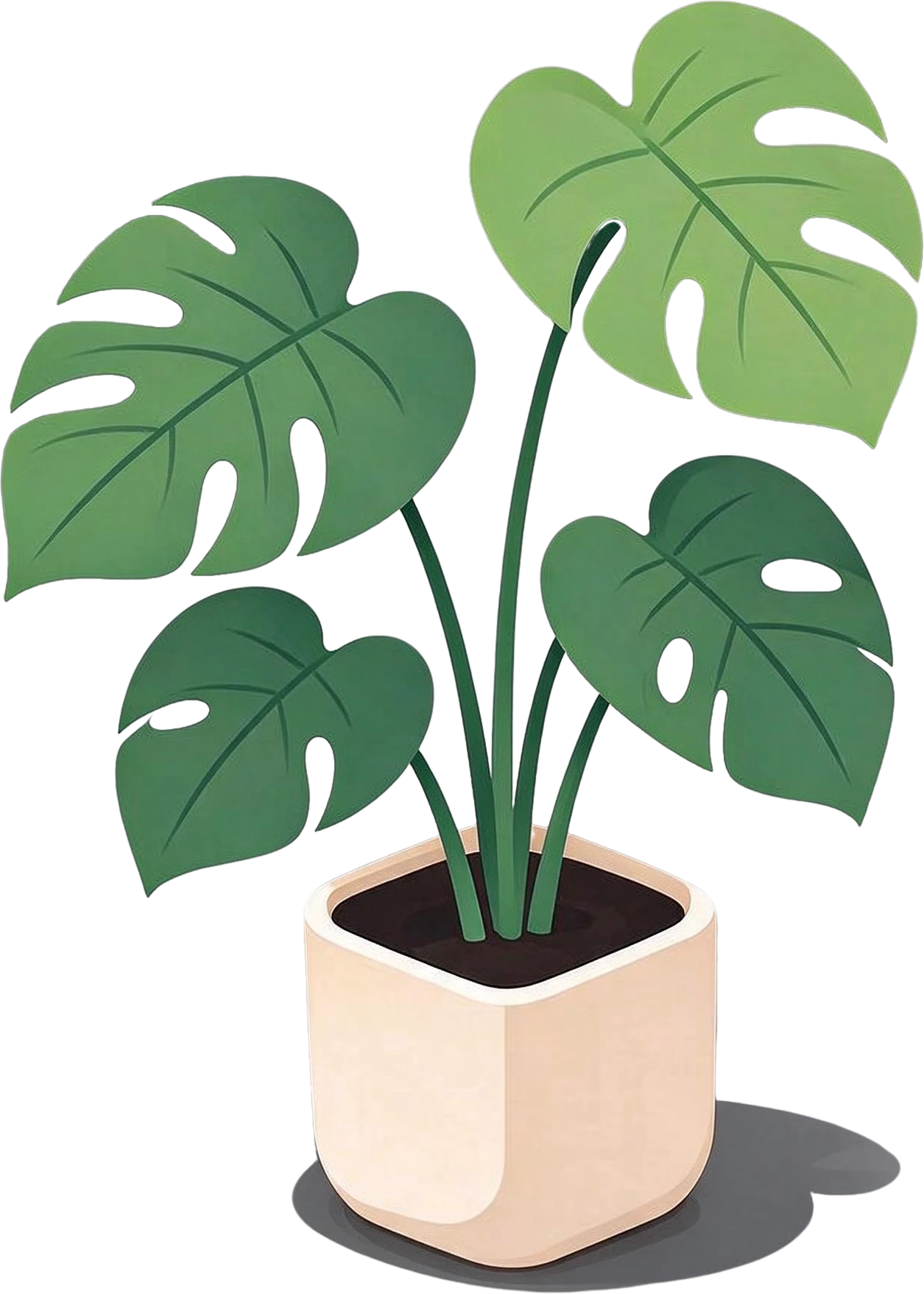
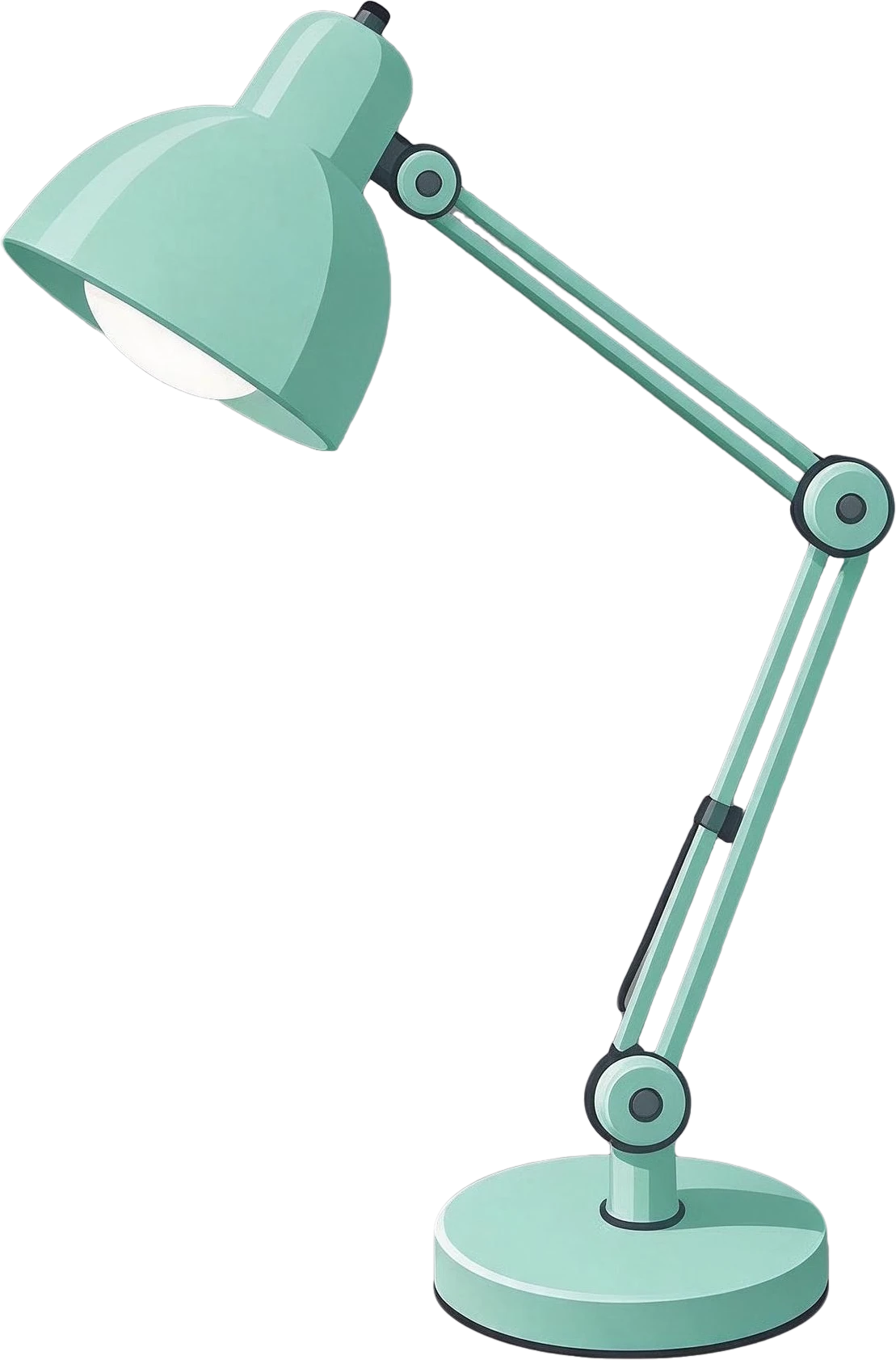
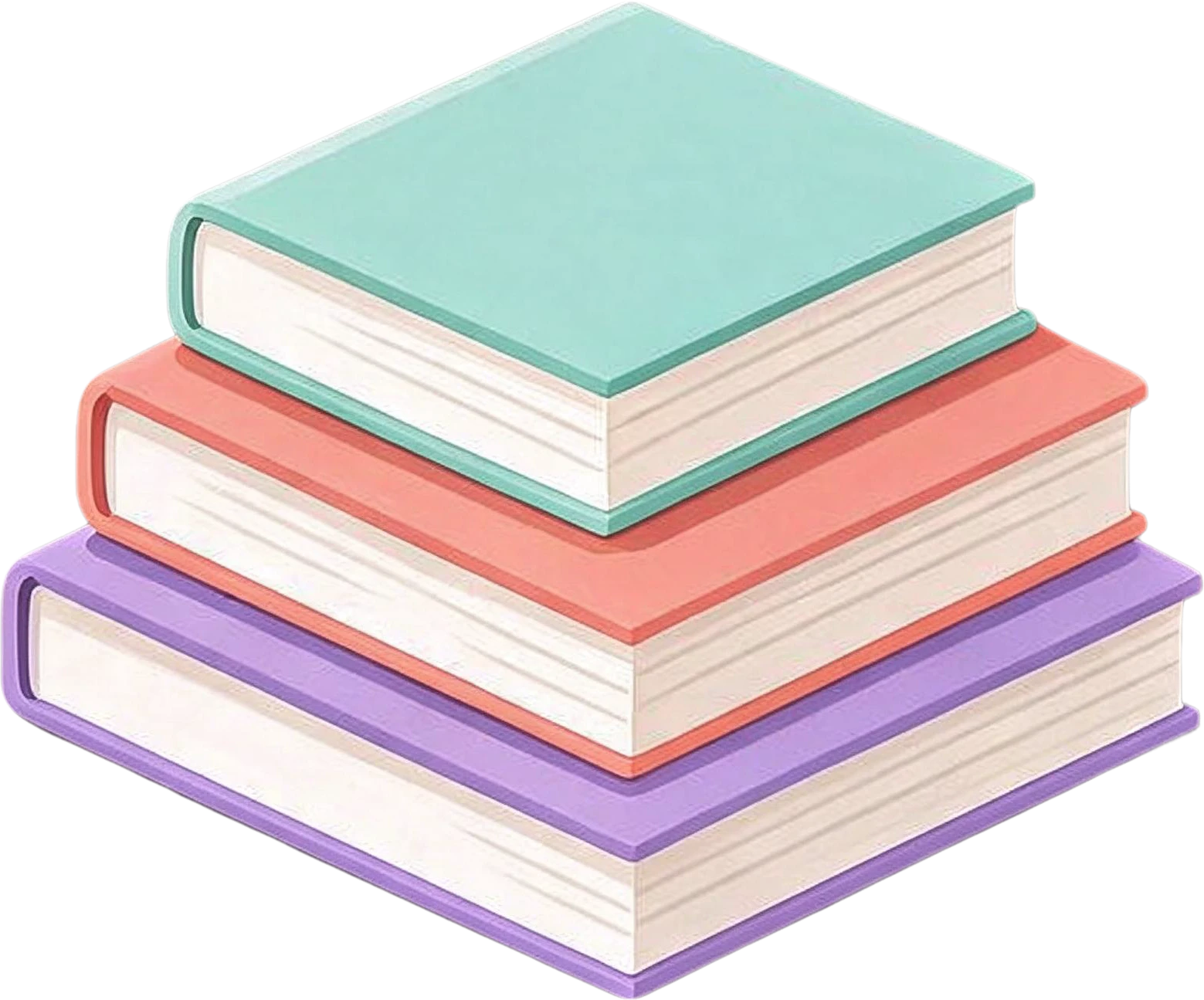
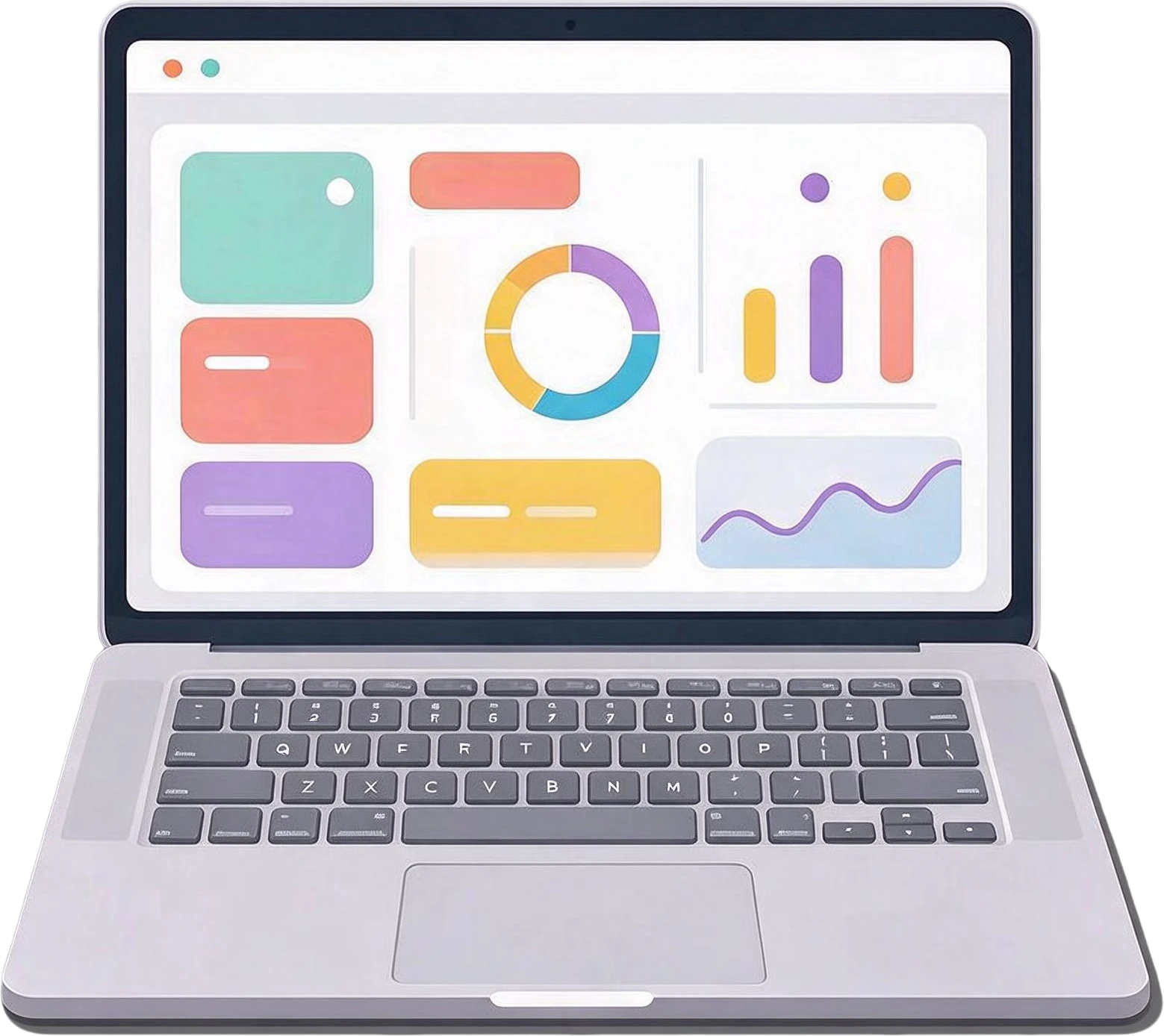
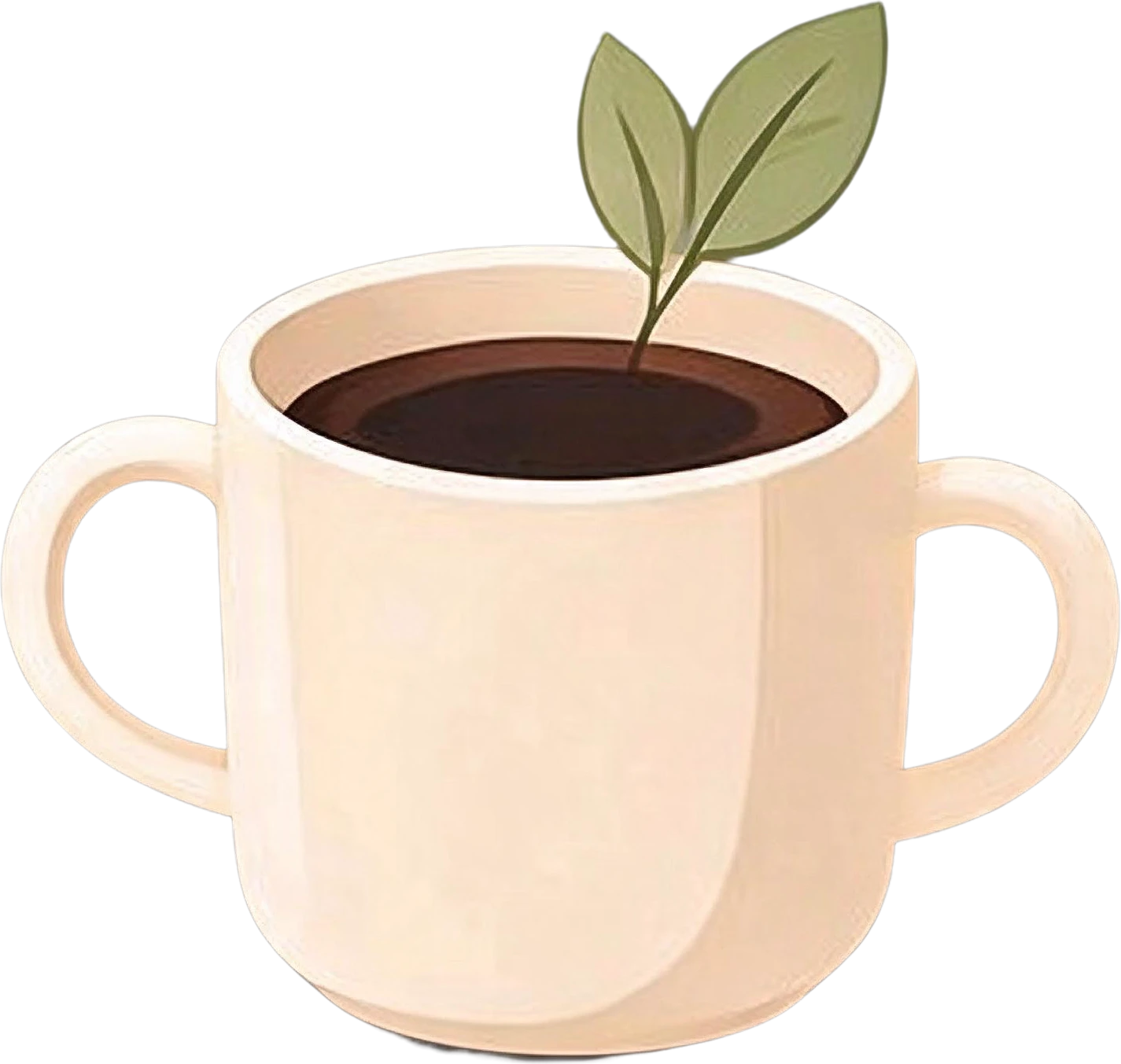
Sitting orange and white cat — separated layerMonstera potted plant — separated layerMint green adjustable desk lamp — separated layerStack of three books — separated layerLaptop with data visualization screen — separated layerPotted plant in coffee mug — separated layer
Sitting orange and white cat — separated layerMonstera potted plant — separated layer
  • ai-desk-illustration.psd10 named layers, in place
  • ai-desk-illustration-layers.zip10 transparent PNG files
  • Sitting orange and white cat.pngOne layer, or copy it to the clipboard

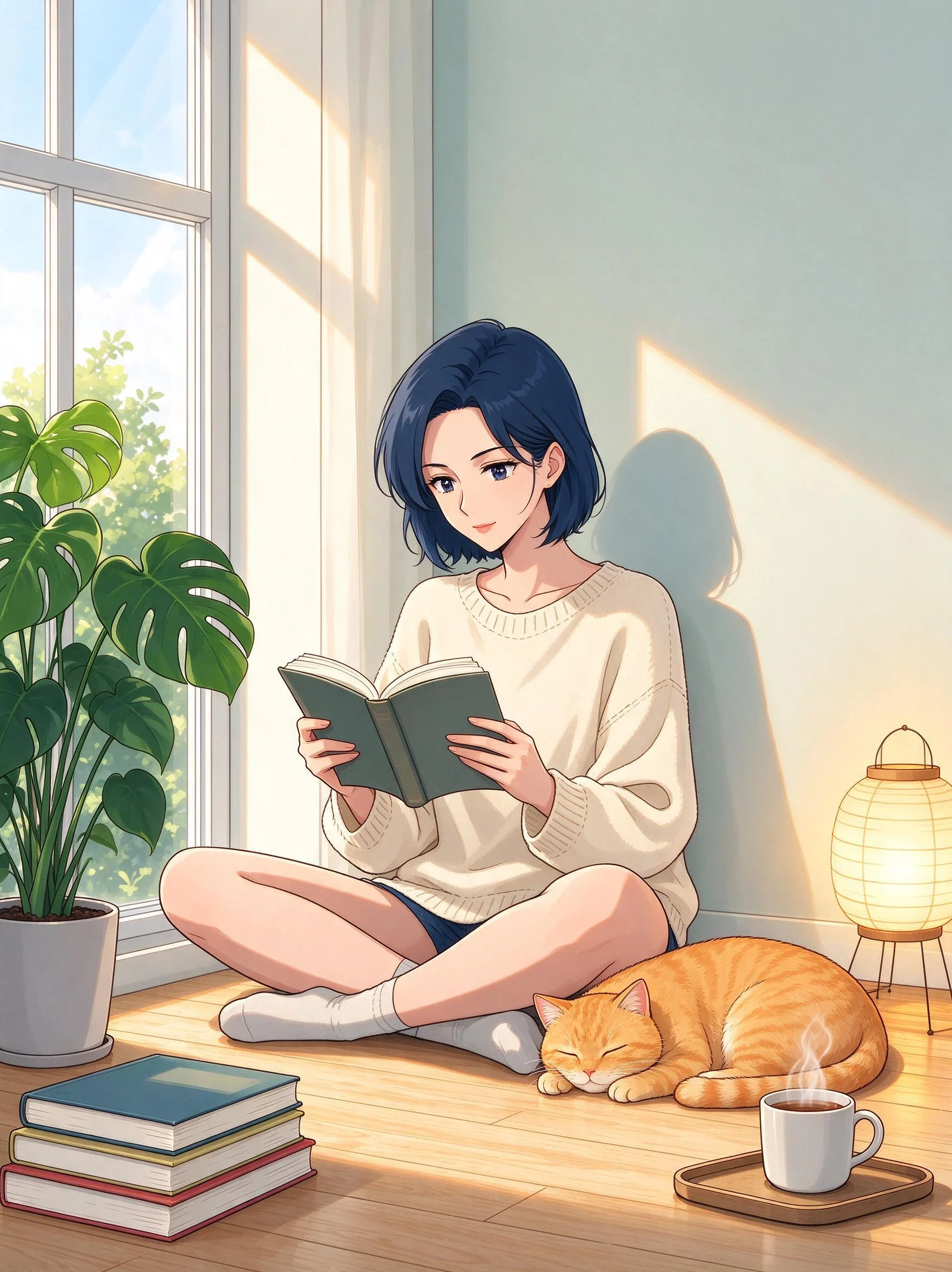
Overlapping drawings come back whole. In this room illustration the cat curls up against the girl's feet and the coffee tray sits in front of the cat's tail. Split, the cat is a complete cat and the girl has both feet, so neither sticker has a bite taken out of it. Hide the two and the floor behind them is painted in, if you want a scene sticker as well.

Anime room illustration — original
Original
Anime room illustration — cat and coffee tray hidden, the girl still whole
Cat and coffee tray hidden, the girl still whole

How big each sticker can be

Each PNG is cropped to its drawing, so its size is the space the drawing took up in the original. The desk scene came back at 2352 × 1760 pixels. Here is what its elements measure, and how large they print at 300 pixels per inch:

  • Laptop830 × 738 px · 2.8 × 2.5 in
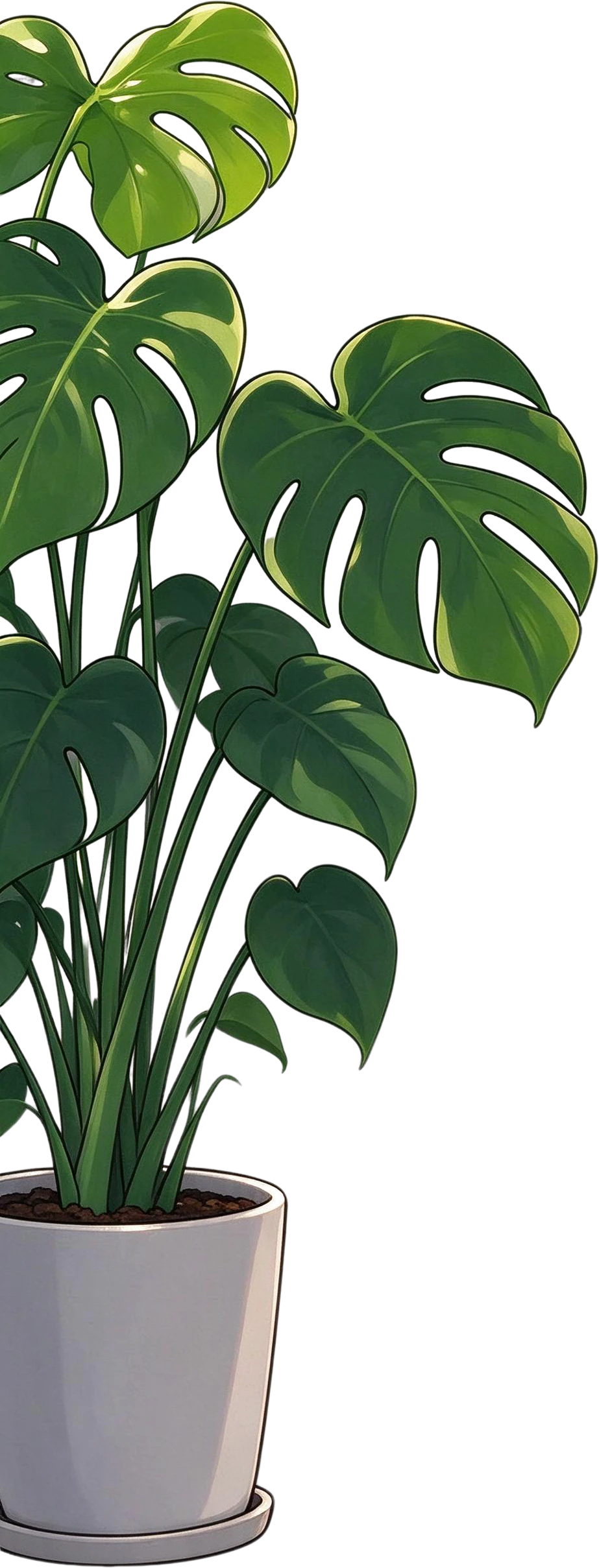
  • Monstera plant614 × 860 px · 2.0 × 2.9 in
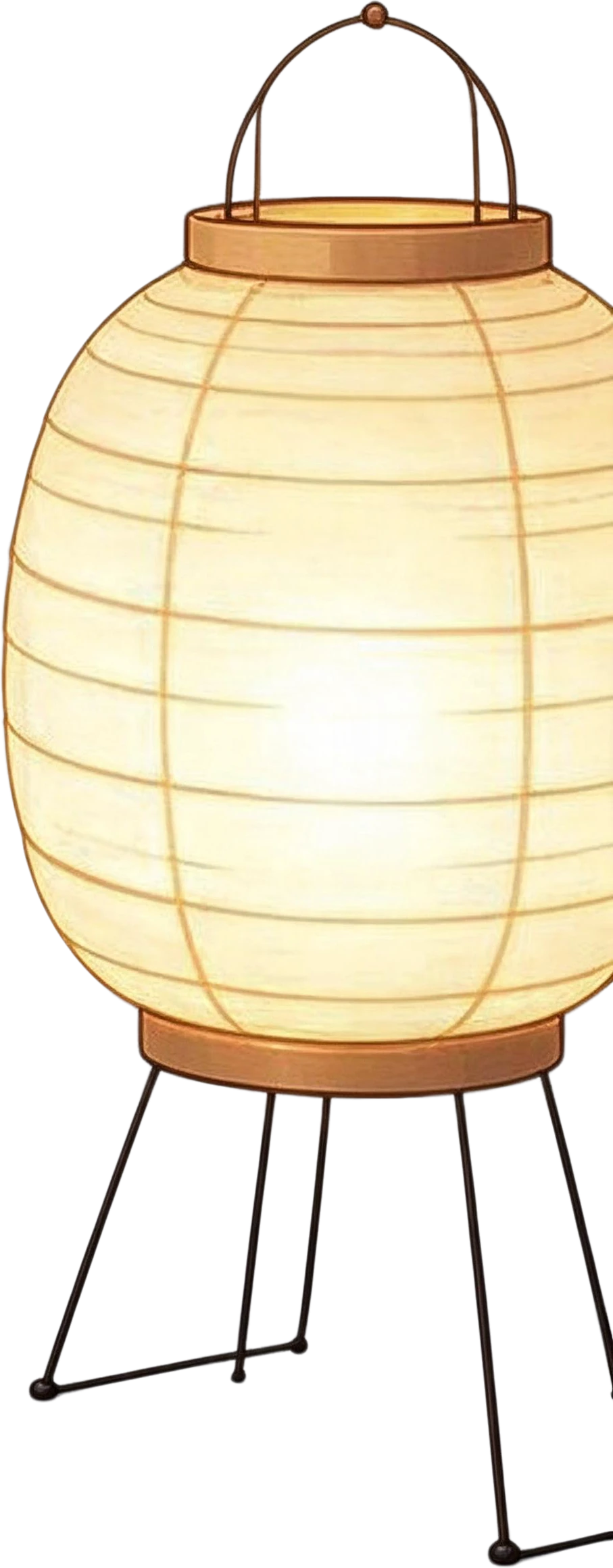
  • Desk lamp511 × 776 px · 1.7 × 2.6 in
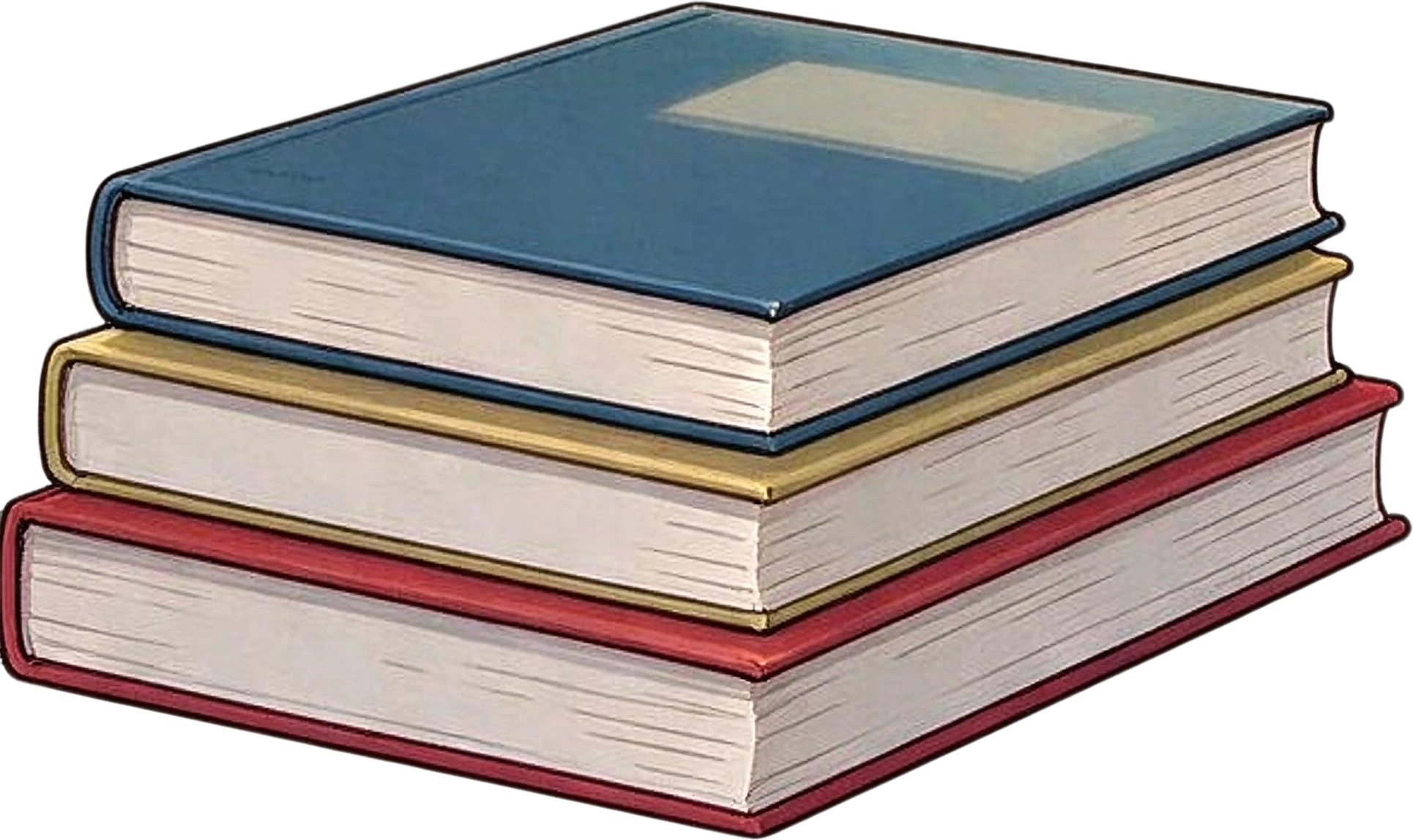
  • Stack of books526 × 437 px · 1.8 × 1.5 in
  • Cat396 × 534 px · 1.3 × 1.8 in
  • Plant in a mug281 × 266 px · 0.9 × 0.9 in

Two to three inches is a typical laptop sticker, so the larger elements are ready as they are. For the small props, or for bigger die-cut stickers, upscale the PNG or split a crop of the original so that drawing fills more of the frame.

When this is not the right tool

One drawing on a plain background. A background remover is enough; there is nothing to separate and nothing behind it to rebuild.

You need vector cut files. The output is PNG. Vectorize it afterwards if your cutter or printer needs SVG paths.

Lettering stickers. Words come back as an image of the letters, at whatever quality the original had. For crisp type, set the words in a font.

Art you do not own. Separating a picture does not change who owns it. Fan art, logos and other people's illustrations stay theirs.

Need one drawing rather than all of them? Name it and separate just that object into its own layer. Working from a photo of real objects instead of an illustration? The same split works on product flat-lays; see the examples on the image layer separator page.

Frequently asked questions

How do I turn one illustration into several stickers?

Split the illustration so each drawing becomes its own transparent PNG, add a white border to each, and arrange them on a sticker sheet or upload them one by one to your print-on-demand store. The splitting replaces tracing every outline by hand.

Do the PNG files have transparent backgrounds?

Yes. Every layer is a PNG with transparency around the drawing, cropped to its outline. The filled background comes back as a separate file you can ignore for stickers.

How big can I print each sticker?

Divide each PNG’s pixel size by 300 for inches at full print quality. The whole illustration comes back at about 2K, so a drawing that filled a quarter of the picture is roughly 500 to 900 pixels across: 2 to 3 inches. Small props print smaller. Upscale first for larger stickers.

Can I get SVG cut lines instead of PNG?

Not from the split: layers are raster PNG files. Most cutting and print-on-demand tools trace the outline of a transparent PNG for you; for true vector artwork, vectorize the PNG in Illustrator, Inkscape or a vectorizing tool.

Can I sell stickers made from an AI illustration?

That depends on who owns the picture and on the terms of the generator that made it, not on how you separated it. Use your own artwork or images you are licensed to sell, and avoid logos and characters that belong to someone else. This is not legal advice.