LayerGrab

Image Text Remover: Take the Text Off, Keep the Picture

LayerGrab is an AI image text remover: it lifts every block of text onto its own layer and fills in the background behind it, so you can download the clean picture.

Image

Name one element. It comes back as a transparent PNG layer.

Sample split, free to explore: Coffee poster, text only

Asked for: “Separate only the text. Put each block of text on its own layer and leave everything else where it is.”

Coffee poster, text only — background with every element removedOct 1 - Oct 7 · Maple Street Café textAUTUMN LATTE WEEK text20% OFF text

4 layers

Split in 50s

  • Background (filled)

Real splits, not mockups

Every example on this page is a real result: the original, the filled background and each named layer, exactly as the tool returned them.

Coffee poster, text only, a real split: the flat image and the 4 named layers it became.

Coffee poster, text only

4 layers in 50 s · Instruction: “Separate only the text. Put each block of text on its own layer and leave everything else where it is.”

Coffee shop poster, a real split: the flat image and the 11 named layers it became.

Coffee shop poster

11 layers in 100 s

Poster generated with gpt-image-2 for this demo

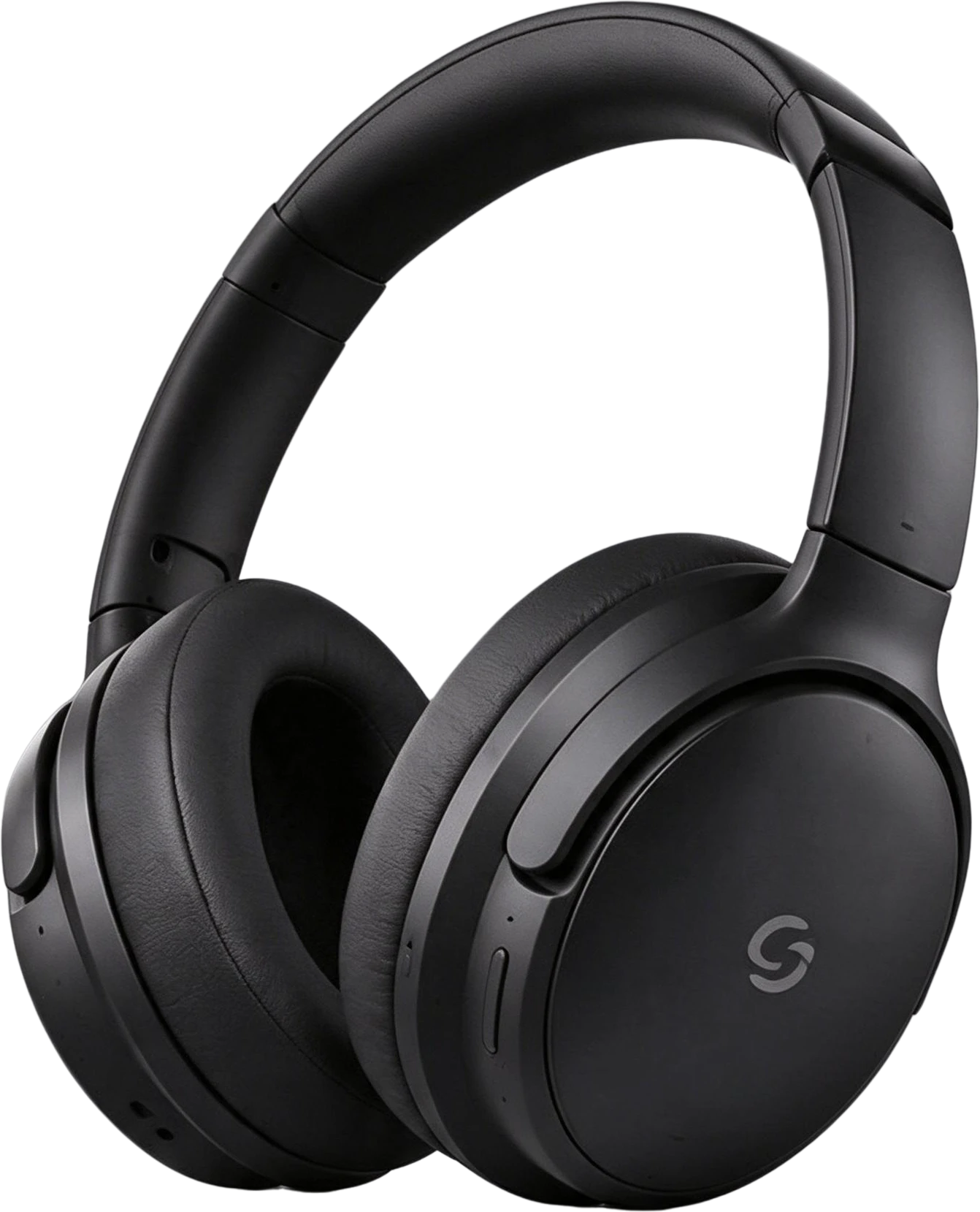
Headphones product banner, a real split: the flat image and the 8 named layers it became.

Headphones product banner

8 layers in 66 s

Banner generated with gpt-image-2 for this demo

Skincare Instagram post, a real split: the flat image and the 8 named layers it became.

Skincare Instagram post

8 layers in 80 s

Mock post generated with Seedream 5.0

AI-generated desk illustration, a real split: the flat image and the 10 named layers it became.

AI-generated desk illustration

10 layers in 100 s

Illustration generated with Seedream 5.0

Anime room illustration, a real split: the flat image and the 7 named layers it became.

Anime room illustration

7 layers in 63 s · Instruction: “girl with dark blue hair holding an open book, orange sleeping cat, monstera plant in a white pot, stack of three books, mug of coffee on a wooden tray, paper lantern lamp on a stand”

Illustration generated with Seedream 5.0 for this demo

Growth report slide, a real split: the flat image and the 12 named layers it became.

Growth report slide

12 layers in 97 s

Mock slide made for this demo; all figures illustrative

Sportswear flat-lay photo, a real split: the flat image and the 16 named layers it became.

Sportswear flat-lay photo

16 layers in 148 s

Photo by mr lee on Unsplash

Two-person photo, a real split: the flat image and the 2 named layers it became.

Two-person photo

2 layers in 46 s · Instruction: “Separate the woman on the right”

Photo-style image generated with AI for this demo

How to remove text from an image

  1. 1

    Upload the image

    A poster, banner, social post, slide, screenshot or AI image as PNG, JPG or WebP, up to 20 MB.

  2. 2

    Keep the text-only instruction

    With credits on your account, "What to focus on" is pre-filled with "Separate only the text". To remove just one line, replace it with that line, for example "only the date at the bottom".

  3. 3

    Split

    Each block of text comes back as its own layer and the background behind it is painted in. It takes 45–120 seconds.

  4. 4

    Download the clean image

    The background layer is the picture with the text removed: download it as PNG. To keep some of the text, open the result in the editor, hide only the lines you want gone and export a PNG.

Image text remover

The text comes off, everything else stays

An image text remover is a tool that takes the words out of a picture and fills in what was behind them. LayerGrab does it by lifting every block of text onto its own transparent layer, so you get two things back: the picture without the text, and the text itself as separate layers.

The coffee poster on the right was split with the pre-filled instruction and nothing else. The headline, the date line and the “20% OFF” lettering came back as three text layers; the cup, the leaves and the empty red badge stayed in the background, with the gaps painted in. One thing to know: the small ornaments next to the headline and the date line went with the text, because the model counts them as part of those blocks.


Try it on your own image
Coffee poster, text only — original
Original
Coffee poster, text only — text removed, background filled
Text removed, background filled

Every block of text on its own layer

Removing text this way keeps the text too. Each block is a separate transparent layer with a readable name, so you can delete it, move it, or put it back after you change the layout.

That is the difference from a brush-and-erase remover: nothing is lost, and the text can go back exactly where it was.

Coffee poster, text only — original

4 layers

  • 20% OFF text — separated layer20% OFF text
  • AUTUMN LATTE WEEK text — separated layerAUTUMN LATTE WEEK text
  • Oct 1 - Oct 7 · Maple Street Café text — separated layerOct 1 - Oct 7 · Maple Street Café text
  • Background (filled)

Remove some lines, keep others

On this social post only the offer line and the button were hidden; the “SUMMER GLOW” headline and the badge stayed. Name the text you want gone, or split all of it and hide lines in the editor before you export.
Need the result in Photoshop? Export everything as a layered PSD and toggle the text layers there.

Try it on your own image
Skincare Instagram post — original
Original
Skincare Instagram post — offer line and button removed
Offer line and button removed

Doing it by hand

In Photoshop you select the text with the lasso or the Object Selection tool and fill the selection with Content-Aware Fill or Generative Fill, one area at a time. On a plain background that takes a minute; on text that crosses a photo or a gradient it often needs several passes and some clone-stamp work.

LayerGrab does the selection and the fill in one step for every block of text at once, and keeps the removed text as layers instead of throwing it away.

When not to use this

For one small caption or a date stamp on a photo, a free brush-style object remover is faster and costs nothing. You pay per layer here, and the background counts as one.

Do not use it to strip a watermark or a credit from an image you do not own. If you want new words in the exact original font, this is the wrong tool: the text comes back as an image layer, and you retype it yourself.

Frequently asked questions

How do I remove text from an image without ruining the background?

Take the text off as layers instead of painting over it. Upload the image here with the instruction "Separate only the text", and every block of text comes back on its own layer while the area behind it is repainted to match the surroundings. The background layer is the clean picture; download it as a PNG.

Can I remove only part of the text?

Yes. Name the part in "What to focus on", for example "only the price" or "the date line at the bottom", and only that text comes off. Or split all the text, open the result in the editor, hide the lines you want removed and export a PNG with the rest kept.

Is the text deleted, or can I get it back?

Both. The text is removed from the background layer, and each block of it is kept as a separate transparent layer. Move it, restyle it in Photoshop or Figma, or leave it out. It is an image of the letters, not editable type: to change the wording, retype it with a real font over the clean background.

Does it work on photos, or only on designs?

Both, but designs give the cleanest result. Text on a flat or soft background is easy to fill. Text over a face, a product label or a busy photo leaves a gap the model has to invent, so check those areas before you use the image.

Can it change the text to new words in the same font?

No. LayerGrab removes text and hands it back as layers; it does not redraw new words in the original font. For a headline that is quick to retype in a similar font; for long paragraphs in an unusual font, a tool that re-renders text is a better fit.

What does it cost?

You pay per layer that comes back, and the clean background counts as one. The coffee poster above came back as the background plus 3 text layers: 4 layers, 40 credits ($0.40) on a credit pack. Asking for one line of text is two layers. The free try every account gets is an extraction: it pulls one named element out as a transparent PNG, which gives you the text but not the picture without it, so removing text needs credits.

Last updated 2026-11-08