LayerGrab

Blog · Comparison · 18 min read

The 8 Best AI Image Layer Splitters in 2026, Compared

An AI image layer splitter takes one flat image and returns a stack of layers: each element on its own transparent layer, with the background repainted where the elements were. In 2026 there are hosted layer splitters that run in a browser, a feature inside Canva, and an open model you can run yourself. This page compares eight of them, and says which is the best AI image layer splitter for each kind of job.

Disclosure: this page is published by LayerGrab, which is one of the eight. Every claim about another tool links to the page it came from, and the table says which entries were run and which were read. Checked 2026-09-29.

Last updated 2026-09-29

The short version

  • Need the layers as files, or inside Photoshop, Figma or Sketch: LayerGrab. It also lets you name one object and get only that.
  • You design in Canva and never leave it: Canva Magic Layers. Nothing else saves you a step there.
  • Want to try a split for free in the browser first: Codia Magic Layers, or LlamaGen's Quick Mode.
  • Want to choose how many layers you get: magiclayers.net (2–15 images) or the Qwen-Image-Layered demo (2–10).
  • Have a GPU and want no per-image cost: Qwen-Image-Layered, self-hosted.

All eight at a glance

“Not stated” means the tool's own pages do not say. Prices are as listed on 2026-09-29 and change; follow the link for today's.

ToolWhere it runsLayersPick one objectCompletes hidden partsExportsFreePrice
LayerGrabTested on our imagesBrowser; Photoshop, Figma, Sketch, ChromeUp to 16 + backgroundYes, by describing itYes (tested)Copy layer, PNG, ZIP, layered PSDSamples free; 30 credits on sign-upPer layer returned: from $0.08
Canva Magic LayersFrom its own pagesInside Canva (web, mobile)Not statedNo (select after the split)Not statedStays in the Canva designUses Canva AI creditsCanva plans
Codia Magic LayersFrom its own pagesBrowser, opens in Codia StudioNot statedNo (select after the split)Not statedEditable canvas in StudioFree to tryNot stated on the page
magiclayers.netFrom its own pagesBrowserYou choose 2–15 images incl. baseYes, optional descriptionNot statedNamed transparent PNGsNone mentioned2 credits per output; $29/mo for 400 credits
imagetolayers.comFrom its own pagesBrowserNot statedNoSays it reconstructs hidden areasPNG, ZIP, PSD20 credits, one time$10/mo (12,000 credits a year)
Qwen-Image-LayeredDemo attemptedFree demo (login) or your own GPUYou choose 2–10NoHandles partly hidden elements (docs)RGBA images, PPTX, ZIPWeights free (Apache 2.0)Your GPU time
LlamaGen AI Layer SplitterFrom its own pagesBrowserNot statedNoHidden body parts may need cleanupPNG sheet; PNG, ZIP, PSD in paid passQuick ModeCredits for PRO Mode
Krea Image BreakdownFrom its own pagesBrowser (Krea nodes)Not statedNo (refine masks after)Not statedPNG layers or a layered fileSign-in requiredKrea plans

How we compared the layer splitters

The same six questions were put to every layer splitter. They are the questions that decide whether a split is usable, not whether it looks impressive in a demo.

  1. How many layers, and how sensible. Does a poster with ten elements come back as ten layers, or as “foreground” and “background”?
  2. Are the elements whole. When one thing sits in front of another, does the thing behind come back complete, or with a hole where the front object was?
  3. Is the background repaired. After every element is lifted off, is what is left a clean picture, or a picture full of cut-outs?
  4. Can you ask for one thing. If you only need the price tag, can you say so, or do you pay for and wade through the whole split?
  5. Where the layers can go. Copy to the clipboard, PNG files, a layered PSD, or straight into Photoshop, Figma or Sketch, or do they stay inside the tool?
  6. What it costs. Per layer, per image, per month, or in GPU time.

What was actually run. LayerGrab was run on seven images: a coffee-shop poster, a headphones banner, an Instagram post, an isometric illustration, a presentation slide, a flat-lay photo and a two-person photo. All seven results are saved unedited and are the samples on the home page. The Qwen-Image-Layered public demo was tried three times with the coffee poster. The other six tools require an account and, in most cases, payment, so they are described from their own product and help pages, each linked with the date it was read. Where a page is silent the table says so. If you run the same images through one of them, the layer names and timings on our side are the baseline to compare against.

1. LayerGrab

Tested on seven images · Browser, Photoshop, Figma, Sketch and Chrome

LayerGrab is an AI tool that splits one image into up to 16 separate transparent layers, one per element, over a background that is filled in behind them, or pulls out just the object you name. It runs on layergrab.com and, with the same account and credits, as Photoshop, Figma and Sketch plugins and a Chrome side-panel extension.

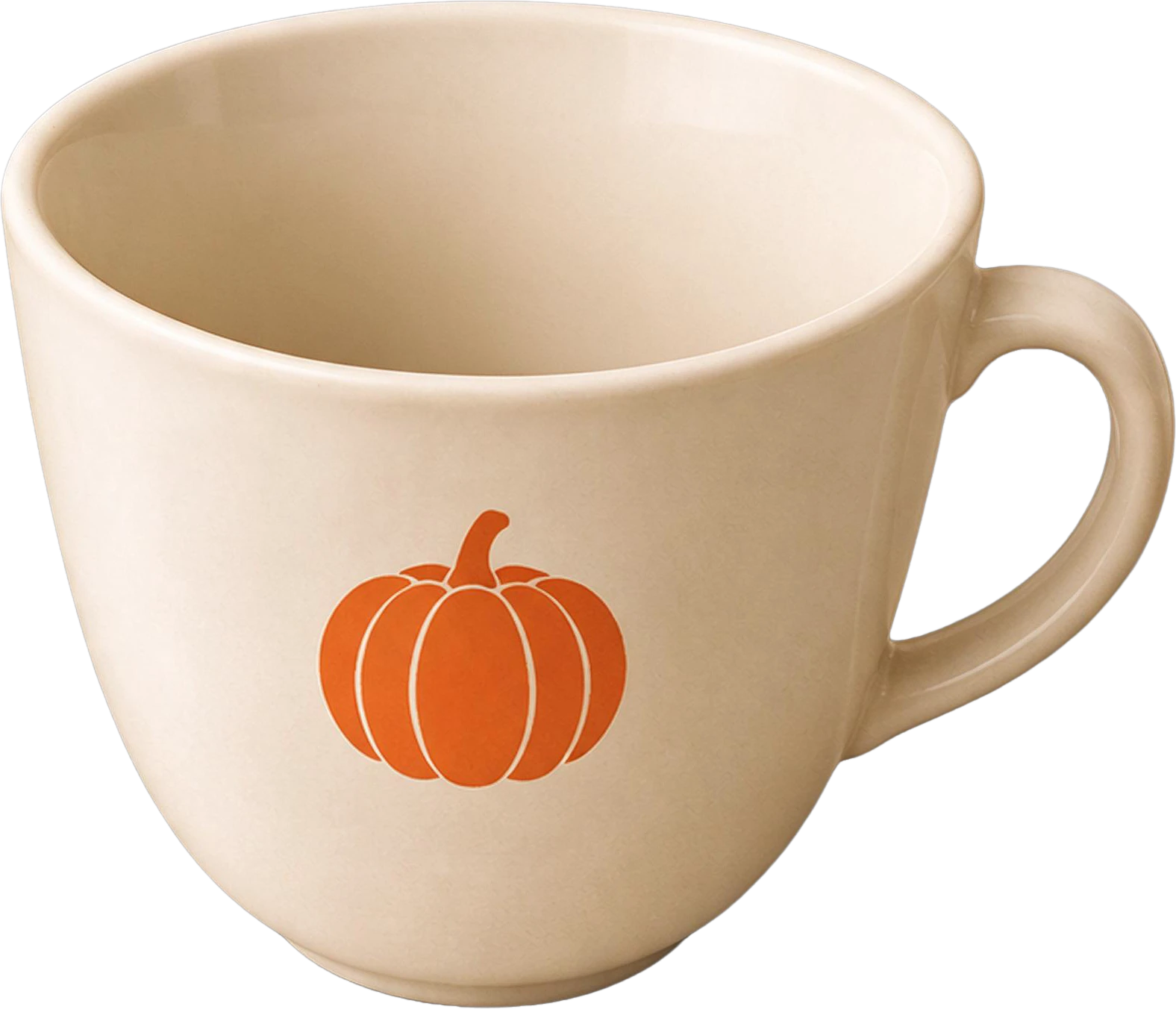
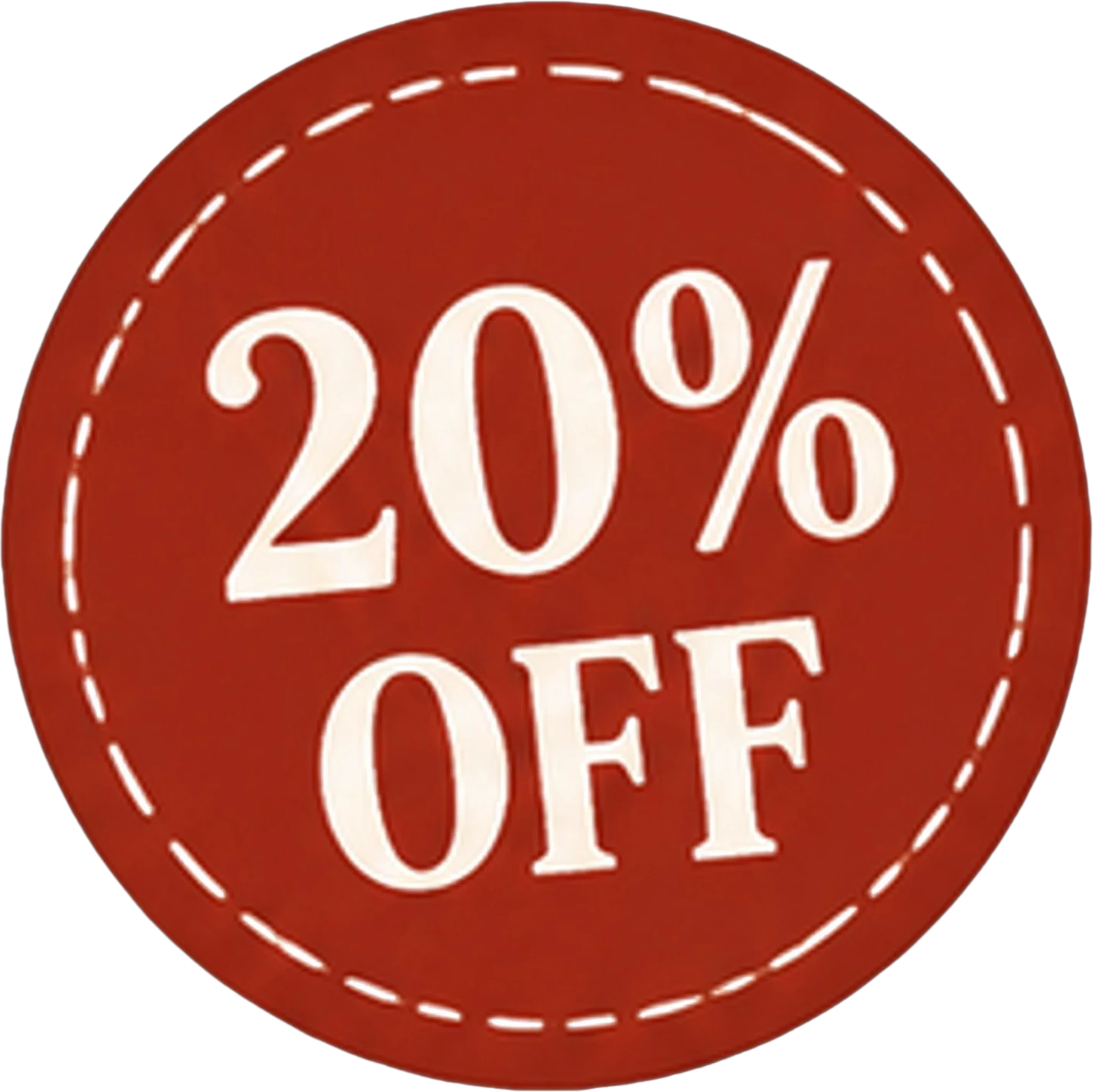
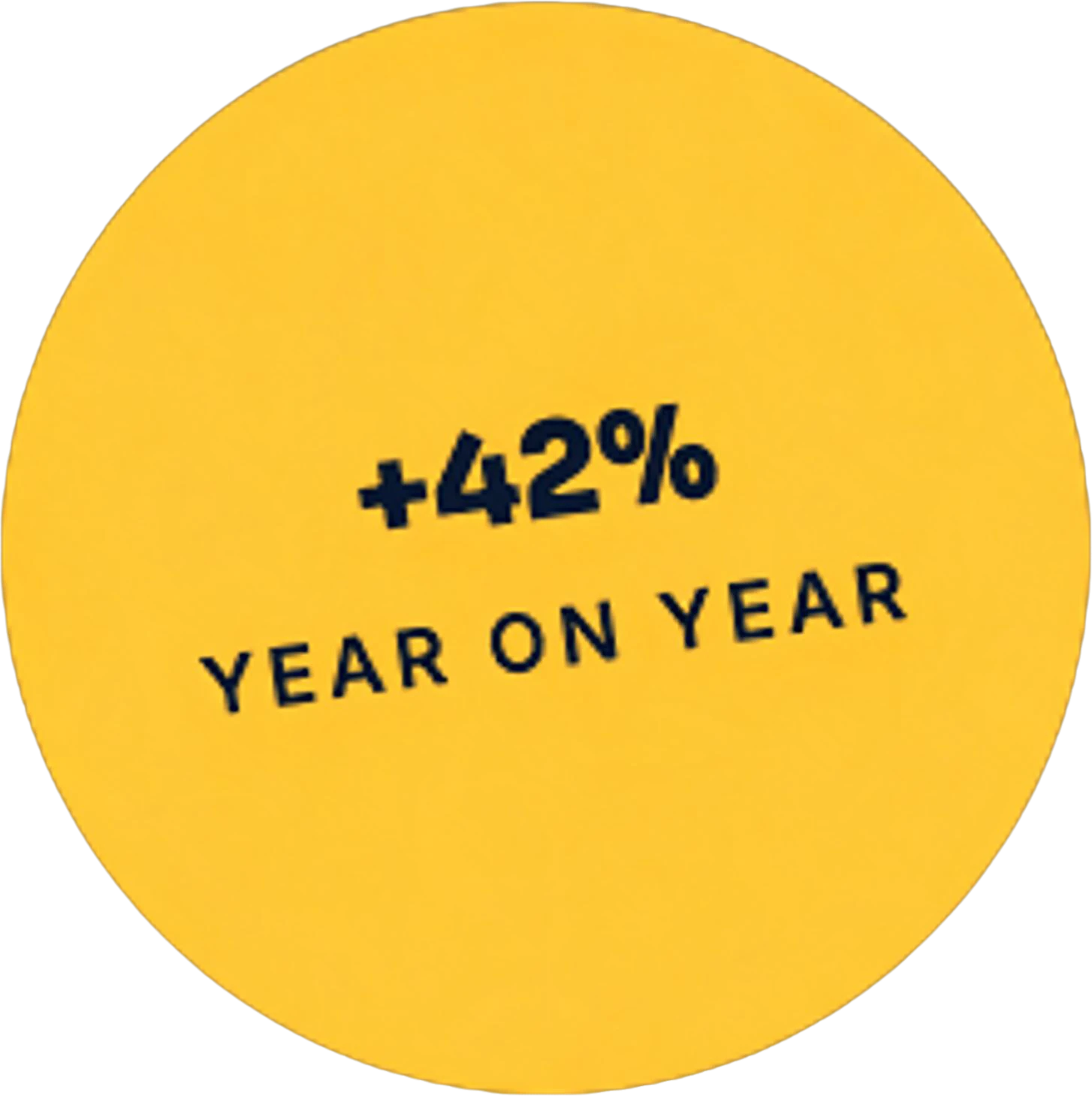
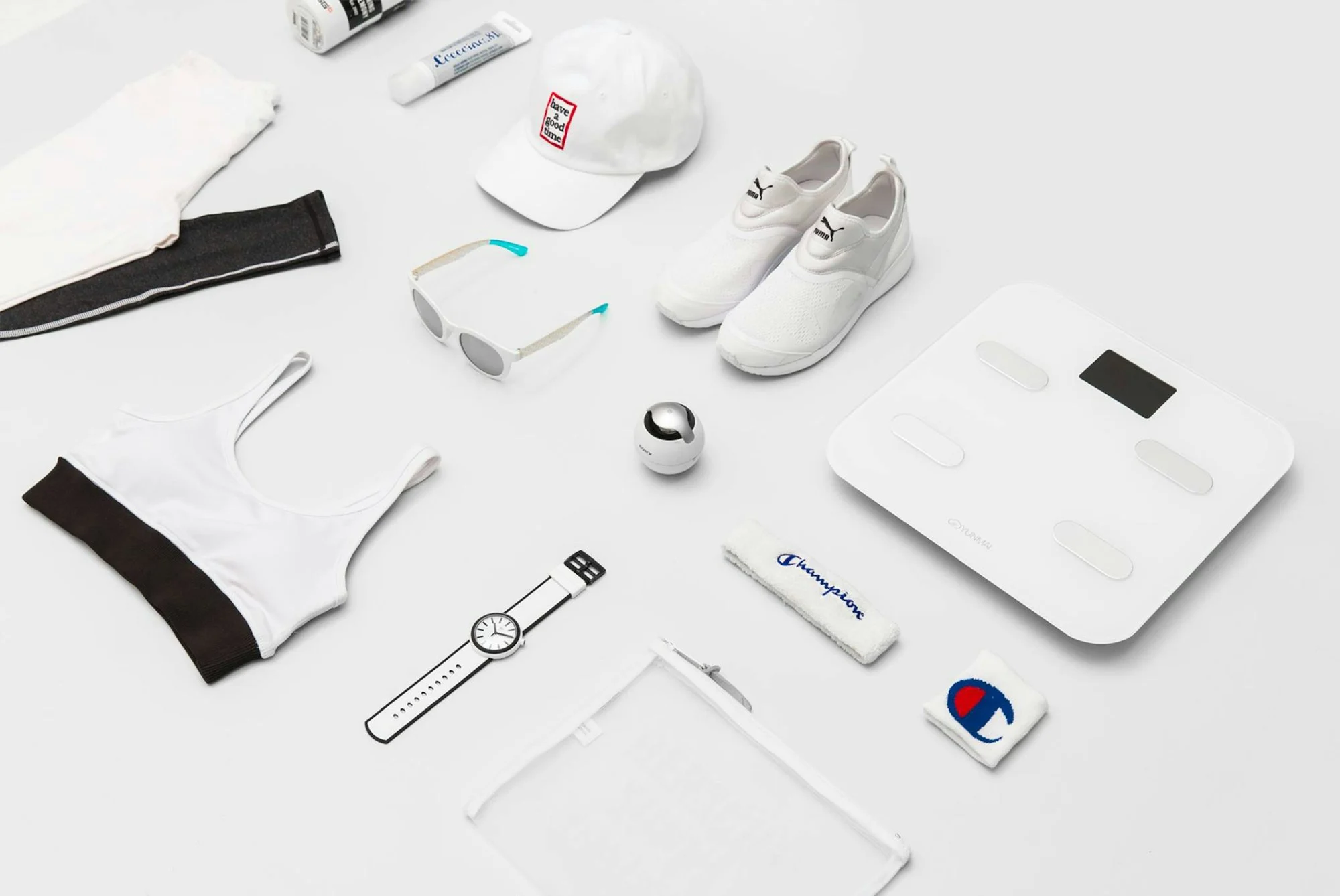
What we got. The coffee poster (880×1184 px) came back as 10 layers in 100 seconds: the headline, the “20% OFF” badge, four maple leaves, the cup, the drink, the whipped cream and the event line, over a filled background. The flat-lay photo of sportswear gave 15 layers in 148 seconds, one per item down to the wristband. The Instagram post gave 7, the illustration 9, the slide 11. Every layer had an English name we could search for, such as “Yellow +42% Year on Year Badge”.

Coffee shop poster — original
Original
Coffee shop poster — headline, badge and event line hidden: the base is clean
Headline, badge and event line hidden: the base is clean

Whole elements. In the poster, the pumpkin graphic sits on the cup. Split apart, the pumpkin is its own layer and the cup layer is a complete plain cup, not a cup with a pumpkin-shaped hole. In the illustration, the desk that everything stands on is one whole layer. This is the difference between a layer stack you can rearrange and one you can only hide.

Asking for one thing. Type what you want before splitting. “Separate the woman on the right” on the two-person photo returned exactly one layer plus the filled background, in 46 seconds, and cost two layers instead of a whole split. Details are on the separate one object page.

Two-person photo — original
Original
Two-person photo — asked for one person: one layer back, background filled
Asked for one person: one layer back, background filled

Where the layers go. Copy one layer and paste it into Figma, Photoshop or Canva; download it as PNG; download every layer as a ZIP; or export a layered PSD. In the plugins, the split arrives as a named group directly above the image, aligned to it.

Price. Credits are charged per layer returned, the filled background included: 10 credits a layer on the basic plan ($12 a month for 1,200 credits), 8 on premium, or a one-time pack from $20. New accounts in supported regions get 30 free credits. If a split returns more than the balance covers, nothing is charged and the result is shown locked until it is paid for, so a low balance never pays for half a result.

Where it falls short. Text is pixels, not type. Shadows an object cast on the background are not carried with it. Two runs on the same image can split it slightly differently. And it is a hosted service: the image is sent to LayerGrab's servers, so it is the wrong choice if the picture must never leave your machine.

2. Canva Magic Layers

From Canva's help page · Inside the Canva editor

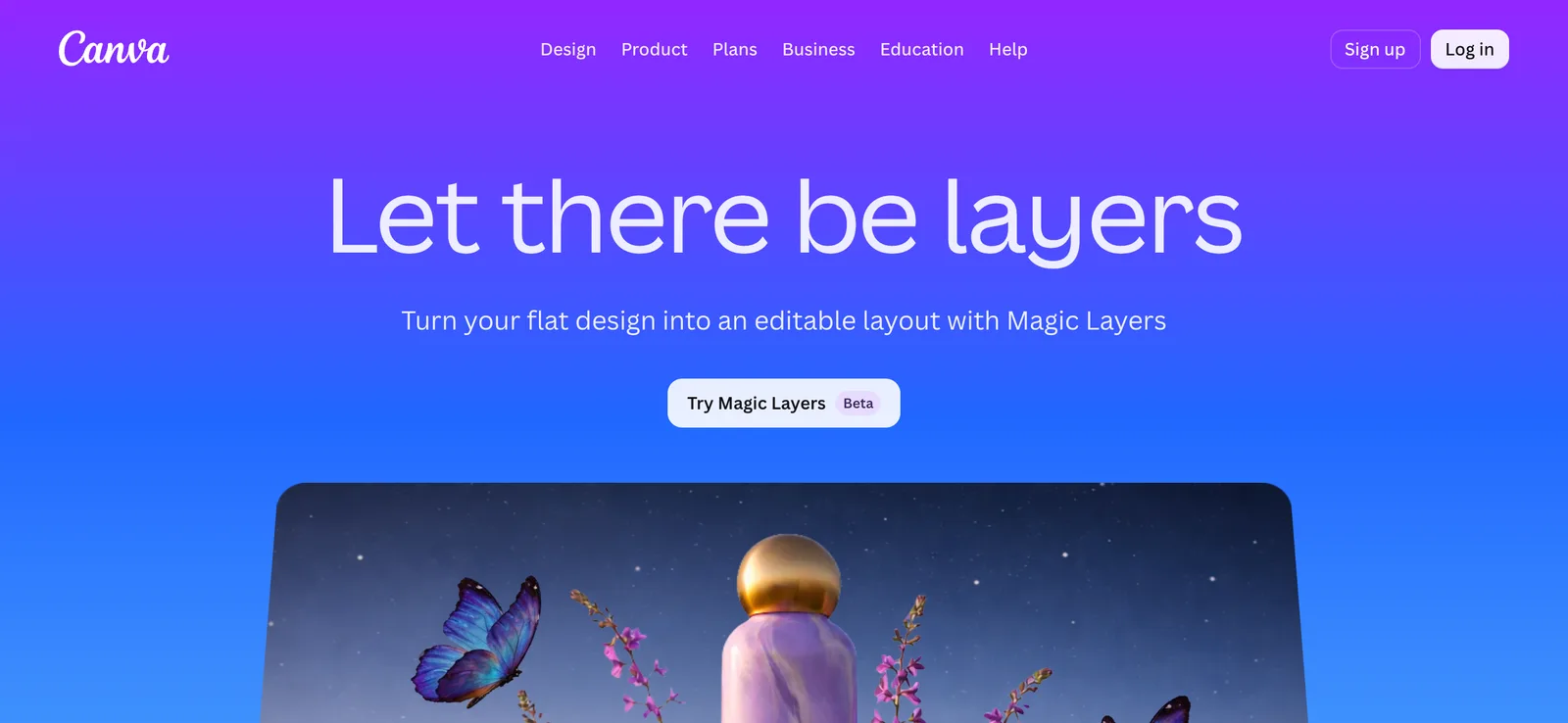
Canva's Magic Layers page: 'Let there be layers', Try Magic Layers (Beta)
Canva's Magic Layers page: 'Let there be layers', Try Magic Layers (Beta). Screenshot of the public page, 2026-09-29.

Magic Layers is Canva's built-in feature that “transform[s] any flat image into fully editable design layers” so you can “select, separate, and edit individual elements”. It launched in public beta in March 2026. You reach it from the Canva home page or from Edit in the editor, wait while it processes, then move, delete, resize, apply effects to or replace the elements.

What the help page says. It works with single-page PNG and JPG files. It does not support PDFs, vector graphics, multi-page documents or licensed images, and lists photo-realistic imagery under “results may vary”: it “works best with graphic designs, illustrations, and stylized visuals”. Images over 5,000 px on the longest edge are not supported. It uses Canva's AI credits, with a monthly limit that depends on your plan. The page does not mention exporting the layers as files or as a PSD.

Where it fits. If your whole workflow is in Canva, this is the shortest path: no download, no upload, the elements land in the design you are already editing. If the layers have to leave Canva, or you work in Photoshop or Figma, it is the wrong tool, which is why we keep a separate Canva Magic Layers alternative page. For photos, Canva's Magic Grab (a different feature) lifts one selected object off a photo and keeps the background.

Sources: Canva help: Turn images into editable layers with Magic Layers; PetaPixel, March 2026. Read 2026-09-29.

3. Codia Magic Layers

From Codia's product page · Browser, result in Codia Studio

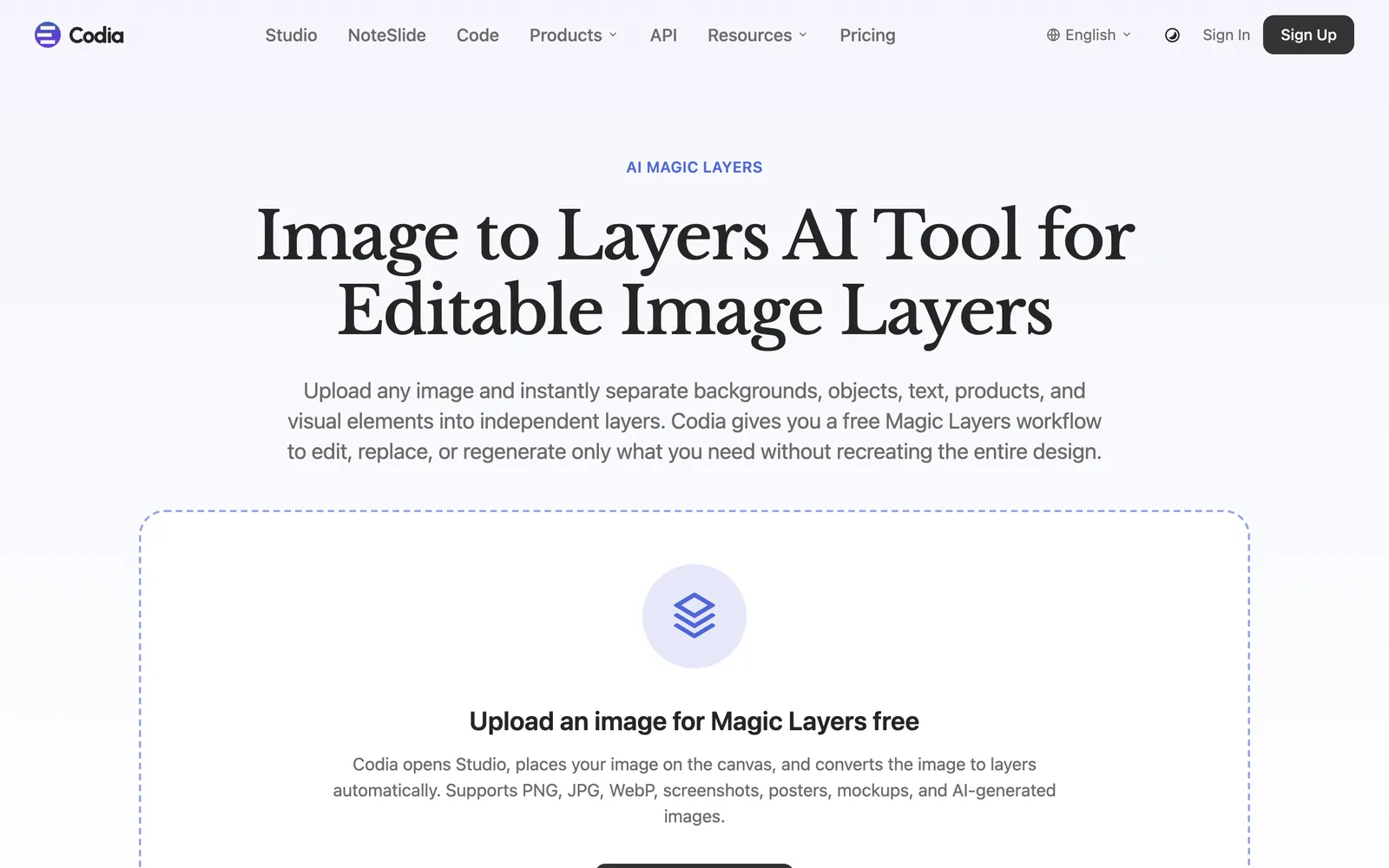
Codia Magic Layers page: Image to Layers AI Tool for Editable Image Layers
Codia Magic Layers page: Image to Layers AI Tool for Editable Image Layers. Screenshot of the public page, 2026-09-29.

Codia's Magic Layers is a browser image layer splitter that promises to “instantly separate backgrounds, objects, text, products, and visual elements into independent layers”. Upload a PNG, JPG or WebP (the page also names screenshots, posters, mockups and AI-generated images), and Codia opens its Studio, places the image on a canvas and “converts the image to layers automatically”. From there you can “select, move, replace, hide, or regenerate individual layers while the rest stays intact”.

What the page says, and does not. It says Magic Layers can be tried free from the page, which makes it one of the easiest ways to see a split on your own image. It names use cases: replacing a hero product, removing background objects, swapping a person, editing decorations, making campaign variations. It does not state a layer limit, a file-size limit, a price for continued use, or what export formats leave Studio. The result lives in Codia's canvas; if you need PNG or PSD files, check what Studio exports before you rely on it.

Where it fits. A first free test, and workflows that continue inside Codia's own editor. There is no way to ask for one element before the split; you select it afterwards.

Source: codia.ai/magic-layers. Read 2026-09-29.

4. magiclayers.net

From its home page and pricing · Browser

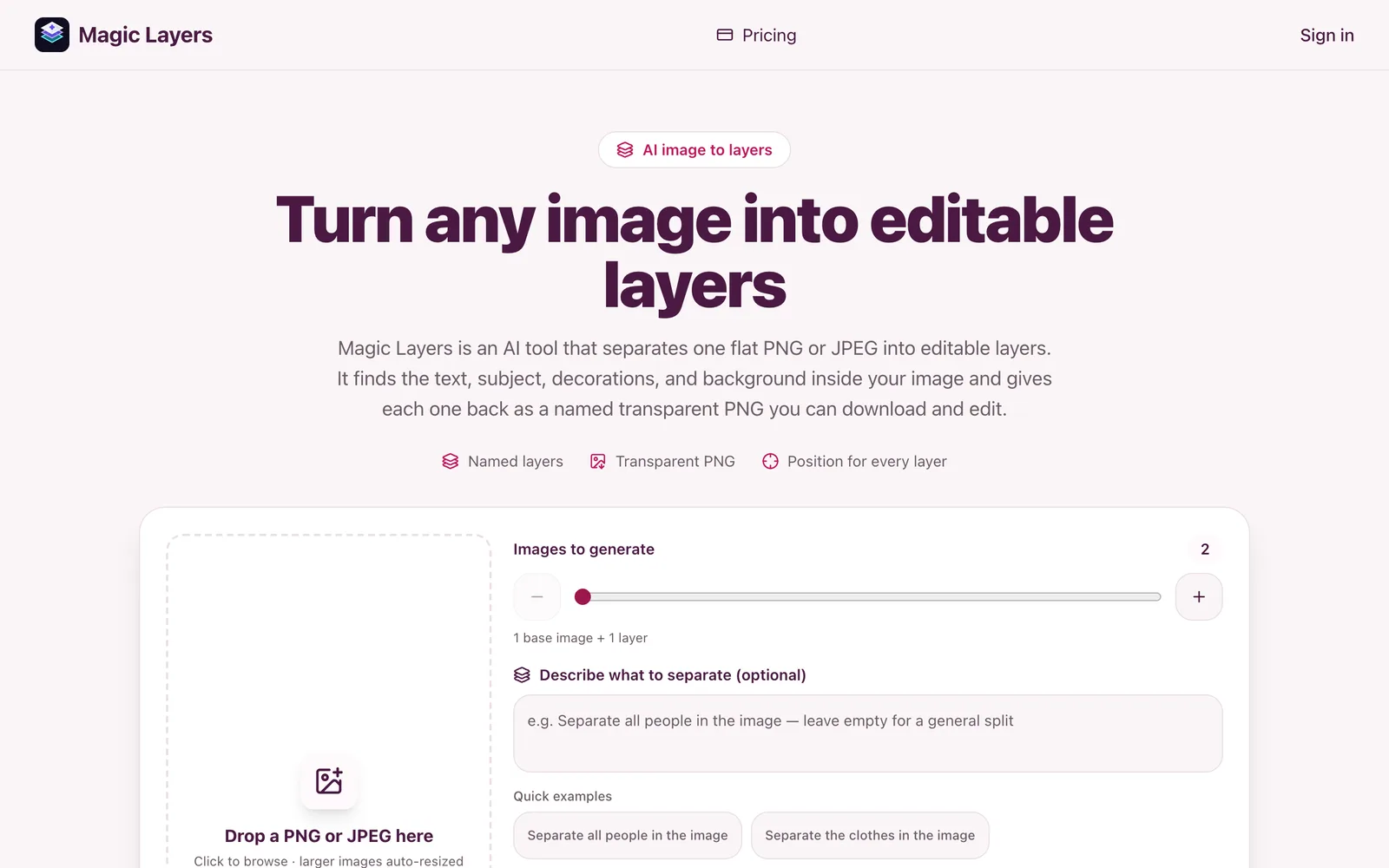
magiclayers.net: Turn any image into editable layers, with an 'Images to generate' slider and a 'Describe what to separate' box
magiclayers.net: Turn any image into editable layers, with an 'Images to generate' slider and a 'Describe what to separate' box. Screenshot of the public page, 2026-09-29.

Not to be confused with Canva's or Codia's feature of the same name, magiclayers.net is a stand-alone site that “separates one flat PNG or JPEG into editable layers” and gives “each one back as a named transparent PNG”. Two controls on its upload form set it apart from most of this list: an “Images to generate” slider, where you choose 2 to 15 images (one base image plus layers), and an optional “Describe what to separate” box, with examples such as “Separate all people in the image”.

Limits and price. PNG or JPEG only, up to 10 MB (larger files are downscaled), at least 512×512 px, one image per job. Every layer comes back “named, described, and positioned”. It costs 2 credits per output image, the base image included; plans are $29 a month for 400 credits, $79 for 1,200 and $149 for 2,400, and the page mentions no free tier. It says plainly that the result is not a recovered Photoshop or Figma document: fonts, vectors and effects are not restored.

Where it fits. When you want to decide the layer count yourself and describe what to separate, and PNG files are enough. At $29 for 400 credits, a full 15-image split is 30 credits, so about $2.20; a two-image split is about 15 cents.

Source: magiclayers.net. Read 2026-09-29.

5. imagetolayers.com

From its home page and pricing · Browser

imagetolayers.com is a browser layer splitter that takes a JPG, PNG or WebP and promises to “separate subjects, objects, characters, and backgrounds, reconstruct plausible hidden areas behind overlaps, and keep working with the result as editable PSD or PNG layers”. Output is transparent PNG layers, a ZIP, or a PSD. It says most images take 60 to 120 seconds.

What the page says, and does not. The layer structure “depends on what is actually present”; there is no way to say which element you want. It is honest about its limits: fine detail, heavy blur, extreme overlap and ambiguous boundaries may need editing, and “reconstructed areas are AI-generated estimates, not recovered original pixels”, which is true of every tool on this page. Sign-in is required. A Starter trial gives 20 credits once; Creator is $10 a month (12,000 credits a year) and Studio $30 a month. The page does not state how many credits one split uses.

Where it fits. PSD export at a low monthly price, for people who split whole images and do not need to pick one element.

Source: imagetolayers.com. Read 2026-09-29.

6. Qwen-Image-Layered

Public demo attempted · Free demo with a Hugging Face login, or your own GPU

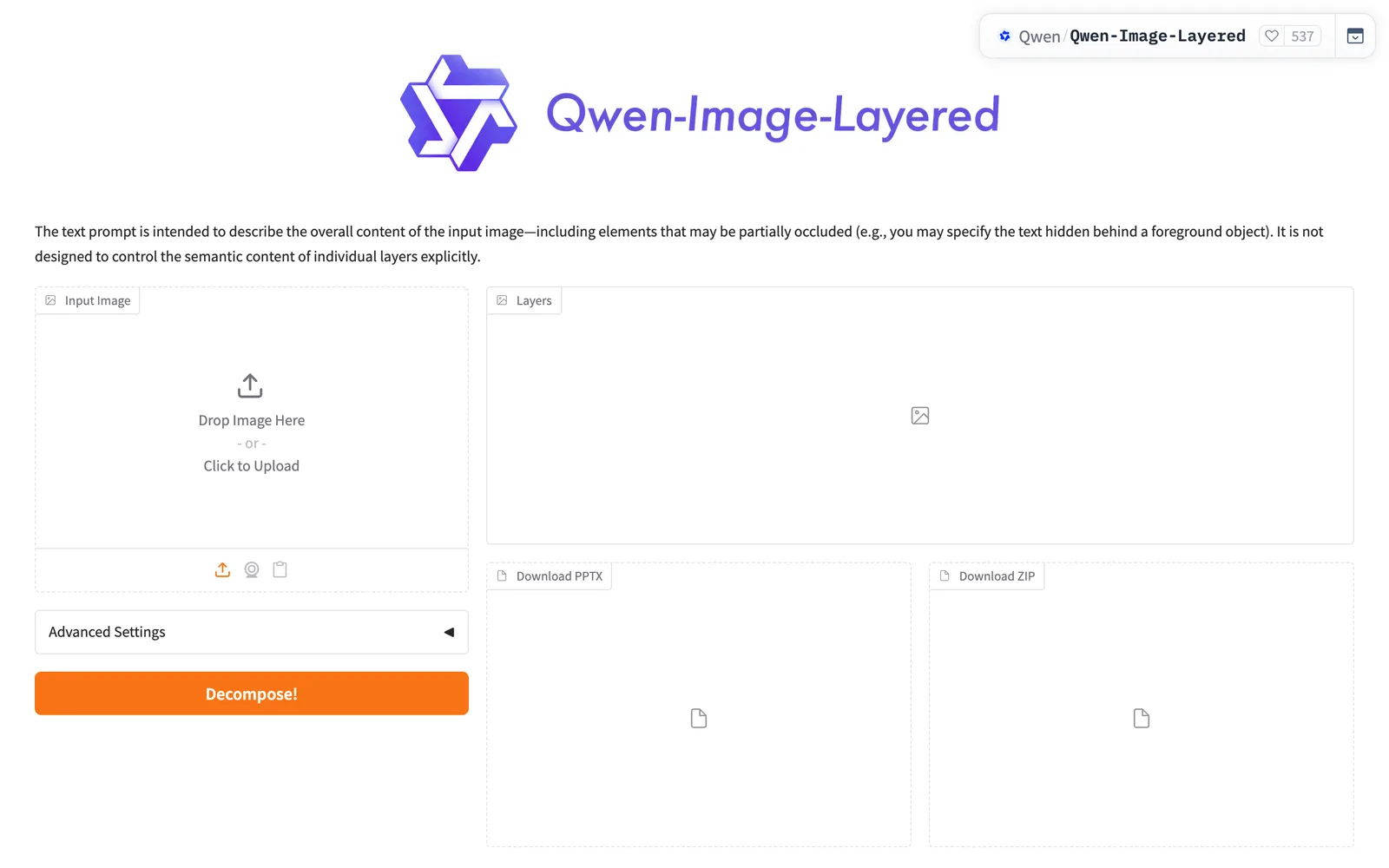
The Qwen-Image-Layered demo on Hugging Face Spaces: input image, Layers gallery, Download PPTX and Download ZIP
The Qwen-Image-Layered demo on Hugging Face Spaces: input image, Layers gallery, Download PPTX and Download ZIP. Screenshot of the public page, 2026-09-29.

The one open model on this list. Qwen-Image-Layered (Qwen team, weights released December 19, 2025, Apache 2.0, 20B parameters) decomposes an image into a number of RGBA layers you choose, and any layer can be decomposed again. There is an official demo on Hugging Face Spaces, and the layers can be downloaded as a ZIP or exported to PPTX.

What we tried. We uploaded the coffee poster to the demo, set Layers to 10 (the maximum; the default is 4) and clicked Decompose. Three attempts, including one at the default 20 inference steps instead of 50, all stopped with the same message: “The requested GPU duration (360s) is larger than the maximum allowed.” The demo asks for six minutes of GPU per run, which is more than an anonymous visitor is allowed on the free tier, so in practice it needs a Hugging Face login. We did not sign in, so we have no output to show; the interface itself is in the screenshot above.

What the documentation says. The prompt “is intended to describe the overall content of the input image” and “is not designed to control the semantic content of individual layers”, so you cannot ask it for the price tag. You control the count instead: 2 to 10 layers in the demo. Running it yourself needs a CUDA GPU and the diffusers pipeline; the README recommends the 640 resolution bucket for this version. There is more in our plain guide to Qwen-Image-Layered.

Where it fits. Research, pipelines, and anyone whose images must stay on their own hardware. Once it is running, each image is free.

Sources: demo Space; model card; README. Read 2026-09-29.

7. LlamaGen AI Layer Splitter

From its feature page · Browser

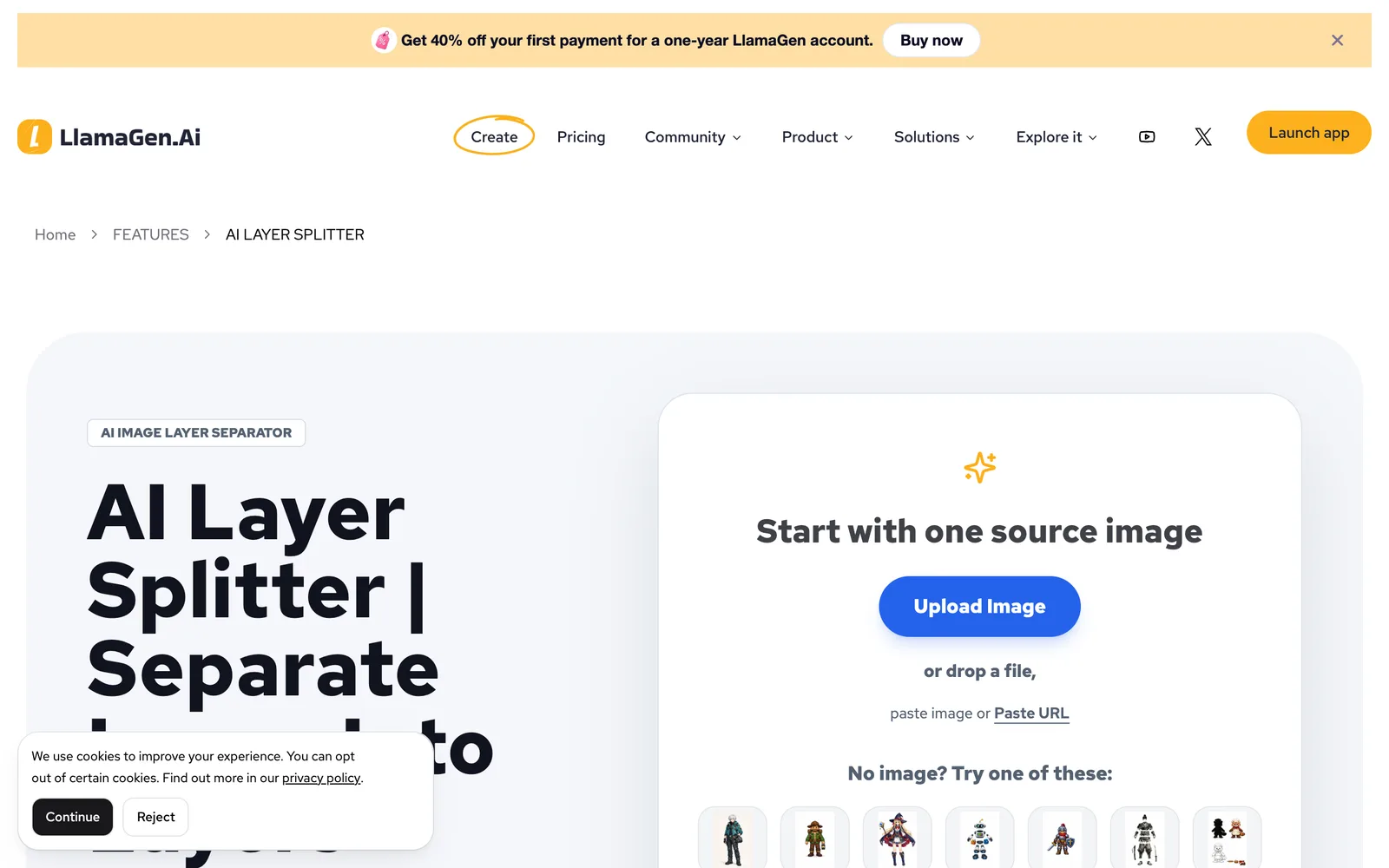
LlamaGen AI Layer Splitter page: Start with one source image, Upload Image
LlamaGen AI Layer Splitter page: Start with one source image, Upload Image. Screenshot of the public page, 2026-09-29.

LlamaGen's AI layer splitter is aimed at illustration: it separates “background, foreground, subject, text, objects, comic characters, anime art, props, or product graphics”. Upload, drop, paste or give a URL. A free Quick Mode produces a PNG layer sheet; a paid PRO Mode “uses an upgraded model for cleaner separation” and unlocks the individual transparent PNGs, ZIP and PSD.

What the page says. Its best-results guidance is specific: one clear cartoon, anime, game, mascot, product or illustrated subject, full silhouette visible, simple background, clean outlines. It warns that “very crowded scenes, hidden body parts, overlapping subjects, sketch marks, heavy shadows, cropped limbs, or tiny accessories may still need source cleanup or manual finishing”, and calls itself “not a shortcut for every crowded photo, sketch sheet, occluded pose, or dense layout”. Credit prices are not given on the page.

Where it fits. Single-character artwork and game or anime assets, especially if you already use LlamaGen. Dense posters and photos are outside what it recommends for itself.

Source: llamagen.ai AI Layer Splitter. Read 2026-09-29.

8. Krea Image Breakdown

From its app page · Browser, Krea node editor

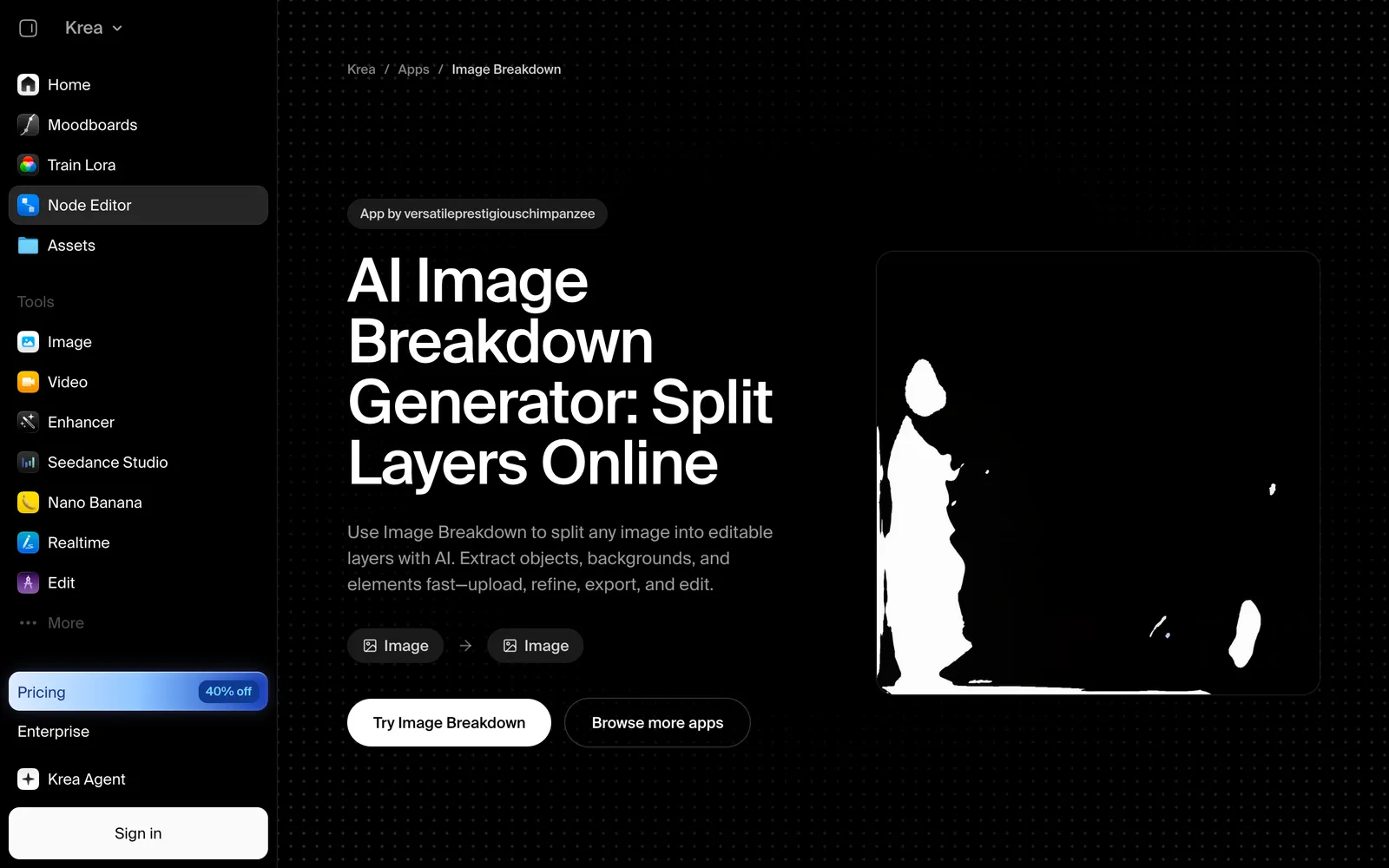
Krea's Image Breakdown app page inside the Krea node editor
Krea's Image Breakdown app page inside the Krea node editor. Screenshot of the public page, 2026-09-29.

Image Breakdown is a community-made layer splitter app in Krea's node editor (the page credits its author) that uses Krea's models to “split any image into editable layers with AI”. The workflow on the page: drop a JPG or PNG, choose transparent layers or a layered file as the target, let the segmentation run, then “adjust layer boundaries and masks for cleaner edges” and export PNGs or a layered format.

What the page says, and does not. Its pitch is mask control: cutouts you can refine before exporting. It does not state a layer count, whether hidden areas are filled, or a price; running it needs a Krea sign-in and Krea's plans apply. Because it is one node graph among many, it can change or disappear without notice in a way a product feature would not.

Where it fits. People already on Krea who want to refine masks by hand, and collage or layout work where a clean cut-out matters more than a repaired background.

Source: krea.ai Image Breakdown. Read 2026-09-29.
Also worth a look

RoboNeo Split Layer calls itself a free AI image layer splitter that separates “foreground, background, objects, text, and visual regions” while keeping perspective and hierarchy, but its page gives no formats, export options or limits, so we could not place it in the table. ImageLayered is a hosted front end that says it builds on Qwen-Image-Layered. Both read 2026-09-29.
Which layer splitter for which job

Six jobs people bring to an image layer splitter, with what we saw on LayerGrab's samples and which of the eight are built for it. The best AI image layer splitter is the one that handles your job, not the one with the longest feature list.
Change the words on a finished poster

Coffee shop poster — original
Original
Coffee shop poster — headline lifted off, background whole
Headline lifted off, background whole

The test is what is left under the headline. On the coffee poster the base comes back as clean cream paper, so new text goes straight on. Built for it: LayerGrab, magiclayers.net (describe “the text”), Canva if the poster is staying in Canva. Skip: tools that only give foreground and background.

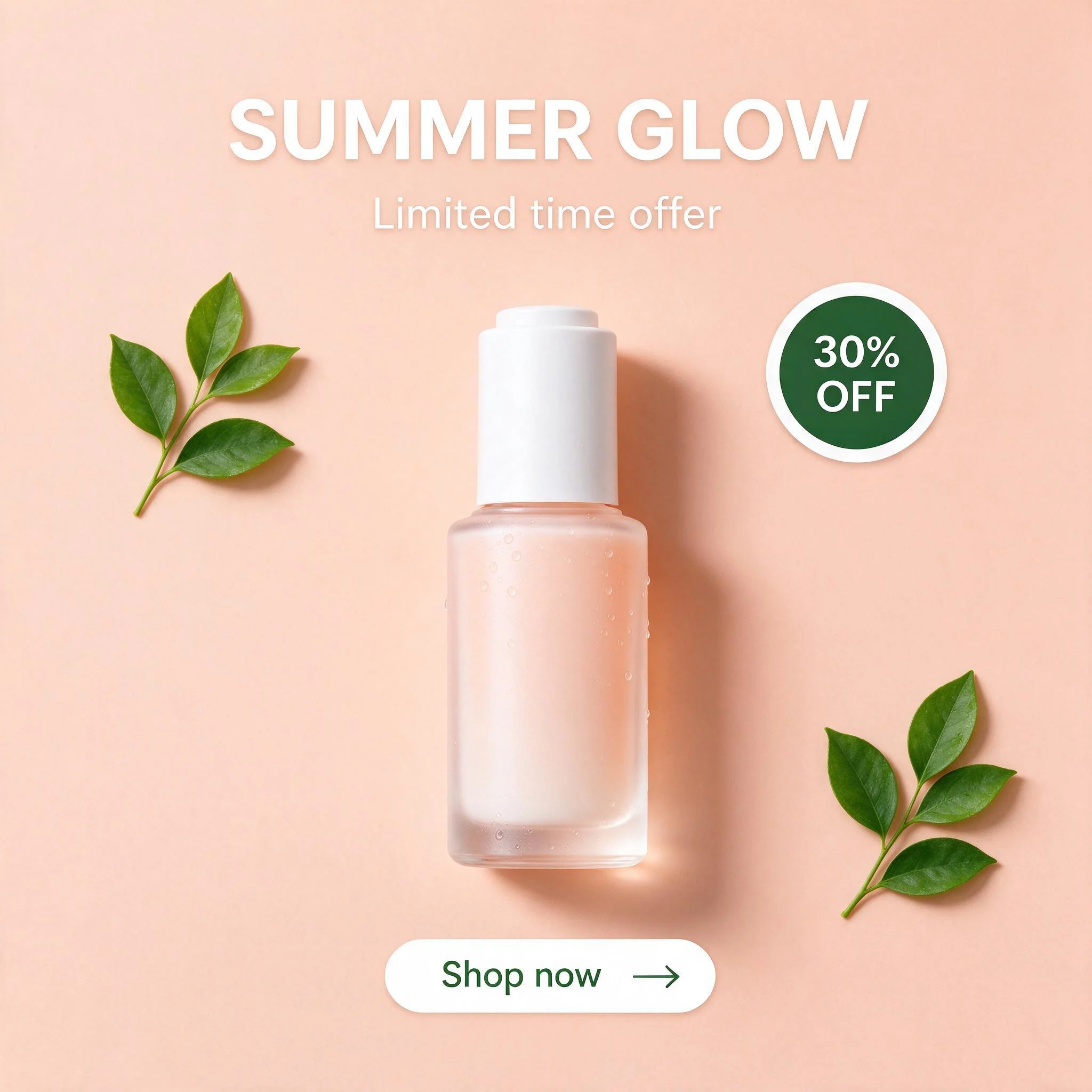
Swap a promotion badge

Skincare Instagram post — the flat original
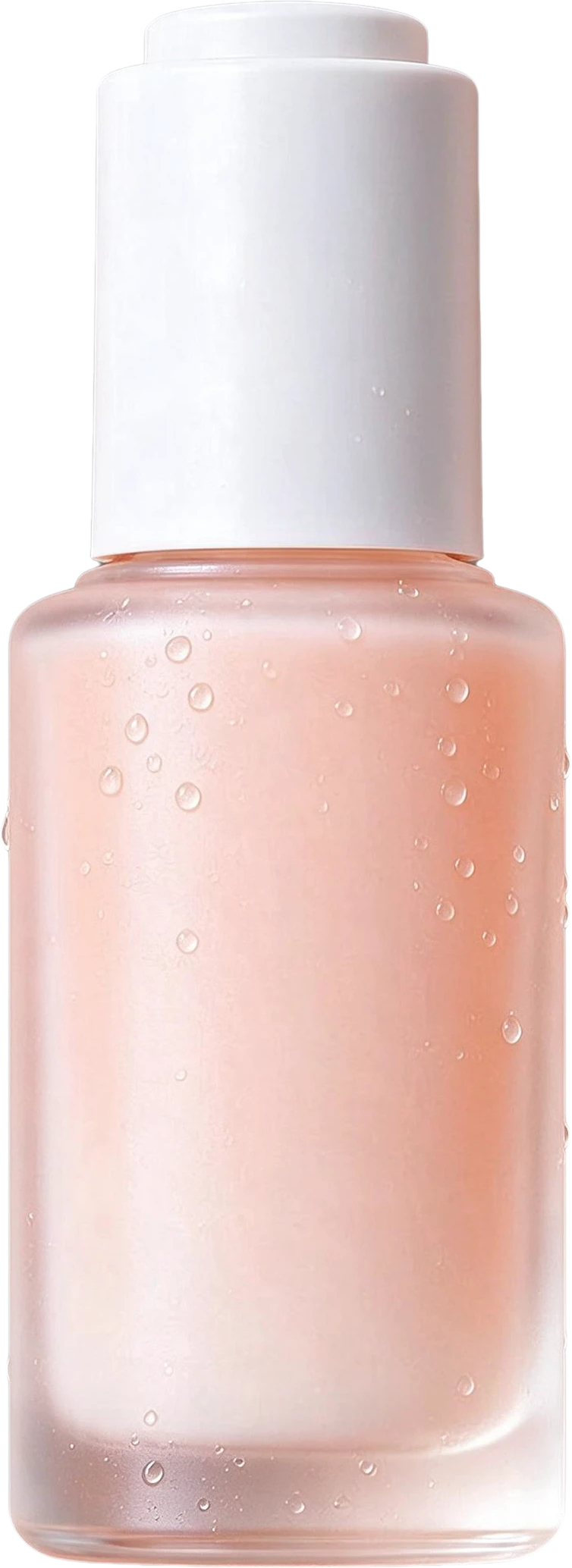
30% OFF Badge — separated layerShop now Button — separated layerSUMMER GLOW Text — separated layerSkincare Serum Bottle — separated layer

The Instagram post split into the badge, the button, the two text blocks, the bottle and the leaves. Replace one badge layer and the rest of the post is untouched. Built for it: LayerGrab (ask for “only the badge” and pay for two layers), magiclayers.net, Codia (select the badge after the split).

Take one product out of a photo

Sportswear flat-lay photo — the flat original
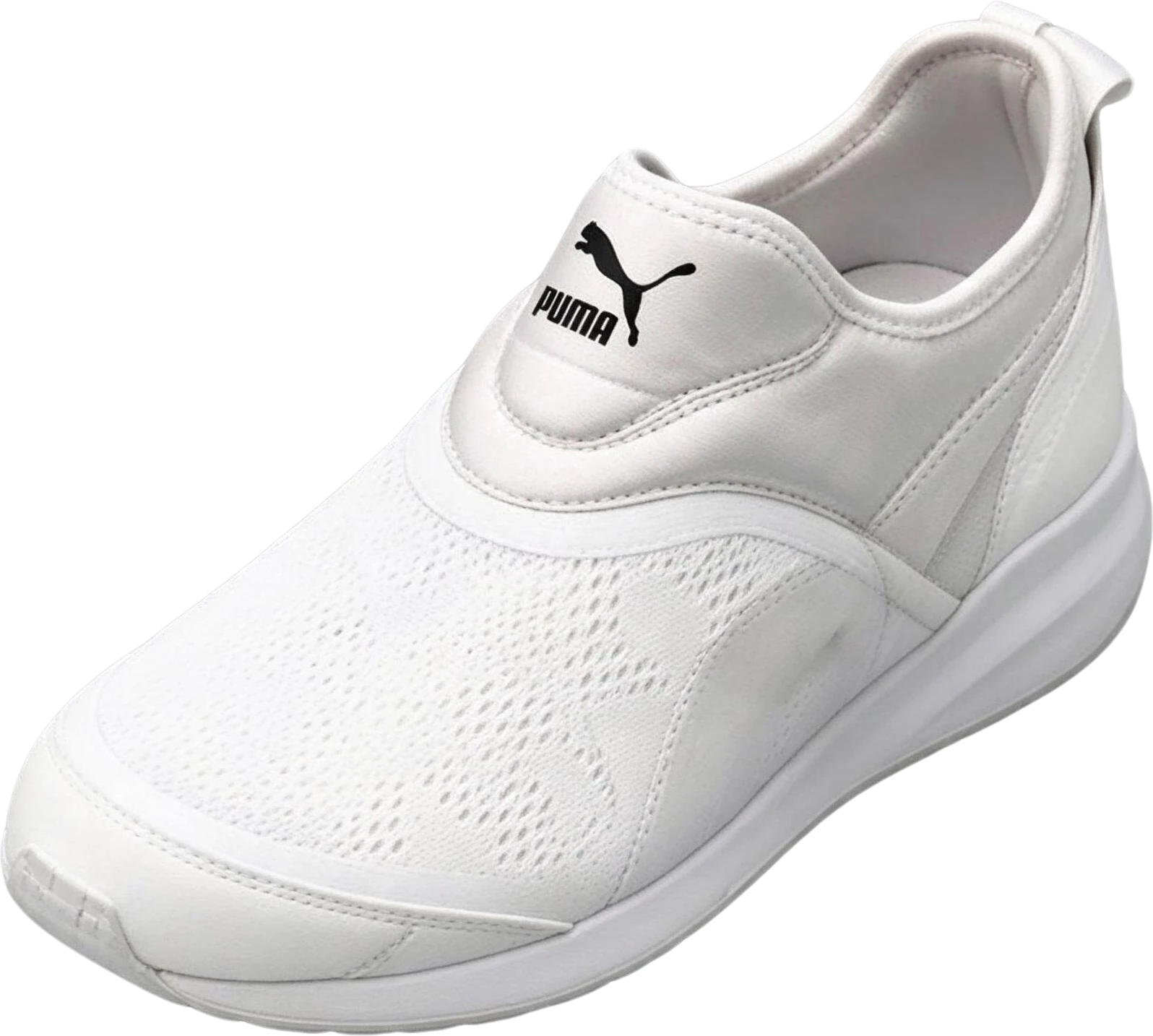
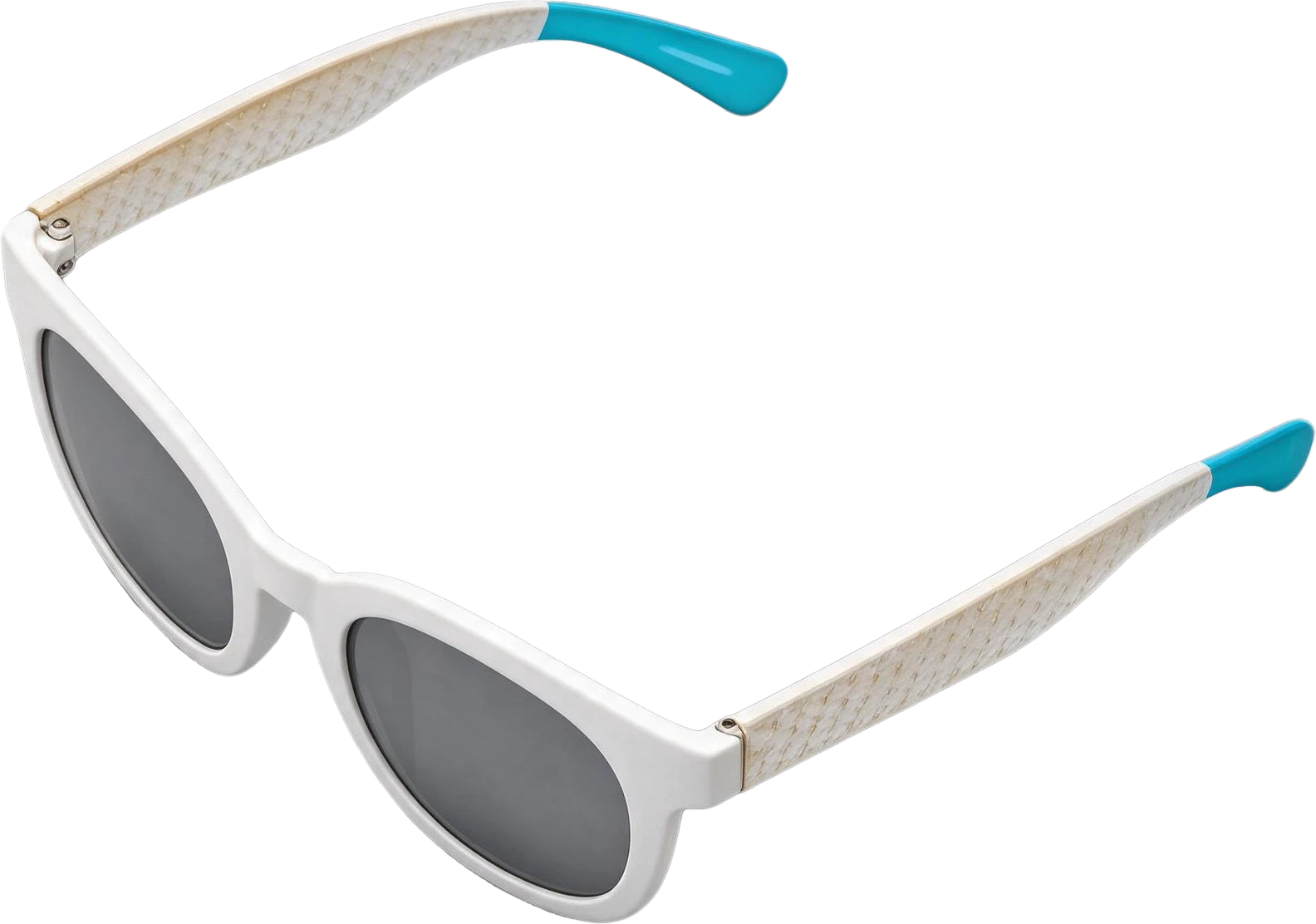
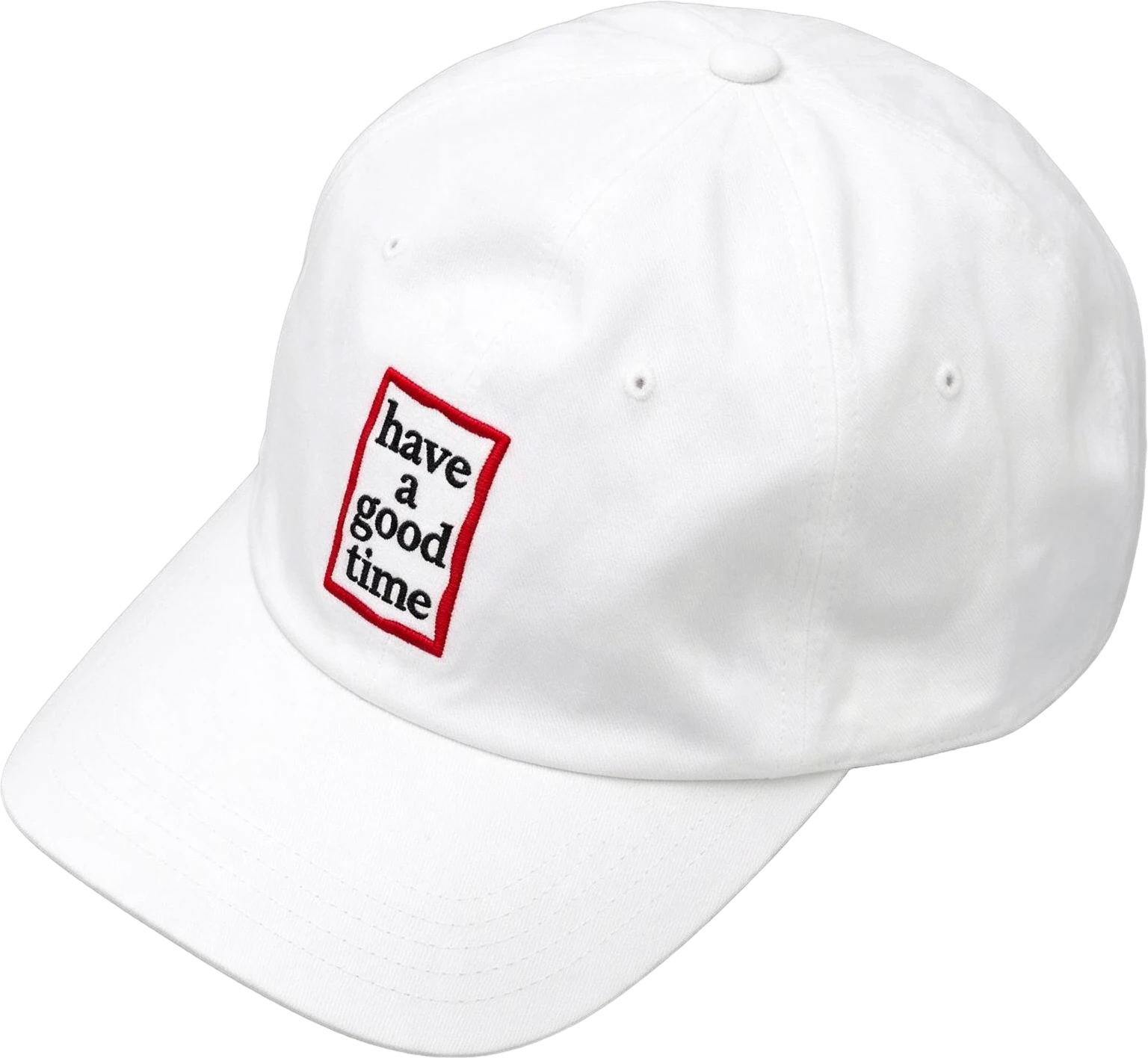
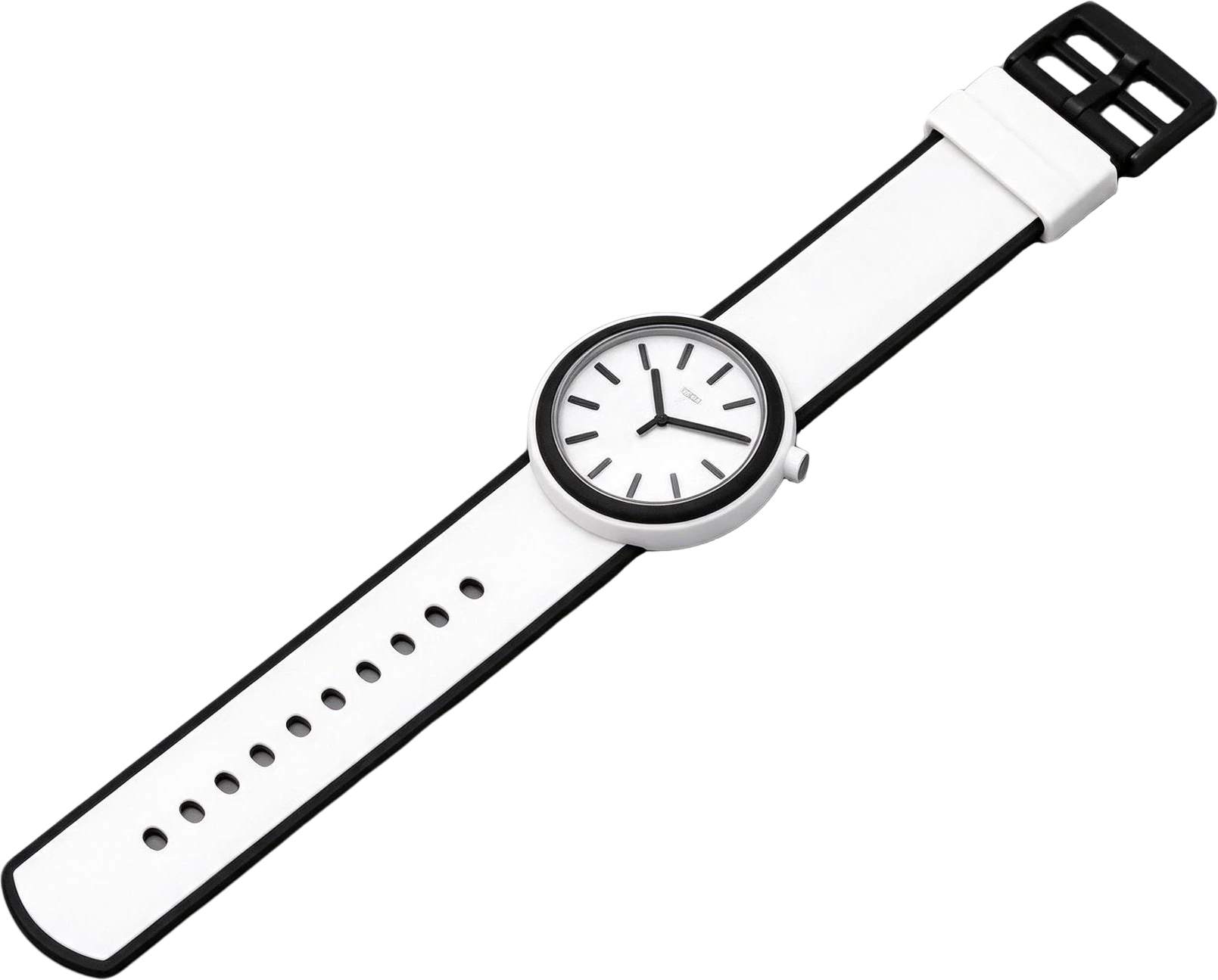
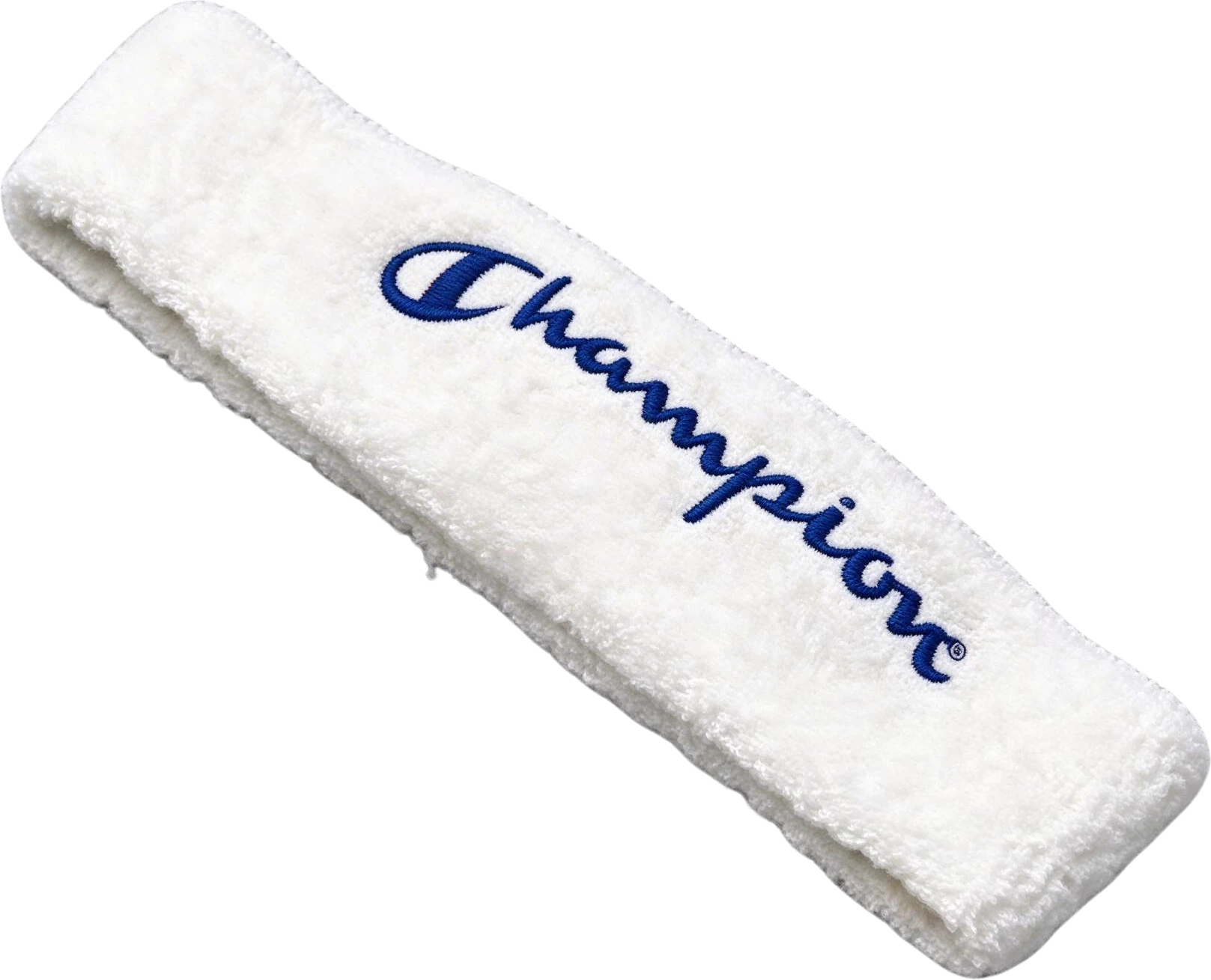
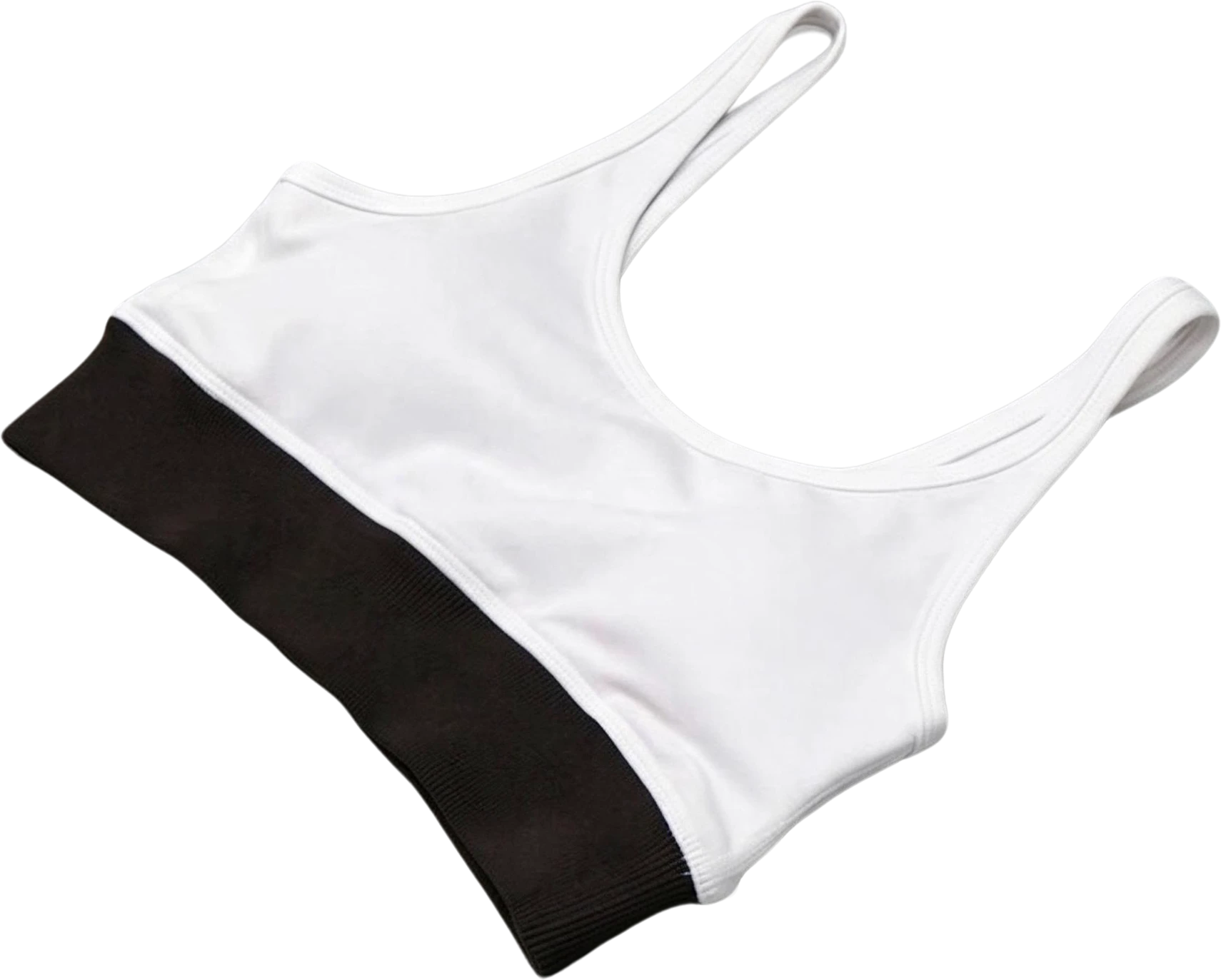
Left Puma sneaker — separated layerWhite frame sunglasses — separated layerWhite baseball cap — separated layerWhite strap watch — separated layerChampion headband — separated layerWhite sports bra — separated layer

The flat-lay photo gave 15 items, each complete, with a clean white base behind them. For a photo, note which tools warn about photos: Canva's help page lists photo-realistic images under “results may vary” and points to Magic Grab instead; LlamaGen recommends single illustrated subjects. Built for it: LayerGrab, imagetolayers.com.

Edit one object in an AI-generated image

AI-generated desk illustration — original

10 layers

  • Laptop with data visualization screen — separated layerLaptop with data visualization screen
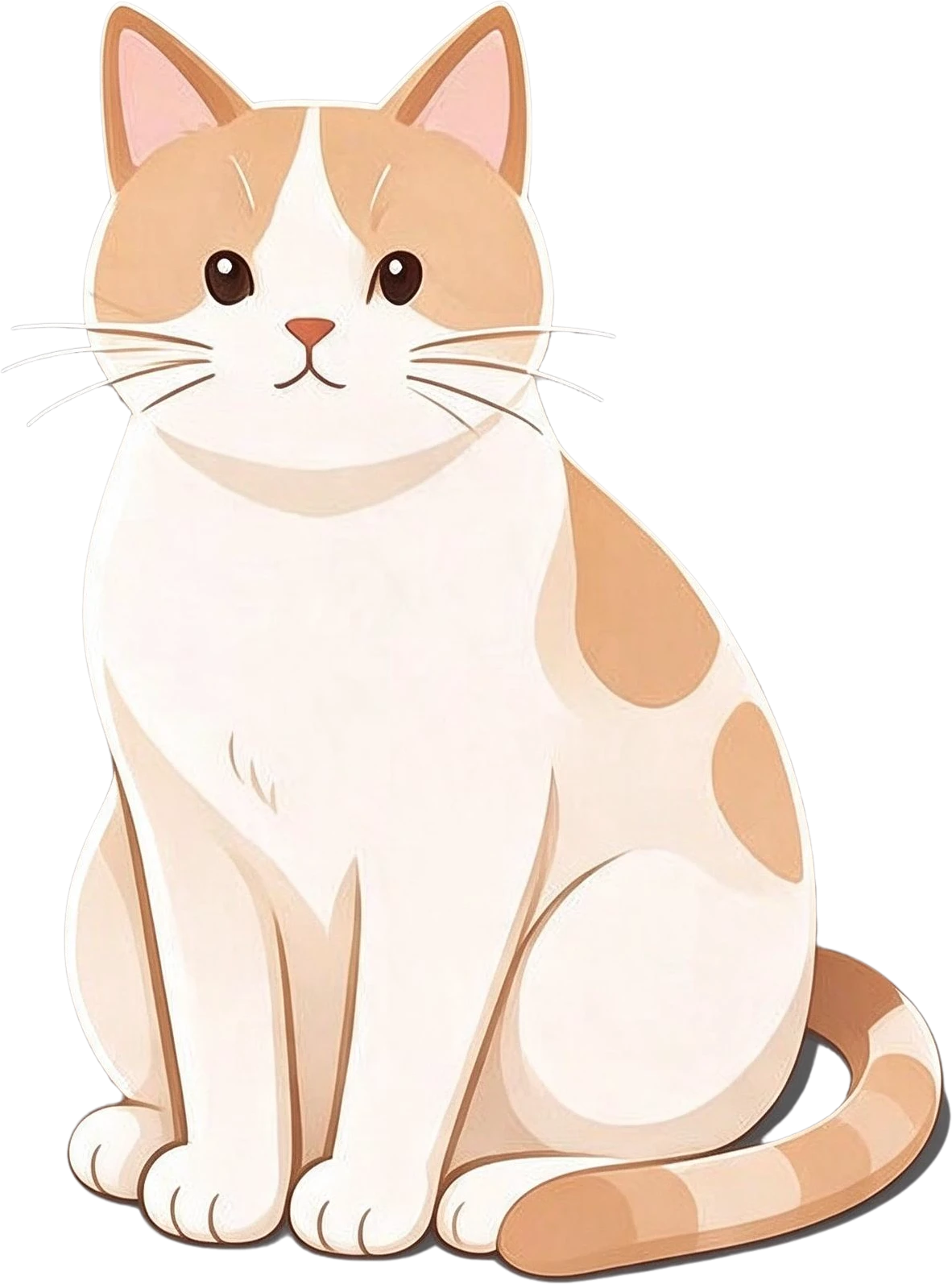
  • Sitting orange and white cat — separated layerSitting orange and white cat
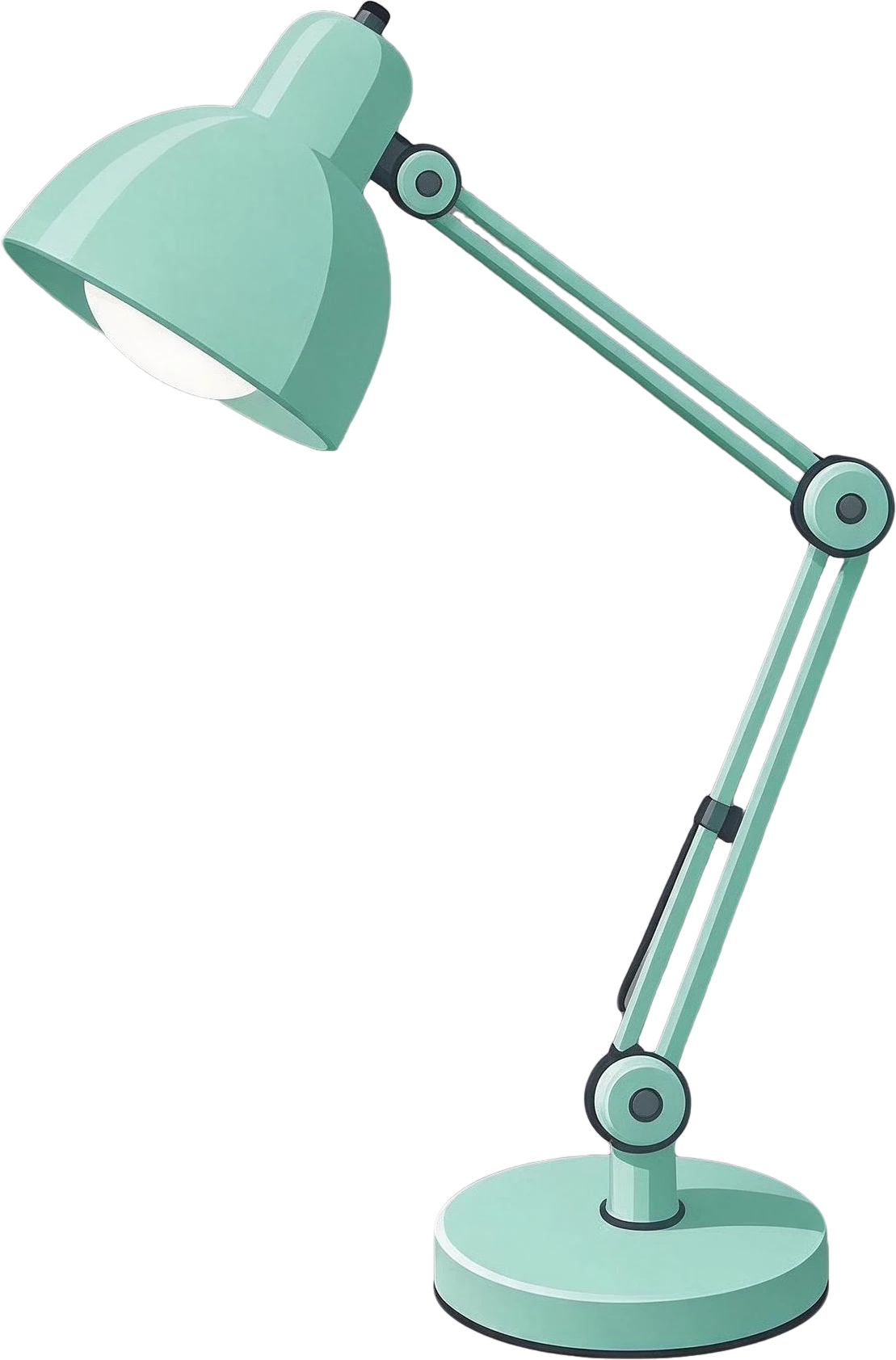
  • Mint green adjustable desk lamp — separated layerMint green adjustable desk lamp
  • Potted plant in coffee mug — separated layerPotted plant in coffee mug
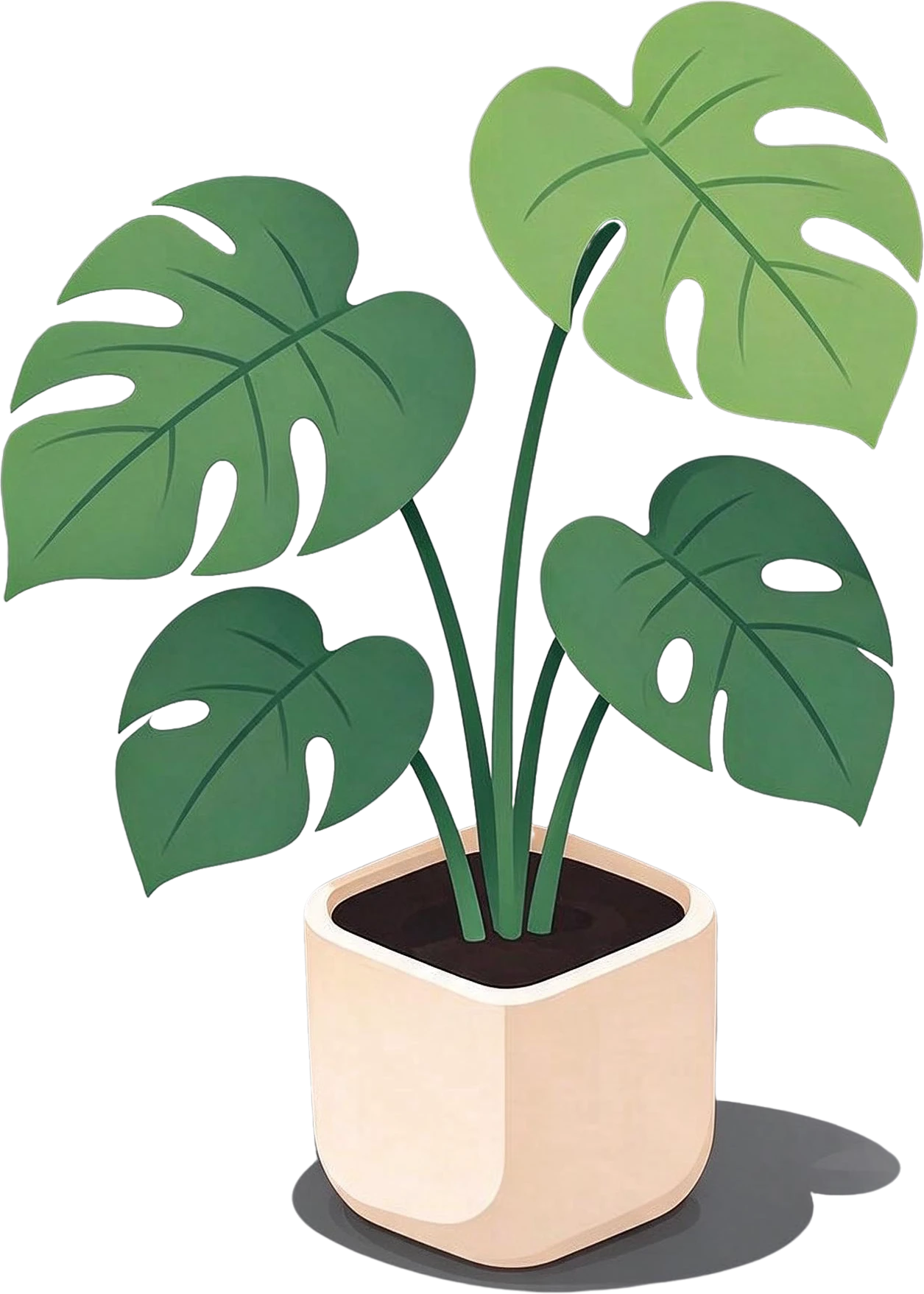
  • Monstera potted plant — separated layerMonstera potted plant
  • Stack of three books — separated layerStack of three books
  • Background (filled)

AI images arrive flat. Split, the desk illustration became the laptop, the cat, the lamp, the plant, the books and the desk itself, each movable, so you can move the cat without regenerating the scene. Built for it: LayerGrab, Codia (its page names AI-generated images), Qwen-Image-Layered if you run it.

Rebuild a design whose source file is lost

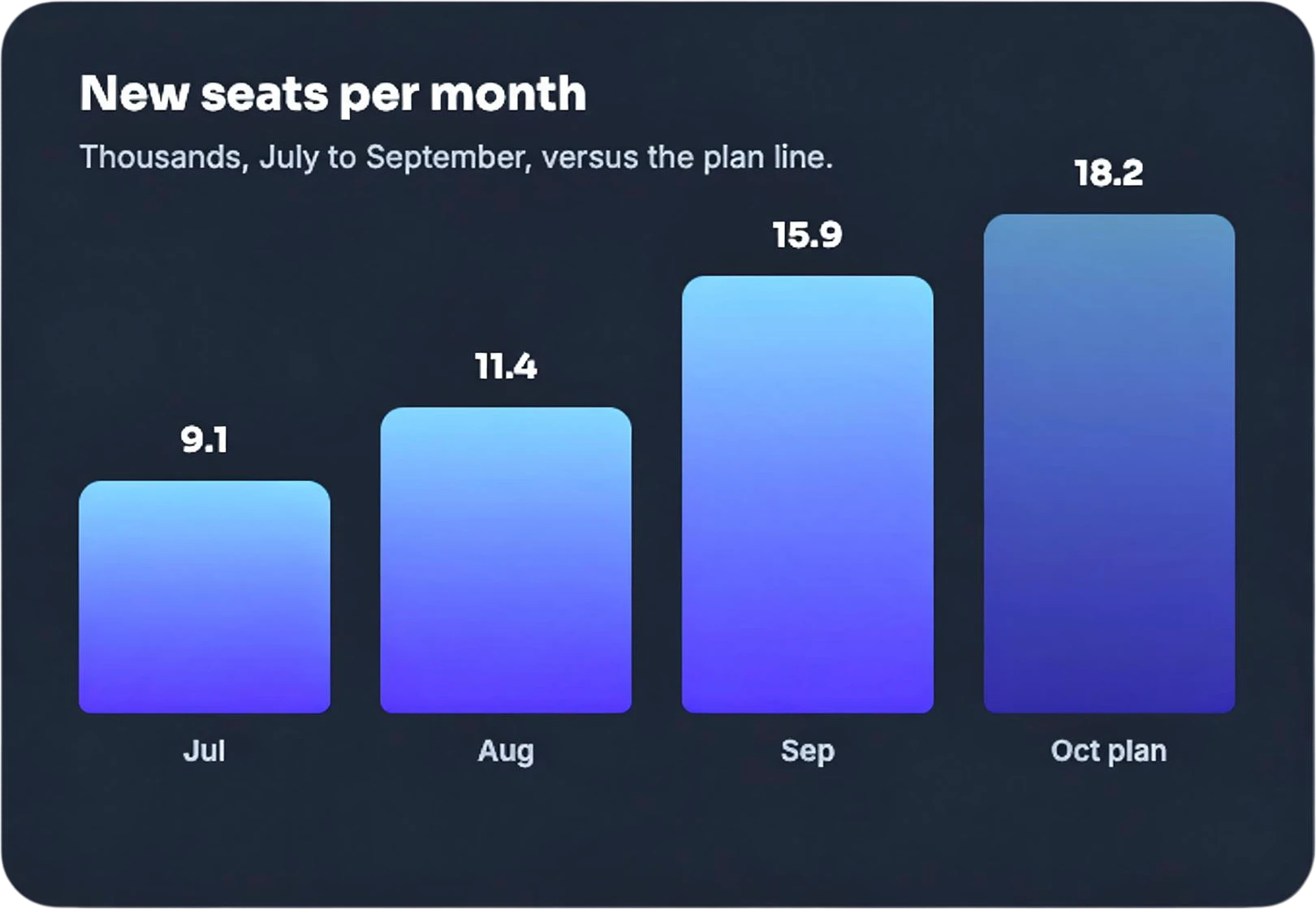
Yellow +42% Year on Year Badge — separated layerNew Seats Per Month Bar Chart Panel — separated layer
  • growth-report-slide.psd12 named layers, in place
  • growth-report-slide-layers.zip12 transparent PNG files
  • Yellow +42% Year on Year Badge.pngOne layer, or copy it to the clipboard

A flattened slide came back as its four metric cards, the chart panel, the badge, the title and the footer, ready to export as a layered PSD and keep editing. Built for it: LayerGrab and imagetolayers.com (both export PSD); magiclayers.net gives PNGs you assemble yourself. See also how to unflatten an image.

Lift one person out of a group photo

Two-person photo — original
Original
Two-person photo — one person out, the wall behind her filled in
One person out, the wall behind her filled in

You want the person and the photo without them, both usable. Built for it: LayerGrab (“the woman on the right”), magiclayers.net (“Separate all people in the image” is one of its own examples), Canva Magic Grab. Hair edges are softer than a hand-made mask on every AI tool.

When not to use any of them

If the layered source file still exists, get it: every layer splitter here returns pixel layers, and none recovers fonts, vectors, masks or effects. If you only want a subject on transparency and do not care what was behind it, a background remover is faster and often free. And if the image contains someone else's work, splitting it does not change who owns it.

Frequently asked questions

What is the best AI tool to split an image into layers?

The best AI image layer splitter is the one whose layers land where you work. For files you can take into Photoshop, Figma or another tool, LayerGrab, imagetolayers.com and magiclayers.net all export transparent PNGs, and LayerGrab and imagetolayers.com export a layered PSD. If you never leave Canva, Magic Layers is the built-in choice. If you have a GPU and want to run it yourself, Qwen-Image-Layered is open.

Which layer splitters let me pick one object instead of splitting everything?

Of the eight, two take a description of what to separate before the split: LayerGrab ("only the price tag") and magiclayers.net, whose page has an optional "Describe what to separate" box. Canva and Codia let you select a layer after the whole image has been split. Qwen-Image-Layered's prompt describes the whole image and, by its README, is not meant to choose what goes on a layer.

Do these tools fill in what was behind an object?

A good split repaints the background behind each element and completes the element itself where something covered it. We saw both on LayerGrab: in the coffee poster the cup behind the pumpkin comes back whole and the base image is clean. imagetolayers.com says it reconstructs hidden areas. Most other pages do not say either way, which usually means you should test with your own image before relying on it.

Is there a free AI layer splitter?

Free to try, yes: LayerGrab's sample splits work without an account and new accounts get 30 credits in supported regions, Codia says Magic Layers can be tried free, LlamaGen has a free Quick Mode, imagetolayers.com gives 20 one-time credits, and Qwen-Image-Layered's weights are free to download. Free without limits, no: every hosted tool charges once you split your own images at volume, and the open model costs GPU time.

Can I edit the text after splitting a poster?

In every tool here the text comes back as pixels on a transparent layer, not as live type. What matters is whether the background under it is clean: if it is, you hide the text layer and set new text in the same place with your own font.

How were these tools compared?

LayerGrab was run on seven images, all saved as-is and shown on this site. The Qwen-Image-Layered public demo was attempted three times with the same poster and refused for lack of GPU quota without a login. The other six are described from their own product and help pages, read on the date shown at the bottom of each entry, and the table says "not stated" wherever a page is silent.