



LayerGrab

Turn a Flat Poster Into Editable Layers

Poster to layers is a LayerGrab tool that turns a finished poster back into editable layers: every headline, badge and graphic as a separate piece, over a cleaned-up background.

Image

Leave empty to split every element.

Sample split, free to explore: Coffee shop poster

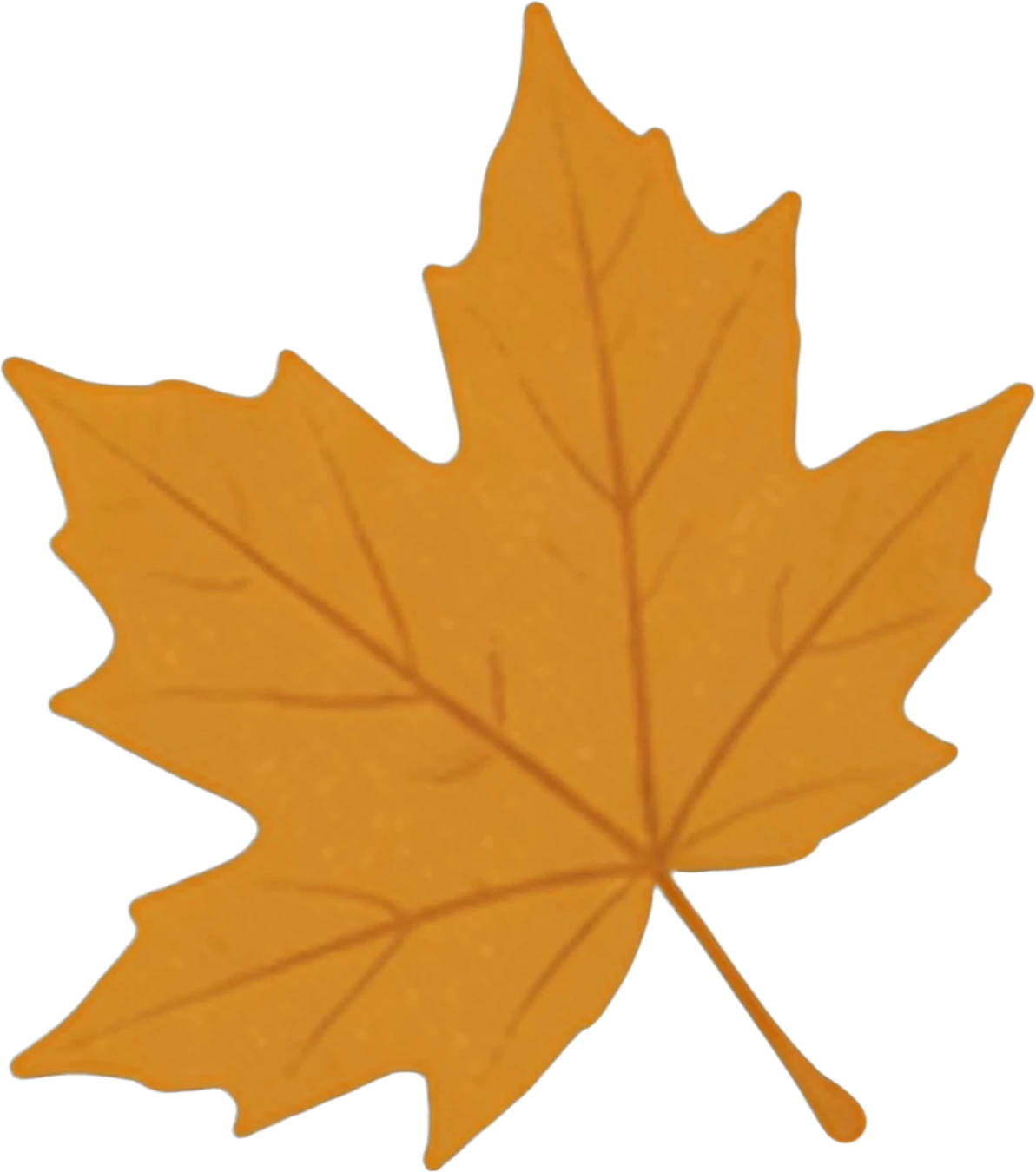
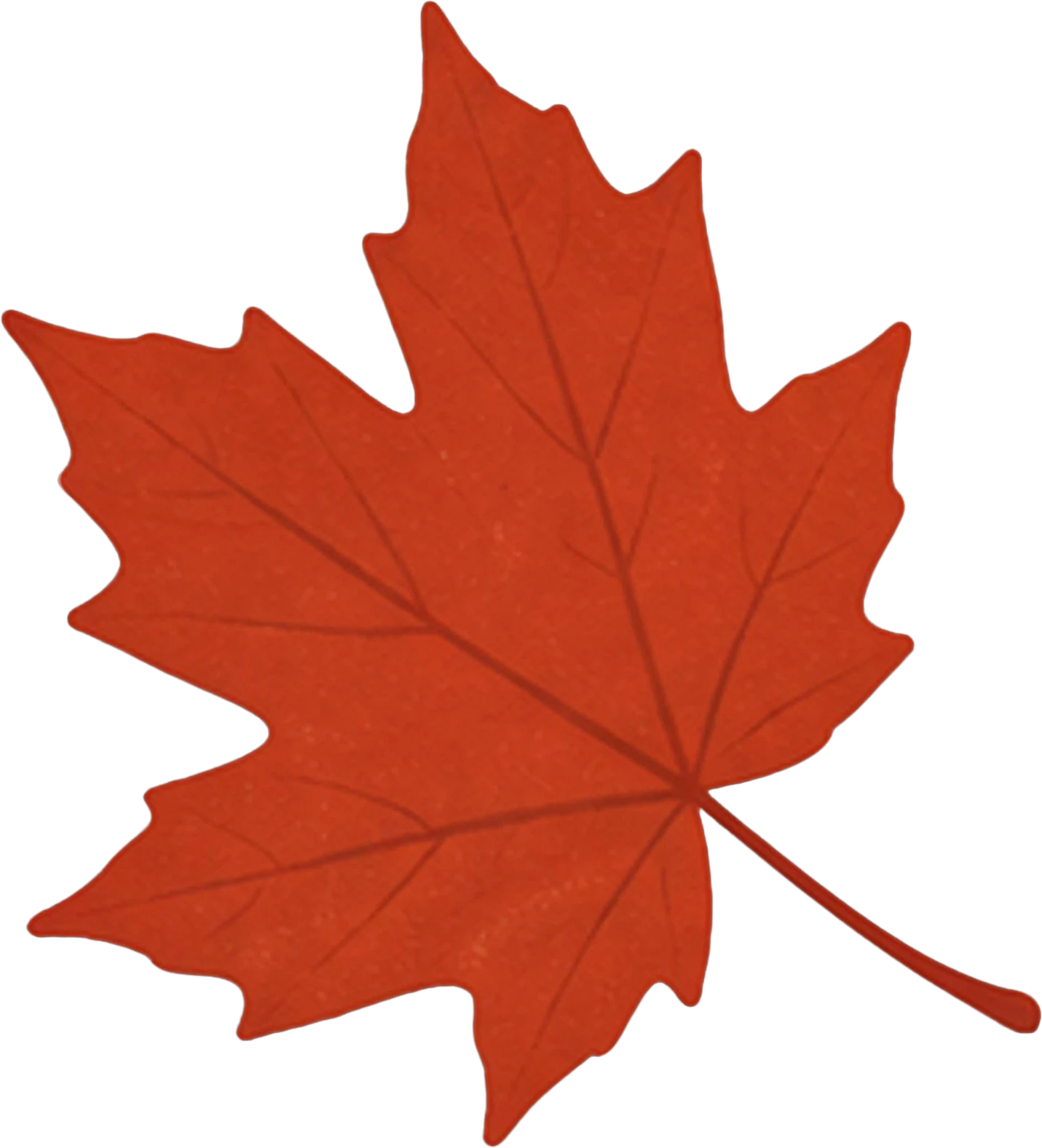
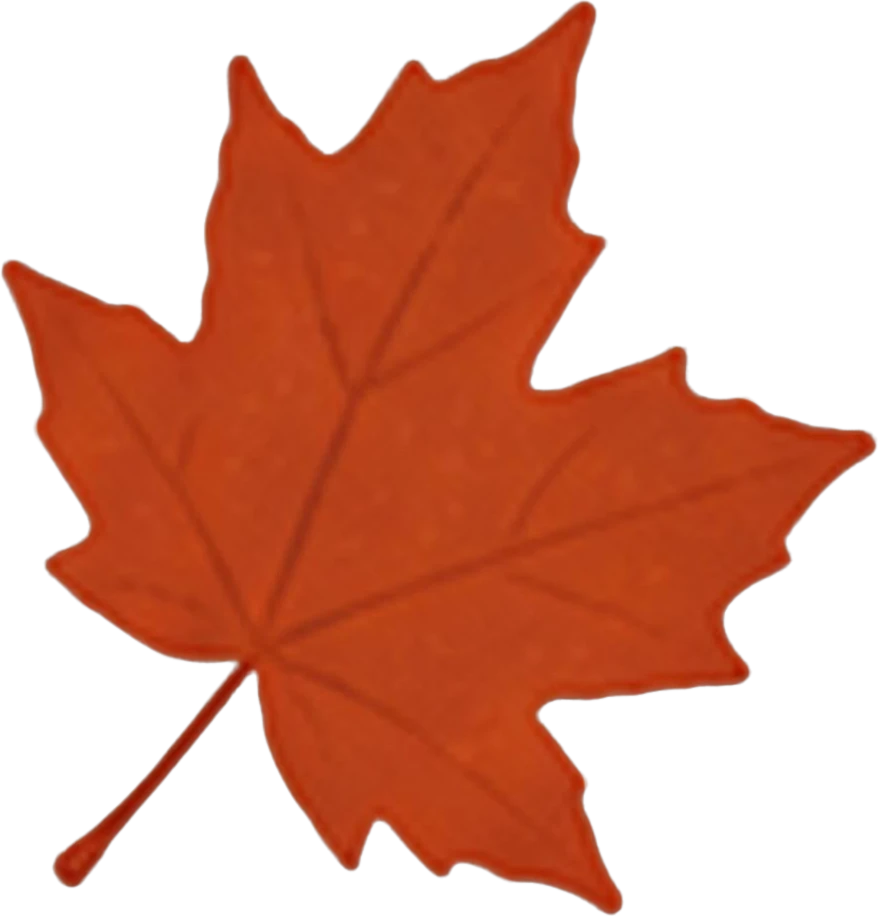
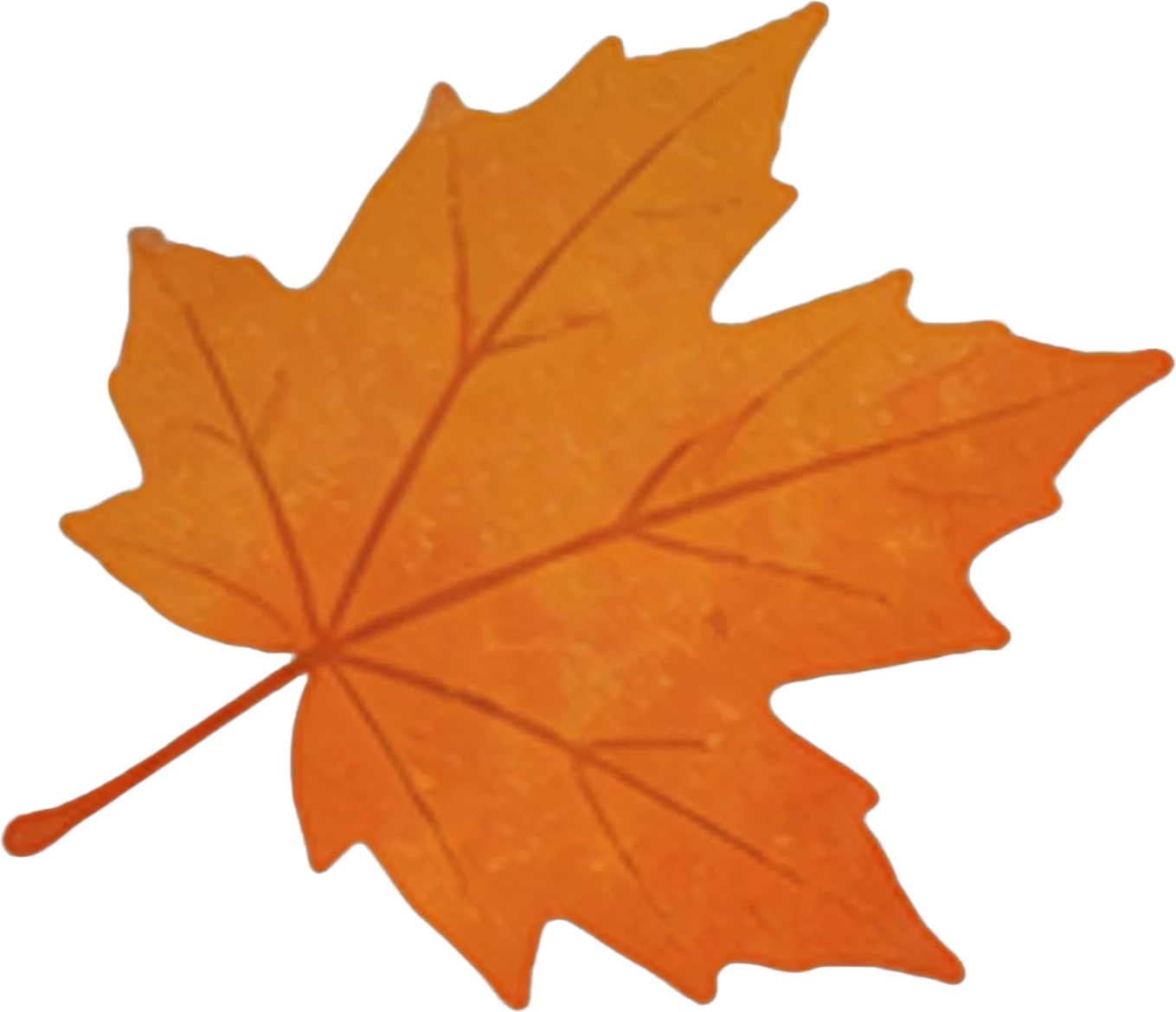
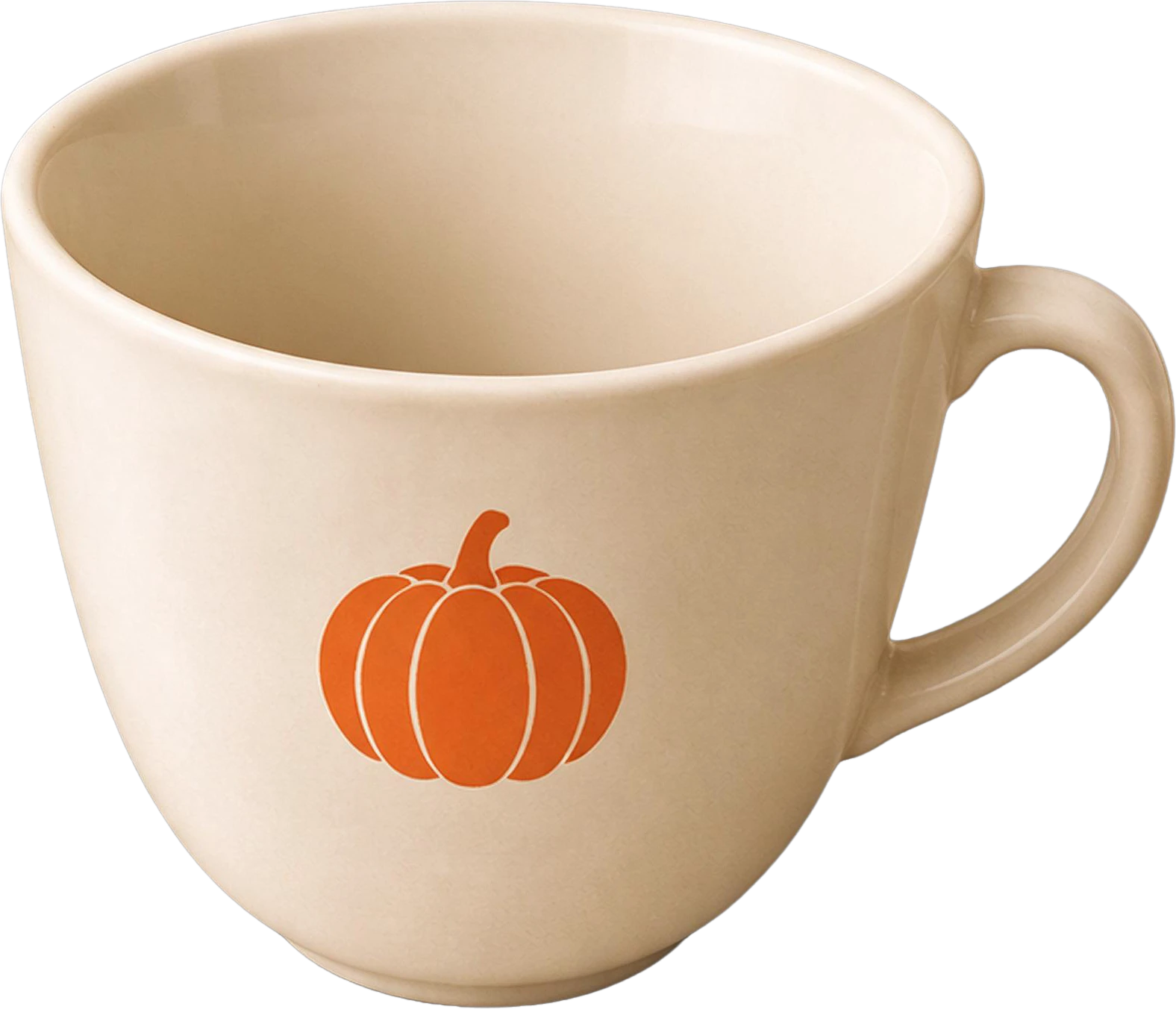
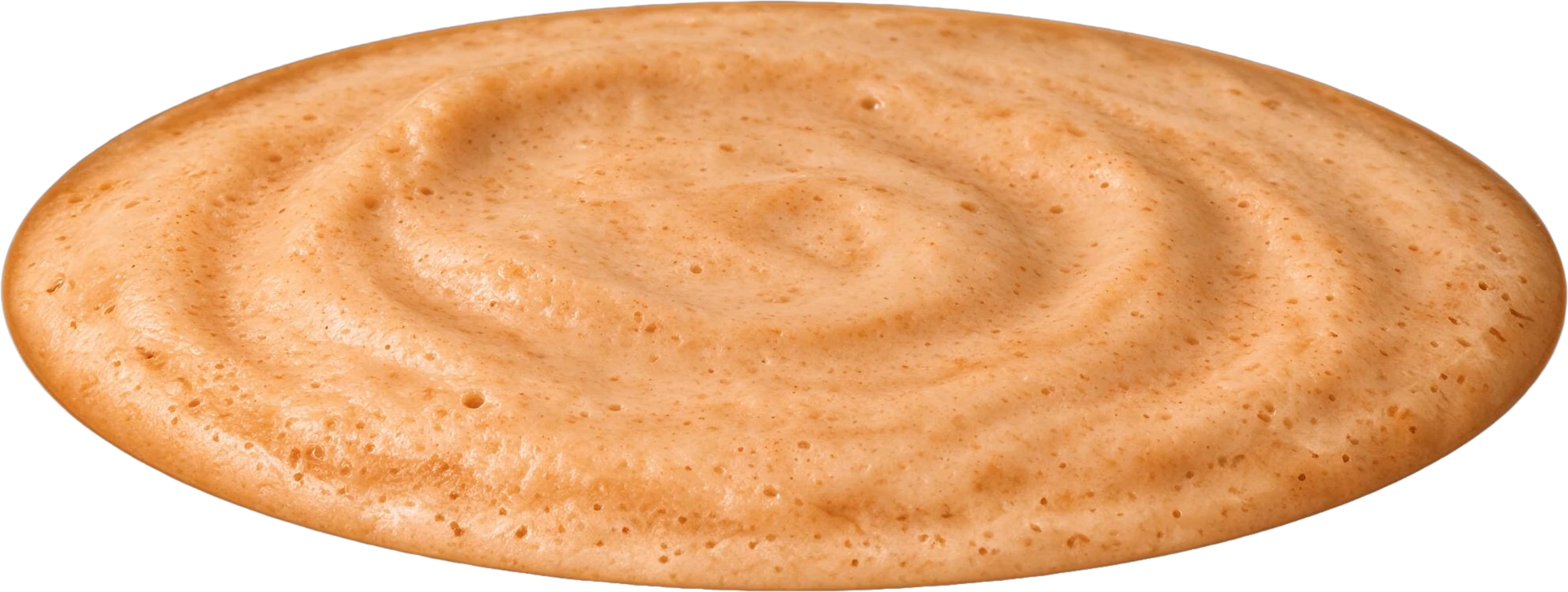
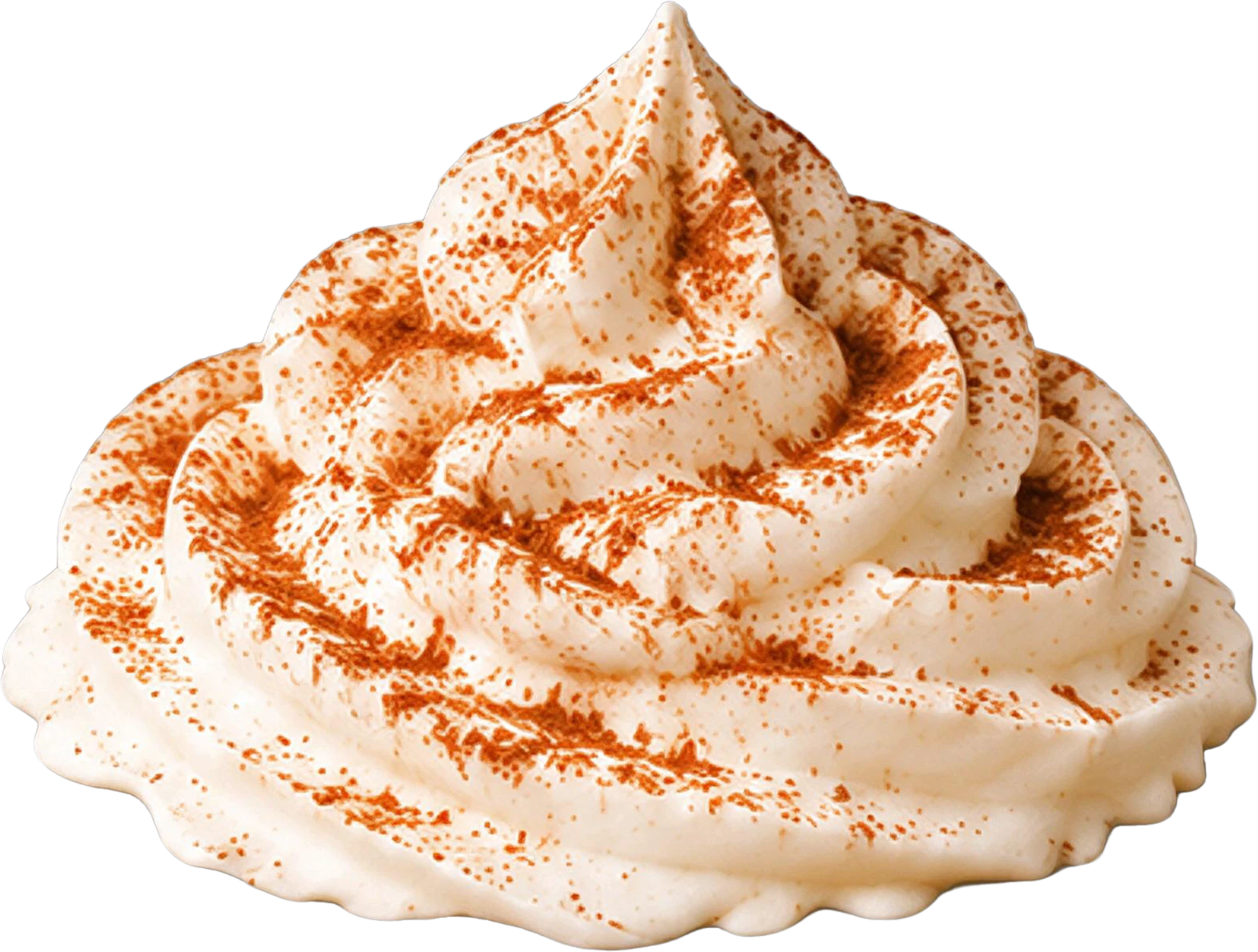
Coffee shop poster — background with every element removedAUTUMN LATTE WEEK headline text20% OFF red badgeYellow maple leaf (top left)Red maple leaf (bottom left)Orange maple leaf (top right)Orange maple leaf (bottom right)White coffee cup with pumpkin logoPumpkin spice latte drink baseWhipped cream topping with cinnamon dustBottom event info text

11 layers

Split in 100s

  • Background (filled)

Poster layer separator

A poster layer separator, on a real poster

Poster to layers is the LayerGrab workflow for turning a flat poster, flyer or social graphic back into an editable stack: each headline, badge, product shot and decoration on its own transparent layer, over the poster background with those elements painted out.

It works on posters you did not make, and on your own when the source file is gone. Compared with a general image splitter, the difference is what you do next: swap the copy, the offer or the format while everything else stays put.

Try it on your own image
Coffee shop poster — the flat original
AUTUMN LATTE WEEK headline text — separated layer20% OFF red badge — separated layerWhite coffee cup with pumpkin logo — separated layerYellow maple leaf (top left) — separated layerWhipped cream topping with cinnamon dust — separated layerBottom event info text — separated layer

Clean space where the text was

Hide the headline layer, and the background under it is already clean. Set the new language in your own font without cloning or patching.

Swap "20% OFF" for next week's deal by replacing one badge layer. The rest of the poster stays pixel-for-pixel the same.

Coffee shop poster — original
Original
Coffee shop poster — headline, badge and event line hidden
Headline, badge and event line hidden

Every piece named and in place

Move the product, text and decorations independently to rebuild a story, banner or square post from one poster.

Take one illustration or product shot out as a transparent PNG for another design.

Try it on your own image
Coffee shop poster — original

11 layers

  • Bottom event info text — separated layerBottom event info text
  • Whipped cream topping with cinnamon dust — separated layerWhipped cream topping with cinnamon dust
  • Pumpkin spice latte drink base — separated layerPumpkin spice latte drink base
  • White coffee cup with pumpkin logo — separated layerWhite coffee cup with pumpkin logo
  • Orange maple leaf (bottom right) — separated layerOrange maple leaf (bottom right)
  • Orange maple leaf (top right) — separated layerOrange maple leaf (top right)
  • Background (filled)

How to separate a poster into layers

  1. 1

    Upload the poster

    The flat file you have: an exported JPG or PNG, a screenshot of a social post, or a photo of a printed flyer taken straight on.

  2. 2

    Split it

    Leave "What to separate" empty to get every element, or name just the parts you will change, such as "the headline and the badge". It takes 60–100 seconds.

  3. 3

    Hide what you are replacing

    Toggle the pieces in the preview to check that the background underneath is clean.

  4. 4

    Export

    Download a layered PSD for Photoshop, individual PNGs, or copy layers straight into Figma or Canva.

What separates well

Designed posters are the best case: type, badges, product shots and illustrations sit on the background as distinct shapes, so each becomes a clean layer.

For the whole stack as one Photoshop file, see image to PSD. To lift a single element, pull out just that object.

When not to use it

If you can get the original design file, use it: the layers there keep live text, fonts and effects. Posters where type is set over a detailed photo, such as a face, separate less cleanly than type on a plain or graphic background.

Drop shadows and glows cast onto the background stay in the background layer instead of moving with the element.

Frequently asked questions

Can I edit the text on a poster after splitting it?

You can move, resize, recolour or hide the text, because it is a layer of its own. It is a picture of the text, not live type, so to change the words you hide that layer and type new text in its place; the background underneath is already filled in.

How many layers does a poster give?

Busy posters give the most. The coffee-shop poster on this page came back as 11 layers: the headline, the badge, four maple leaves, the cup, the drink, the whipped cream, the event details line and the filled background.

Does it work on a photo of a printed poster?

Yes, if the photo is taken straight on and in focus. Perspective, glare and paper texture end up in the layers, so a flat digital export always gives cleaner results.

Will I get the original fonts?

No. The layers are a new separation made by AI from the pixels, so fonts, effects and adjustment layers from the designer's file are not recovered. If you can get the original file, use that.

Last updated 2026-09-29