



LayerGrab

Image to Layers — Grab Any Element from a Photo

LayerGrab turns a flat picture into 7–10 layers you can edit, with AI, in about a minute.

Image

Leave empty to split every element.

Sample split, free to explore: Coffee shop poster

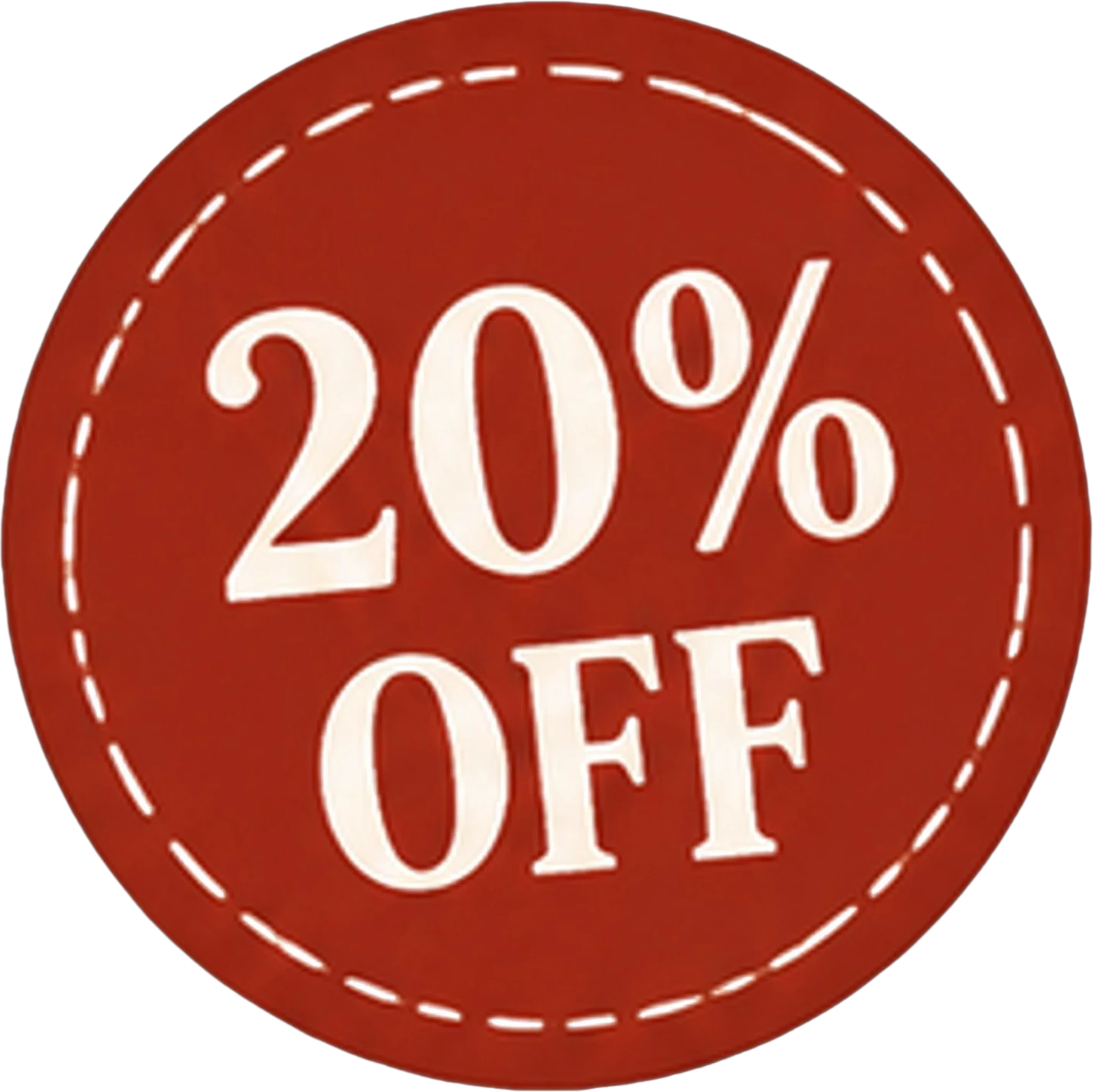
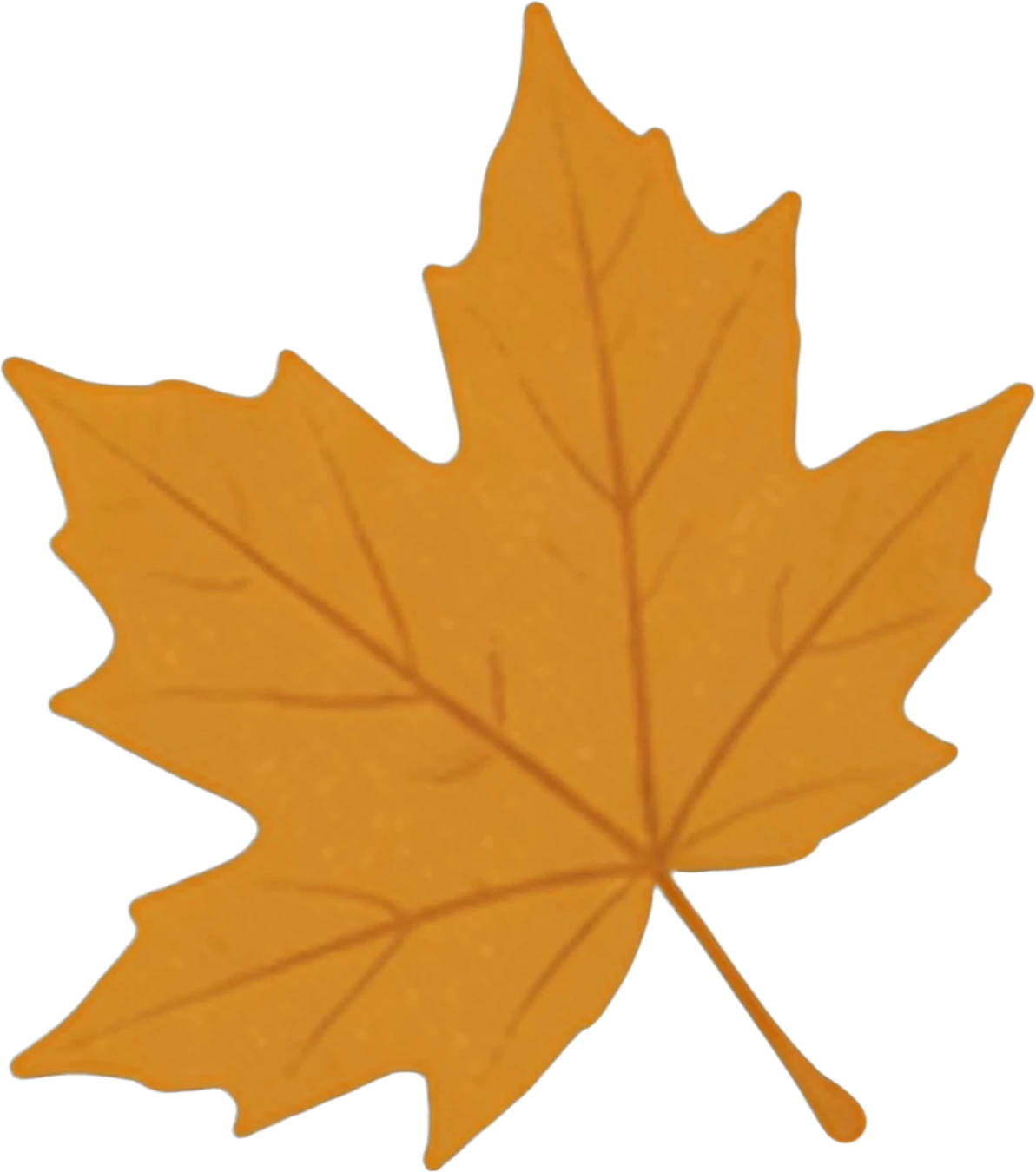
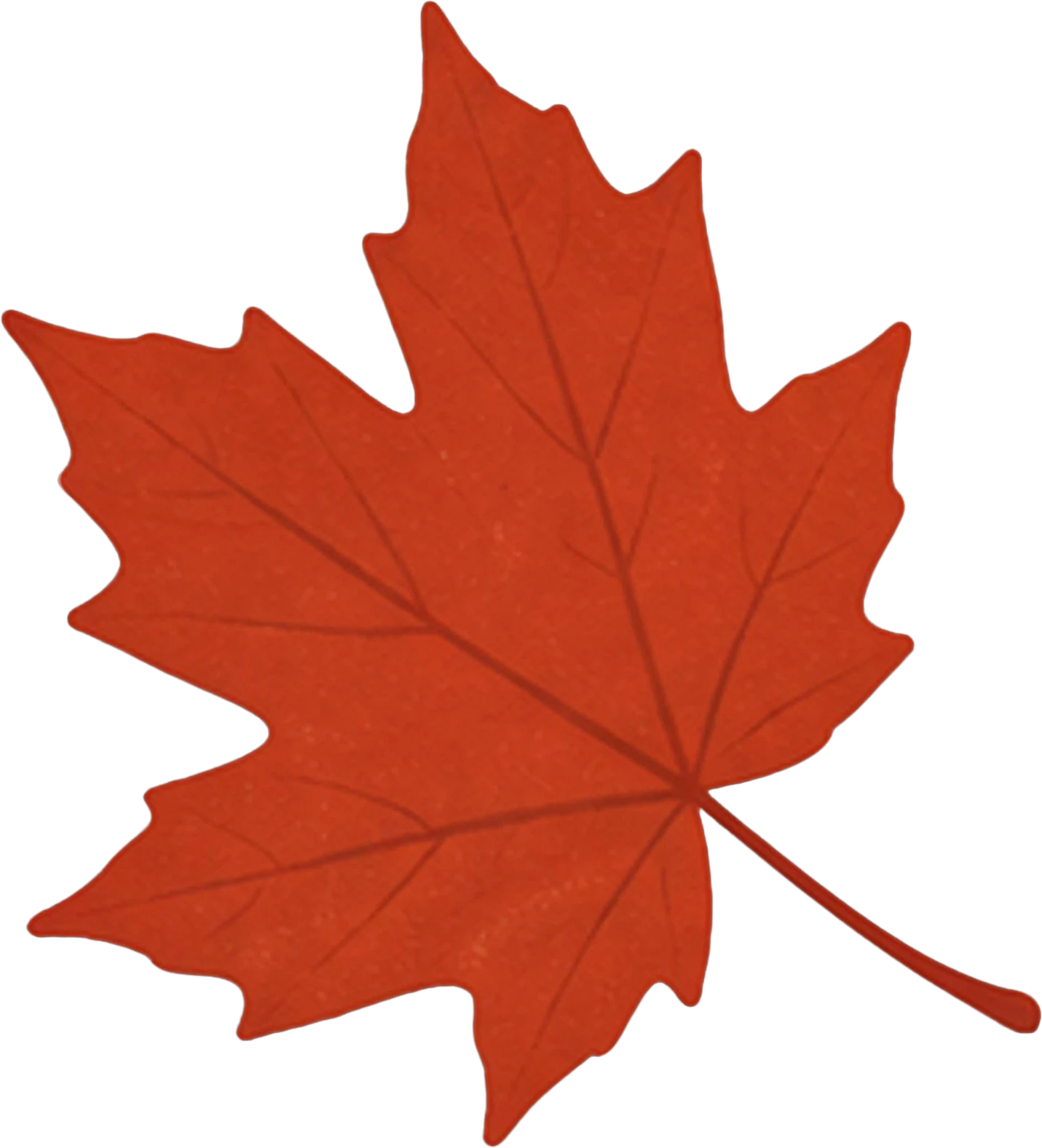
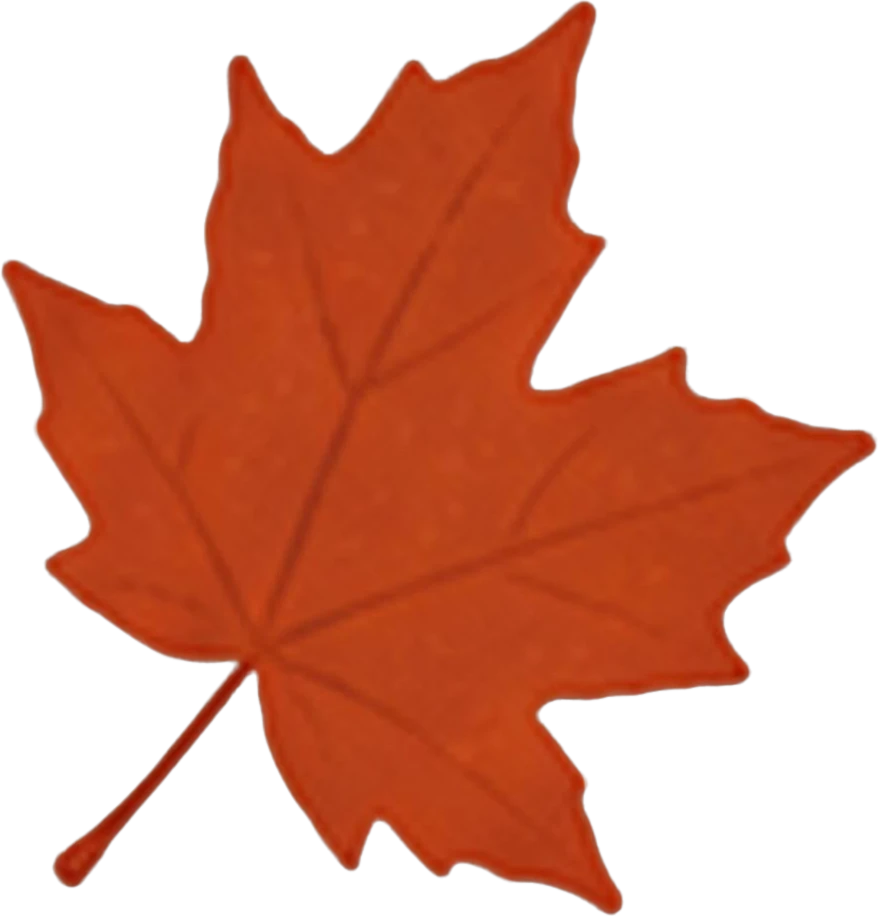
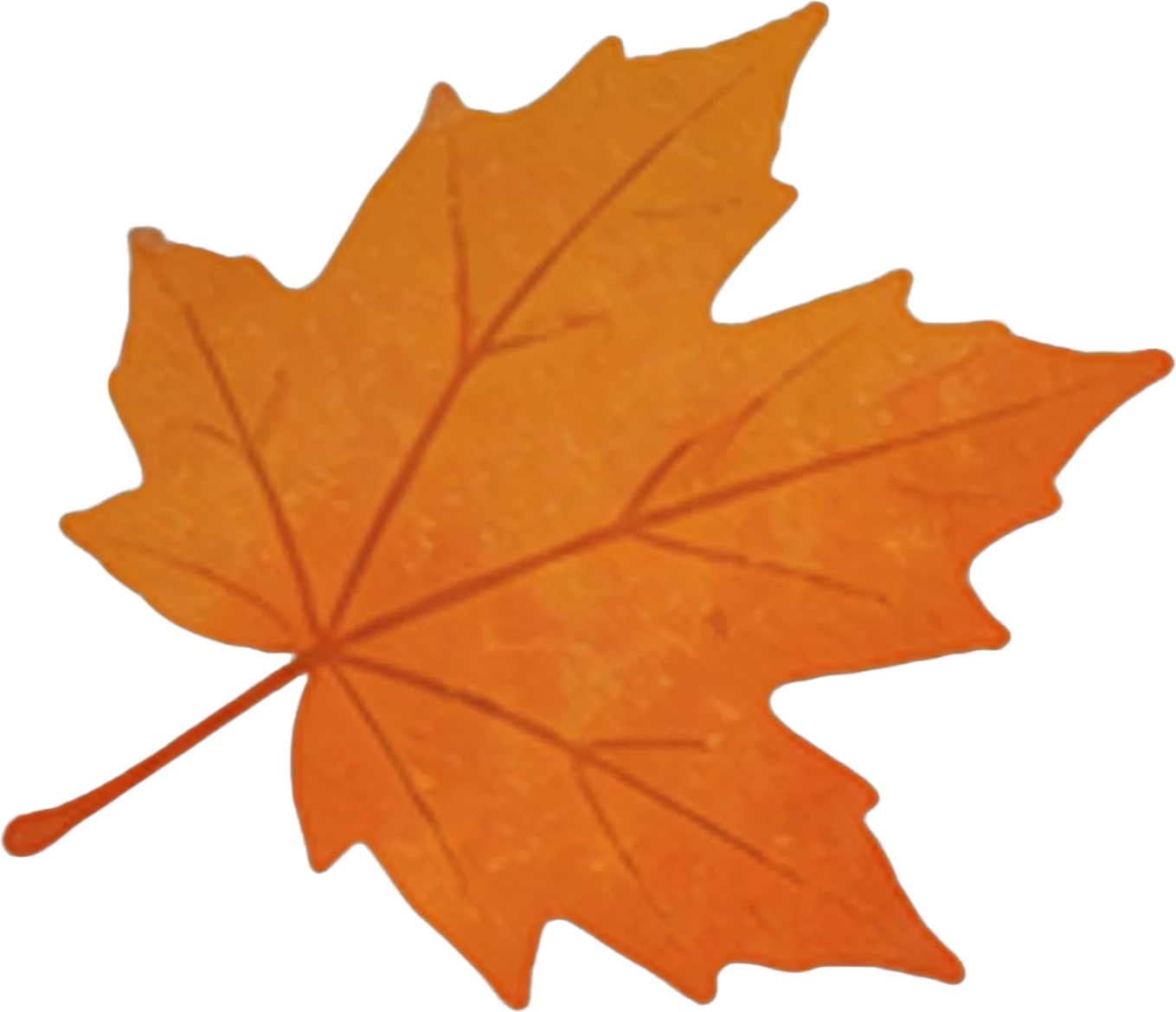
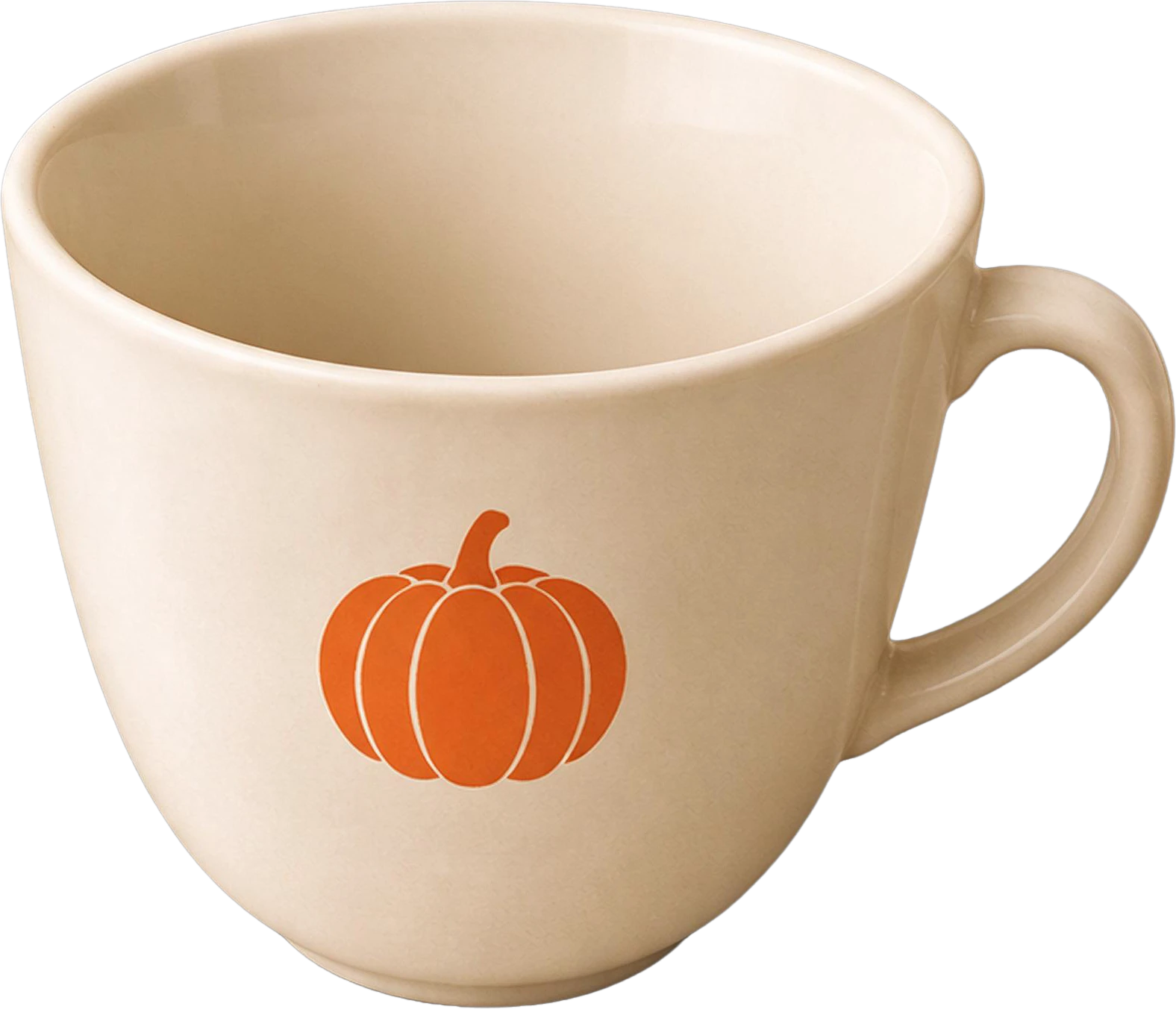
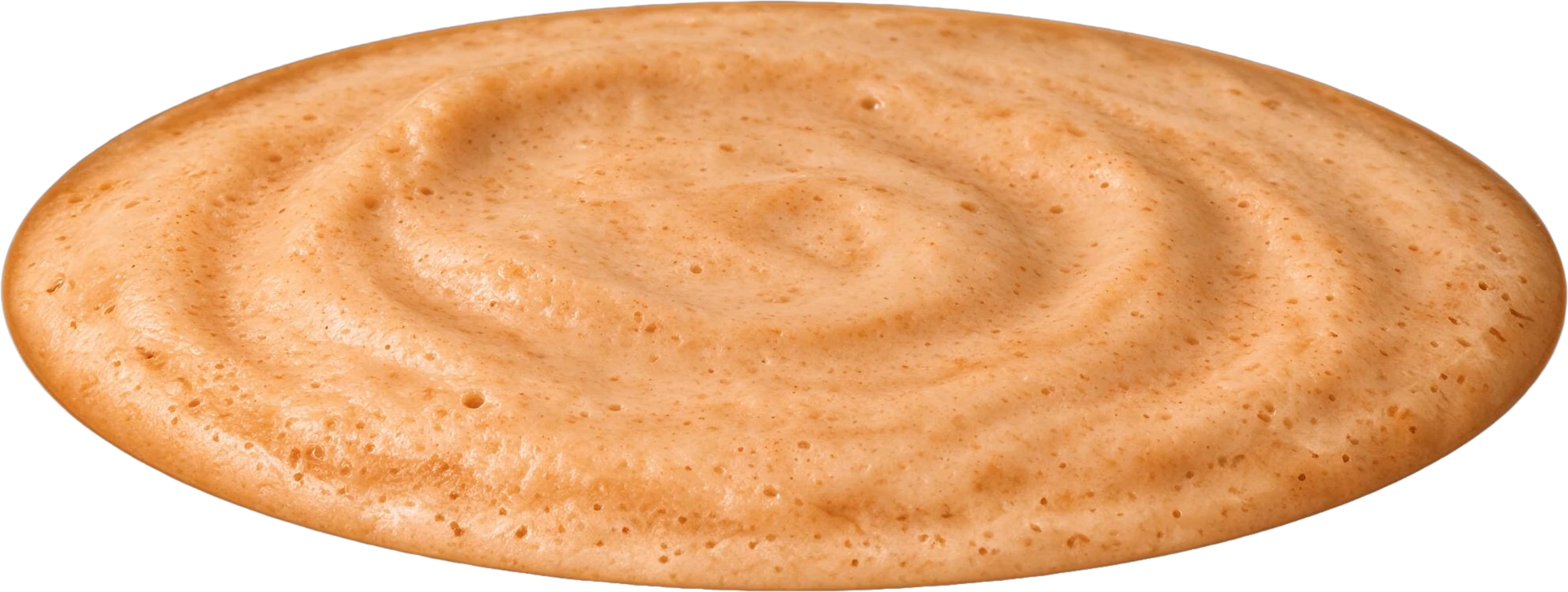
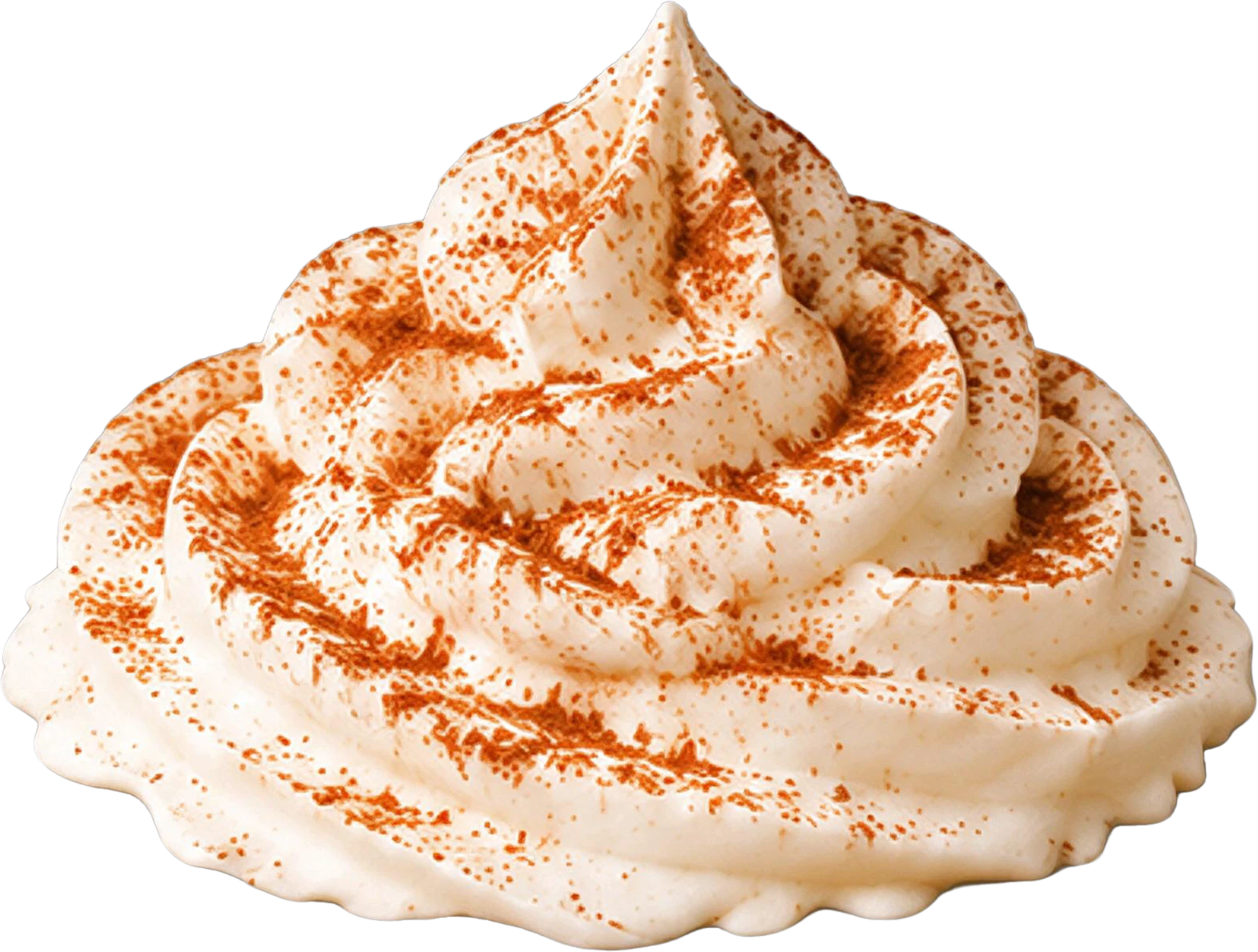
Coffee shop poster — background with every element removedAUTUMN LATTE WEEK headline text20% OFF red badgeYellow maple leaf (top left)Red maple leaf (bottom left)Orange maple leaf (top right)Orange maple leaf (bottom right)White coffee cup with pumpkin logoPumpkin spice latte drink baseWhipped cream topping with cinnamon dustBottom event info text

11 layers

Split in 100s

  • Background (filled)

Image to layers

Grab any element from a flat image

LayerGrab is an AI tool that splits a flat image into editable, named layers, so designers can grab one element from a picture and reuse it in their own work.

Text, products and graphics each come back as a transparent layer with a readable English name, and the background behind them is painted in, so nothing leaves a hole when you move it.

Split an image now
Coffee shop poster — before splitting
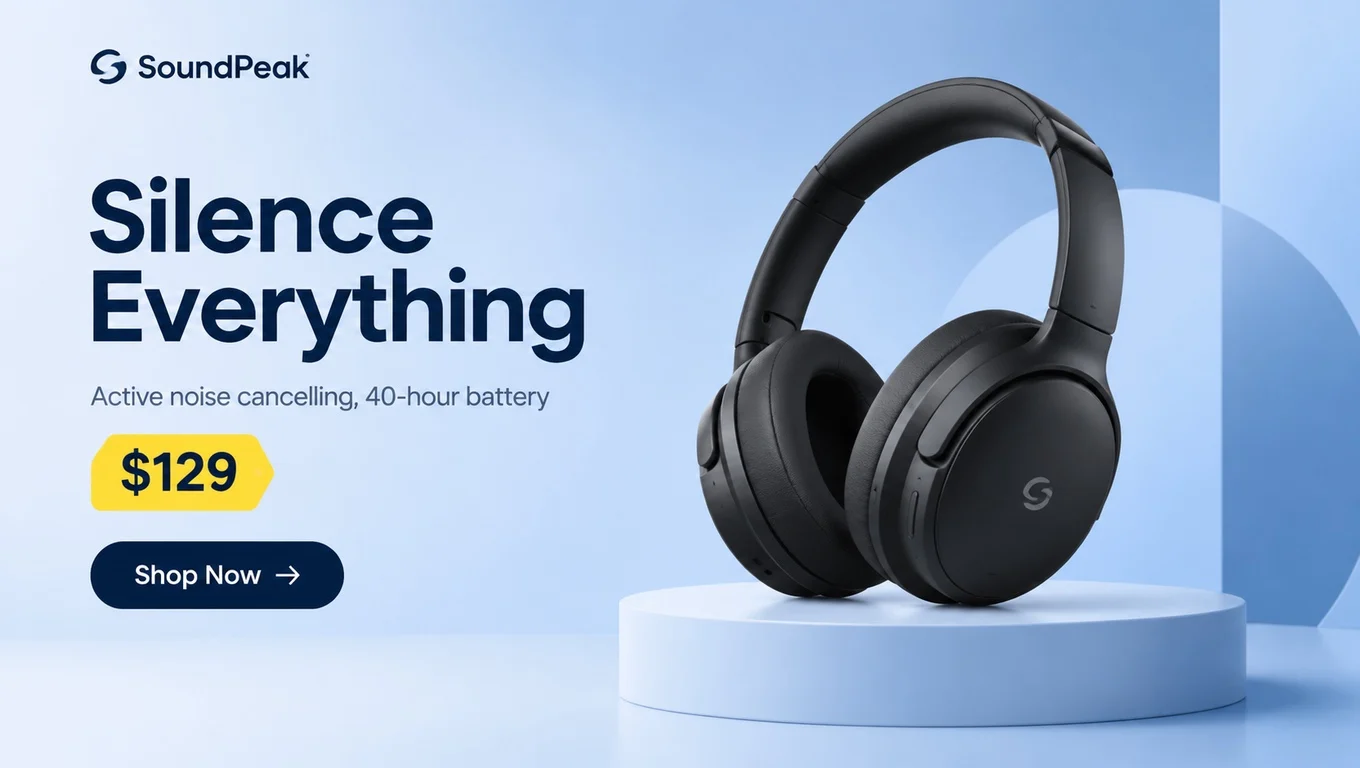
Headphones product banner — before splitting
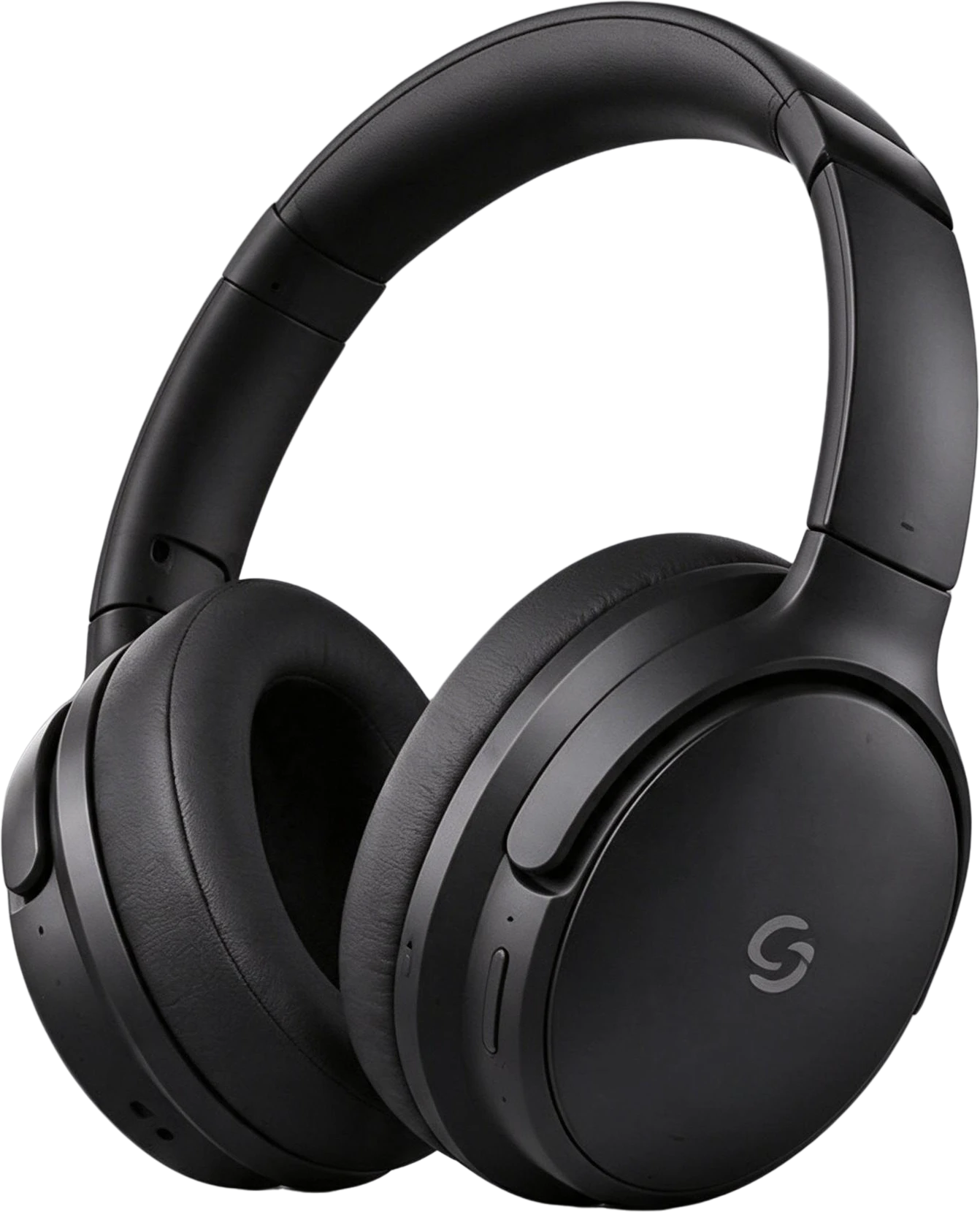
Black Over-Ear Headphones — separated layerYellow Price Tag $129 — separated layer20% OFF red badge — separated layerWhite coffee cup with pumpkin logo — separated layer

How to turn an image into layers

  1. 1

    Upload an image

    Drop, paste or pick a PNG, JPG or WebP: a poster, a product banner, an AI image or a screenshot.

  2. 2

    AI splits it

    In 60–100 seconds, text, products and graphics each get their own transparent layer, and the background behind them is filled in.

  3. 3

    Pick a layer

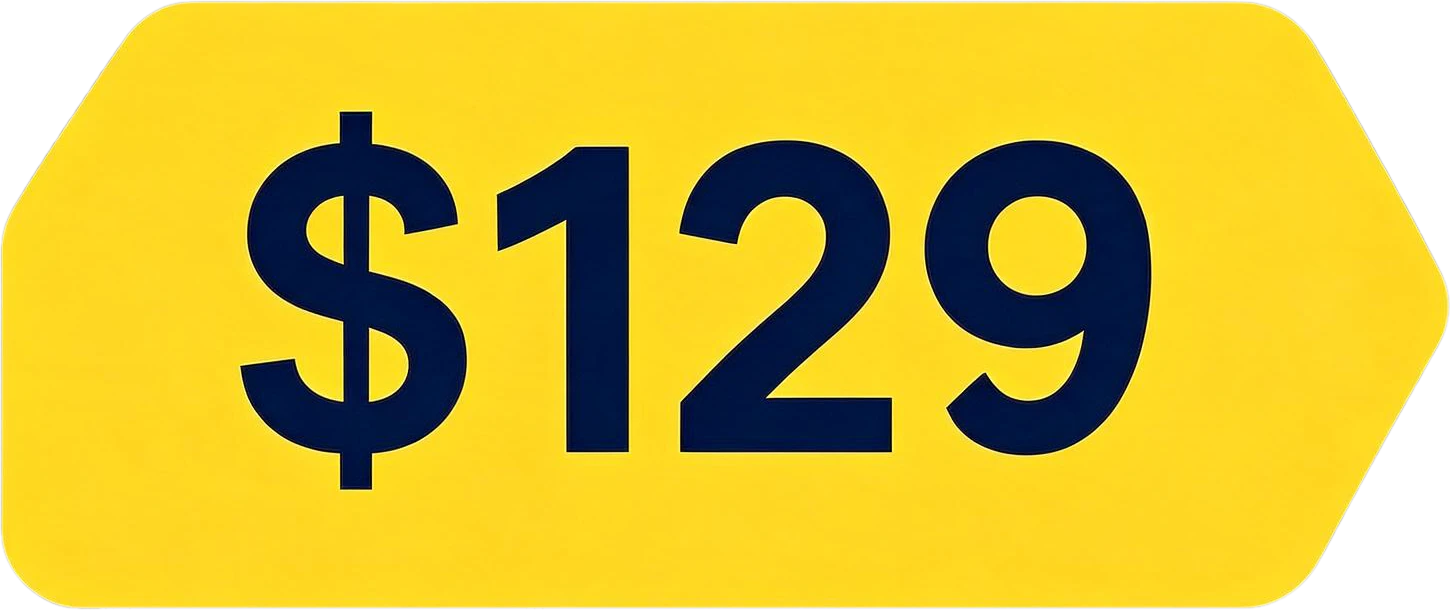
    Every layer has a readable English name, like "Yellow Price Tag $129". Hide layers to see what is underneath.

  4. 4

    Grab or export

    Copy one layer straight into Figma, Photoshop or Canva, download it as PNG, or export everything as a ZIP or layered PSD.

Reuse one element from a picture

Take the product, the badge or the illustration out of an image and drop it into your own design, with a clean transparent edge.

Every element sits on its own transparent layer at its original position, so it drops into a new layout at the right size.

Coffee shop poster — the flat original
20% OFF red badge — separated layerWhite coffee cup with pumpkin logo — separated layerAUTUMN LATTE WEEK headline text — separated layerRed maple leaf (bottom left) — separated layerWhipped cream topping with cinnamon dust — separated layerYellow maple leaf (top left) — separated layer

Change the words on a poster

Split a finished poster so the headline sits on its own layer over a clean background, then set new text for another market or offer.

Need the whole design as a Photoshop file instead? Use image to PSD.

Coffee shop poster — original
Original
Coffee shop poster — text hidden, background filled
Text hidden, background filled

Edit an AI-generated image

AI images arrive as one flat picture. Splitting them lets you move, resize or remove one object without generating the whole image again.

Layers are named from what they contain, like “Yellow Price Tag $129”, so you find the one you want without clicking through Layer 1 to Layer 9.

Headphones product banner — original

8 layers

  • Black Over-Ear Headphones — separated layerBlack Over-Ear Headphones
  • Shop Now Button — separated layerShop Now Button
  • Yellow Price Tag $129 — separated layerYellow Price Tag $129
  • White Round Display Pedestal — separated layerWhite Round Display Pedestal
  • Subtitle Feature Text — separated layerSubtitle Feature Text
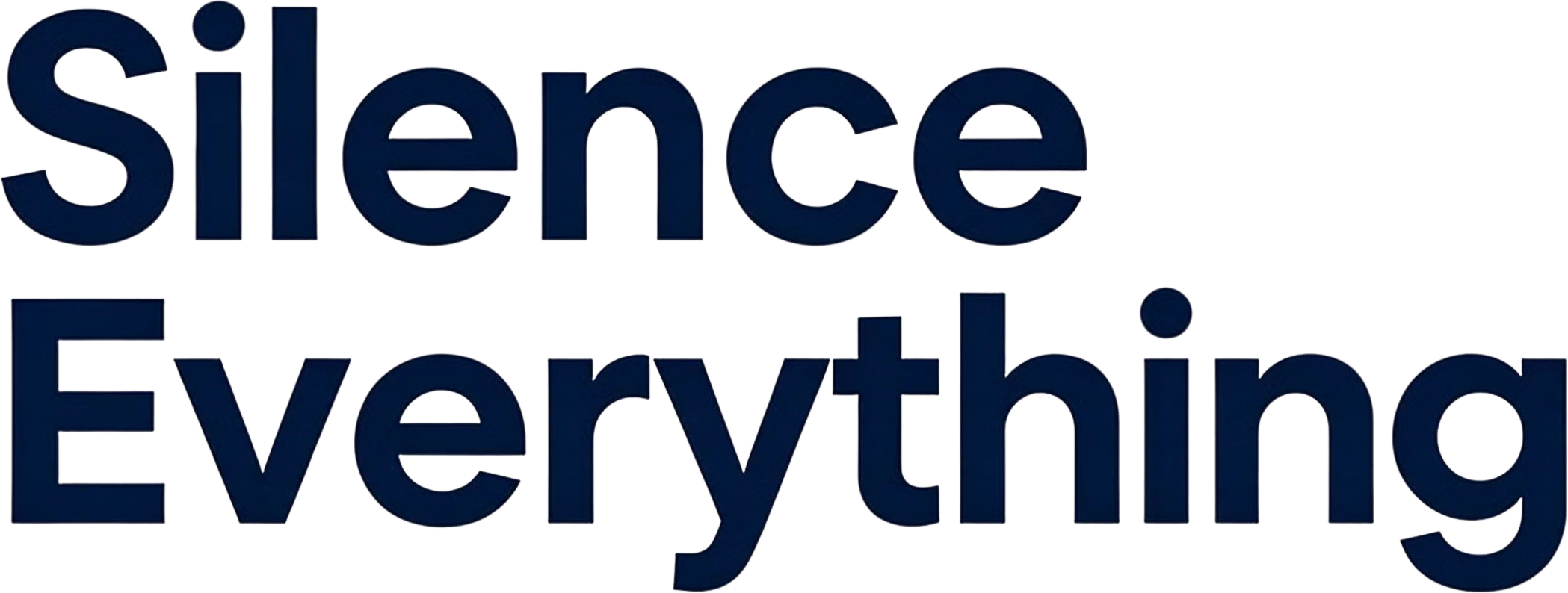
  • Headline Text Silence Everything — separated layerHeadline Text Silence Everything
  • Background (filled)

Rebuild a flat design

When the source file is lost, rebuild a banner or ad as layers so it can be edited and resized instead of redrawn.

Copy one layer straight into Figma, Photoshop or Canva, download it as PNG, or take every layer as a ZIP or a layered PSD.

Split an image now
Black Over-Ear Headphones — separated layerYellow Price Tag $129 — separated layer
  • headphones-banner.psd8 named layers, in place
  • headphones-banner-layers.zip8 transparent PNG files
  • Black Over-Ear Headphones.pngOne layer, or copy it to the clipboard

Real splits, not mockups

Coffee shop poster — original flat image before splitting

Coffee shop poster

10 layers plus the filled background, split in 100 seconds.

  • Bottom event info text
  • Whipped cream topping with cinnamon dust
  • Pumpkin spice latte drink base
  • White coffee cup with pumpkin logo
  • Orange maple leaf (bottom right)
  • Orange maple leaf (top right)
  • Red maple leaf (bottom left)
  • Yellow maple leaf (top left)
  • 20% OFF red badge
  • AUTUMN LATTE WEEK headline text
Headphones product banner — original flat image before splitting

Headphones product banner

7 layers plus the filled background, split in 66 seconds.

  • Black Over-Ear Headphones
  • Shop Now Button
  • Yellow Price Tag $129
  • White Round Display Pedestal
  • Subtitle Feature Text
  • Headline Text Silence Everything
  • SoundPeak Logo and Brand Text
Two-person photo — original flat image before splitting

Two-person photo

1 layer plus the filled background, split in 46 seconds.

  • Right-side young woman

Who it is for

Designers, marketers and small shops who work with images they did not make and do not have the layered source for: stock graphics, client assets, competitor ads, AI images, screenshots.

It is most useful when you need one element out of a busy image, or when a finished graphic has to be changed without rebuilding it.

When not to use it

  • Cast shadows are not kept. An element that threw a shadow on the background can look like it floats when you move it.
  • Very light, thin text can come back in a slightly different colour, because each layer is redrawn by the model rather than cut out.
  • Text layers are images, not editable text. To change the wording you type new text over the clean background.
  • It does not split a character into rigging parts (front hair, eyes, mouth) for Live2D or Spine.
  • Two runs on the same image can separate it a little differently, for example 9 layers one time and 10 the next.

LayerGrab and Canva Magic Layers

Canva Magic Layers turns a flat image into separate elements inside the Canva editor. LayerGrab does the same job for people who work in Photoshop and Figma, or who need the layers as files.

Canva Magic Layers

  • Works with single-page PNG and JPG files. Source
  • Images over 5,000 px on the longest edge are not supported. Source
  • Canva lists photo-realistic imagery as a case where results may vary, and does not support vector graphics, PDFs or licensed images. Source

Checked 2026-09-28

LayerGrab

  • Exports each layer as PNG, all layers as ZIP, or a layered PSD.
  • Works in the browser and as Photoshop and Figma plugins with one account.
  • Names every layer in plain English and fills in the background behind it.
Full comparison

Frequently asked questions

How do I turn an image into layers?

Upload the image to LayerGrab and it returns every main element on its own transparent layer, with the background behind them filled in. It takes about a minute. You can then copy a single layer, download it as PNG, or export all layers as a ZIP or layered PSD.

Is LayerGrab free?

You can open the sample splits on this page and use every feature for free, without an account. Splitting your own images uses credits. New accounts in supported regions get 30 free credits, enough for a split of up to 3 layers. After that, plans start at $12 a month for about 120 layers, or buy a one-time credit pack from $20.

What is the difference between removing the background and splitting into layers?

Background removal keeps one subject and throws everything else away. Splitting keeps every element as its own layer, including text and small graphics, and also rebuilds the background that was hidden behind them, so nothing is lost.

Can I edit the text after splitting?

The text comes back as its own image layer, not as editable type. The background behind it is filled in, so you can hide the text layer and set new text in its place in any design tool.

Which images work best?

Designed images split best: posters, product banners, ads, social graphics and AI-generated images with clear, separate elements. Busy real-world photos with overlapping objects split less cleanly.

How many layers do I get?

Usually 7–10 layers, plus the filled background, and up to 16. The count depends on how many separate elements the image contains.

Can I use LayerGrab inside Photoshop, Figma, Sketch or Chrome?

Yes. Photoshop, Figma and Sketch plugins add the split as a named layer group directly above your image, and a Chrome extension splits images from any web page in a side panel. All use the same account and credits as the web app; they are in testing and will be listed in each store first.

Last updated 2026-09-28