
LayerGrab

Fix Garbled Text in an AI Image Without Regenerating

Garbled text in an AI image is letters that look almost right but are wrong: a Midjourney poster with “COFFFE”, a ChatGPT ad where the price reads as noise, a Gemini banner whose CTA is unreadable. The usual fix is to regenerate. That often changes the composition you already liked. A more reliable route is to split the image into layers, hide the garbled text layer (the text comes back as pixels, not editable type), use the filled background behind it, and retype the correct words with a real font.

Last updated 2026-10-26

Why regenerating is brittle

Image models paint the whole picture at once. There is no separate headline layer inside a Midjourney, ChatGPT or Gemini download—only one flat file. When you ask again for “the same poster but with correct spelling”, the model draws a new picture. The cup moves, the lighting shifts, the badge changes colour. You trade one wrong letter for a different layout.

Region edit and inpainting help when one small patch is wrong. They still redraw pixels, so long headlines and logos often come back with fresh spelling mistakes. If the rest of the design is already good enough to ship, regenerating is the expensive option.

The approach: split, hide, retype

The workable fix is not “edit the text in the AI image”. The text was never live type. It is painted pixels. What you can do is put the garbled text on its own image layer, hide or delete that layer, keep the background that was filled in underneath, and type the correct words on top in Photoshop, Figma, Canva or wherever you finish the file.

That is the same pattern as fixing anything else on a flat AI image: separate the broken part, leave the rest alone. For a full walkthrough of turning a generator output into layers, see How to turn a ChatGPT or Midjourney image into editable layers.

If you only need the headline pulled out, you can name that object and separate it into its own layer instead of splitting every element.

Canva Magic Layers, if you stay in Canva

Canva's Magic Layers can rebuild text as editable Canva text. LayerGrab cannot: its text layers stay pixel images. If the design will be finished entirely in Canva, Magic Layers is the shorter path for live type.

Files for Photoshop, Figma or print

If you need PNG or PSD layers for Photoshop, Figma, print or a developer handoff, a file-based split plus retyping is the fit. Disclosure: LayerGrab is the author's product. The same hide-and-retype idea works with any splitter that returns a filled background under the text.

Split, hide, retype

  1. 1

    Download the AI image at full size

    Save the largest version the generator offers. Upscale in Midjourney first if you plan to print. PNG, JPG and WebP all work.

  2. 2

    Split the image, or pull out only the text

    Upload it on LayerGrab. Leave the box empty to get every element, or describe the text: “only the headline”, “the price text”, “the CTA button text”. Naming one object returns that layer plus the filled background, and costs less than a full split.

  3. 3

    Hide or delete the garbled text layer

    The text arrives as a transparent PNG of painted letters—not a type layer you can click into. Hide it or delete it. Because the background behind it was already filled in, you should see clean paper, colour or texture where the wrong words were, not a hole.

  4. 4

    Retype with a real font

    In Photoshop, Figma, Canva, Photopea or your layout tool, add a text layer in the same place. Match size and colour by eye, or pick a brand font. You now control spelling, kerning and language—none of which the image model owned.

  5. 5

    Export where you need it

    Copy a layer into Figma or Canva, use the Photoshop or Figma plugin, or download a layered PSD. Keep the old text layer hidden rather than destroyed if you might want to compare spellings later.

Two real examples

On this coffee shop poster sample, the headline and event line are painted text. Hide those layers and the paper texture behind them is already filled in—ready for real type.

Coffee shop poster — original
Original
Coffee shop poster — headline, badge and event text hidden, background filled
Headline, badge and event text hidden, background filled

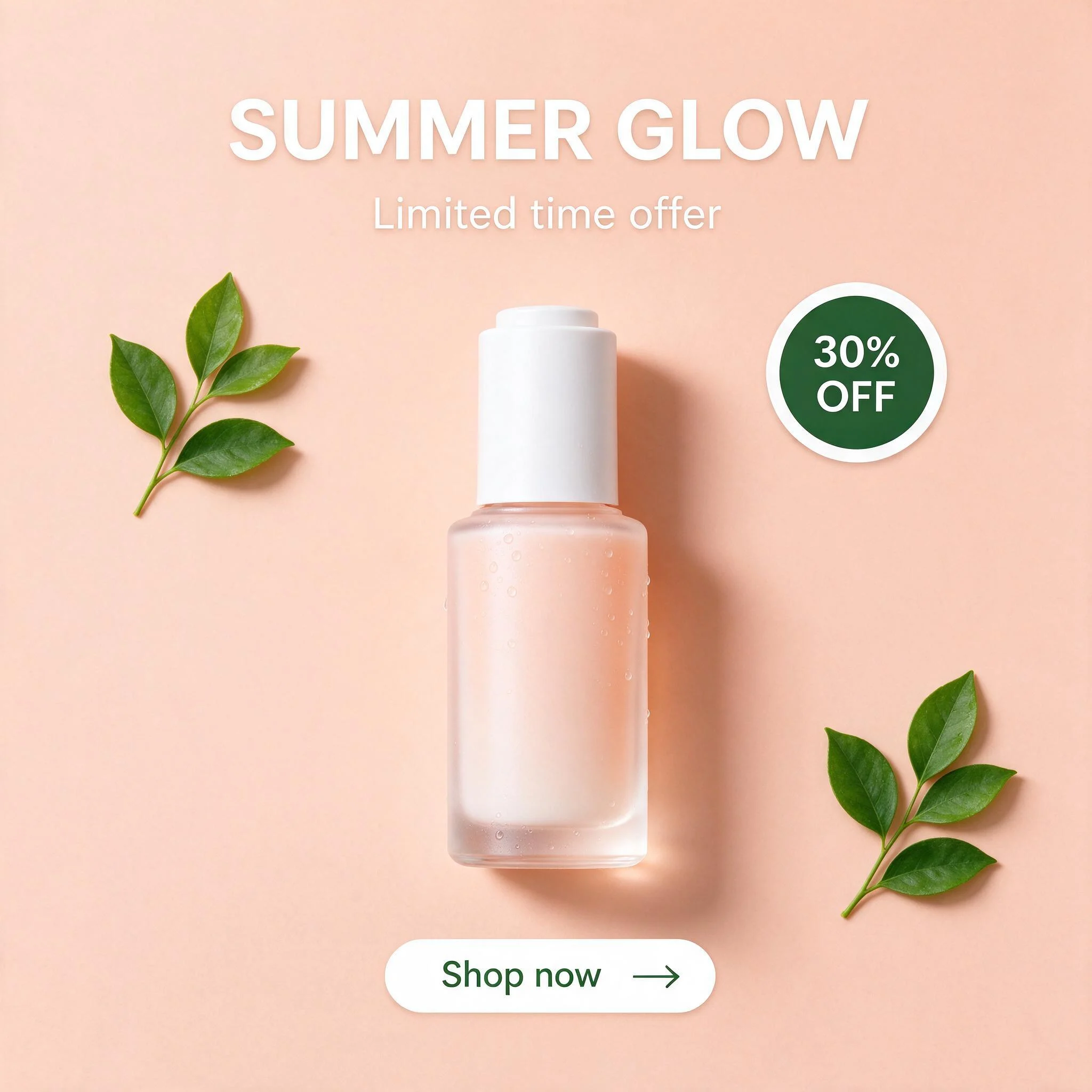
The same pattern shows up on a social post: the skincare sample splits the “SUMMER GLOW” line, the “30% OFF” badge and the shop button into their own layers, with a repaired base underneath.

Skincare Instagram post — the flat original
SUMMER GLOW Text — separated layer30% OFF Badge — separated layerShop now Button — separated layer

When not to use this

One wrong letter and a simple background. Inpainting or a small region edit in the generator may be faster than a full split.

You need live editable type inside Canva only. Use Canva Magic Layers; it can restore editable Canva text, which LayerGrab does not.

The “text” is a logo lockup you must match exactly. Splitting gives you pixels to hide, not vector paths or the original font file. Retype, or redraw the mark.

You still have the source design file. Use that. No splitter recovers the designer's fonts, effects or vectors from a flattened export.

Frequently asked questions

How do I fix Midjourney text that came out wrong?

Do not rely on regenerating the whole image if the layout is already good. Split the image so the garbled text sits on its own pixel layer, hide that layer over the filled background, and type the correct words in a real font in Photoshop, Figma or Canva.

Can I edit the text in an AI-generated image?

Not as live type with LayerGrab: the text comes back as an image layer. What works reliably is hide or delete that layer and retype on the filled background. Canva Magic Layers rebuilds text as editable Canva text if you stay in Canva.

Will regenerating fix garbled AI text?

Sometimes the new run spells better; often it also changes composition, lighting and props. Use regen when you are still exploring. Use split-and-retype when you want to keep the picture you have.

Does this work on ChatGPT, Gemini and Ideogram images too?

Yes. Any flat PNG, JPG or WebP works. The generator does not need a layers export; you add layers afterwards.

Why is the text still not selectable after splitting?

Because it never was type. Splitters separate what is in the pixels. Letters become a transparent image of letters. Selectable, spell-checkable text only appears when you create a real text layer yourself—or when a tool such as Canva Magic Layers rebuilds it as editor text.

How much does separating just the headline cost?

You pay per layer returned, and the filled background counts as one, so asking for only the headline text is typically two layers. A full poster split costs more because every element comes back. Every LayerGrab account also gets one free extraction: it returns the one element you name as a transparent PNG, without the filled background.