





LayerGrab

Image to PSD Online

Upload a JPG, PNG or WebP and download a layered PSD: every element on its own named layer, over a filled-in background.

Image

Leave empty to split every element.

Sample split, free to explore: Coffee shop poster

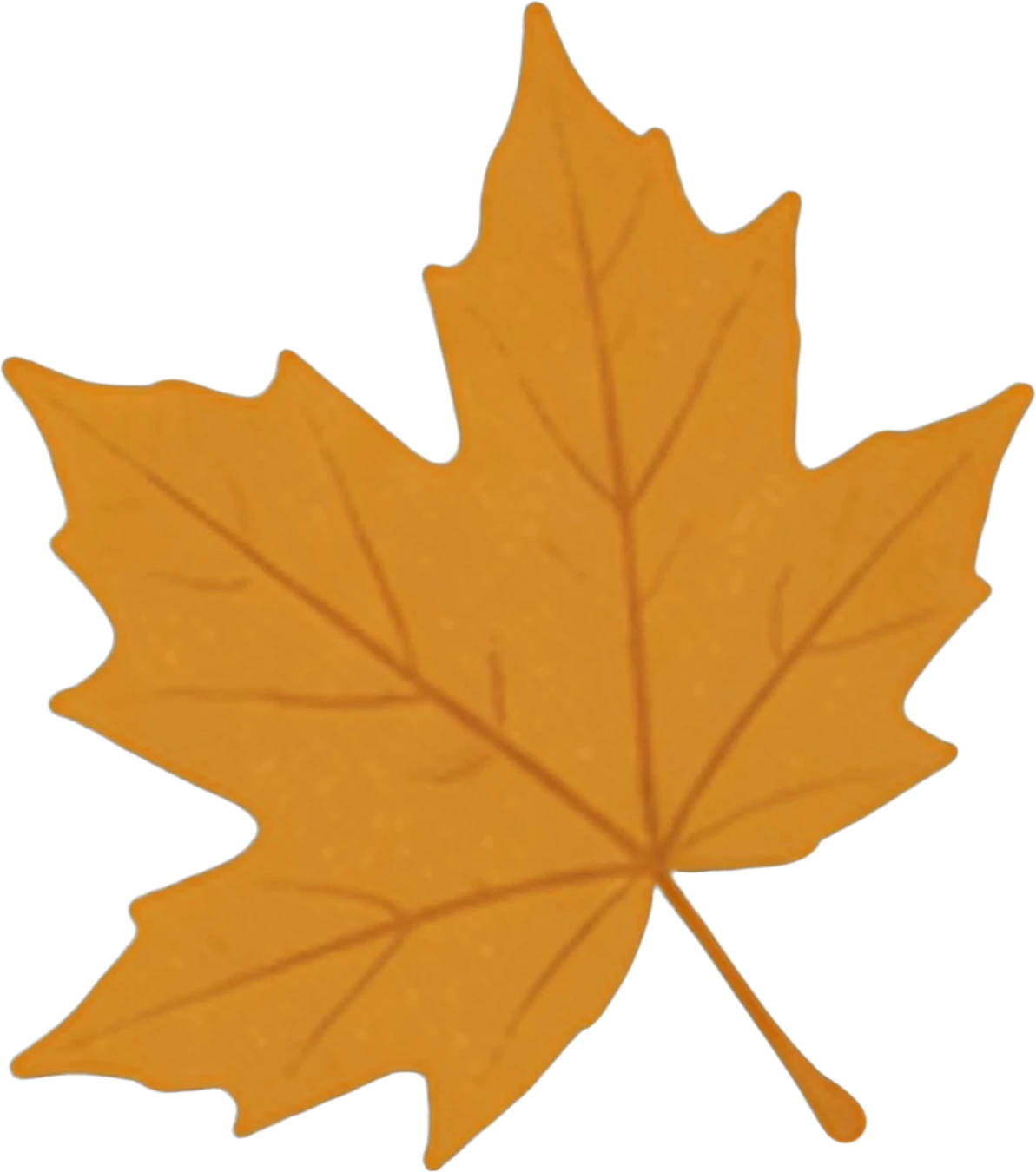
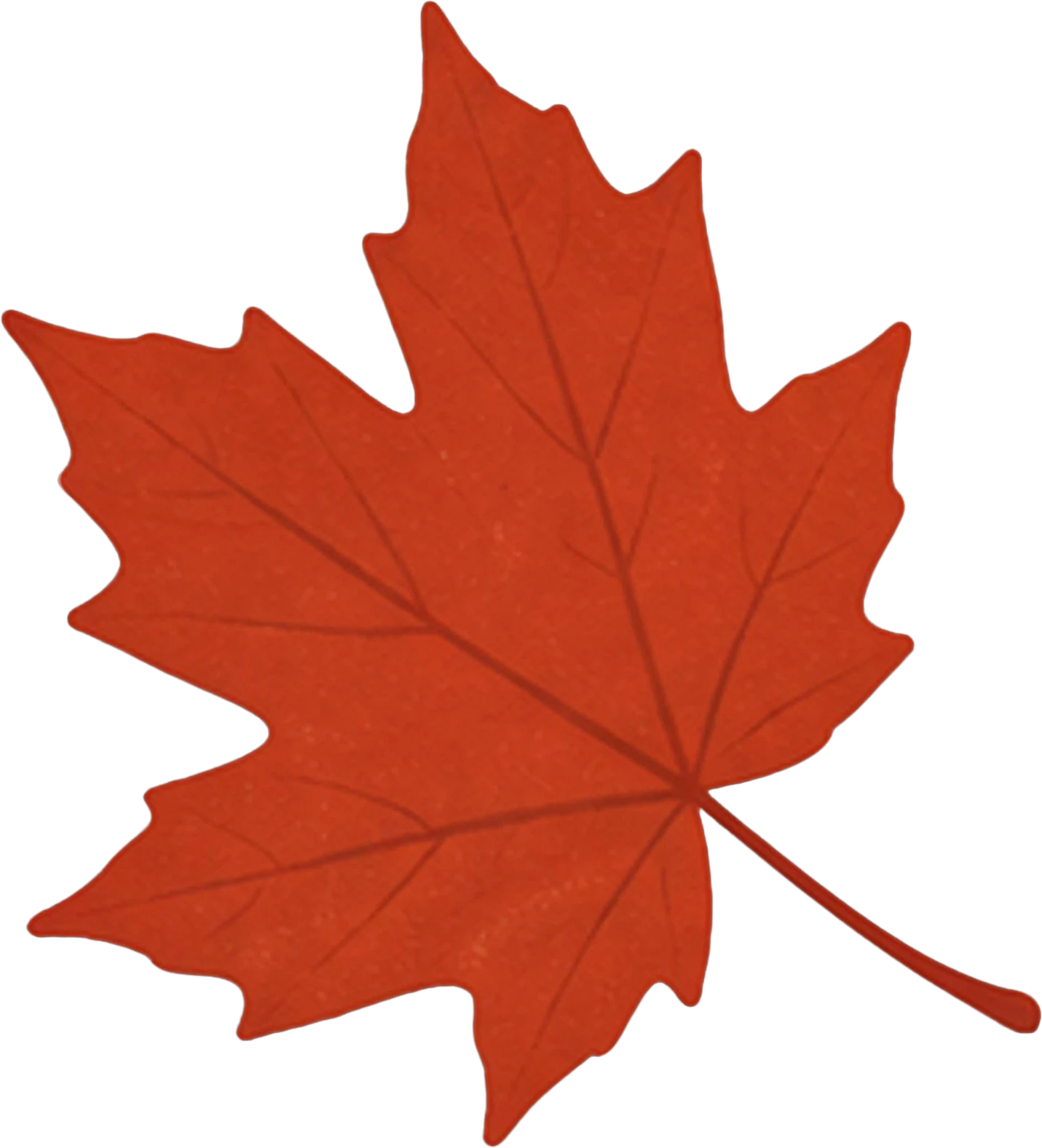
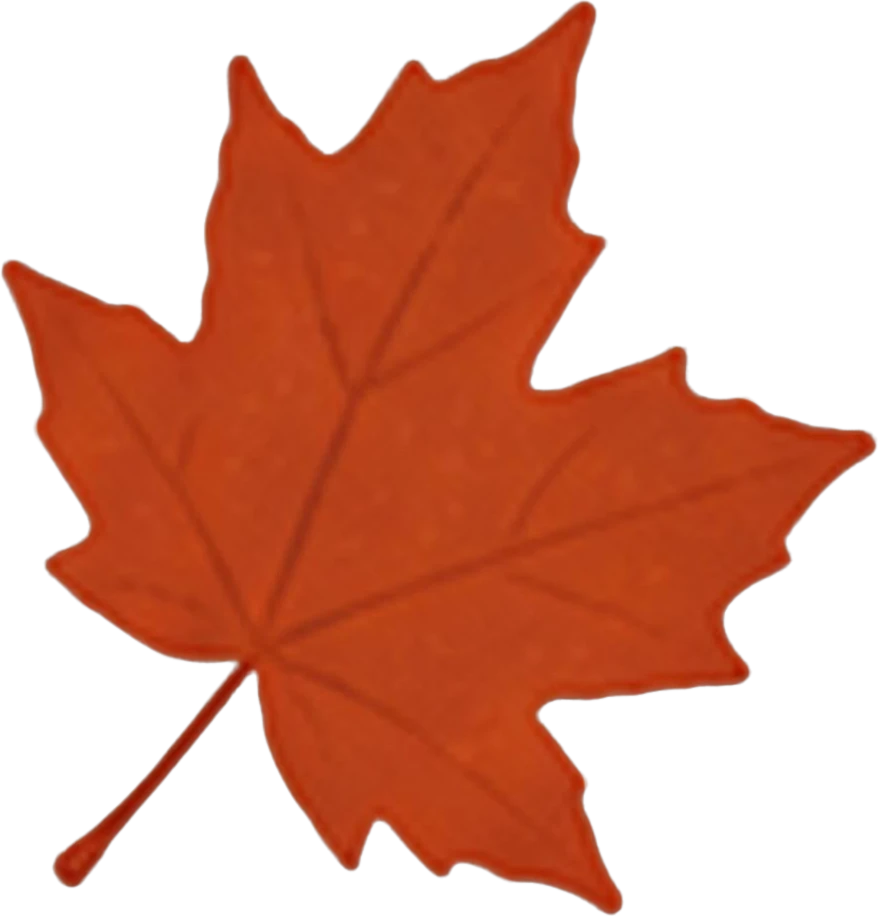
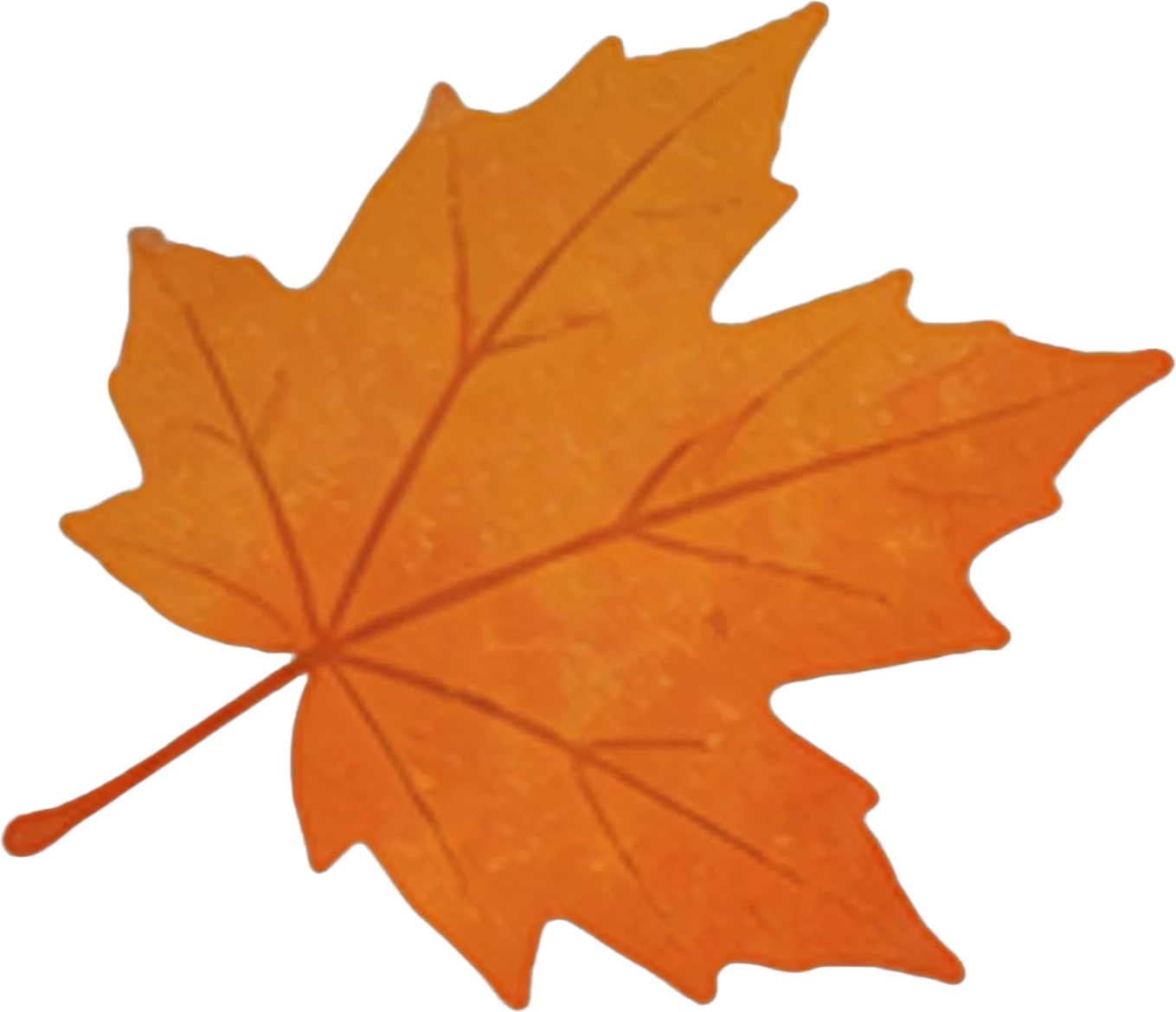
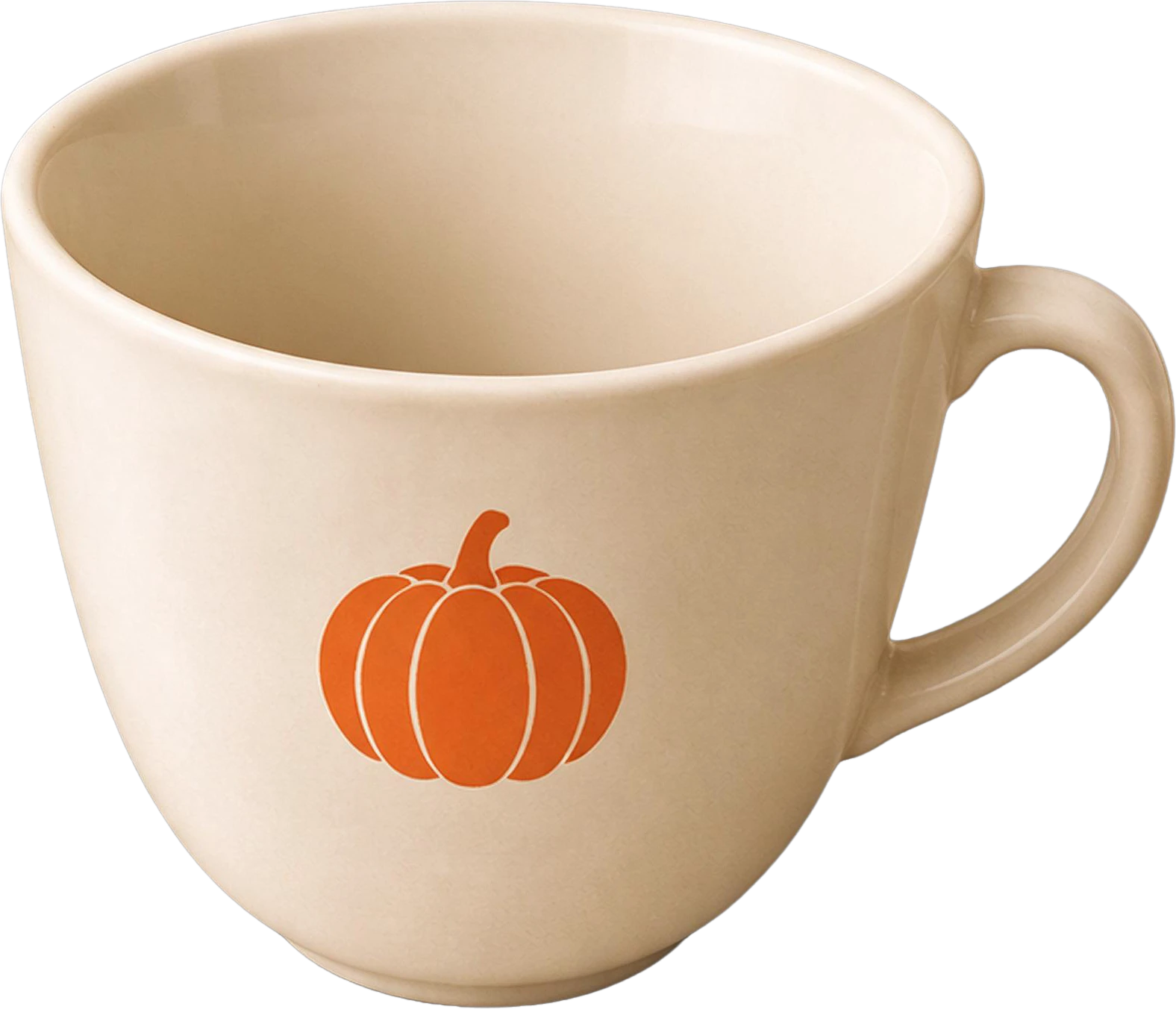
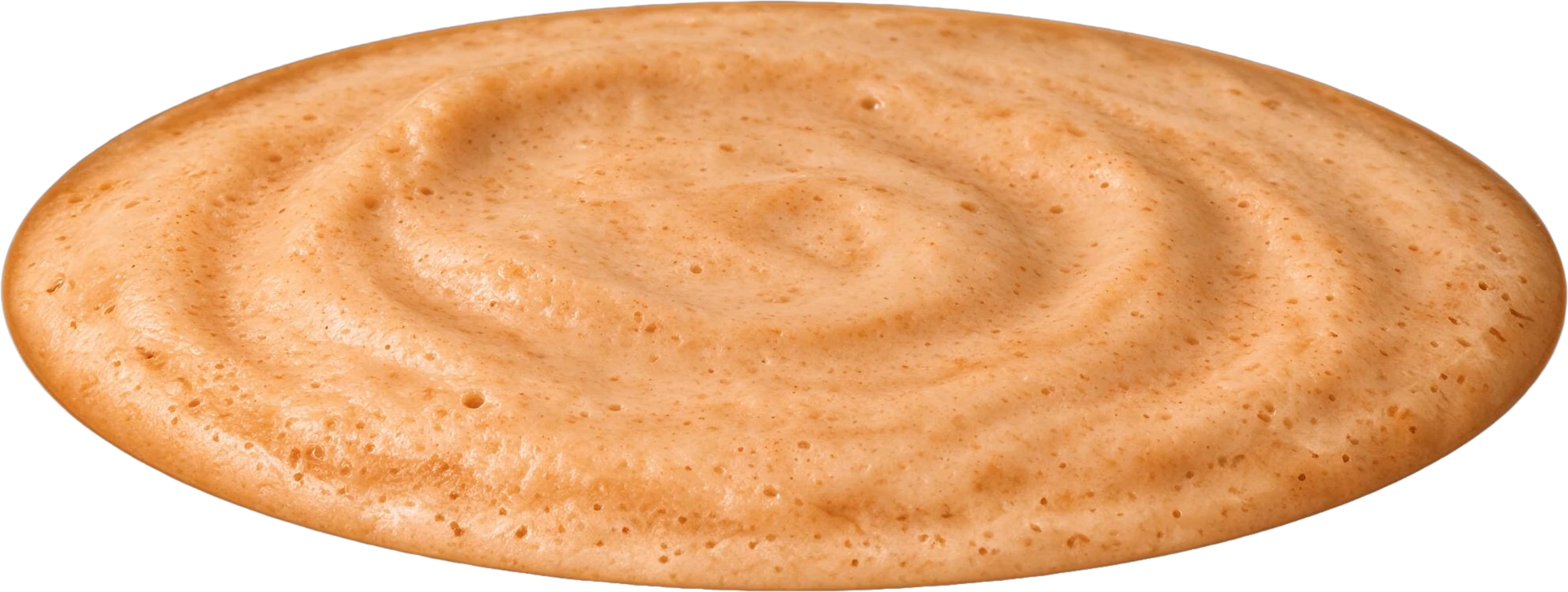
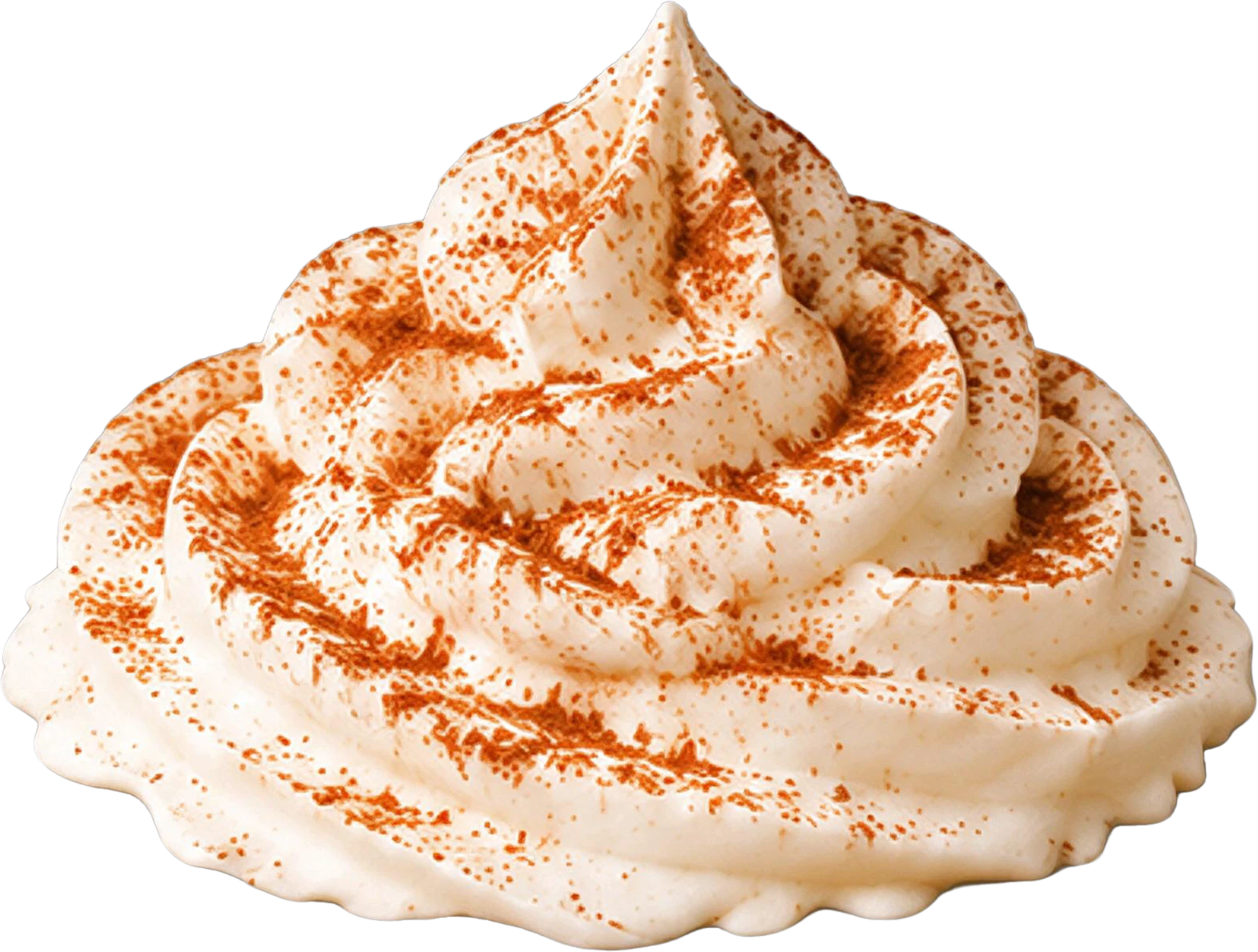
Coffee shop poster — background with every element removedAUTUMN LATTE WEEK headline text20% OFF red badgeYellow maple leaf (top left)Red maple leaf (bottom left)Orange maple leaf (top right)Orange maple leaf (bottom right)White coffee cup with pumpkin logoPumpkin spice latte drink baseWhipped cream topping with cinnamon dustBottom event info text

11 layers

Split in 100s

  • Background (filled)

Image to PSD

From one flat JPG to a layered Photoshop file

Image to PSD is a LayerGrab export that turns one flat JPG, PNG or WebP into a Photoshop file where each element is its own named layer, placed exactly where it was in the original.

Saving a JPG as PSD gives you one flat layer. LayerGrab works out which pixels belong to which element and repaints what was behind them.

Split an image now
Coffee shop poster — before splitting
Headphones product banner — before splitting
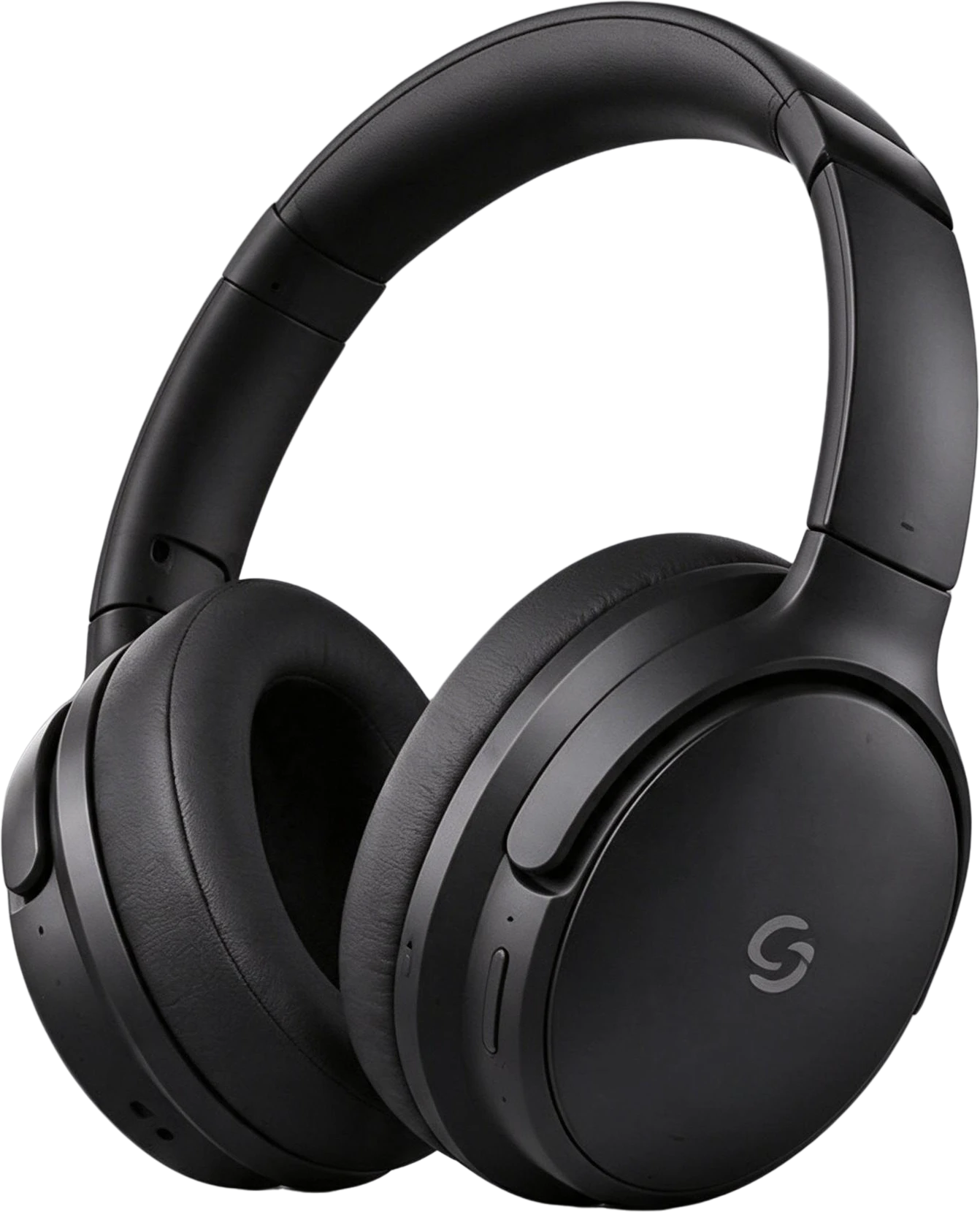
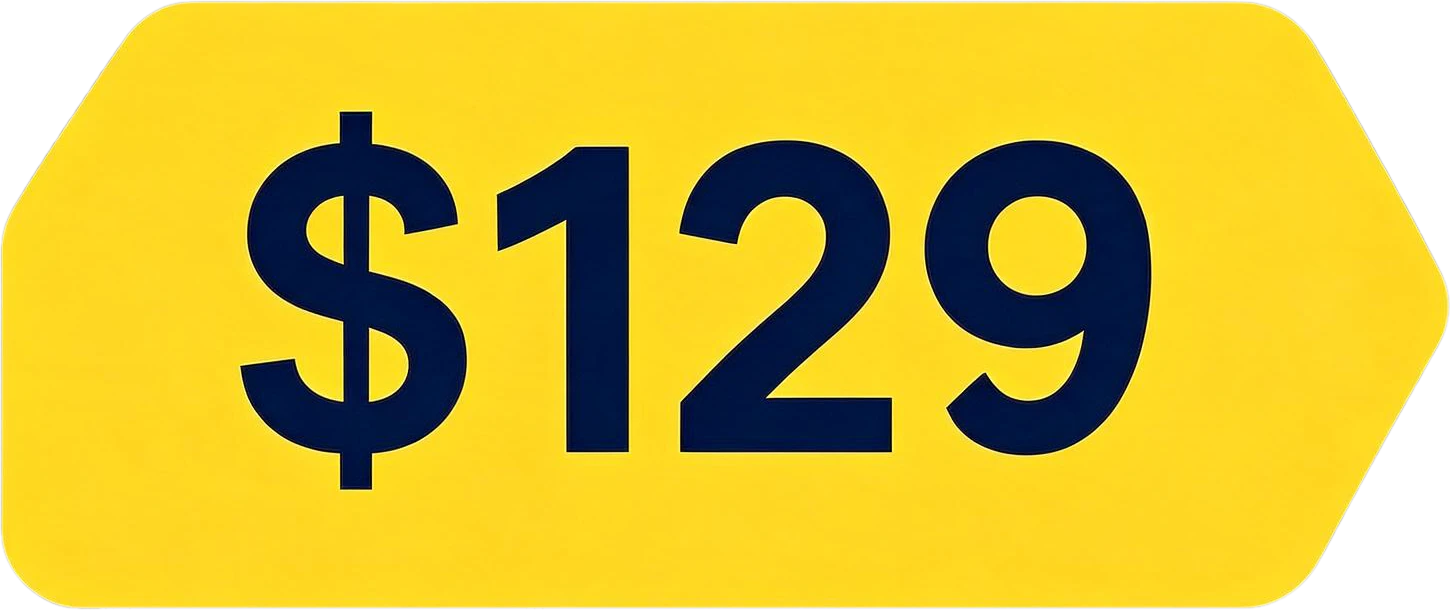
Black Over-Ear Headphones — separated layerYellow Price Tag $129 — separated layer20% OFF red badge — separated layerWhite coffee cup with pumpkin logo — separated layer

How to convert an image to a layered PSD

  1. 1

    Upload the flat image

    A JPG, PNG or WebP up to 20 MB. Designed images such as posters and banners give the cleanest layers.

  2. 2

    Let the AI separate it

    It finds the text, products and graphics and redraws the background behind them. This takes 60–100 seconds.

  3. 3

    Check the layers

    Toggle layers on and off in the preview to confirm the split before you download anything.

  4. 4

    Download the PSD

    One file at the size of the result, with every layer named and positioned, and the filled background at the bottom.

A filled background

The bottom layer is the original background with every separated element removed and the hidden area painted in, so moving an element never leaves a hole.

Headphones product banner — original
Original
Headphones product banner — product removed, gap filled
Product removed, gap filled

One layer per element

Headlines, badges, buttons, products and decorations each get their own pixel layer with transparency, at the position they had in the image.

Headphones product banner — the flat original
Black Over-Ear Headphones — separated layerHeadline Text Silence Everything — separated layerYellow Price Tag $129 — separated layerShop Now Button — separated layerWhite Round Display Pedestal — separated layerSoundPeak Logo and Brand Text — separated layer

Readable layer names

Layers are named from what they contain, for example "Headline Text Silence Everything" or "Yellow Price Tag $129", not Layer 1 and Layer 2.

Split an image now
Coffee shop poster — original

11 layers

  • Bottom event info text — separated layerBottom event info text
  • Whipped cream topping with cinnamon dust — separated layerWhipped cream topping with cinnamon dust
  • Pumpkin spice latte drink base — separated layerPumpkin spice latte drink base
  • White coffee cup with pumpkin logo — separated layerWhite coffee cup with pumpkin logo
  • Orange maple leaf (bottom right) — separated layerOrange maple leaf (bottom right)
  • Orange maple leaf (top right) — separated layerOrange maple leaf (top right)
  • Background (filled)

When a PSD is the right output

Choose the PSD when you will keep editing the whole design in Photoshop: changing copy for another market, moving elements for a new size, or swapping the product.

If you only need one element out of the picture, copying that single layer is faster. It is the default on the image to layers page.

What it does not do

It does not recover the designer's original PSD. The layers are a new separation made by AI, so fonts, adjustment layers, masks and effects from the original file are not there.

Shadows cast on the background are not kept, and text layers are pixels rather than editable type.

Frequently asked questions

How do I convert a JPG to a PSD with layers?

Upload the JPG to LayerGrab, wait about a minute while it separates the elements, then choose Download PSD. Saving a JPG as PSD in an editor only gives you one flat layer; LayerGrab gives you one layer per element over a rebuilt background.

Why does "Save as PSD" give me only one layer?

A JPG or PNG stores a single grid of pixels with no record of the objects in it, so a format conversion has nothing to split. Getting real layers means working out which pixels belong to which object and repainting what was behind them, which is what the AI does.

Is the text in the PSD editable?

No. Text comes out as a pixel layer with a transparent background, not as a type layer. Because the background under it is filled in, you can hide it and set new text in the same place.

What programs open the PSD?

It is a standard layered PSD file, so it opens in Photoshop and in other editors that read PSD. You can also download the layers as separate PNG files or a ZIP if you prefer.

What resolution is the PSD?

The PSD is the size of the split result, which is usually larger than the image you uploaded: the model returns the background at about twice the upload size.

Last updated 2026-09-28