A live preview
The image is rebuilt from its layers, so you can click a layer to find it and hide it to see the filled background behind it.
LayerGrab for Chrome is an extension that splits an image you find on the web into separate, named layers with AI, in Chrome’s side panel, so you can copy or download just the part you need without leaving the page.
Install
BetaIn testing. Once it is on the Chrome Web Store, installing is one click on Add to Chrome; until then the beta installs in three steps.
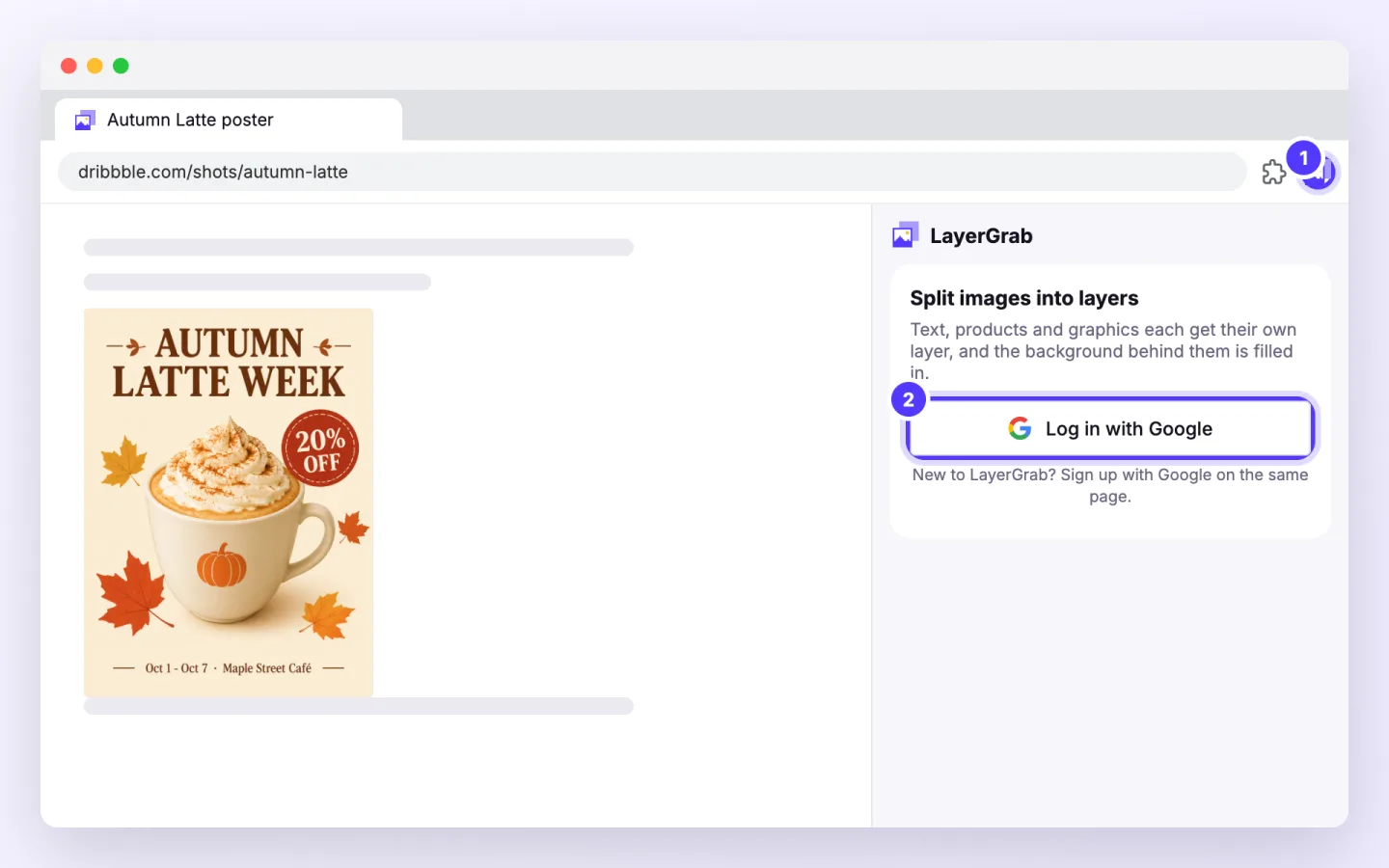
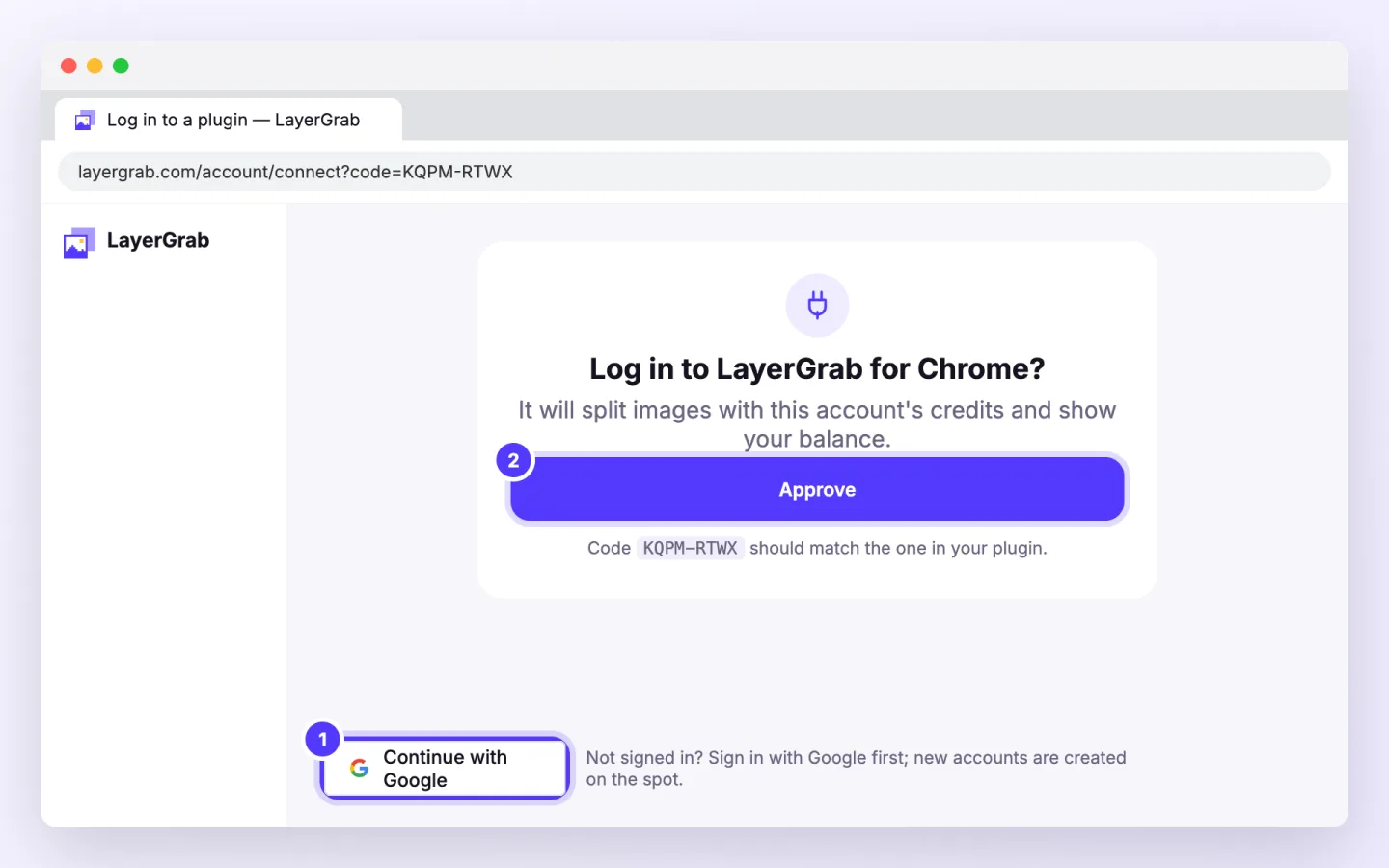
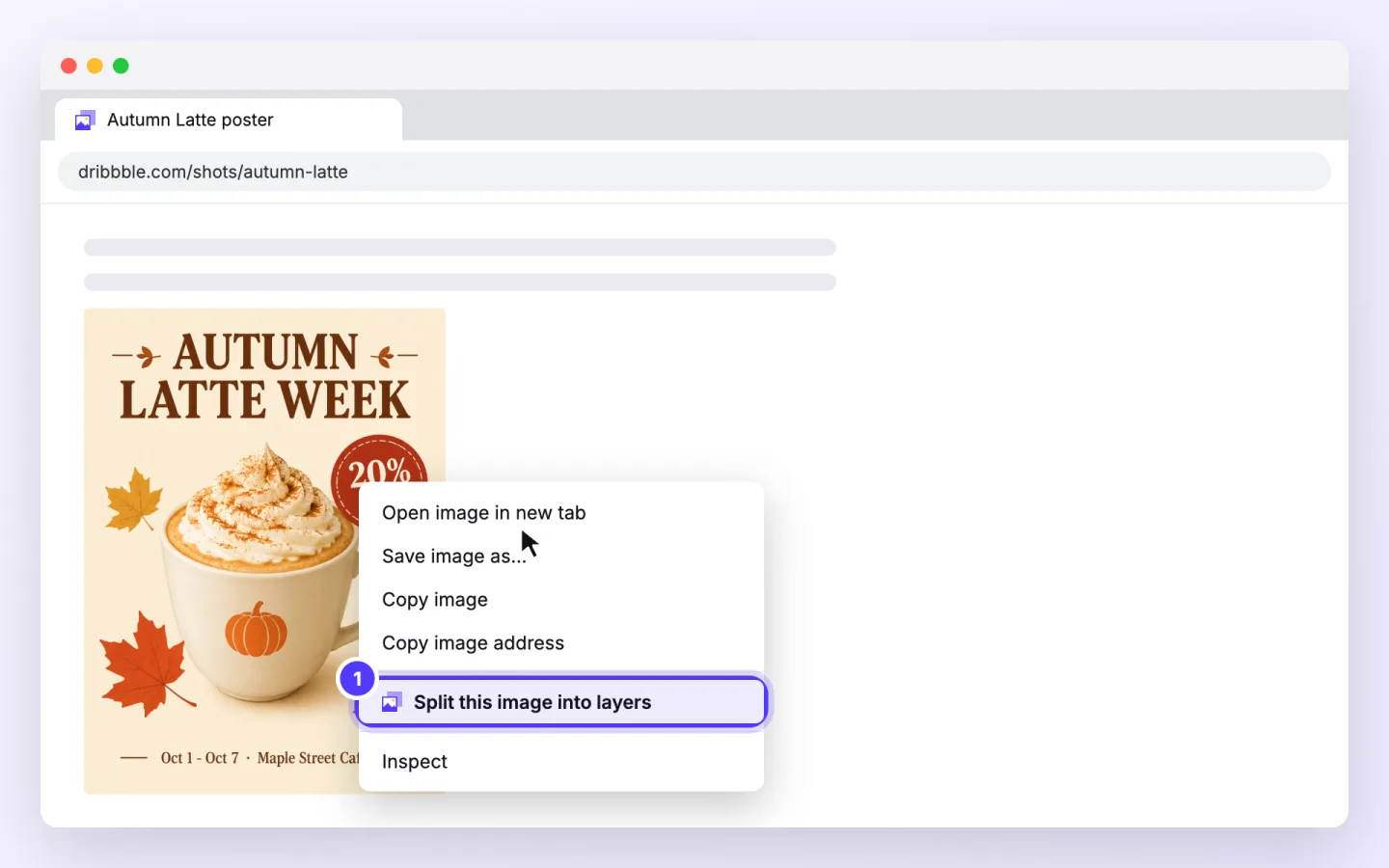
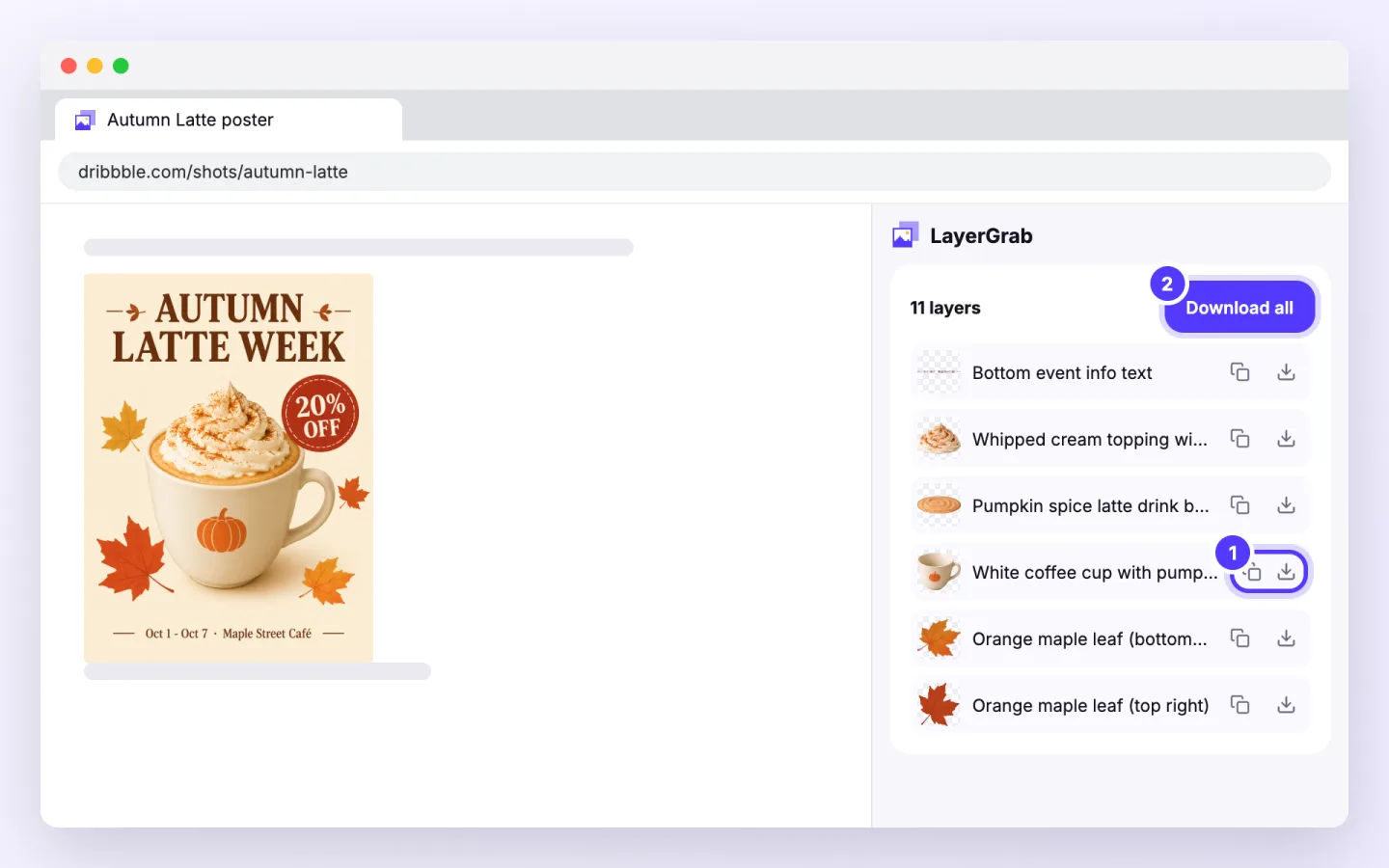
From installing the extension to your first layers. The pictures are simplified; the ringed numbers mark what to click.
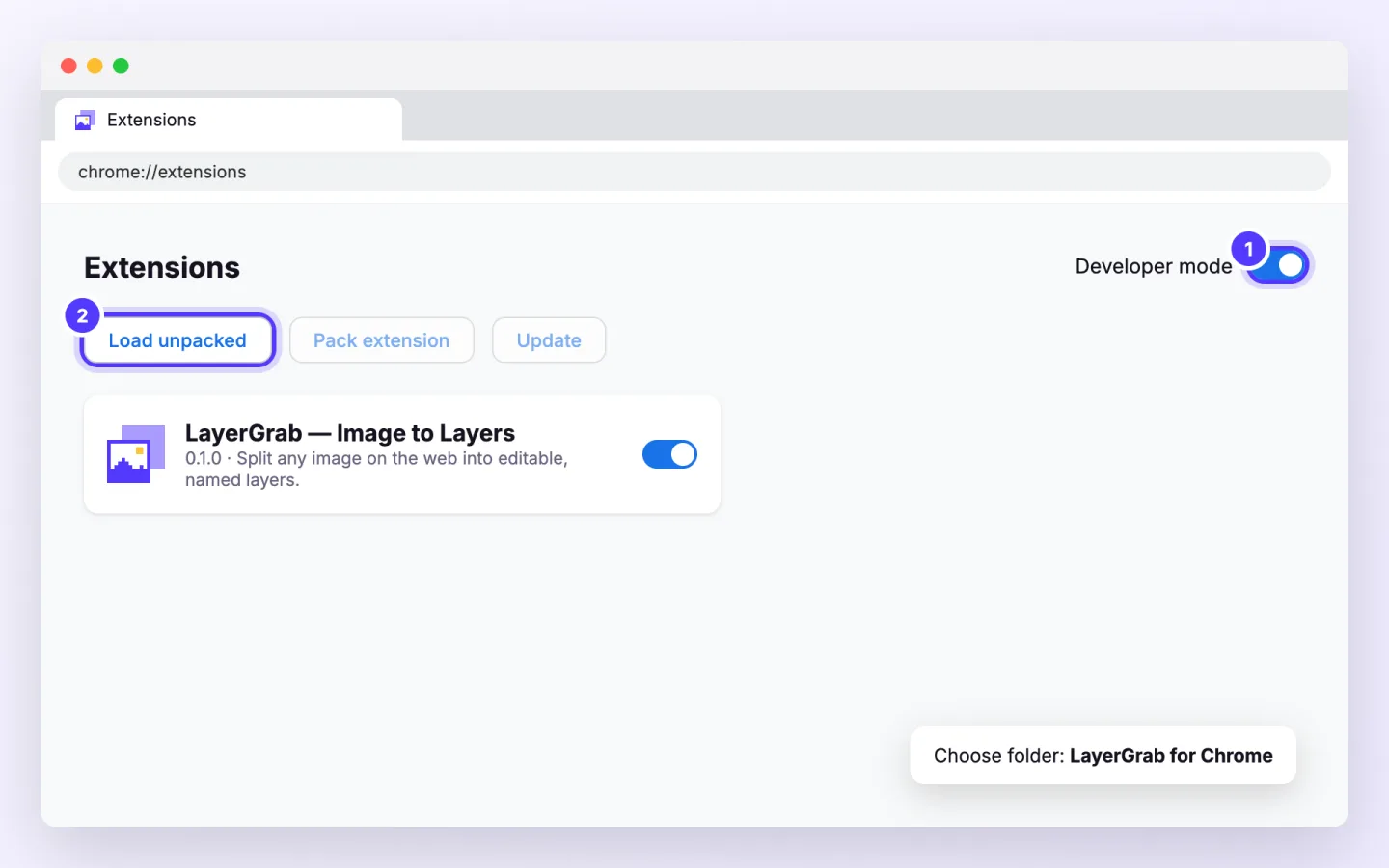
1
Click the LayerGrab button in the toolbar. The first time, click Log in with Google, choose your Google account in the tab that opens and click Approve.
2
Right-click any image on a page and choose Split this image into layers, or drop, paste or upload one in the panel. You can also use the visible part of the tab.
3
The panel shows each step and the seconds elapsed, usually about a minute, with a Cancel button. You can keep browsing meanwhile.
4
Hide layers to see what is behind them, copy one layer to paste into Figma, Canva or a document, or download one layer or all of them.
The image is rebuilt from its layers, so you can click a layer to find it and hide it to see the filled background behind it.
Download all saves each layer as a transparent PNG in Downloads/LayerGrab, with a readable name and the filled background as its own file.
Splits use your LayerGrab credits and appear under Usage on your account, where you can export a ZIP or a layered PSD for 30 days.
The extension runs the same AI as the web app and uses the same account and credits. Need every layer in one ZIP, or a layered PSD? Open the split under Usage on your account, or run the image through image to PSD.
With the extension installed, right-click the image and choose Split this image into layers. The side panel opens, splits it in about a minute, and lets you copy or download each layer.
Some sites do not share their images with extensions. The extension then asks once for permission to read images on web pages, so it can download the picture you right-clicked. You can take the permission back in Chrome’s extension settings.
Yes. You log in once in the browser tab it opens, and it uses the same plan and credits as the web app and the Photoshop, Figma and Sketch plugins.
The extension saves PNG files. For a layered PSD or a ZIP, open the split under Usage on your account, where every export of the web app is available.
Last updated 2026-09-28