LayerGrab

Split an Image into Layers in Sketch

LayerGrab for Sketch is a plugin that splits the selected image, group or artboard into separate, named image layers with AI and places them as a group in the same spot, so a flat picture can be edited layer by layer.

Sketch 2023.1 or laterPlugins menu and ⌃⇧LGrouped in place

Install

Beta
Download for Sketch (.zip)
  1. 1Download and open the zip; macOS unpacks LayerGrab.sketchplugin.
  2. 2Double-click LayerGrab.sketchplugin. Sketch installs it for you.
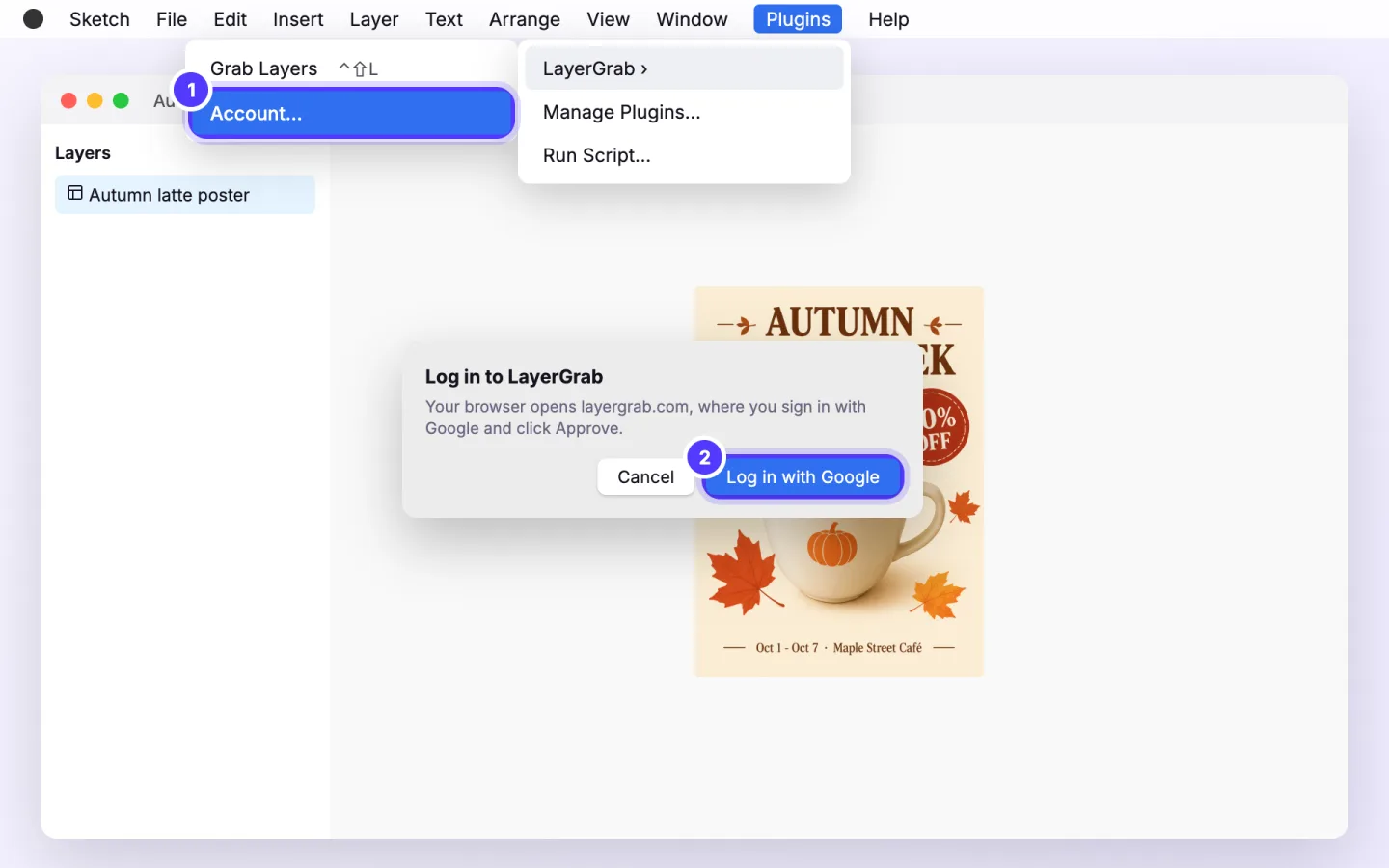
  3. 3In Sketch, choose Plugins › LayerGrab › Account… and click Log in with Google.

In testing. Sketch has no official plugin store, so the plugin is offered here as a download.

Step-by-step guide

From installing the plugin to your first layers. The pictures are simplified; the ringed numbers mark what to click.
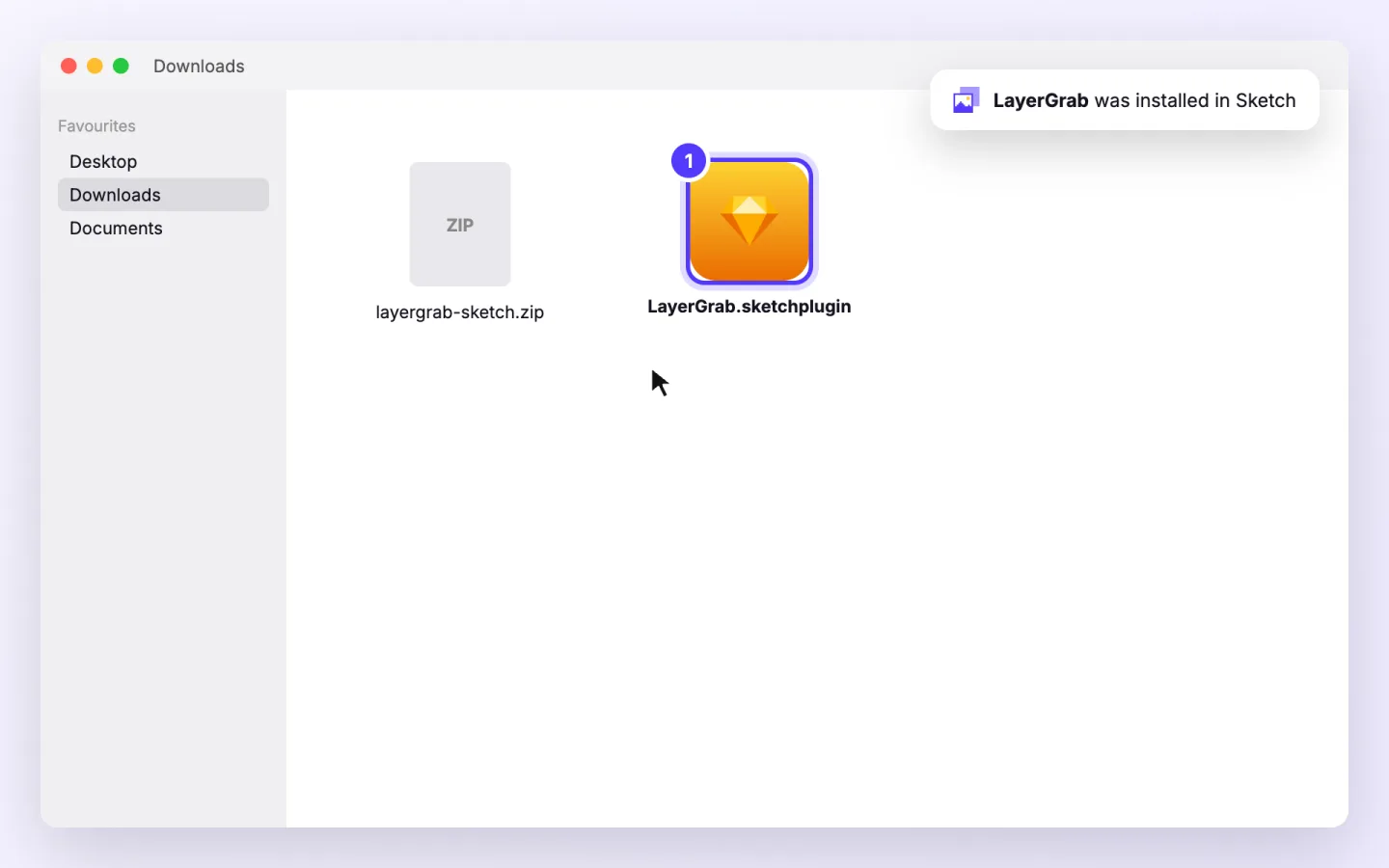
  1. Sketch plugin, step 1: Open the downloaded zip, then double-click LayerGrab.sketchplugin. Sketch installs it.
    1Install with a double-clickOpen the downloaded zip, then double-click LayerGrab.sketchplugin. Sketch installs it.
  2. Sketch plugin, step 2: Choose Plugins › LayerGrab › Account… and click Log in with Google.
    2Log in with GoogleChoose Plugins › LayerGrab › Account… and click Log in with Google.
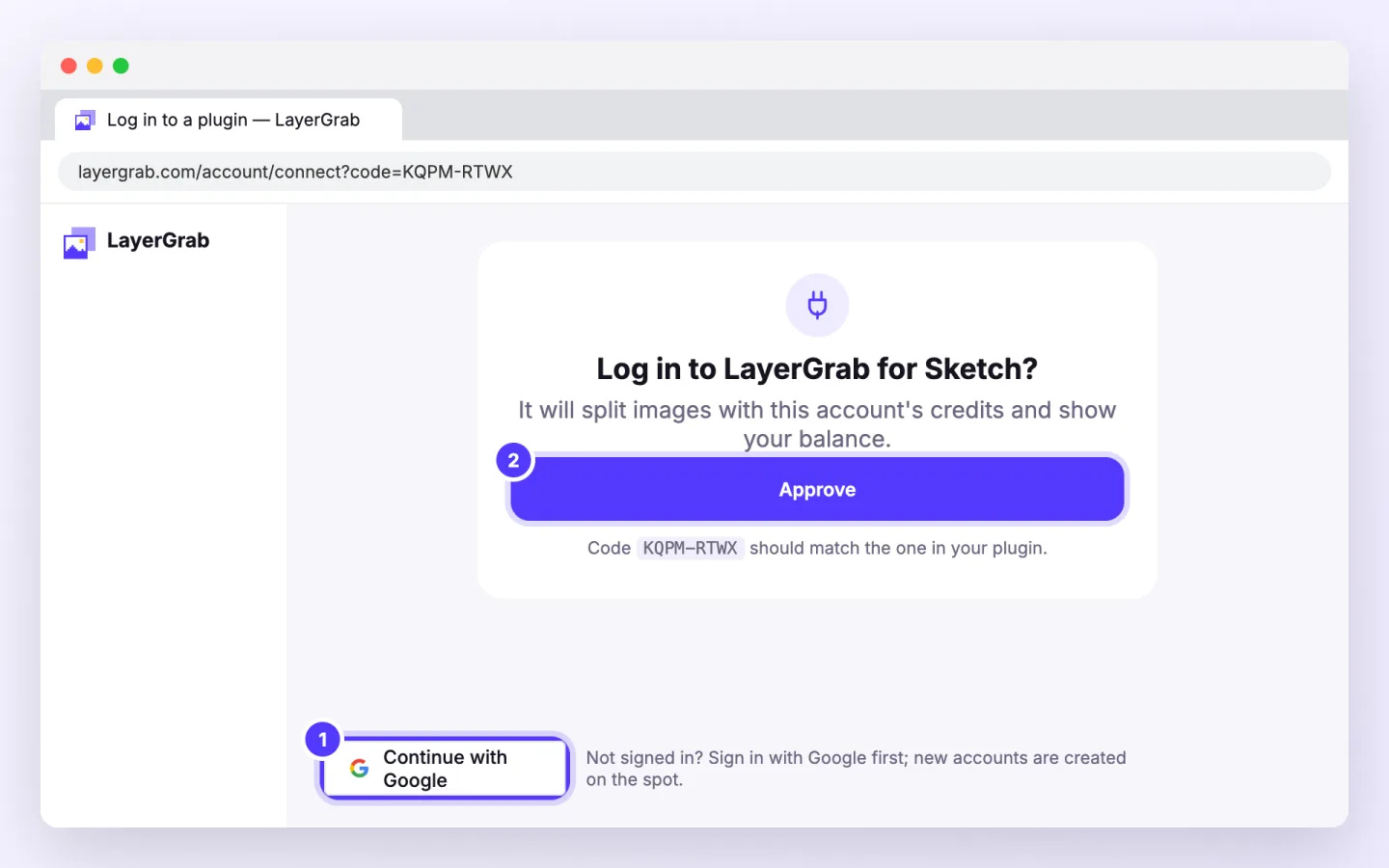
  3. Sketch plugin, step 3: Your browser opens layergrab.com. Sign in with Google if asked and click Approve.
    3Approve on layergrab.comYour browser opens layergrab.com. Sign in with Google if asked and click Approve.
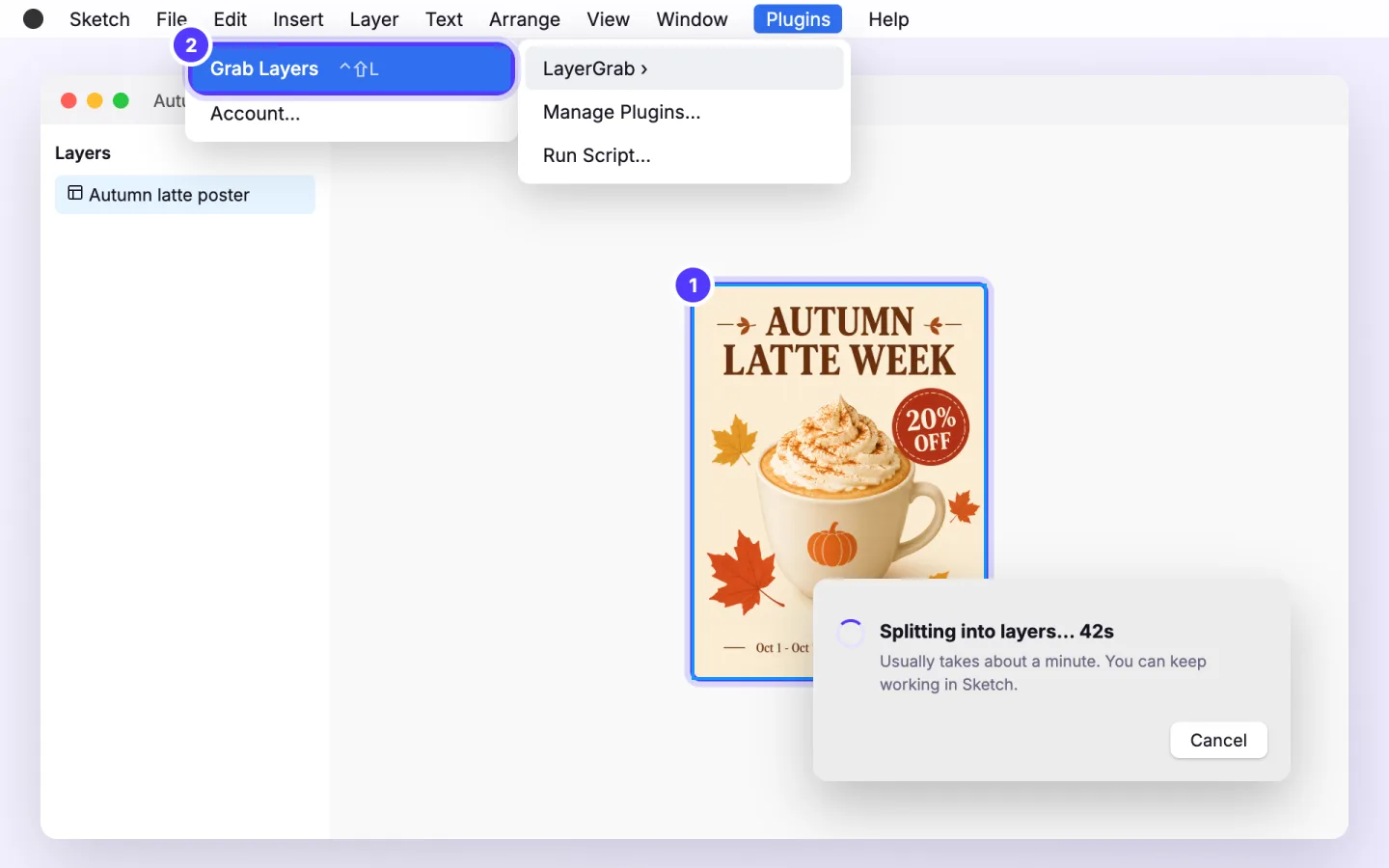
  4. Sketch plugin, step 4: Select an image, group or artboard and choose Plugins › LayerGrab › Grab Layers (⌃⇧L). A small panel shows the progress.
    4Select and grab the layersSelect an image, group or artboard and choose Plugins › LayerGrab › Grab Layers (⌃⇧L). A small panel shows the progress.
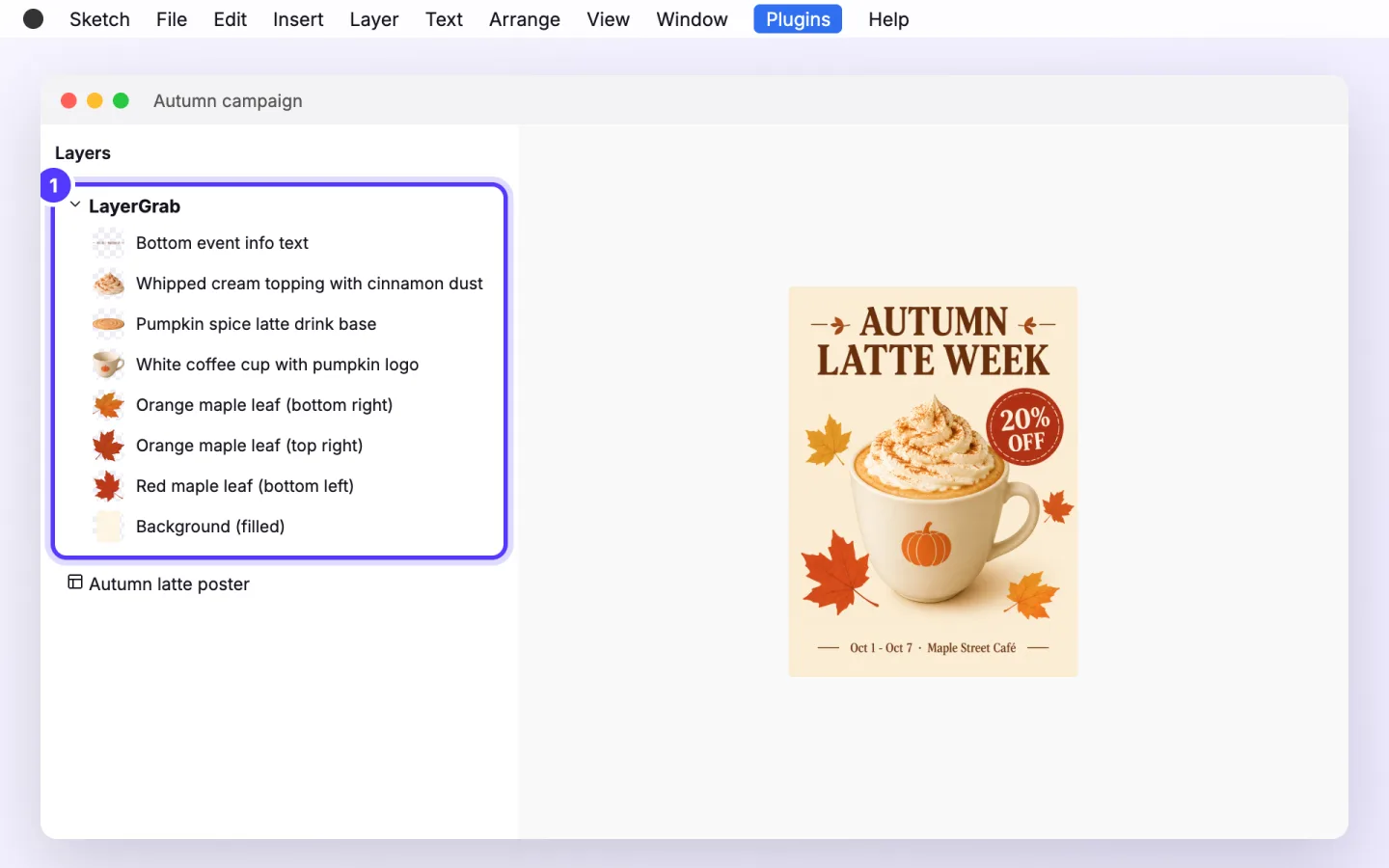
  5. Sketch plugin, step 5: A LayerGrab group appears above your selection, with every element as a named image layer.
    5Edit the new groupA LayerGrab group appears above your selection, with every element as a named image layer.

How it works in Sketch

  1. 1

    Log in with Google

    Choose Plugins › LayerGrab › Account… and click Log in with Google. Your browser opens layergrab.com; sign in with Google and click Approve.

  2. 2

    Select what to split

    Select one image, group or artboard on the canvas.

  3. 3

    Grab the layers

    Choose Plugins › LayerGrab › Grab Layers, or press Control-Shift-L. A small panel shows each step and the seconds elapsed, with a Cancel button.

  4. 4

    Edit the new group

    A group named LayerGrab appears above your selection, with the filled background at the bottom and every element on its own named layer.

What it puts in your file

Placed where it was

On an artboard the group goes inside it at the top-left; for any other layer it goes directly above, at the same position and size.

Your original stays

Nothing is changed or deleted. Hide the LayerGrab group to compare with the original underneath.

Named image layers

Each element is an image layer named from what it shows, such as "Yellow Price Tag $129", over a background with the hidden areas filled in.

Requirements

  • Sketch 2023.1 or later, on macOS
  • One image, group or artboard selected
  • A LayerGrab account with credits (sign-up credits in supported regions)
  • An internet connection while the split runs

When not to use it

  • Getting vector shapes or live text back: every layer is a bitmap image.
  • Keeping cast shadows: they are not separated and can look missing after you move an element.
  • Splitting several selections at once: the plugin works on one selected layer at a time.

The plugin runs the same AI as the web app and uses the same account and credits. Want the layers as files instead of inside Sketch? Export them as a layered PSD or single PNGs from the web app.

Frequently asked questions

How do I split an image into layers in Sketch?

Select the image, choose Plugins › LayerGrab › Grab Layers and wait about a minute. The plugin adds a LayerGrab group above the image with each element on its own named layer and the background filled in behind them.

Does the Sketch plugin need its own account?

No. You log in with your layergrab.com account: the plugin opens a page in your browser, you sign in with Google and click Approve, and it uses the same plan and credits as the web app.

What happens when I run out of credits?

The plugin tells you and offers Buy credits, which opens the pricing page on layergrab.com. After you pay, the new balance shows up in the plugin by itself.

Can I undo a split?

Yes. Delete the LayerGrab group, or use Undo. The layer you split is never changed.

Last updated 2026-09-28