LayerGrab

How to Edit a Product Banner When You Only Have the JPG

When the PSD is gone and only the exported JPG of a product banner is left, every change (a new price, a different product, a translated headline, another logo) means painting over old pixels and repairing whatever was behind them. The quicker route is to split the banner so the part you want to change sits on its own layer over a filled background. Hide that layer, put the new version in its place, export. For a single change, separate only that element. For a banner you will reuse many times, split everything once and keep the layered file as your template.

Last updated 2026-11-13

Which split for which job

  • Ten versions with different prices“only the price tag”Hide the old price, type the new ones.
  • Another product on the same backdrop“only the headphones”Hide the product, place the new cut-out.
  • The same ad in another language“only the text”Every text block on its own layer; retype each.
  • A different logo or partner mark“only the logo”Hide it, drop in your logo file.
  • A reusable templateAll layersEvery element separate; save the PSD.

One layer is the mode that separates only what you name and leaves everything else where it is. It is quicker to check, cheaper than splitting the whole banner, and it does not disturb the parts you are keeping. The same idea, on photos, is explained in separate one object into its own layer.

Change one thing, keep the rest

  1. 1

    Upload the banner

    The JPG, PNG or WebP you have, up to 20 MB. A screenshot works too, but the export from the ad platform or the shop is sharper.

  2. 2

    Pick One layer and name the part to change

    Type it in plain words: “only the price tag”, “only the logo”, “only the text”. You get that element on a transparent layer and the banner without it, with the gap painted in. For a full template, pick All layers instead.

  3. 3

    Open the layers where you edit

    Download a layered PSD for Photoshop or Photopea, copy layers into Figma or Canva, or use the Photoshop and Figma plugins to place them straight into your file.

  4. 4

    Hide the old element and add the new one

    Switch off the old price, product, text or logo. Because the background underneath was filled, you see clean backdrop where it was. Type the new price, place the new product, paste the new logo.

  5. 5

    Export every version

    Duplicate the artboard or document once per version and export. Keep the layered file: next month’s sale starts from it, not from the JPG.

The four usual changes, on real banners

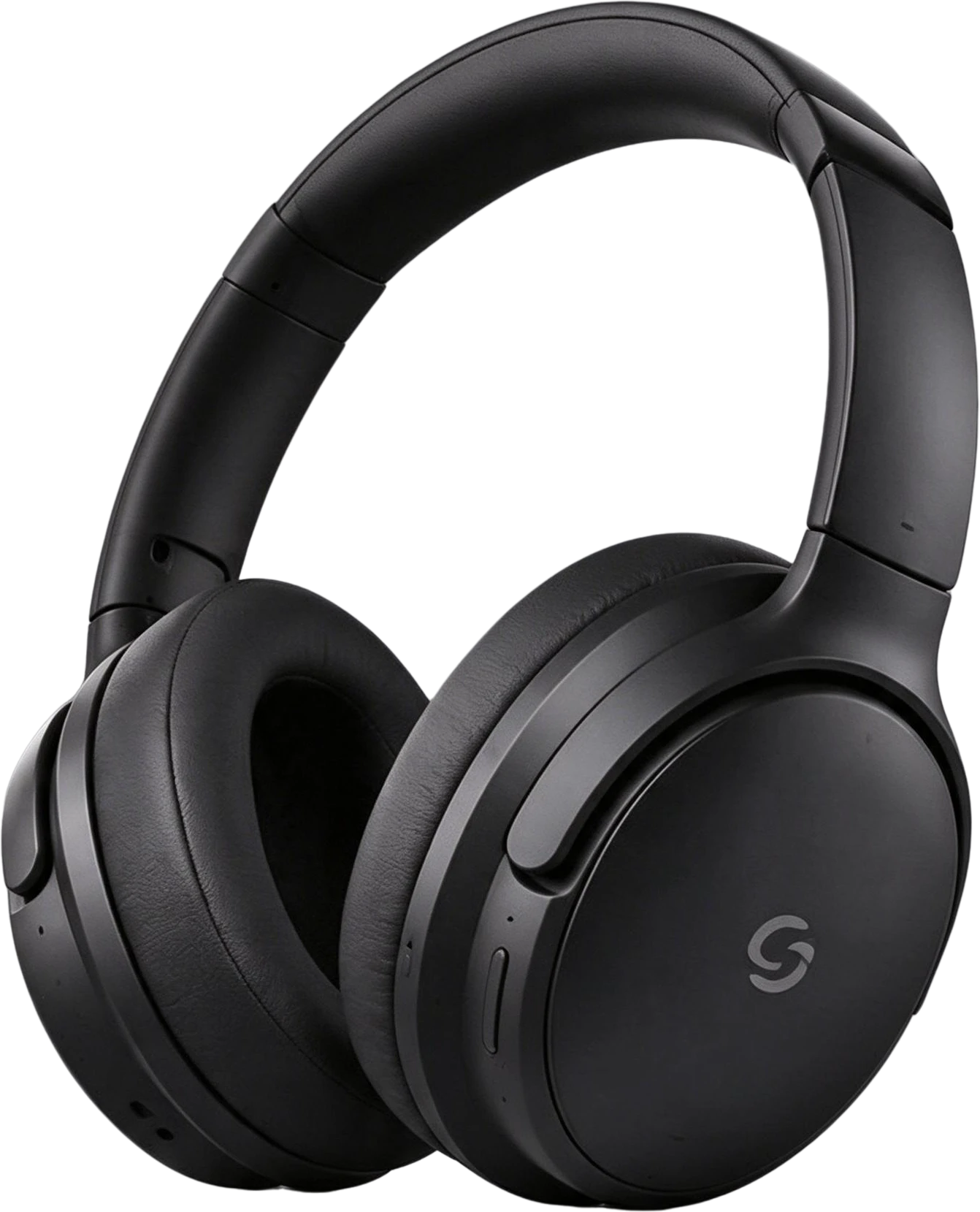
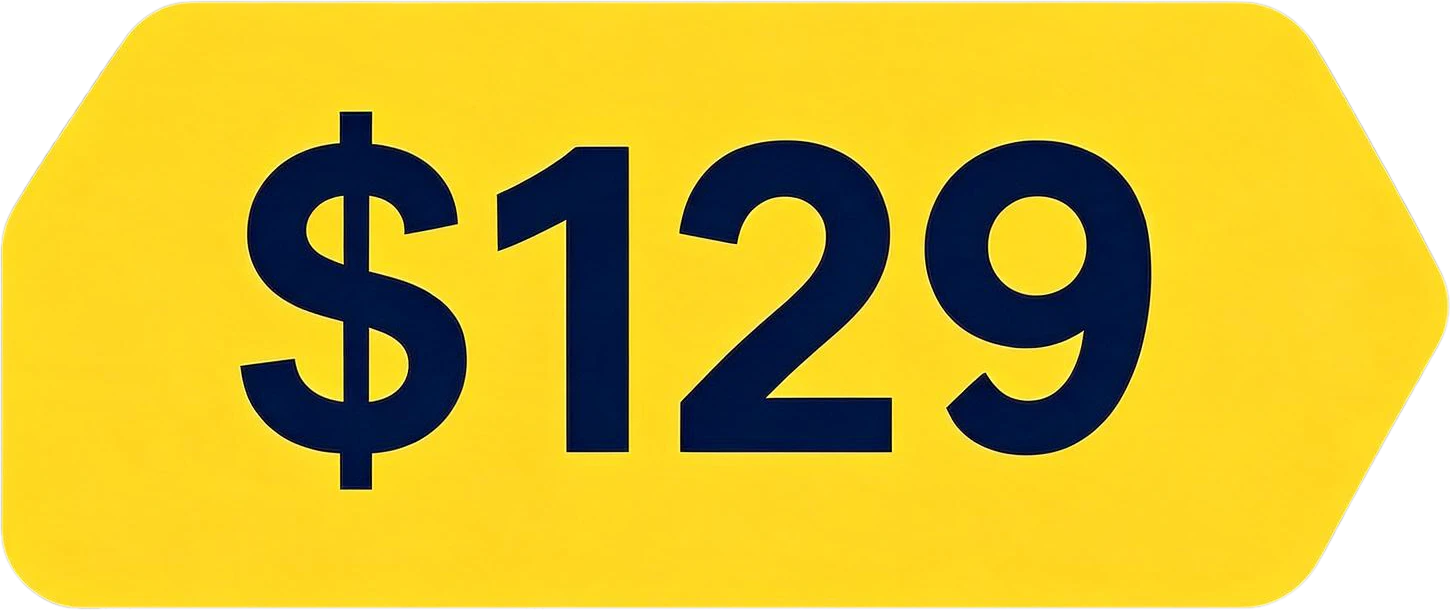
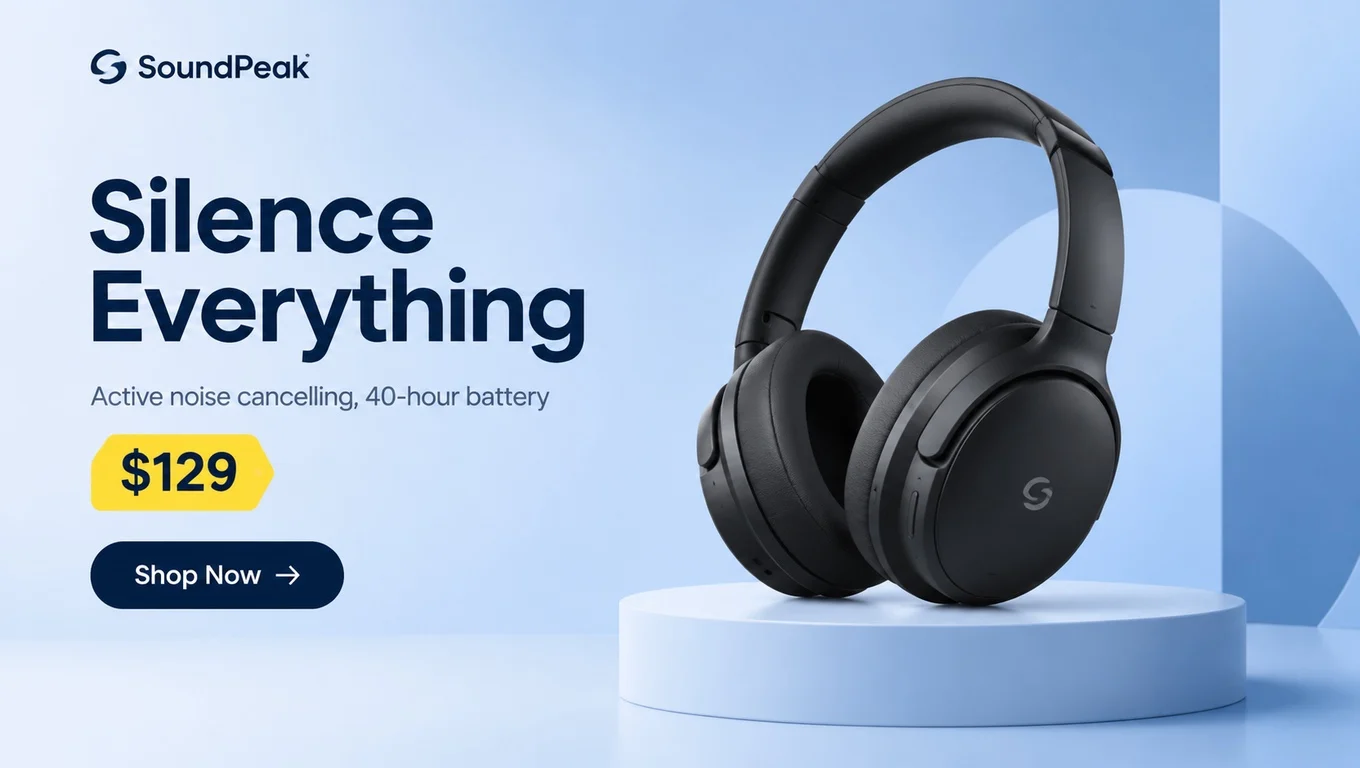
A new price. On this headphones banner the $129 tag comes back as its own layer. With it hidden, the gradient behind it is already painted in, so ten price versions are ten text layers on the same clean banner.

Headphones product banner — original
Original
Headphones product banner — price tag hidden, banner filled
Price tag hidden, banner filled

A different product. The headphones and the round pedestal are separate layers. Hide the headphones and the pedestal stands empty in the studio light, ready for the next product. Add a soft shadow under the new one yourself: cast shadows do not come out as layers.

Headphones product banner — original
Original
Headphones product banner — product hidden, pedestal and backdrop kept
Product hidden, pedestal and backdrop kept

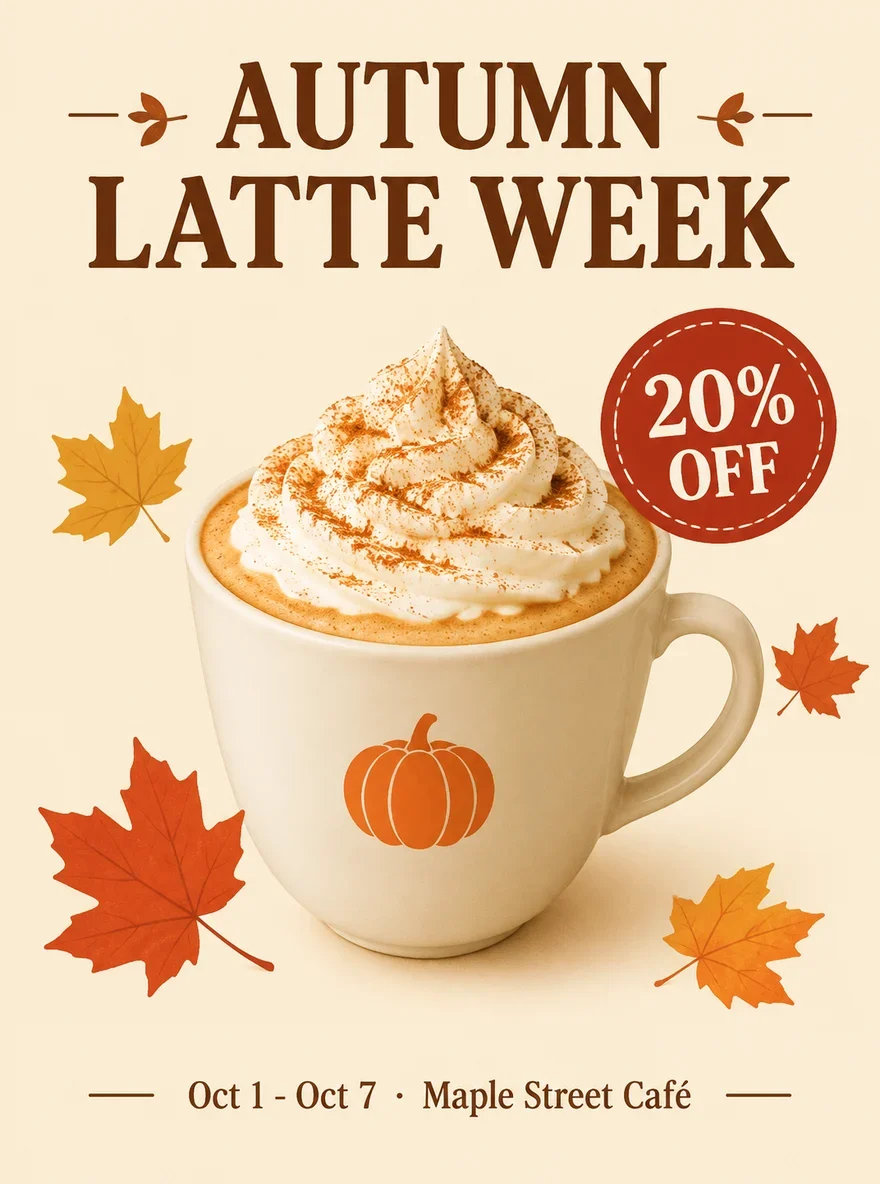
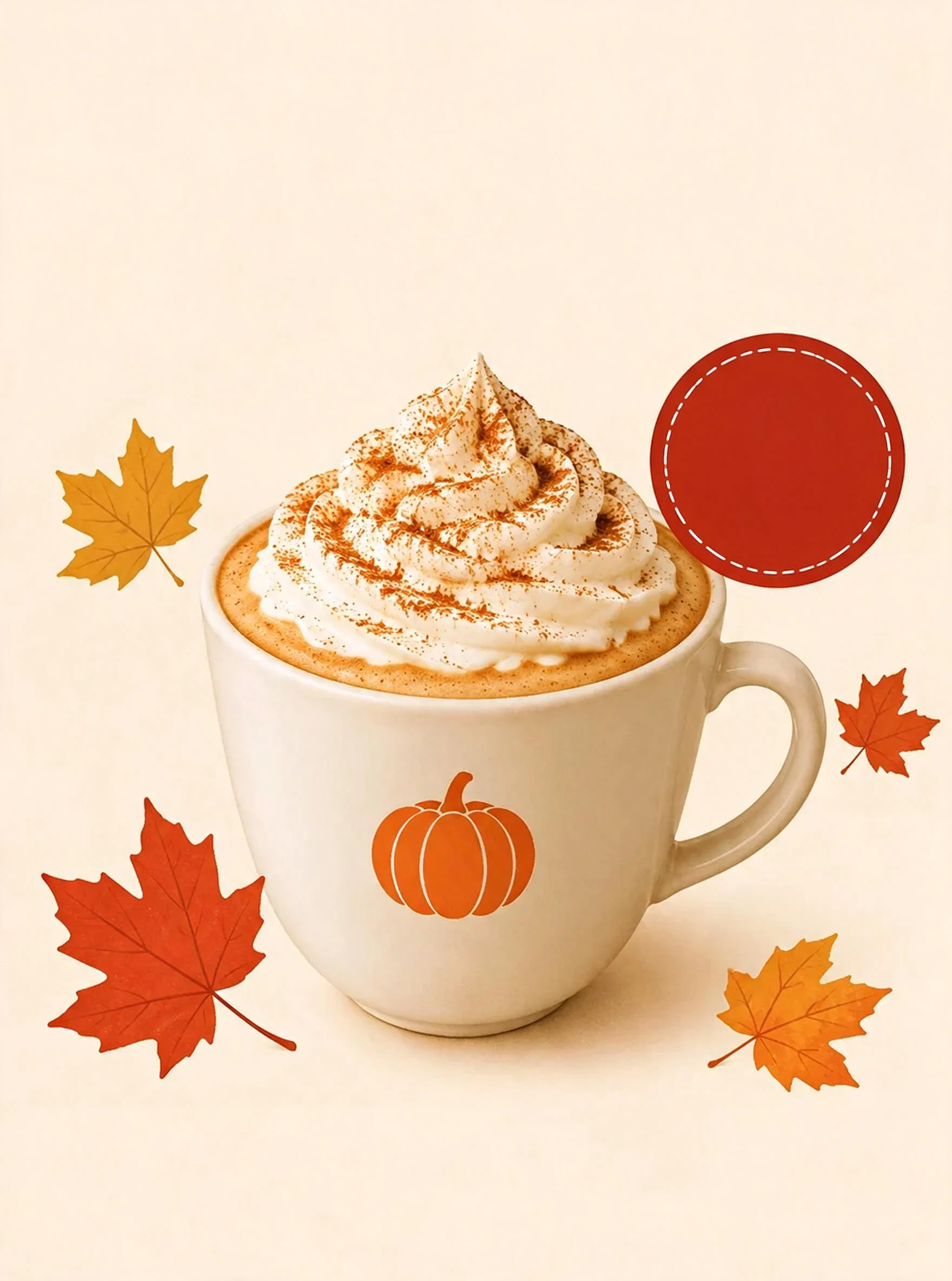
Another language. Asked to separate only the text, this coffee poster returned its three blocks of copy (the headline, the discount and the date line) as three layers, and a background with the lettering removed and the red badge left empty. Type the Spanish, German or Japanese version on top and the rest of the design is untouched.

Coffee poster, text only — original
Original
Coffee poster, text only — only the text separated and hidden
Only the text separated and hidden

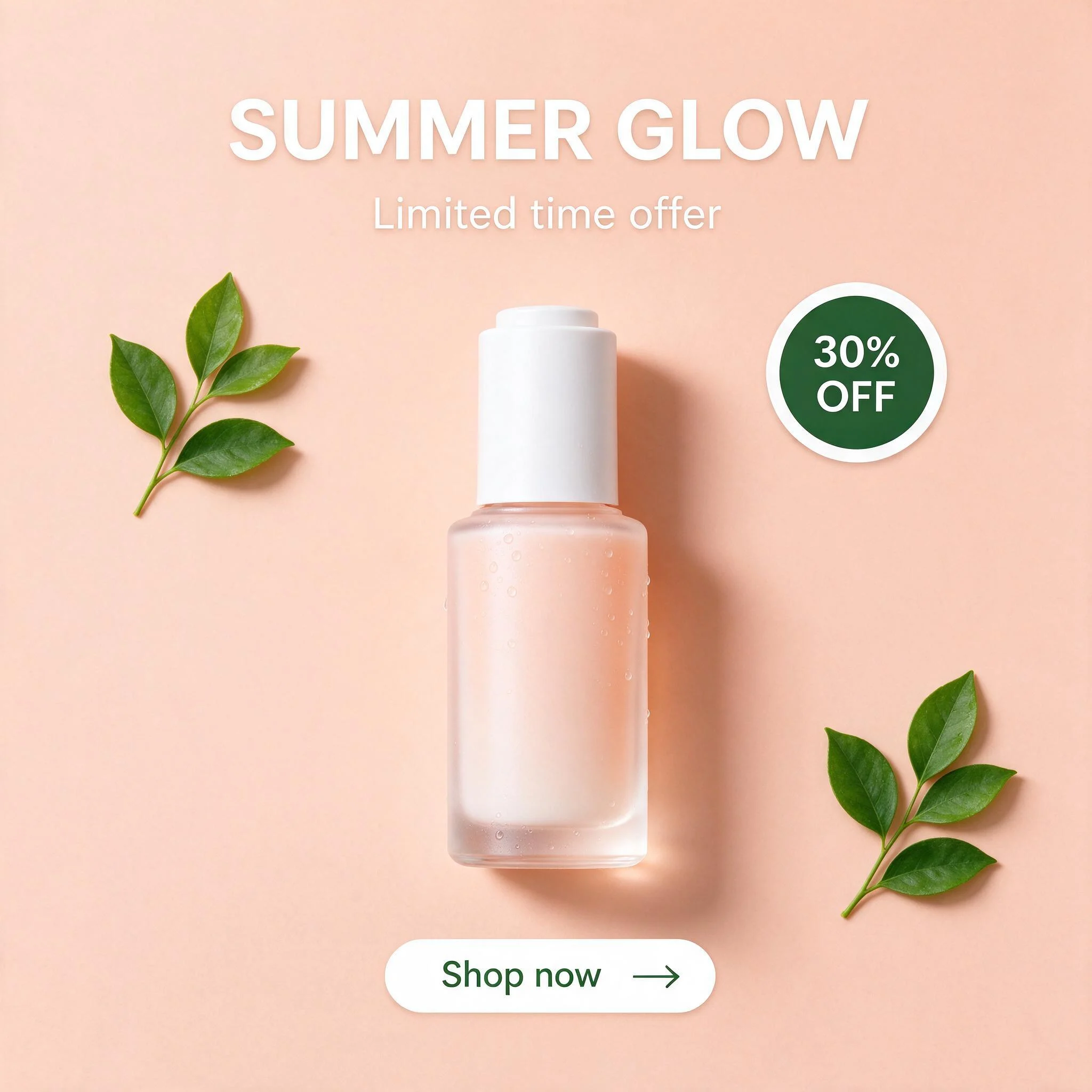
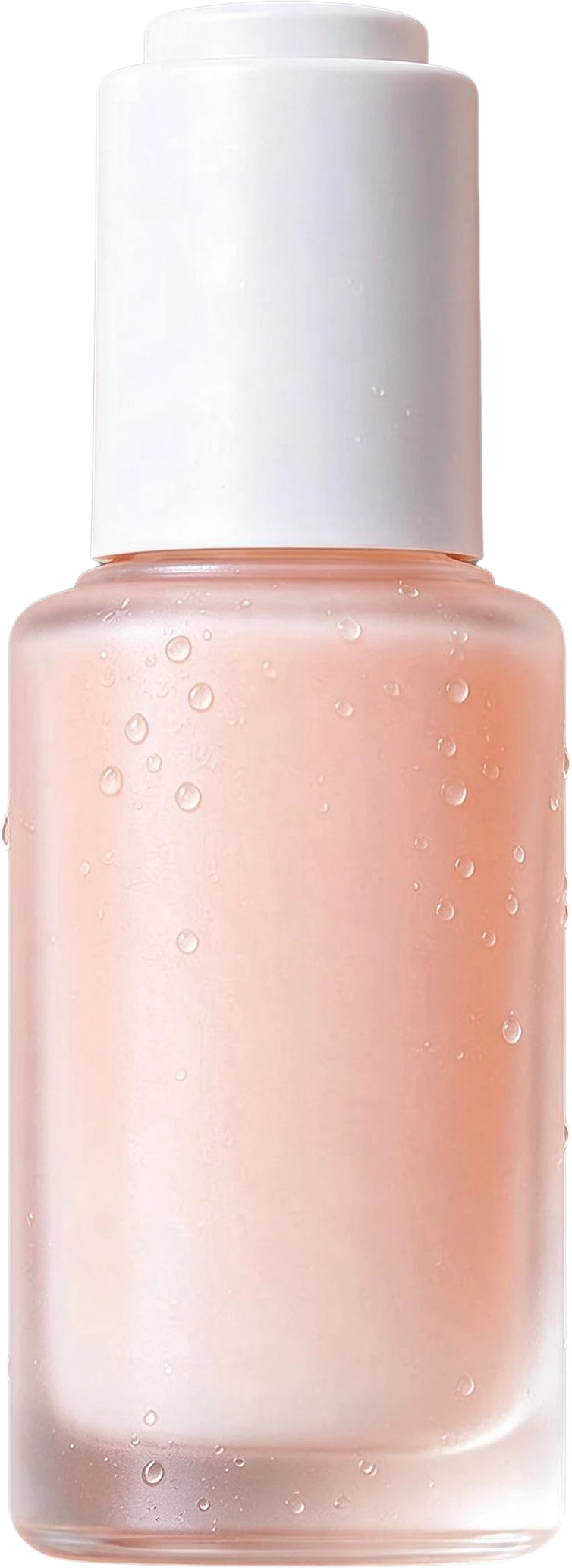
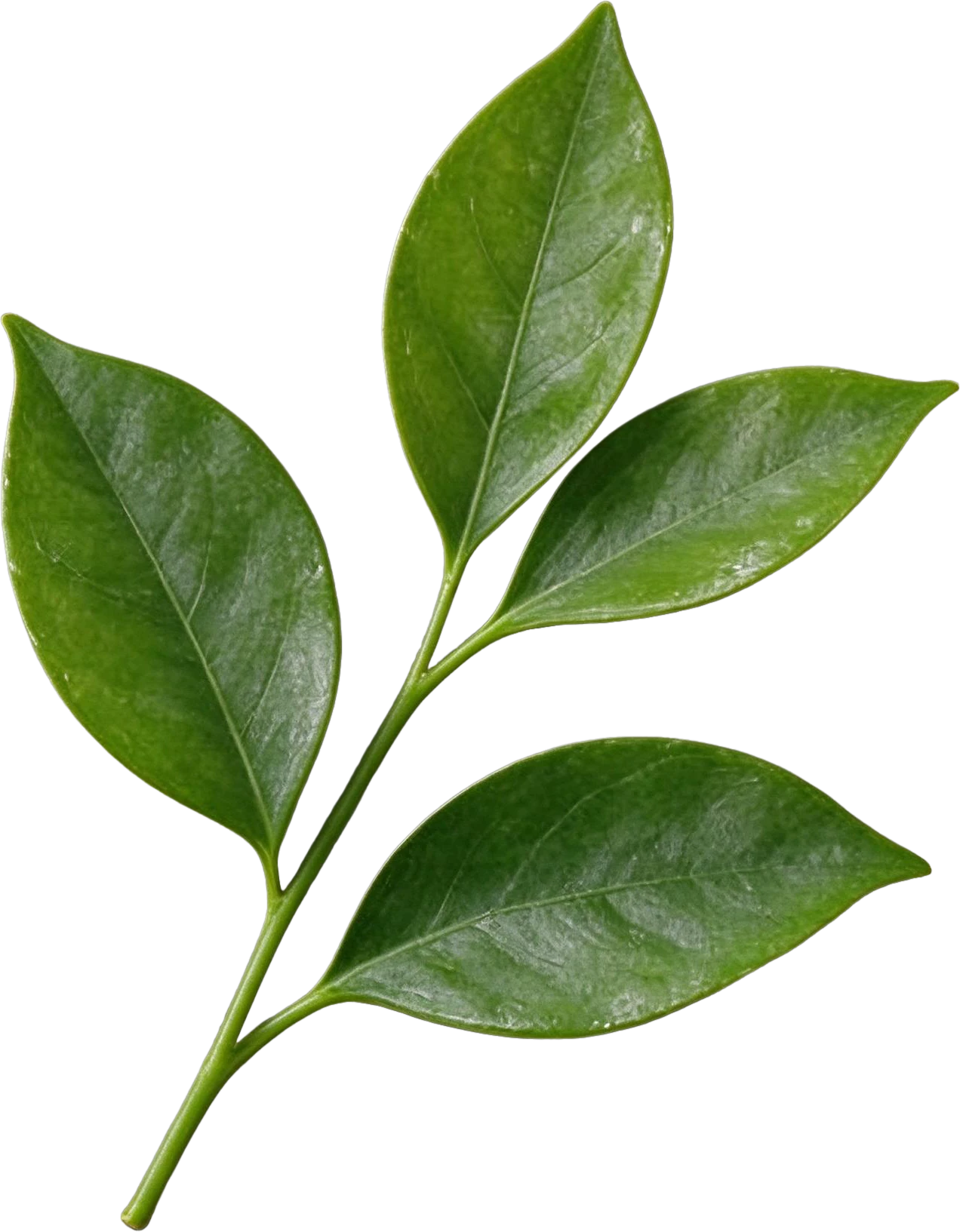
A banner that becomes a template. When the same layout will carry many campaigns, split everything once. The skincare post below comes back as the bottle, both leaf sprigs, the headline, the offer line, the badge and the button, so next season you swap the bottle and retype two lines.

Skincare Instagram post — the flat original
Skincare Serum Bottle — separated layerSUMMER GLOW Text — separated layer30% OFF Badge — separated layerShop now Button — separated layerTop Left Green Leaf Sprig — separated layerLimited time offer Text — separated layer

The logo works the same way as the price: name it, hide it, paste yours. If you design social posts and ads all week, the template workflow has its own guide: turn an ad or social post into an editable template.

When not to do it this way

The product sits on plain white. A marketplace main image on a white background only needs a background remover; there is nothing behind the product to rebuild.

You have the source file, or can ask for it. The designer's PSD or Figma file has live text, smart objects and the real fonts. A rebuilt layer stack is a fallback, not an upgrade.

You need hundreds of variants every week. Split once to rebuild the template, then generate the variants from a data feed in your design tool or ad platform. Splitting each banner again would be the slow way.

The banner is not yours. Rebuilding someone else's ad with your product in it can infringe their design and trademarks. Use your own creatives, or ones you are licensed to edit.
Frequently asked questions

How do I change the price in a banner when I only have the JPG?

Separate only the price tag. You get the tag on its own layer and the banner with the area behind it filled. Hide the tag, type the new price in a matching font in Photoshop, Figma, Canva or Photopea, and export. Repeat the last step for every price you need.

Can I edit the text in the banner directly?

Not as live type. A JPG has no text in it, only pixels shaped like letters, and the split returns them as an image layer. Hide that layer and type the words again; if you know the brand font, the result matches the original.

How do I translate an ad image into another language?

Split out only the text, so every block of copy comes back on its own layer over a background with the text removed. Hide the English layers and type the translation in their place. Leave room: German and French copy usually runs longer, and some fonts lack Cyrillic or CJK characters.

Will the new product look like it belongs in the scene?

The backdrop will be clean, but light and shadow are on you. Cast shadows are not separated as layers, so add a soft contact shadow under the new product and match its light direction; a cut-out with the wrong light reads as pasted on.

Do I need Photoshop for this?

No. The layers open in Photopea in the browser, copy into Figma or Canva, or download as transparent PNGs that any editor can stack. Photoshop and Figma users can also use the LayerGrab plugins.

What does one change cost?

A One layer split returns two layers, the element and the filled banner. Layers are 10 credits each on the Basic plan and the credit packs. Every account gets one free One layer split: name one element of your image and it comes back on its own layer, with the gap behind it filled in. In the Photoshop, Figma, Sketch and Chrome plugins, your first full split is free too.