LayerGrab

Can ChatGPT Split an Image into Layers? We Tested It

Yes, partly. With an uploaded image in a regular chat, ChatGPT built a nine-layer PSD with code, exported thirteen transparent PNG files, and produced a text-free background with the words retyped as editable SVG text. In a temporary chat it declined all three. Its cut-outs are lifted from the flat picture, so an element that sat on top of another leaves a hole: the mug came back with a pumpkin-shaped gap. ChatGPT is the better pick when you want text retyped as live type. A dedicated image layer splitter is the better pick when every element has to be whole and the background behind it filled in.

Tested 2026-11-13

How we tested

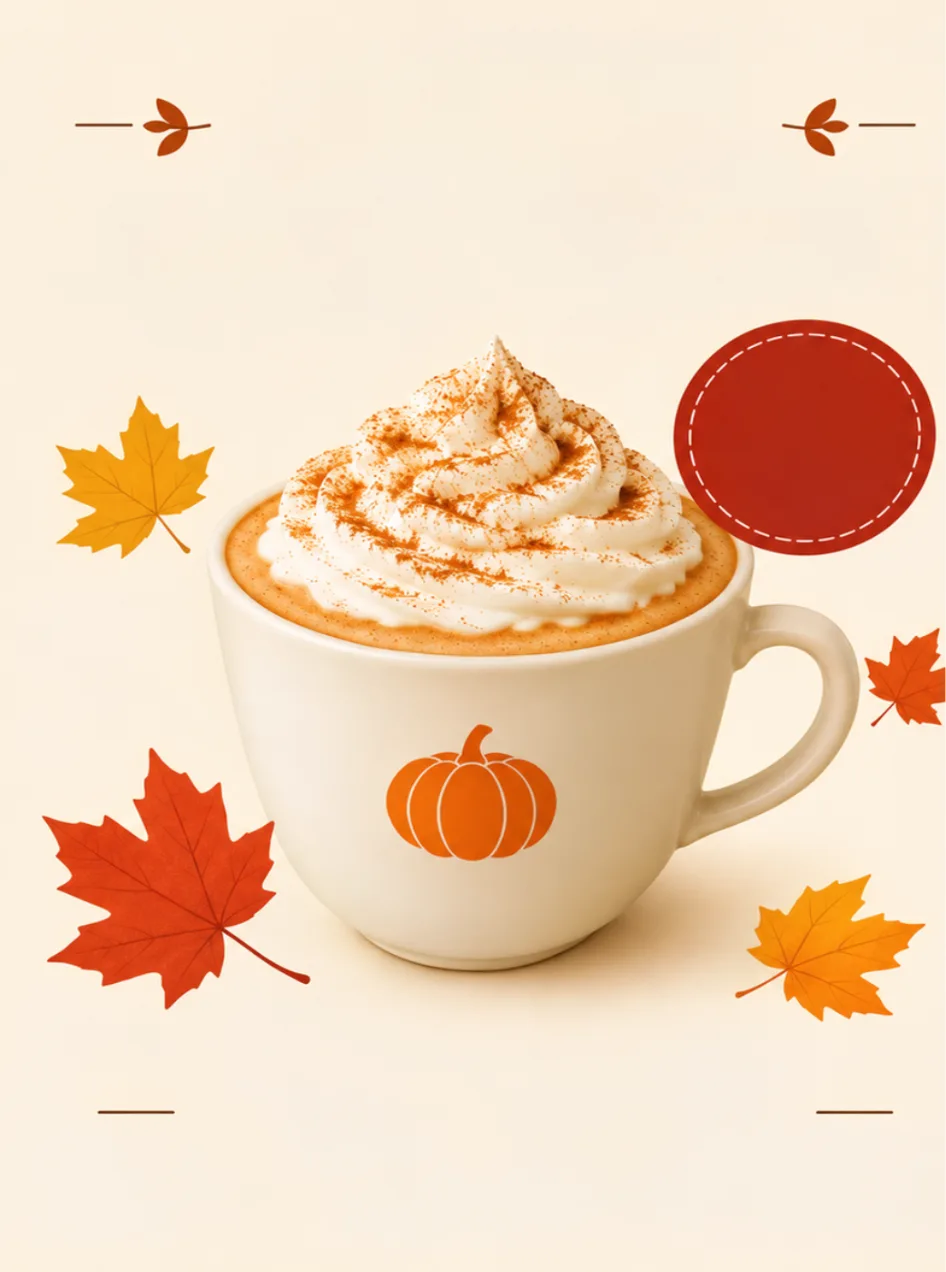
One image, three requests, on 13 November 2026. The image was the coffee shop poster used across this site: 880 × 1184 pixels, a headline, a red discount badge, a cup of latte with whipped cream, four maple leaves and a date line. We used a ChatGPT Plus account with the default model and memory switched off, uploaded the poster, and typed each request in a new chat, word for word:

  • Layered PSD“Can you separate this image into layers and give me a PSD?”
  • Separate PNGs“Can you give me each element of this image as a separate transparent PNG?”
  • Text on its own layer“I generated this image in ChatGPT earlier. Can you give me the same image with the text on a separate layer?”

We first tried all three in a temporary chat. ChatGPT described the layers it would make, then said image editing was not available there and asked us to switch to a regular chat. Everything below comes from regular chats. We did not test the free plan.

Test 1: “give me a PSD”

ChatGPT checked which image libraries its sandbox had, then wrote a nine-layer PSD at the original 880 × 1184 size: background, main headline, the date and café line, the latte cup with its whipped cream, four separate leaves and the 20% OFF badge. Its own note said the layers were extracted automatically from the flattened image, that some edges and background areas might need cleanup, and that the text was separated as pixels, not editable Photoshop text. We are reporting the layer list as ChatGPT described it; we did not open the file for this article.

Notice what that list implies: the cup and the cream are one layer. You could not animate the cream separately, and the file says nothing about what is under the badge or the headline.
Test 2: “each element as a separate transparent PNG”

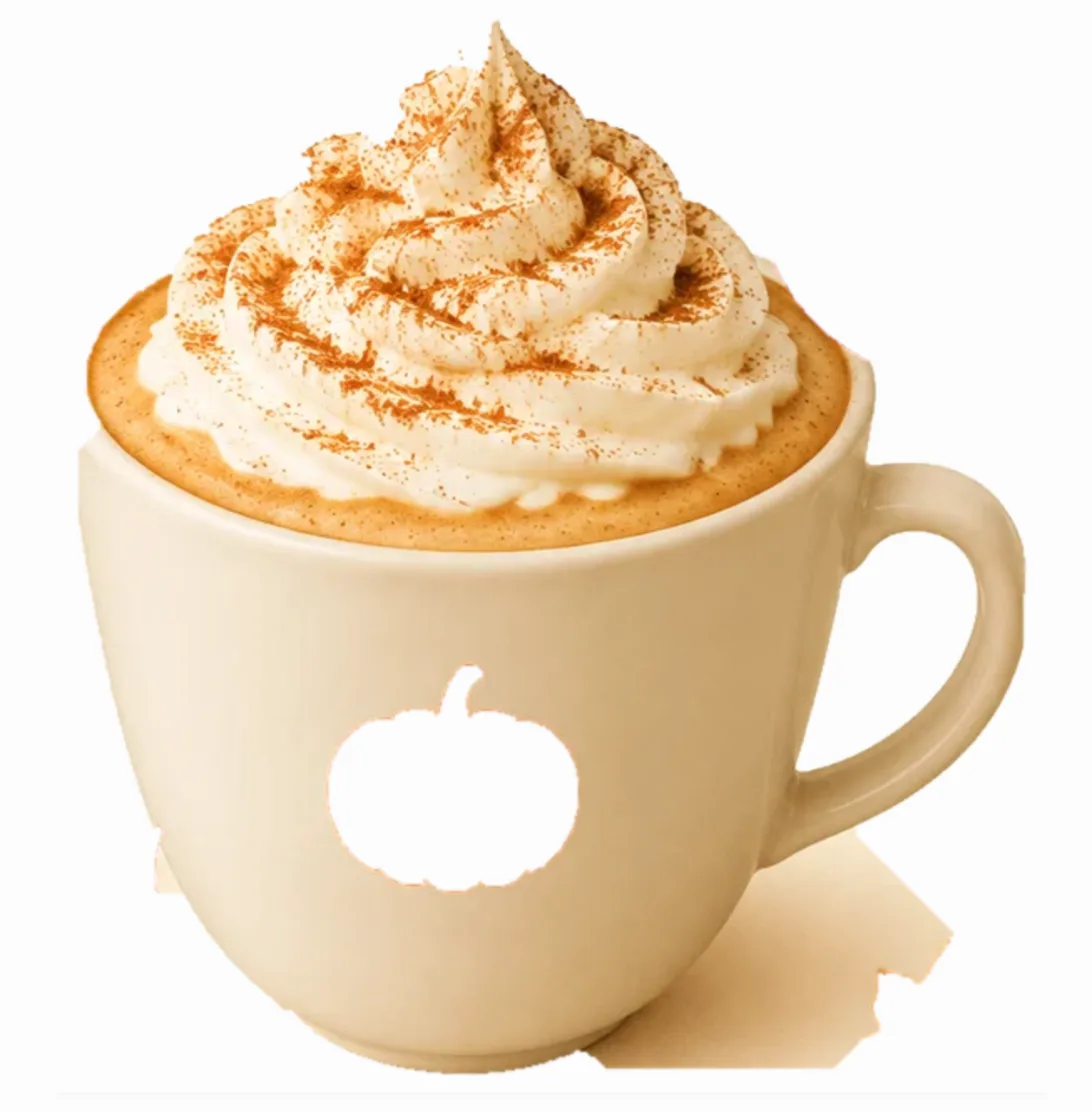
This one took about a minute of thinking and returned thirteen PNG files plus a ZIP: the latte mug, the two headline words, the badge, three leaves on their own and the small decorations and footer inside the ZIP. Here is the mug, as ChatGPT's preview shows it:

ChatGPT's latte_mug.png: the mug with a pumpkin-shaped hole where the logo was cut out
ChatGPT: latte_mug.png. The pumpkin left a hole; a scrap of background hangs off the base.
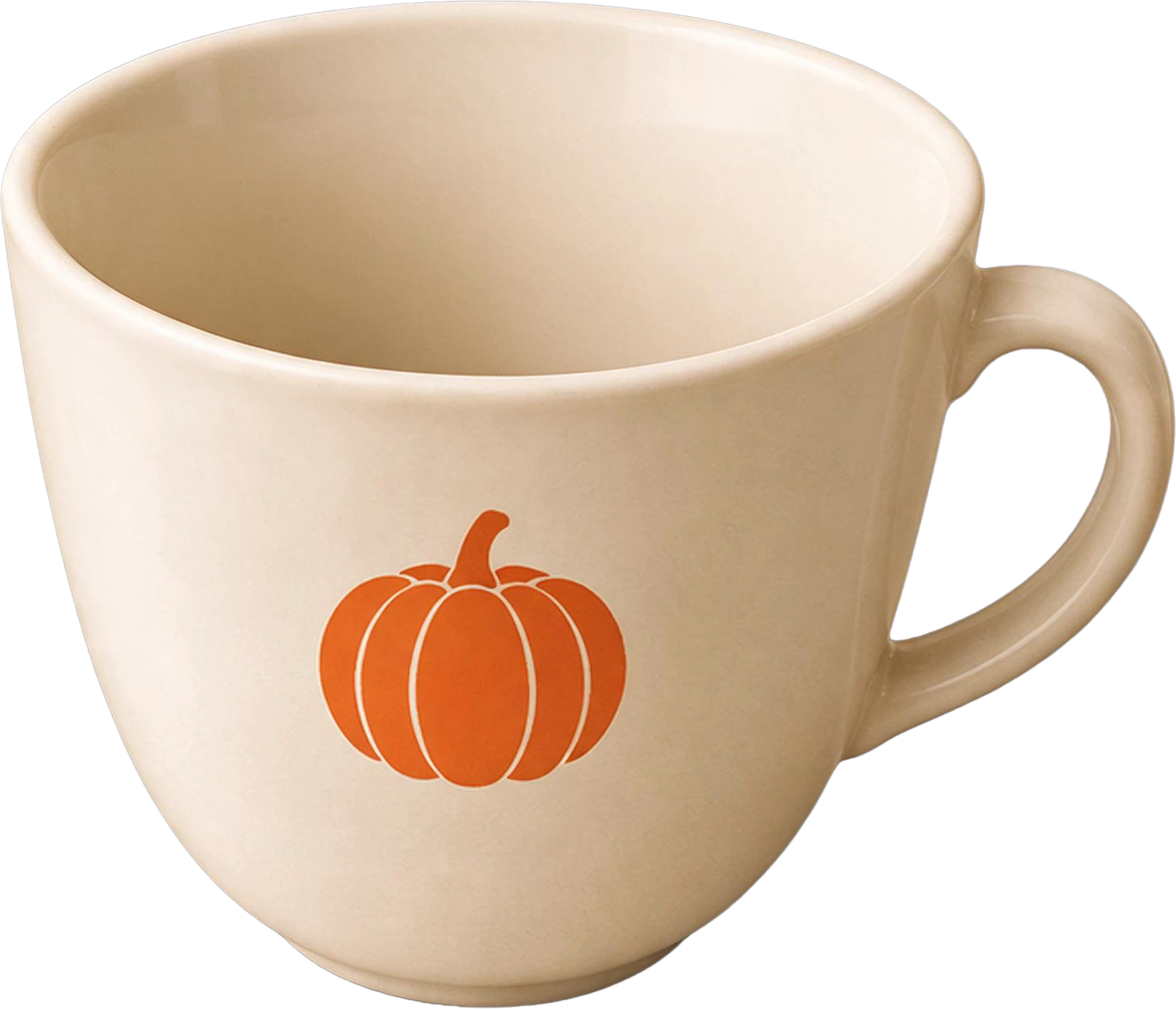
The cup layer from the same poster split by LayerGrab: a whole empty cup
LayerGrab: the cup layer, whole, with the drink and cream on layers of their own

The pumpkin logo was cut out as its own file, so the mug now has a pumpkin-shaped hole, and a piece of the cream-coloured backdrop came along at the bottom right. That is not a bug in ChatGPT; it is what happens when you lift pixels out of a flat picture. Nothing underneath an element exists in the file, so nothing is there when you take it away. On the right, the same poster split by LayerGrab: the cup is a whole cup with its inside painted, and the drink and the cream are layers of their own.

Test 3: “the same image with the text on a separate layer”

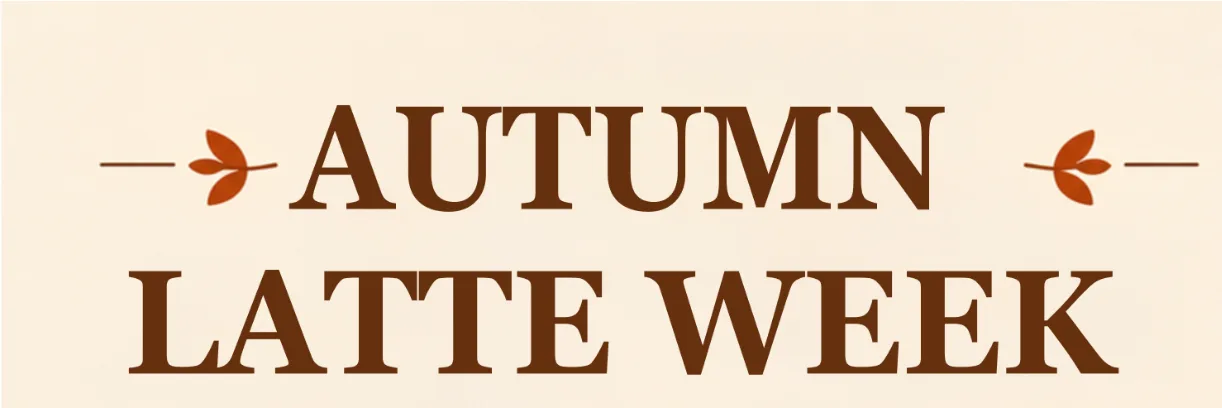
This is where ChatGPT did something LayerGrab does not. It returned two files: the poster with all lettering removed, and an SVG with the words recreated as live text over that background. The background is clean: the headline area is plain, and the badge is an empty red circle ready for a new number. The retyped headline is in a serif close to the original, and you can select it and change it in Illustrator, Inkscape or Figma.

ChatGPT's background file: the coffee poster with the headline, badge text and date line removed
ChatGPT: background with the text removed
ChatGPT's SVG: the headline AUTUMN LATTE WEEK retyped as live text
ChatGPT: the headline retyped as live SVG text

ChatGPT's own note called it a reconstructed version, not a pixel-perfect separation, and said the artwork stays one image layer. For a menu, a price change or a translation, that is often exactly enough.

The same poster in a dedicated splitter

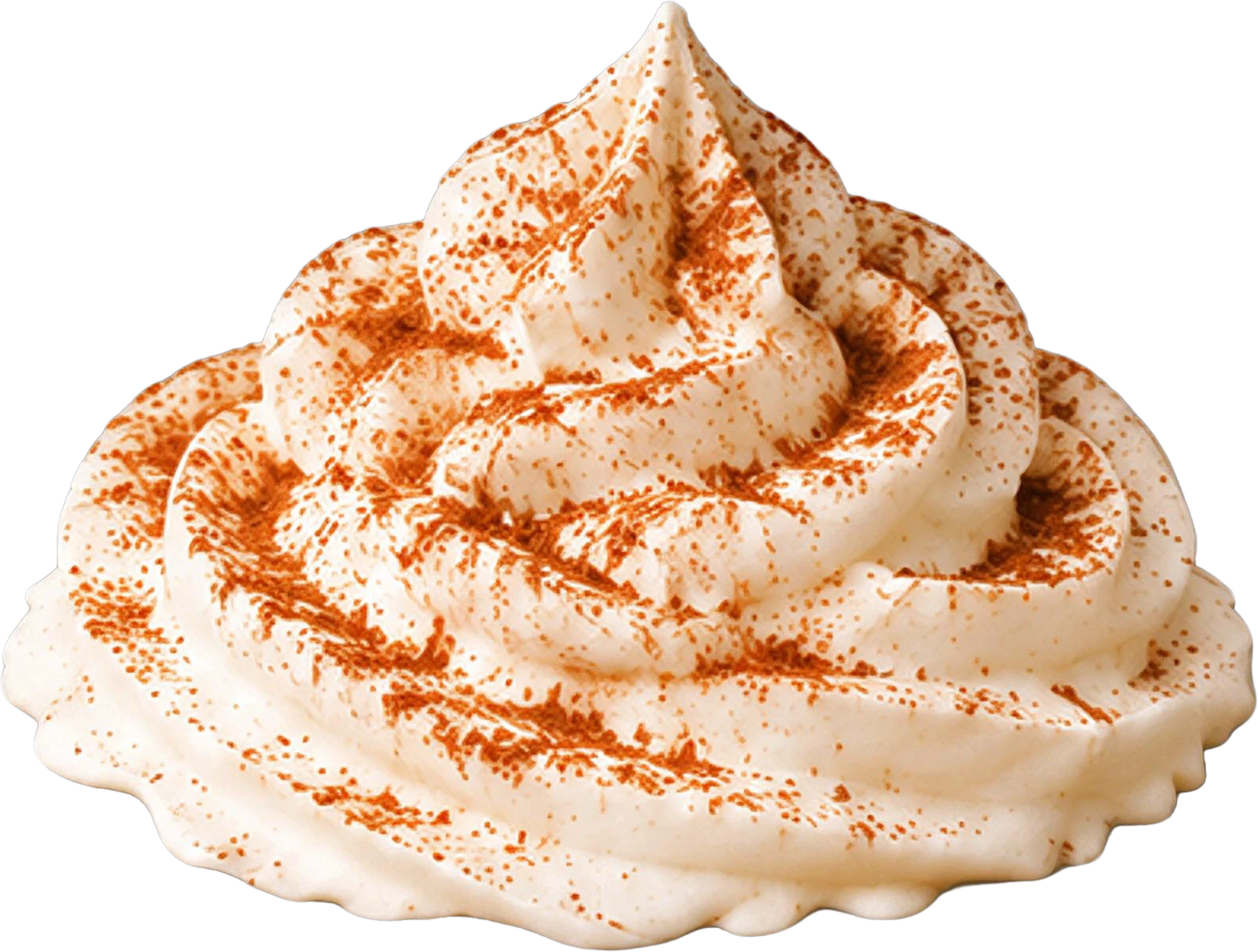
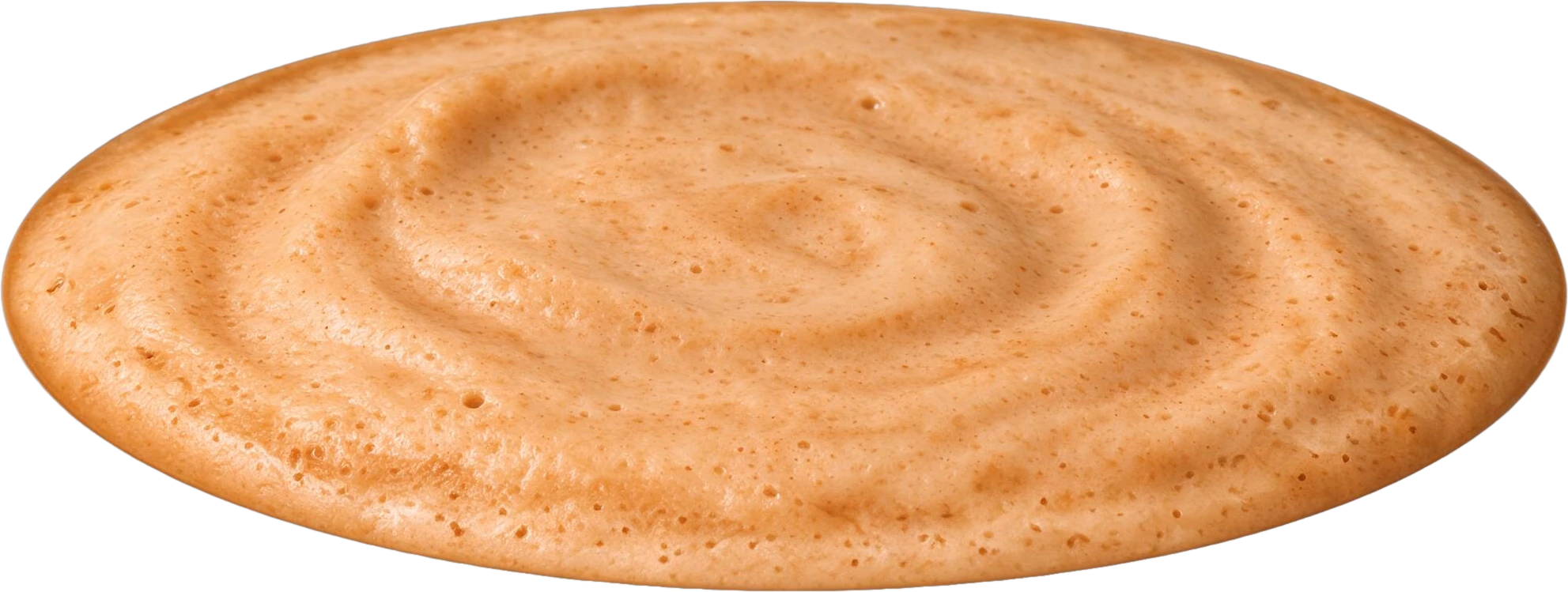
For comparison, LayerGrab split the identical file into ten named layers and a filled background: headline, badge, four leaves, cup, drink, cream and the date line. The bottom layer is the backdrop with every element painted out, so no silhouettes are left where they were. Disclosure: LayerGrab is the author's product, and this poster is one of its published samples.

Coffee shop poster — original

11 layers

  • Bottom event info text — separated layerBottom event info text
  • Whipped cream topping with cinnamon dust — separated layerWhipped cream topping with cinnamon dust
  • Pumpkin spice latte drink base — separated layerPumpkin spice latte drink base
  • White coffee cup with pumpkin logo — separated layerWhite coffee cup with pumpkin logo
  • Orange maple leaf (bottom right) — separated layerOrange maple leaf (bottom right)
  • Orange maple leaf (top right) — separated layerOrange maple leaf (top right)
  • Red maple leaf (bottom left) — separated layerRed maple leaf (bottom left)
  • Yellow maple leaf (top left) — separated layerYellow maple leaf (top left)
  • 20% OFF red badge — separated layer20% OFF red badge
  • AUTUMN LATTE WEEK headline text — separated layerAUTUMN LATTE WEEK headline text
  • Background (filled)
Layered fileChatGPT: PSD built with code, 9 layersLayerGrab: PSD, up to 16 named layers
Elements drawn wholeChatGPT: No: pieces lifted from the flat imageLayerGrab: Usually: hidden parts painted in
Background behind each elementChatGPT: Filled only in the text testLayerGrab: Always returned as the bottom layer
Editable textChatGPT: Yes: retyped as SVG textLayerGrab: No: text is an image layer
Output sizeChatGPT: Same as the upload (880 × 1184)LayerGrab: About 2K (1760 × 2368 here)
Where it runsChatGPT: Regular chat only, not temporary chatLayerGrab: Web, Photoshop, Figma, Sketch, Chrome

Which one to use

Use ChatGPT when the job is the words: fix a misspelled headline, change a date, translate a flyer. Its text-free background plus live SVG text is a better starting point than any image layer of letters. It also costs nothing extra if you already pay for ChatGPT.

Use an image layer splitter when the job is the objects: move the product, animate the cream, reuse the leaves, hand a client a PSD. You need each element whole and the background behind it painted in, and you want the layers at a size you can print or put in a video.

Use both for an AI poster you want to rework completely: split it for the objects, then ask ChatGPT for the text-free background and retyped copy, or simply hide the text layers and type your own. Our guide to fixing garbled text in an AI image walks through the second route, and turning a ChatGPT or Midjourney image into editable layers covers the first.

Frequently asked questions

Can ChatGPT create a layered PSD file?

In our test, yes: given an uploaded poster in a regular chat, it wrote code that saved a PSD with nine layers and offered it as a download. It warned that edges and background areas might need cleanup and that the text was separated as pixels, not editable Photoshop text.

Why does ChatGPT’s cut-out have a hole in it?

Because it lifts each element out of the flat picture. Pixels that were covered by something else never existed in the file, so when the pumpkin logo is cut out as its own PNG, the mug underneath has a pumpkin-shaped gap. A splitter that repaints hidden parts returns the mug whole.

Can ChatGPT make the text in an image editable?

Yes, by retyping it. It removed the lettering from the poster, filled the background cleanly and recreated the words as live text in an SVG file, in a font close to the original. The text you get is new type, not the original lettering, so check spacing and weight against the source.

Does this work in a ChatGPT temporary chat?

No. In a temporary chat ChatGPT listed which layers it would make and asked us to switch to a regular chat, because image editing was not available there. All results on this page come from regular chats.

Which should I use for an AI image I made in ChatGPT?

If you only need to change the words, ask ChatGPT for the text on its own layer: you get live type on a clean background. If you need the objects themselves as separate, complete layers for Photoshop, Figma or animation, use an image layer splitter and retype the text afterwards.