Coffee shop poster, a real split: the flat image and the 11 named layers it became.
Coffee shop poster
Split into layers in 100s: 10 named layers over the filled background.
LayerGrab turns a flat picture into 7–10 layers you can edit, with AI, in about a minute.
Image
Name one element. It comes back as a transparent PNG layer.
Sample split, free to explore: Coffee shop poster
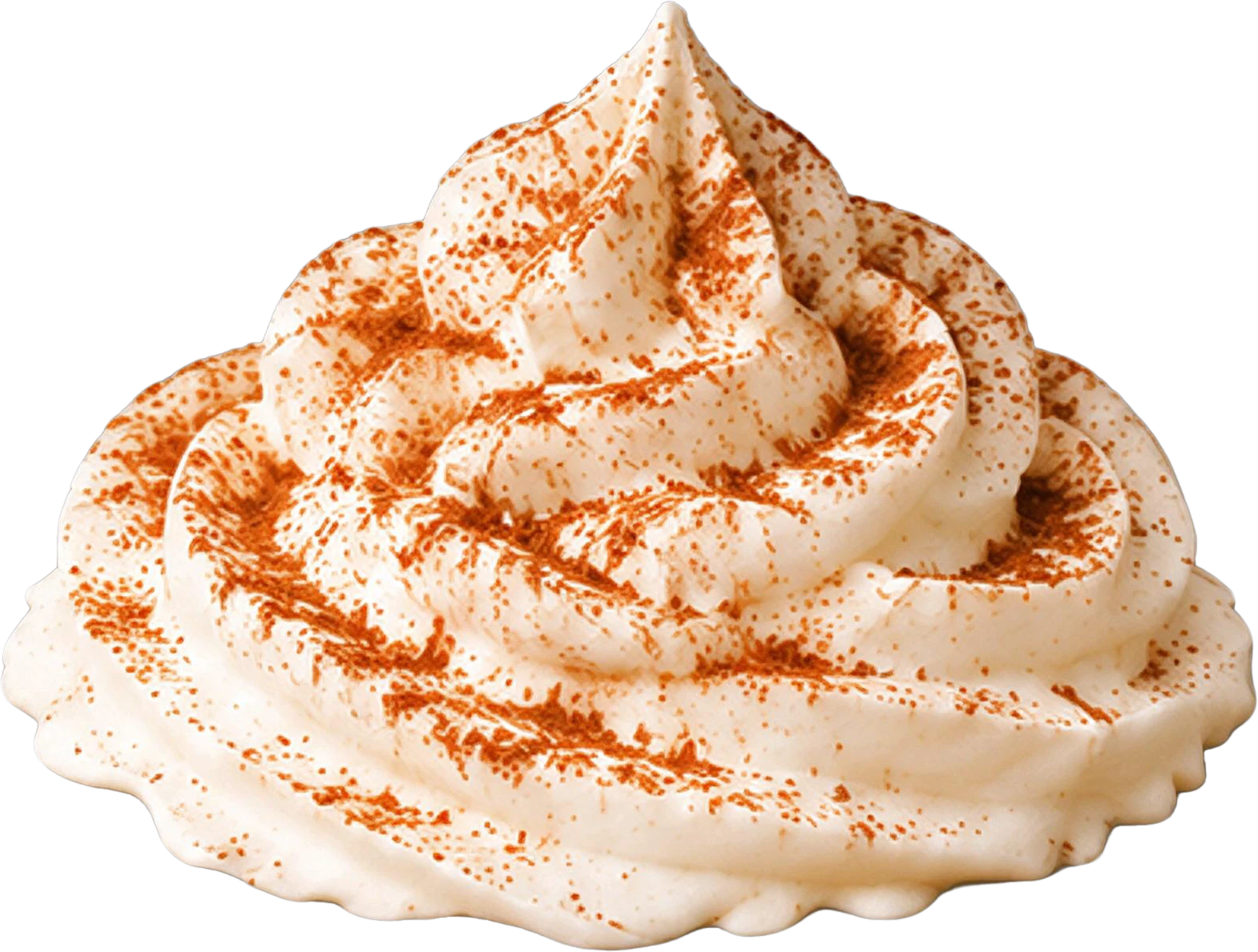

11 layers
Split in 100s
Background (filled)Every example on this page is a real image to layers result: the original, the filled background and each named layer, exactly as the tool returned them.
Coffee shop poster, a real split: the flat image and the 11 named layers it became.
Split into layers in 100s: 10 named layers over the filled background.
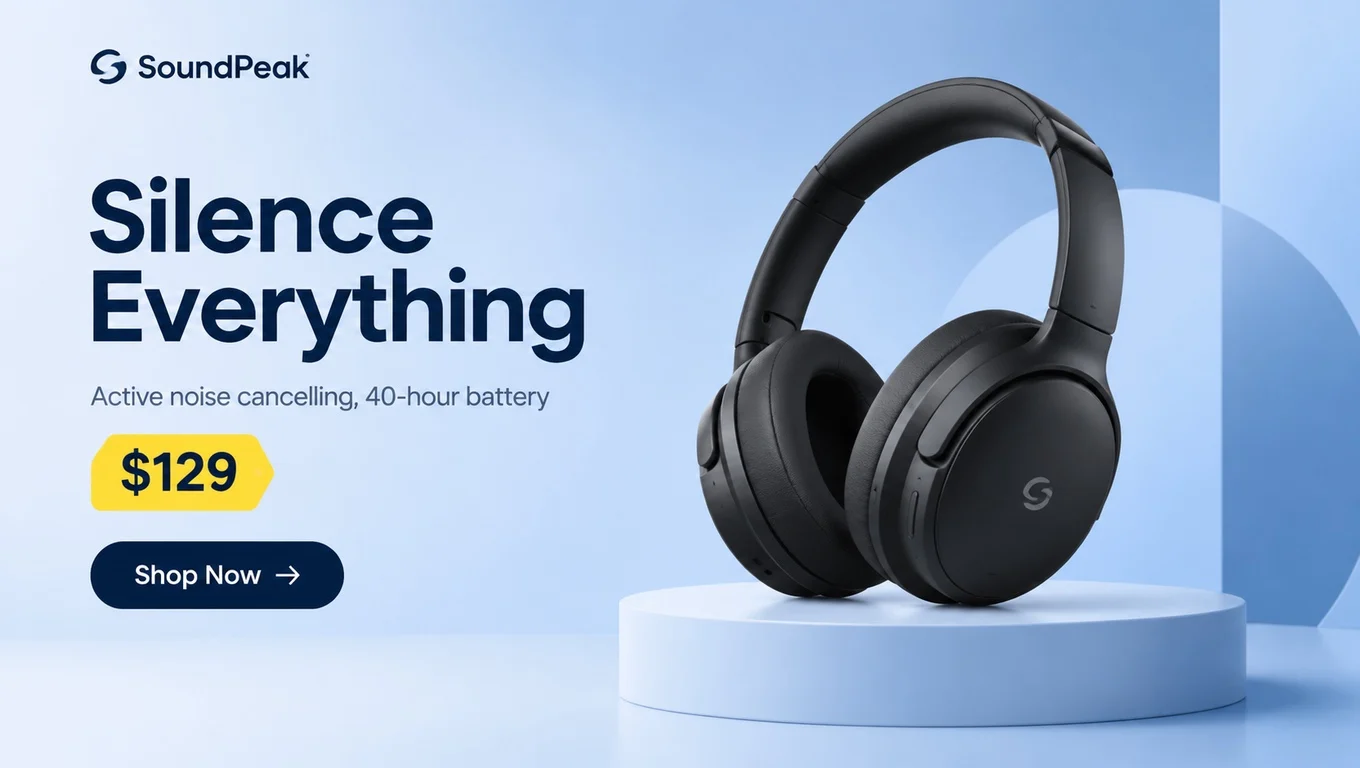
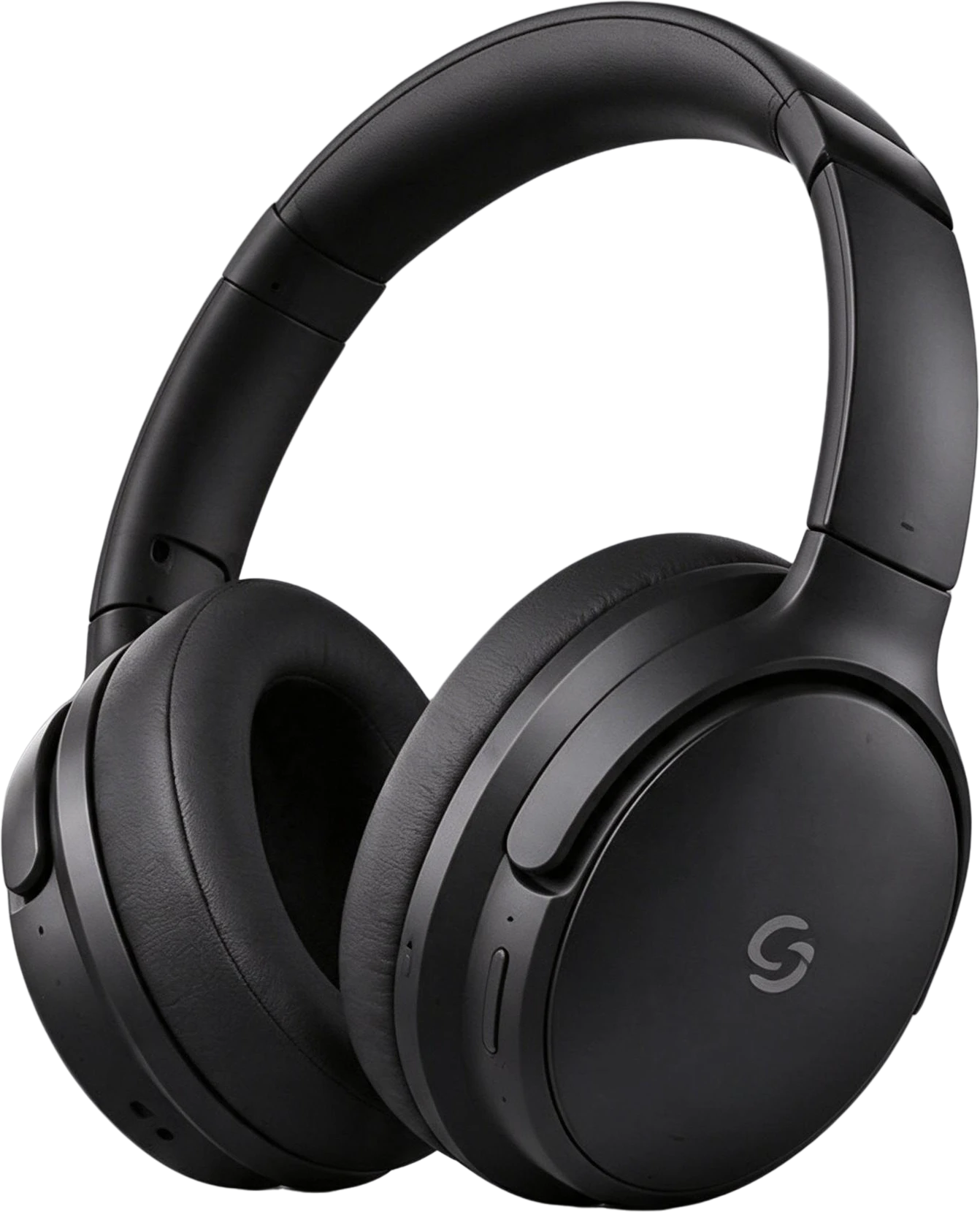
Headphones product banner, a real split: the flat image and the 8 named layers it became.
Split into layers in 66s: 7 named layers over the filled background.
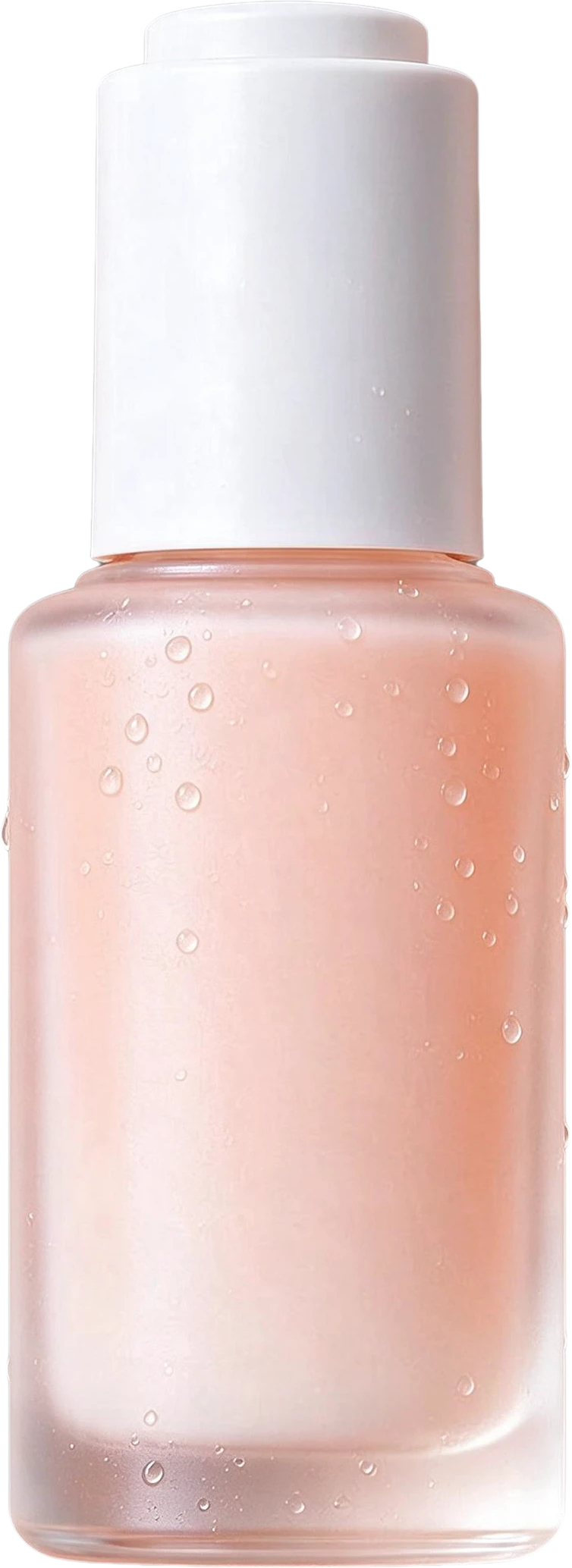
Skincare Instagram post, a real split: the flat image and the 8 named layers it became.
Split into layers in 80s: 7 named layers over the filled background.
AI-generated desk illustration, a real split: the flat image and the 10 named layers it became.
Split into layers in 100s: 9 named layers over the filled background.
Anime room illustration, a real split: the flat image and the 7 named layers it became.
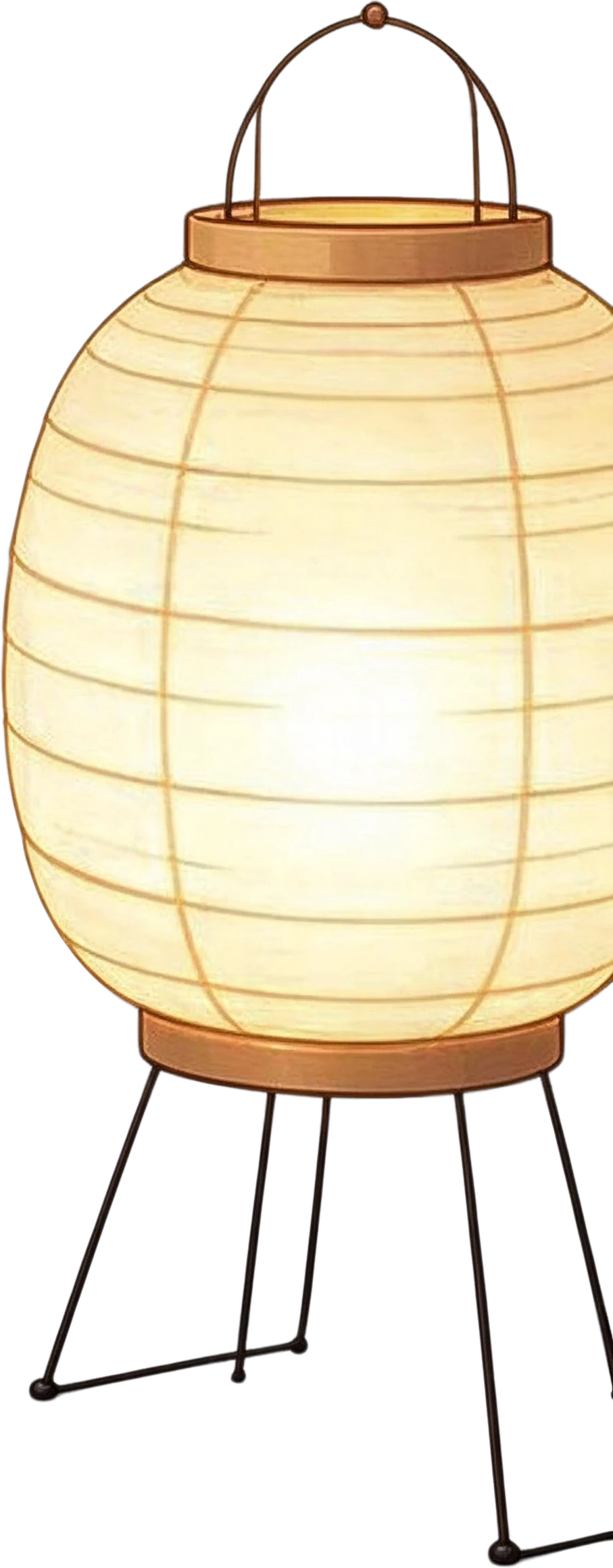
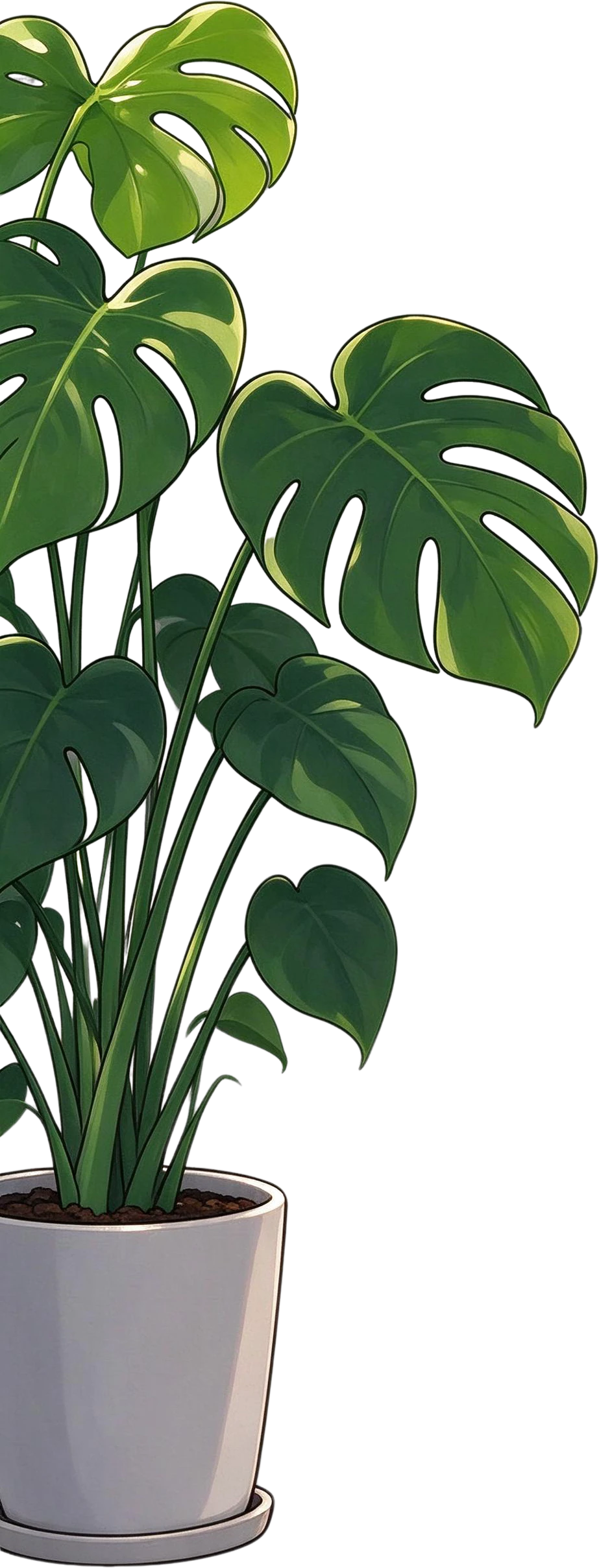
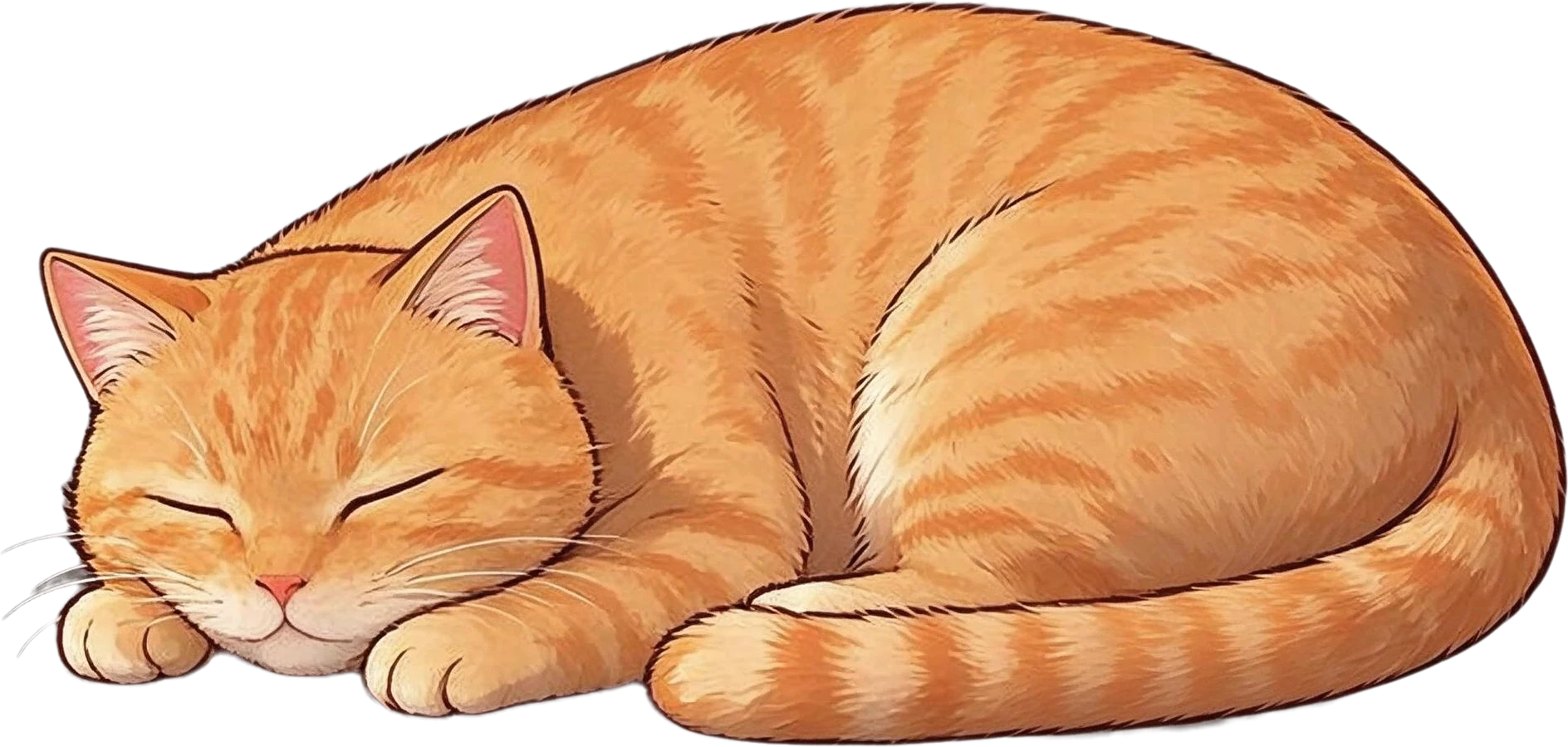
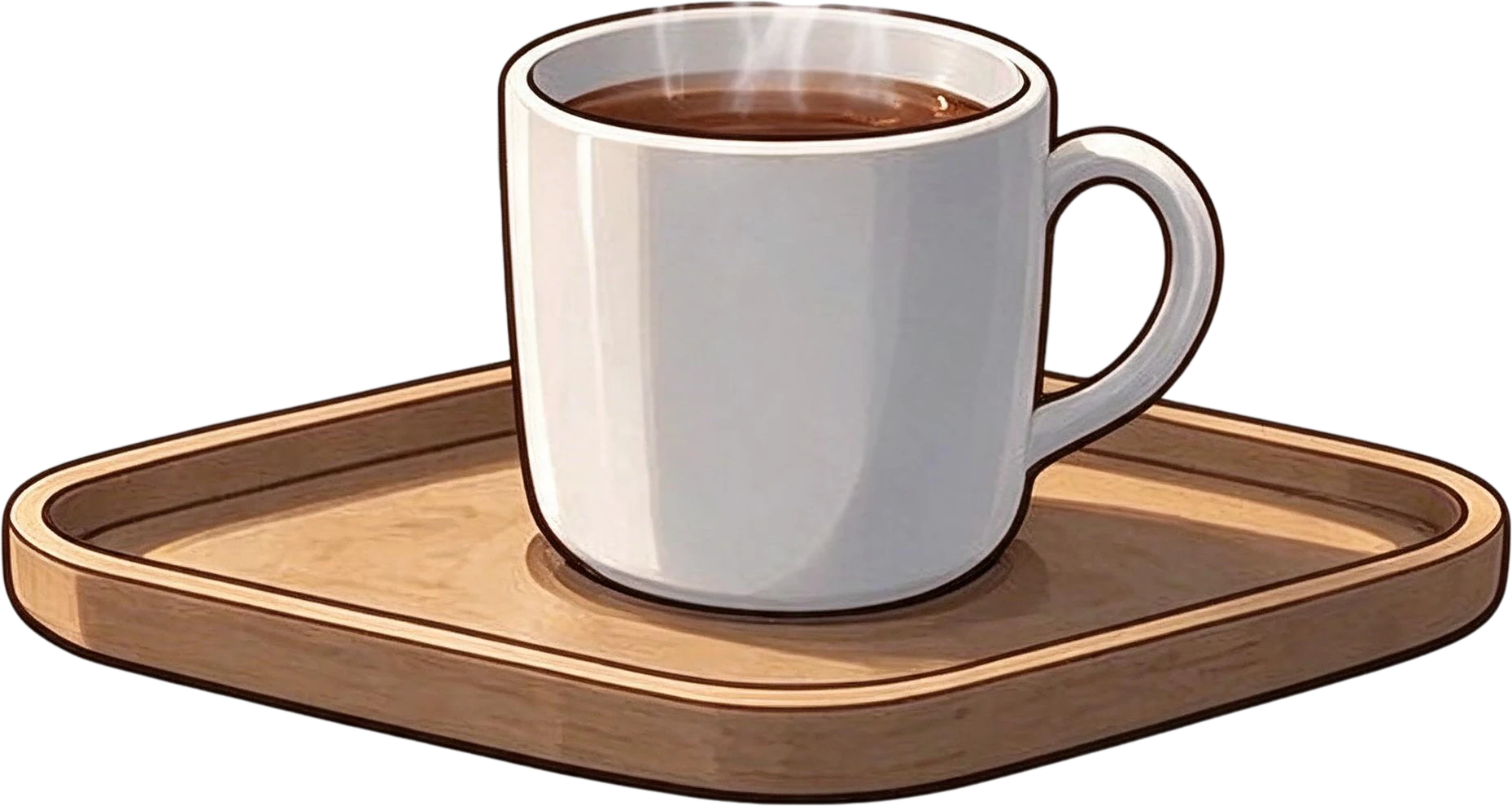
Split into layers in 63s: 6 named layers over the filled background, with the instruction “girl with dark blue hair holding an open book, orange sleeping cat, monstera plant in a white pot, stack of three books, mug of coffee on a wooden tray, paper lantern lamp on a stand”.
Growth report slide, a real split: the flat image and the 12 named layers it became.
Split into layers in 97s: 11 named layers over the filled background.
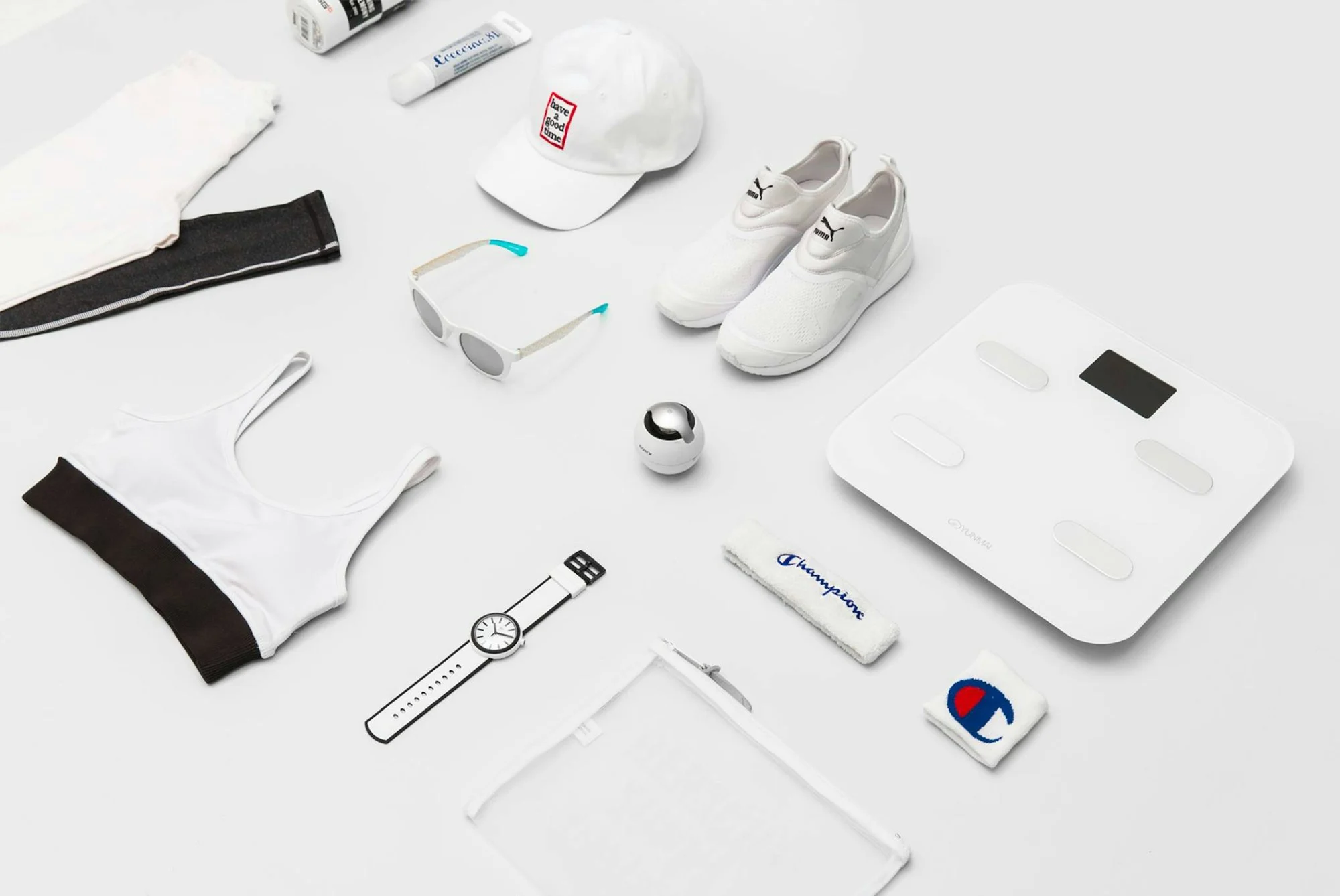
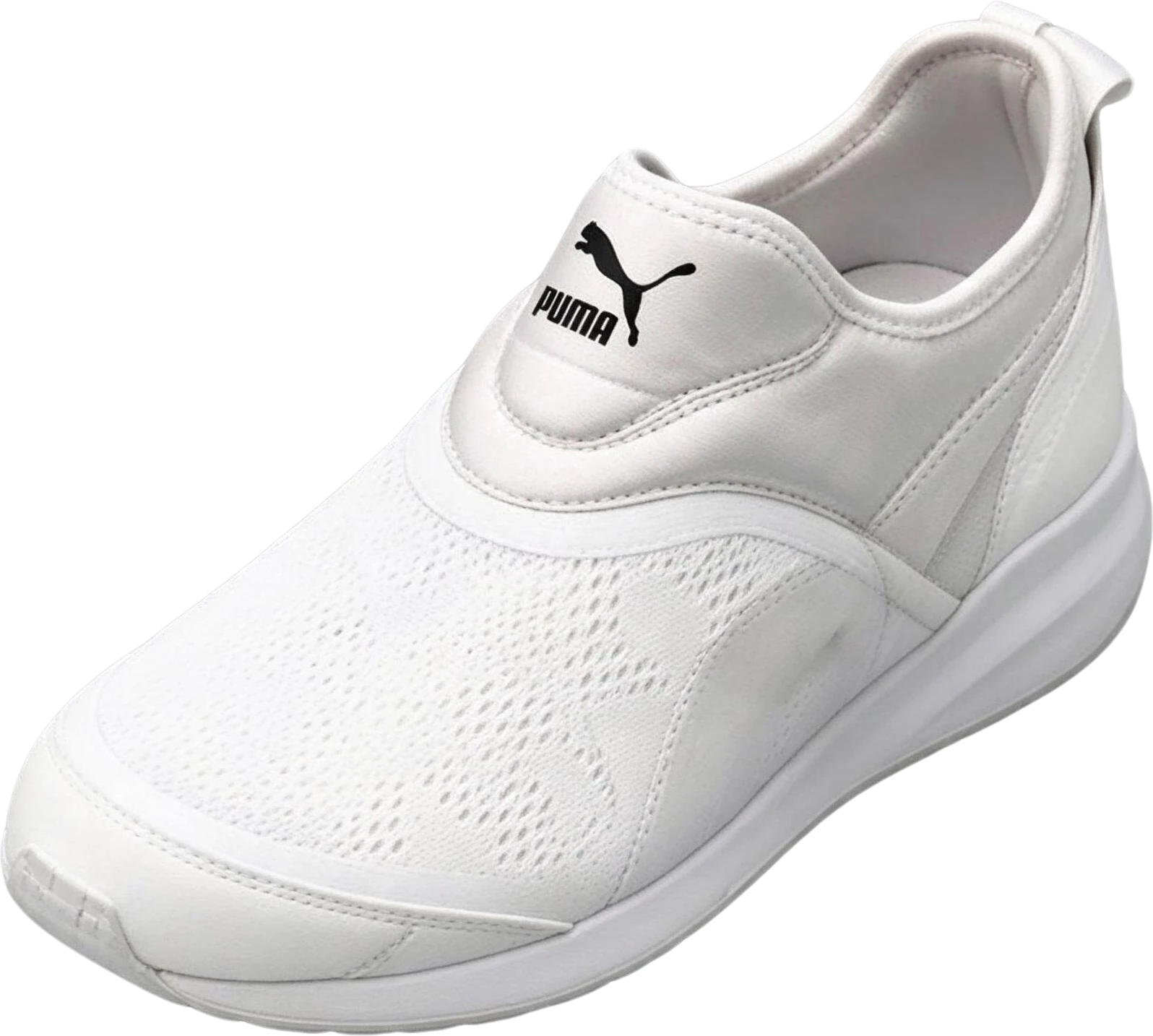
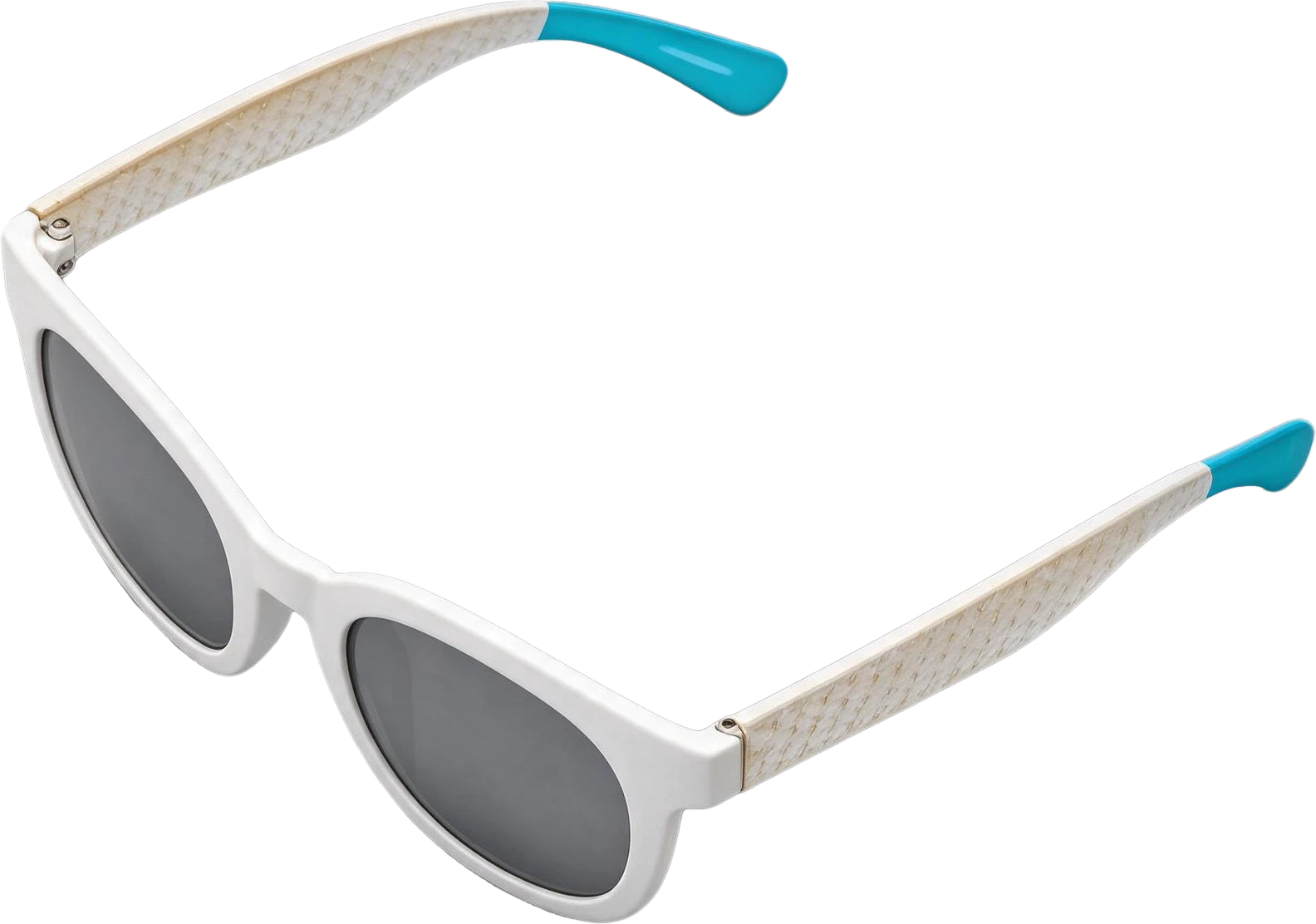
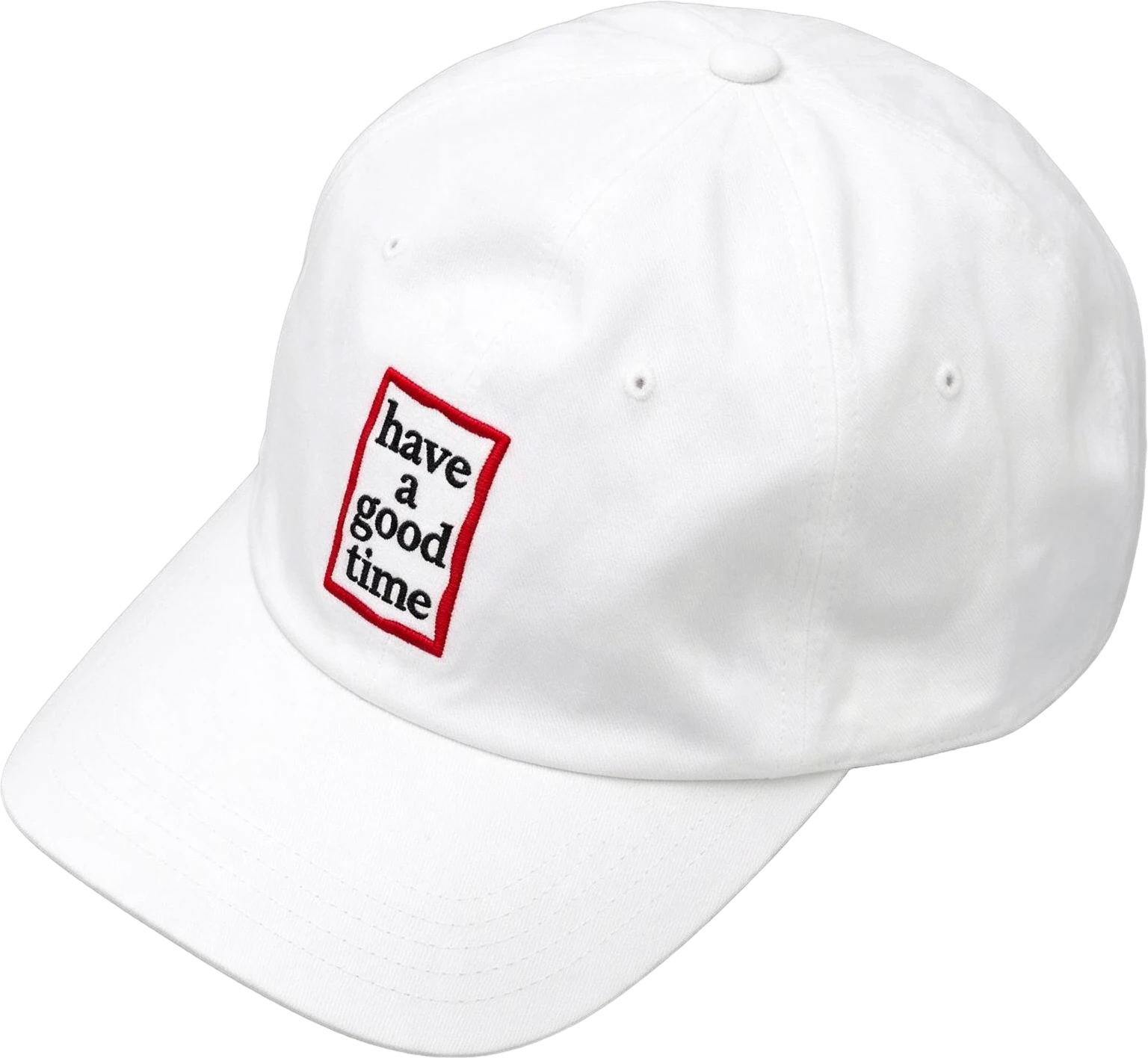
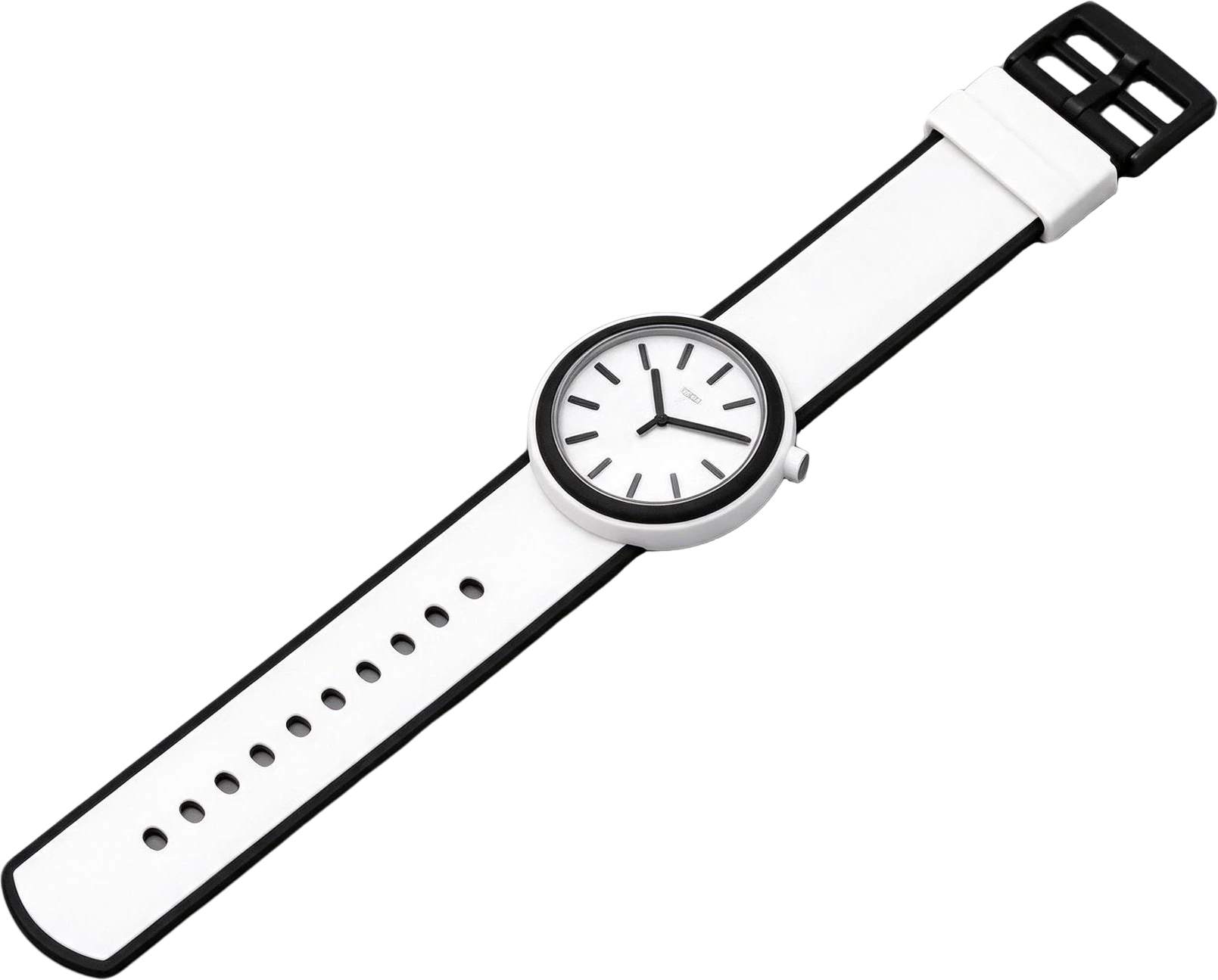
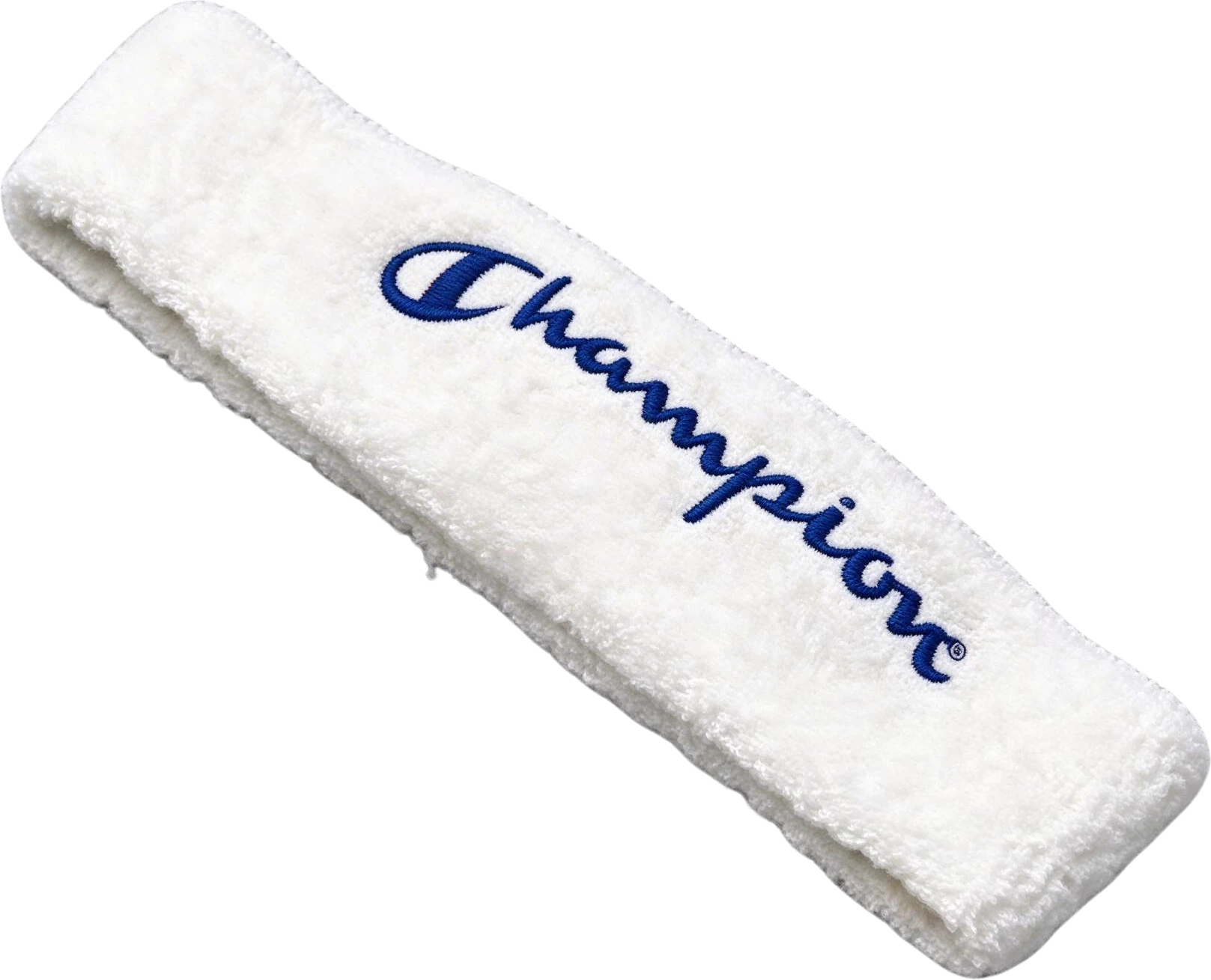
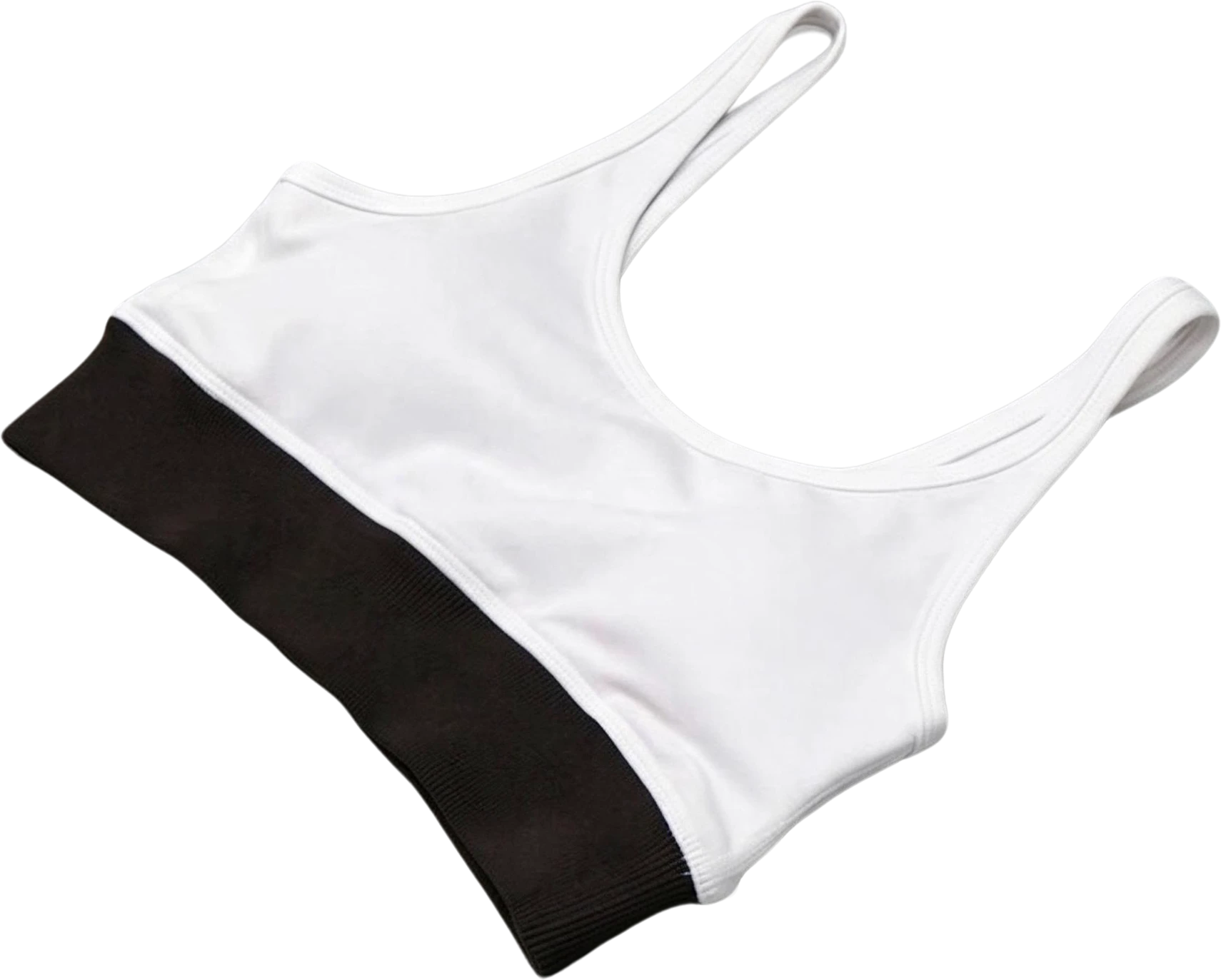
Sportswear flat-lay photo, a real split: the flat image and the 16 named layers it became.
Split into layers in 148s: 15 named layers over the filled background.
Two-person photo, a real split: the flat image and the 2 named layers it became.
Split into layers in 46s: 1 named layer over the filled background, with the instruction “Separate the woman on the right”.
1
Drop, paste or pick a PNG, JPG or WebP: a poster, a product banner, an AI image or a screenshot.
2
In 60–100 seconds, text, products and graphics each get their own transparent layer, and the background behind them is filled in.
3
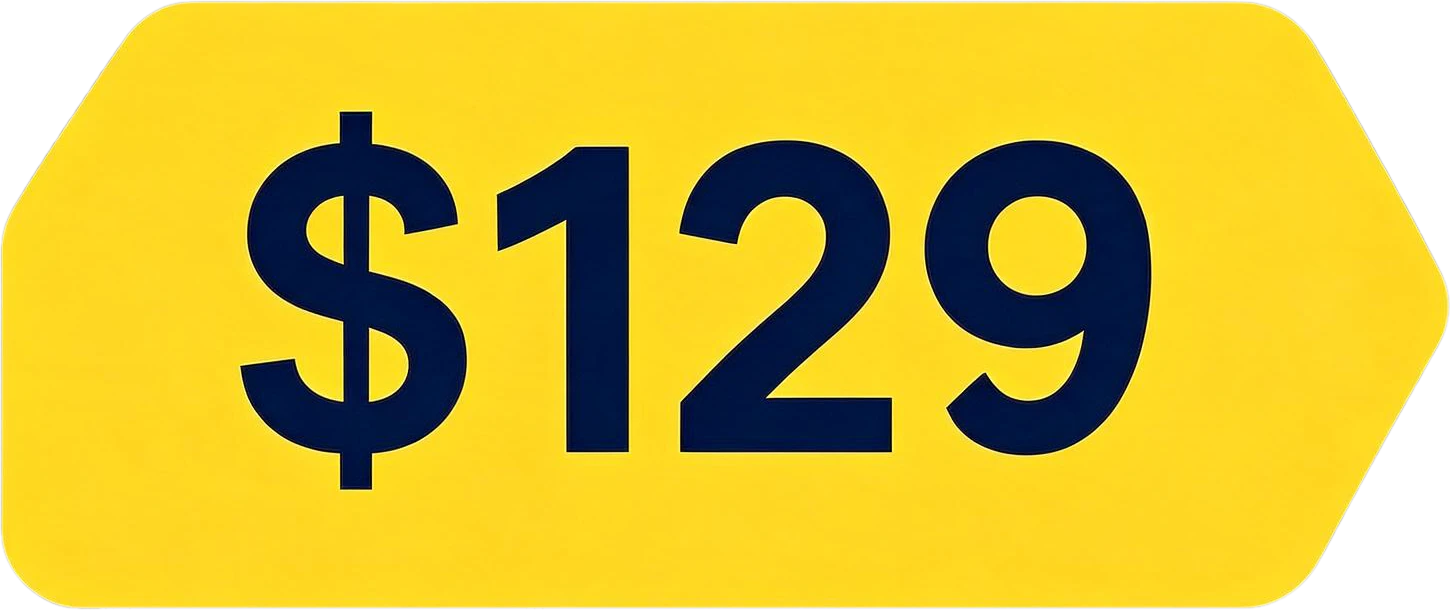
Every layer has a readable English name, like "Yellow Price Tag $129". Hide layers to see what is underneath.
4
Copy one layer straight into Figma, Photoshop or Canva, download it as PNG, or export everything as a ZIP or layered PSD.
Image to layers
LayerGrab is an AI tool that splits an image into editable layers: up to 16 separate transparent layers, one per element, each named, with the background behind them filled in. It exports PNG, ZIP or a layered PSD, can pull out just the object you name, and works on layergrab.com and as Photoshop, Figma, Sketch and Chrome plugins.
Image to layers means one flat file in and a stack of editable pieces out. Text, products and graphics each come back as a transparent layer with a readable English name, and the background behind them is painted in, so nothing leaves a hole when you move it.

Take the product, the badge or the illustration out of an image and drop it into your own design, with a clean transparent edge.
Every element sits on its own transparent layer at its original position, so it drops into a new layout at the right size.
Split a finished poster so the headline sits on its own layer over a clean background, then set new text for another market or offer.
Need the whole design as a Photoshop file instead? Use the PSD export.
AI images arrive as one flat picture. Splitting them lets you move, resize or remove one object without generating the whole image again.
Layers are named from what they contain, like “Mint green adjustable desk lamp”, so you find the one you want without clicking through Layer 1 to Layer 9.

10 layers
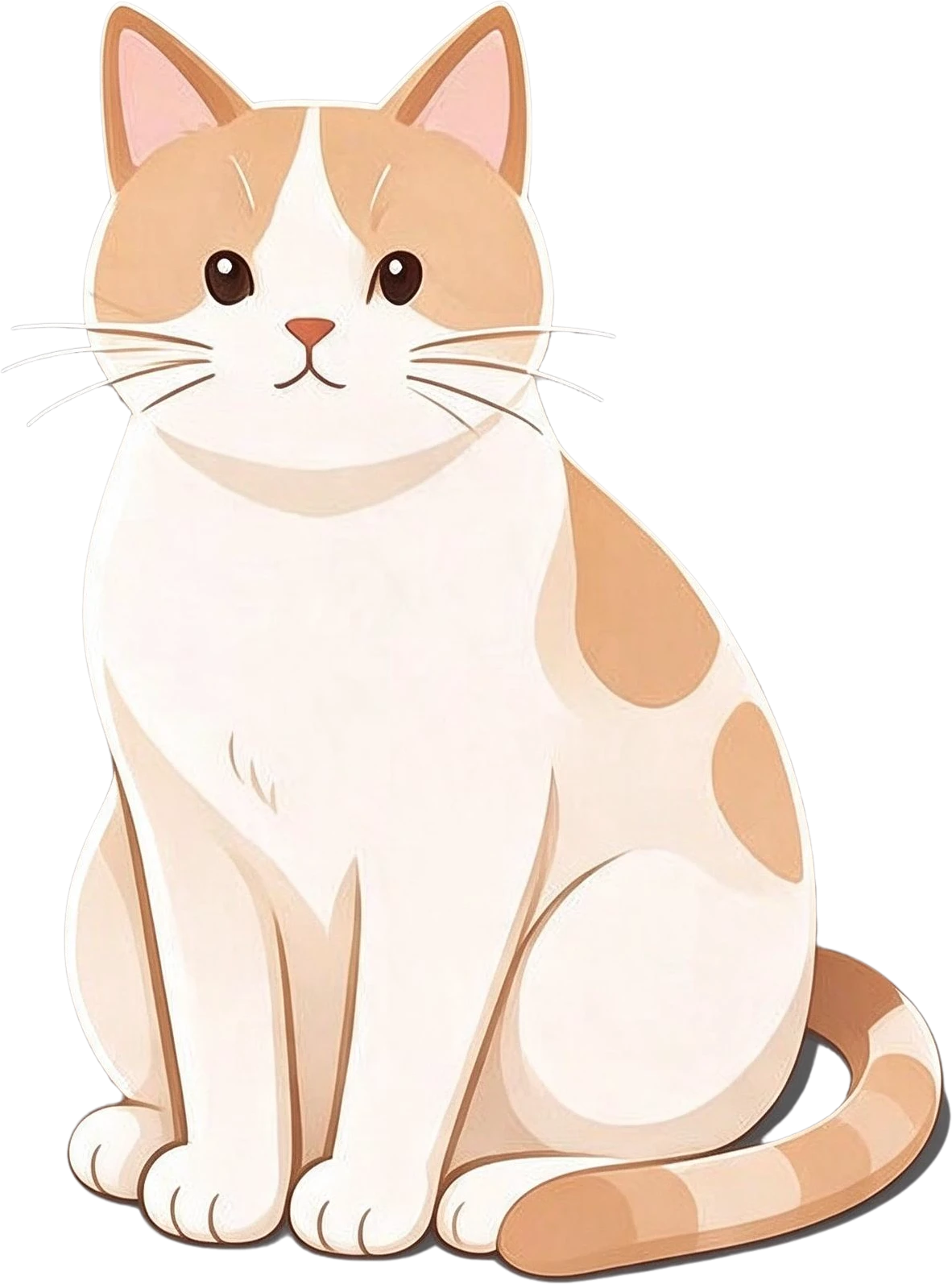 Sitting orange and white cat
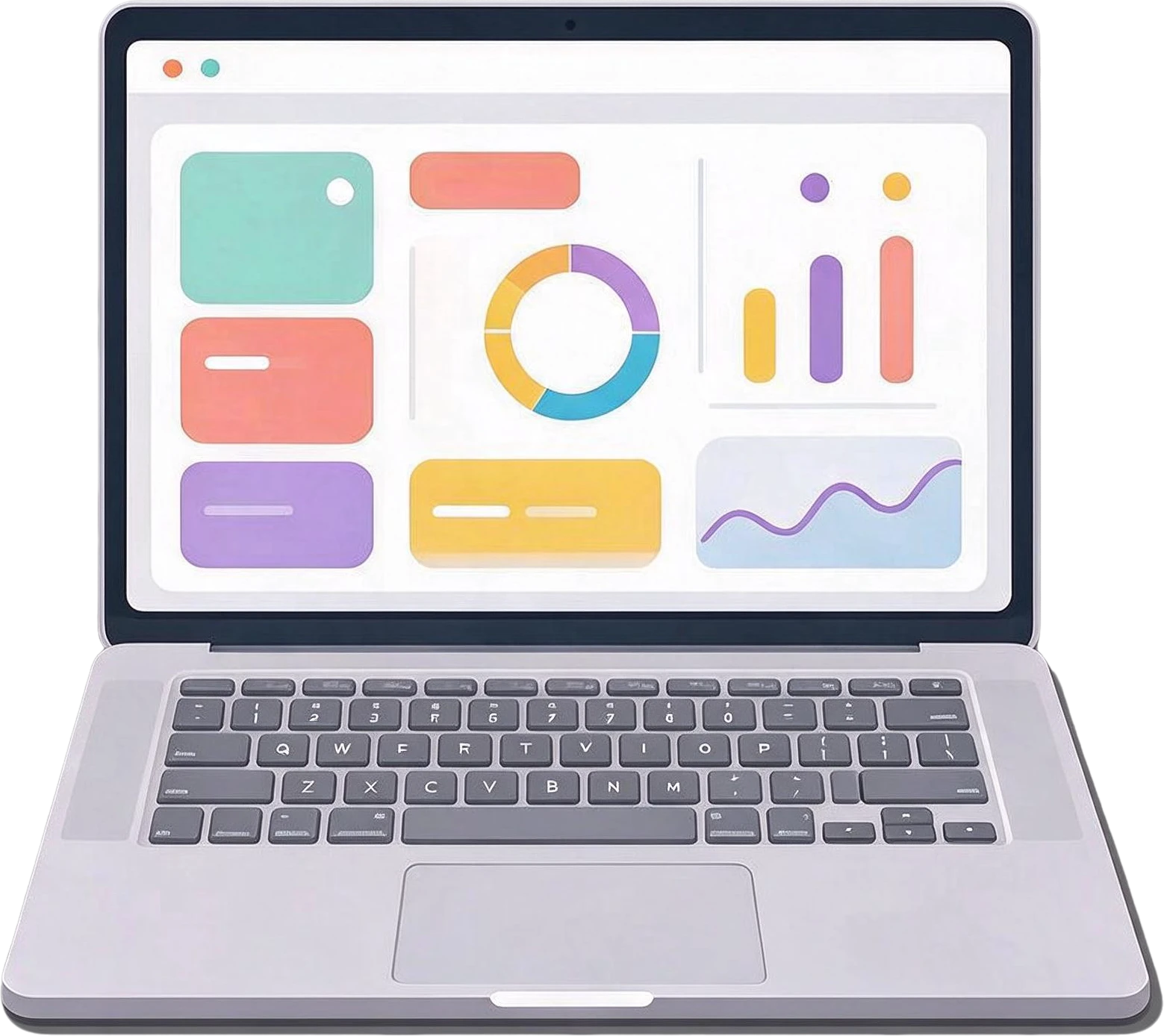 Laptop with data visualization screen
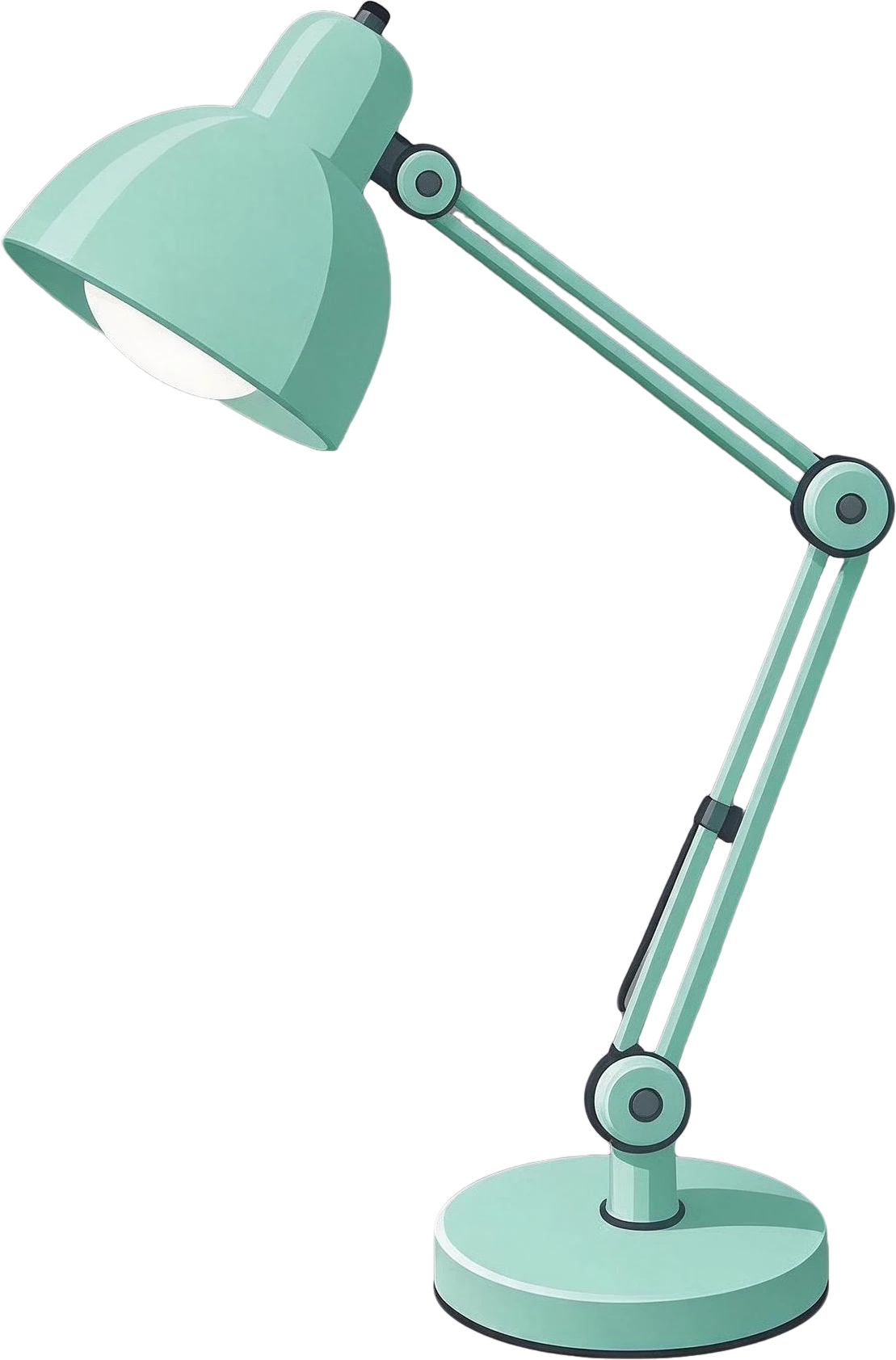 Mint green adjustable desk lamp
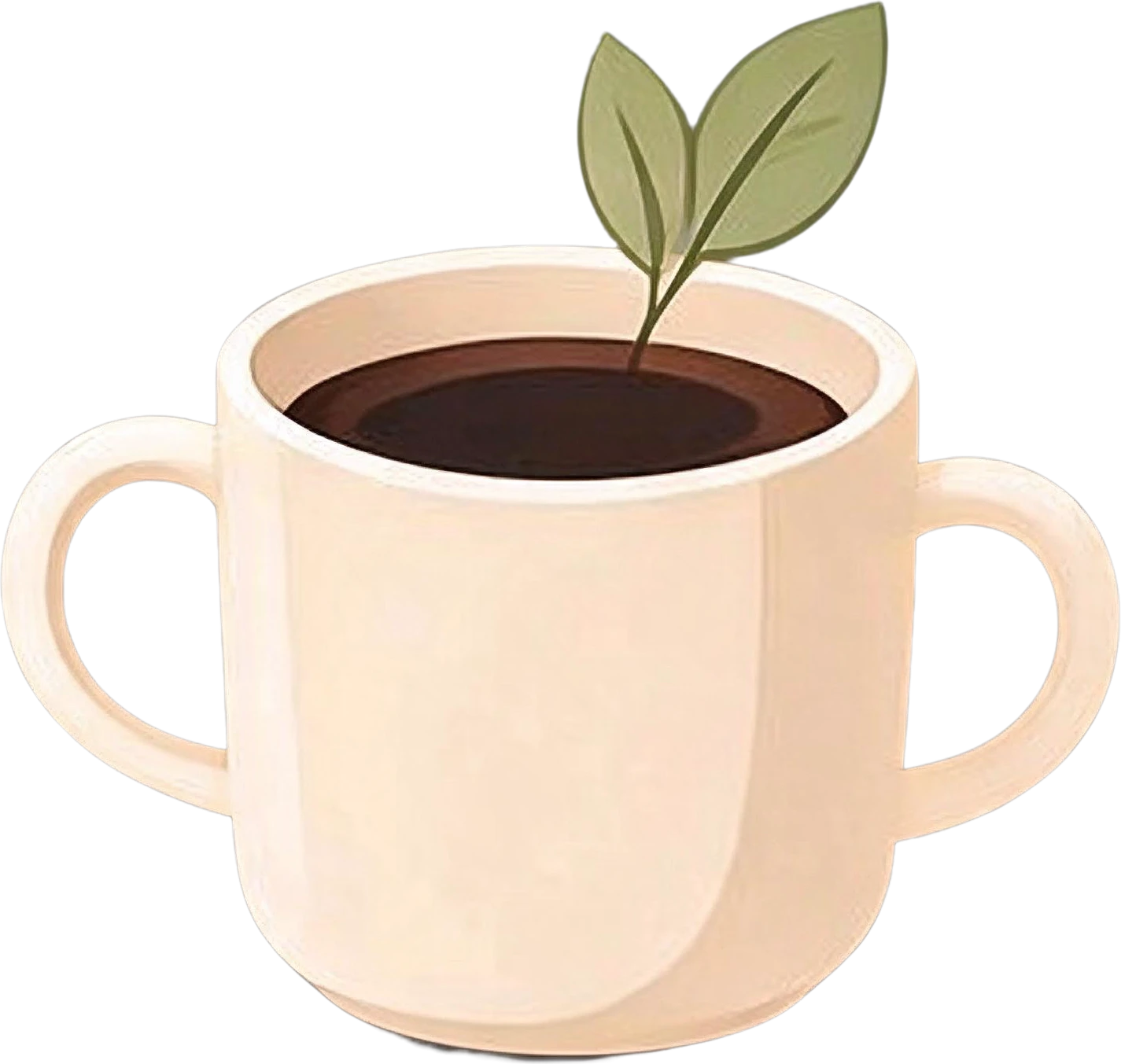 Potted plant in coffee mug
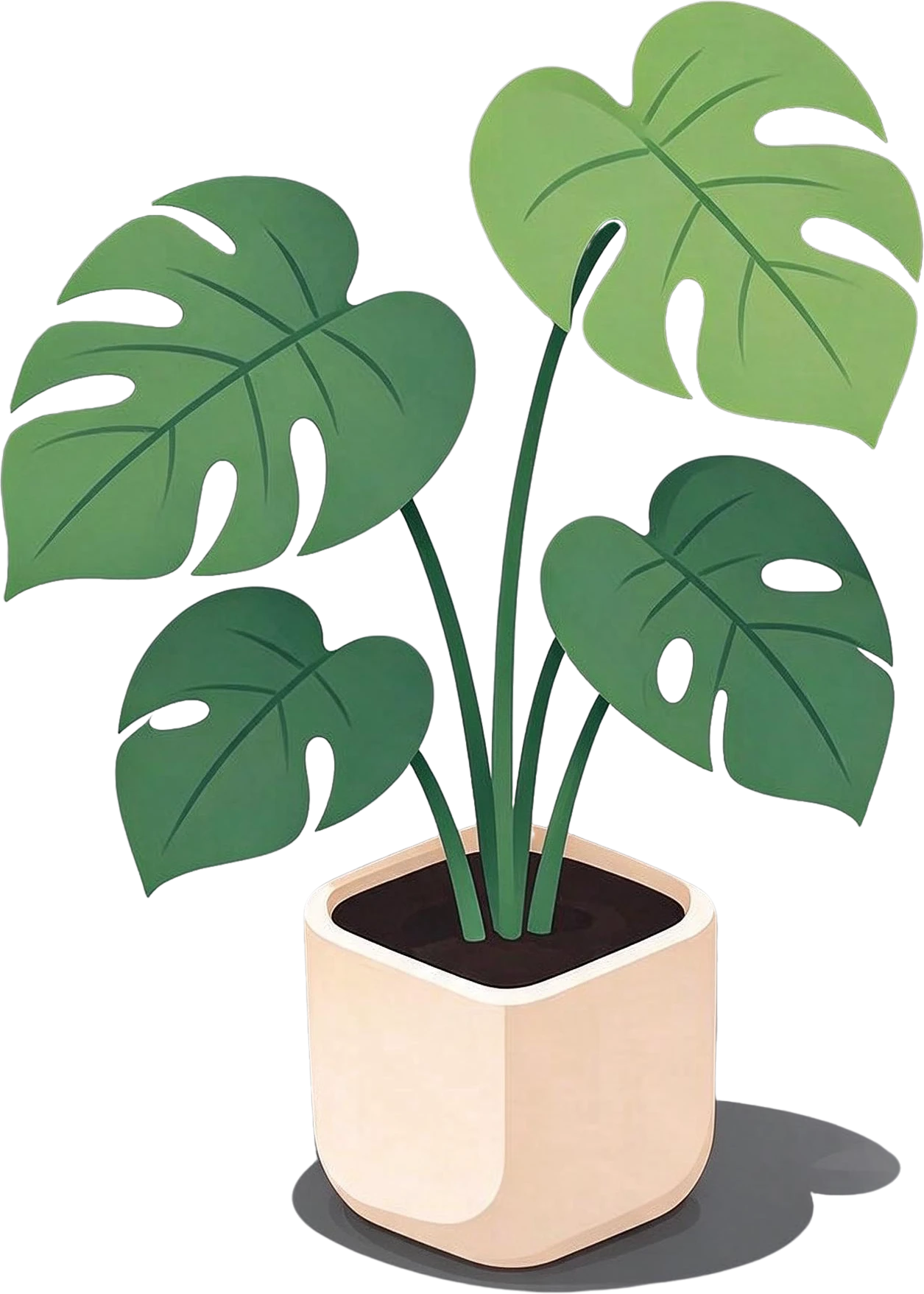 Monstera potted plant
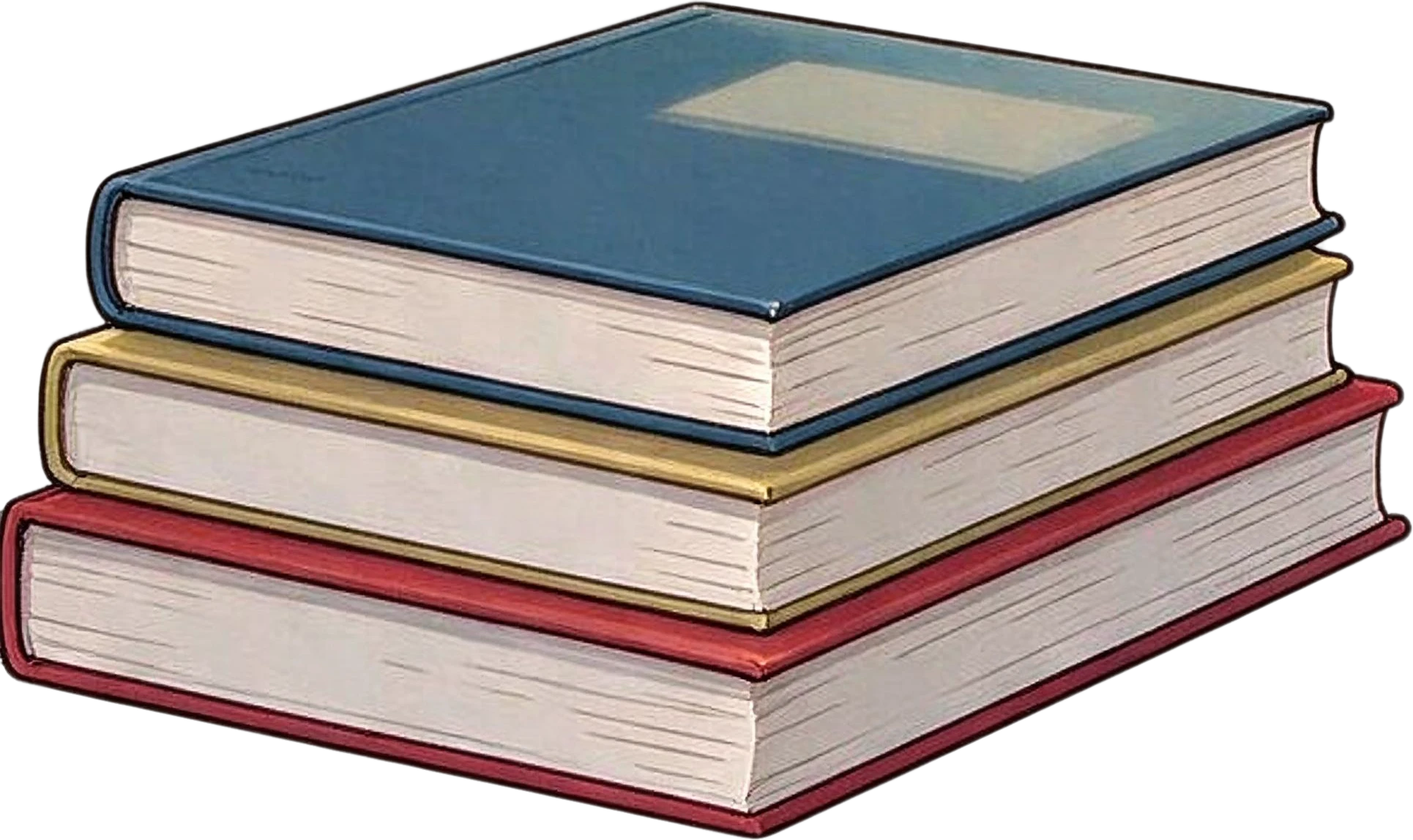
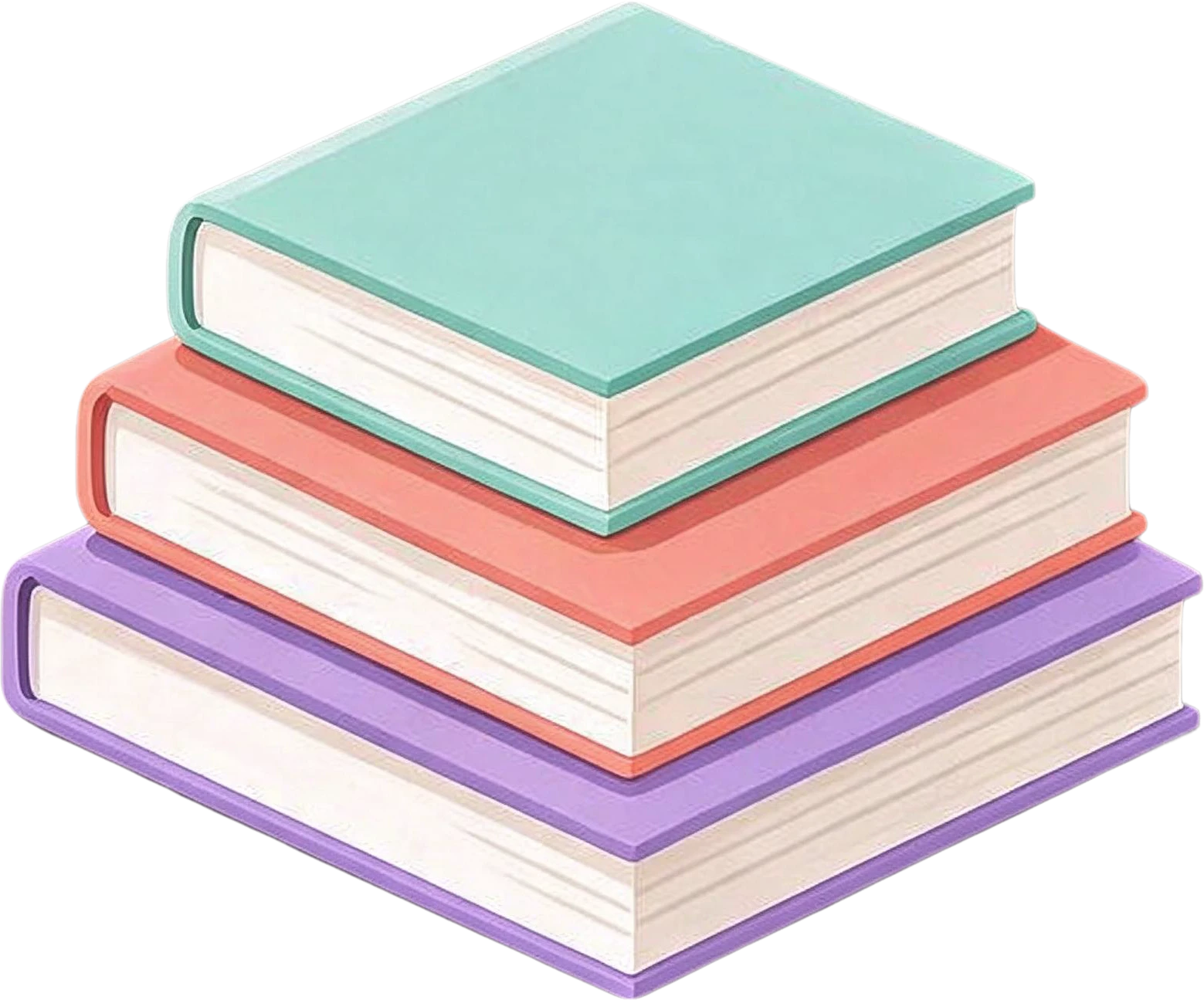 Stack of three books
 Background (filled)
When the source file is lost, turn the flat banner or ad back into layers so it can be edited and resized instead of redrawn.
Everything comes back at the size of the original, ready for Figma, Photoshop or Canva.
Adds the layers as a named group above your image, as one undo step.
Photoshop plugin
Rebuilds the image as a group of layers in place, aligned to the original. Available on Figma Community.
Figma plugin
Runs from the Plugins menu and places named image layers right over your selection.
Sketch plugin
Right-click any image on the web and split it in the side panel, then copy or download layers.
Chrome extension
Designers, marketers and small shops who work with images they did not make and do not have the layered source for: stock graphics, client assets, competitor ads, AI images, screenshots.
Converting the image to layers is the fastest route when you need one element out of a busy picture, or when a finished graphic has to change without being rebuilt.
Canva Magic Layers turns a flat image into movable pieces inside the Canva editor. LayerGrab does the same image to layers job for people who work in Photoshop and Figma, or who need the layers as files.
Checked 2026-09-28
Upload the picture to LayerGrab, the image to layers tool at the top of this page. In about a minute it returns every main element as a transparent layer of its own, with the background behind them filled in. You can then copy a single layer, download it as PNG, or export the whole stack as a ZIP or a Photoshop file.
You can open the sample splits on this page and use every feature for free, without an account. Every account gets one free split, and all of its layers download as PNG, ZIP or PSD. After that, splitting your own images uses credits: plans start at $12 a month for about 120 layers, or buy a one-time credit pack from $20.
Background removal keeps one subject and throws everything else away. Splitting keeps every element as its own layer, including text and small graphics, and also rebuilds the background that was hidden behind them, so nothing is lost.
The text comes back as its own image layer, not as editable type. The background behind it is filled in, so you can hide the text layer and set new text in its place in any design tool.
Designed images split best: posters, product banners, ads, social graphics and AI-generated images with clear, distinct elements. Busy real-world photos with overlapping objects split less cleanly.
Usually 7–10 layers, plus the filled background, and up to 16. The count depends on how many distinct elements the image contains.
Yes. Photoshop, Figma and Sketch plugins add the split as a named layer group directly above your image, and a Chrome extension splits images from any web page in a side panel. All use the same account and credits as the web app. The Figma plugin is on Figma Community and the Chrome extension is on the Chrome Web Store; the Photoshop and Sketch plugins are in testing before their stores.
Last updated 2026-09-29